How to Fix Google Pixel Not Working After Update

A monthly security patch or major Android system update is supposed to improve your device, but occasionally an update causes severe instability. If your Google Pixel is freezing, crashing, draining battery rapidly, or failing to boot properly right after an update, you are facing a common post-installation software conflict. Corrupted cache files, incompatible third-party apps, or interrupted background installations often cause these glitches.
Fortunately, you rarely need to replace your hardware to resolve these issues. Whether you are running a recent flagship like the Pixel 9 or Pixel 10 or maintaining an older model, practical troubleshooting methods can restore your phone to working condition. This guide walks you through the most effective fixes, starting with quick non-destructive repairs and progressing to complete recovery tools.
Perform a Forced Restart to Clear Temporary Memory
Immediately following an Android update, your Pixel runs multiple background migration tasks, rebuilding app runtimes and indexing local data. If a background process hangs during this window, the operating system can become unresponsive, leading to black screens, sluggish animations, or frozen touch controls. A standard software reboot may be impossible if the display does not register taps.
To break this loop, initiate a forced hardware restart. Press and hold both the Power button and the Volume Up button simultaneously for at least 30 seconds. On certain older Pixel models, holding down only the Power button achieves the same result. Keep the buttons depressed until the Google logo appears on the screen, then release them. This action disconnects software control, flushes the temporary volatile RAM, and forces the kernel to reload cleanly without erasing any of your personal files.
Boot into Safe Mode to Isolate Third-Party App Conflicts
When a Pixel malfunctions after a system update, outdated third-party applications are frequently the culprit rather than the core Android operating system itself. Apps that rely on deep system hooks, accessibility privileges, or custom launchers often crash repeatedly if their developers have not updated them for the newest API level. Safe Mode temporarily disables every installed third-party app, allowing you to test whether core system functions work normally.
To access Safe Mode when your phone is turned on:
- Press and hold the Power and Volume Up buttons to open the power menu.
- Touch and hold the Restart icon on the screen until the Reboot to safe mode dialog appears.
- Tap OK to confirm.
If your device is stuck in a boot freeze, turn the phone off completely. Press the Power button to turn it on, and as soon as the Google animation begins, press and hold the Volume Down button continuously until the lock screen loads. You will see Safe mode displayed in the lower-left corner. If your phone runs smoothly in Safe Mode, navigate to the Google Play Store, update all your apps, or uninstall recently downloaded utilities, screen filters, and background cleaners.
Clear System App Cache and Google Play Services Data
A system update changes internal libraries, but legacy cache files stored by core Google components can cause severe background crashes. Google Play Services and the Pixel Launcher manage notifications, system sync, background geolocation, and user interface rendering. When their cached tokens conflict with the updated system software, the phone can overheat, drain battery rapidly, or display repeated System UI isn't responding alerts.
To clear corrupt service caches, follow these steps:
- Open Settings > Apps > See all apps.
- Tap the three-dot menu icon in the upper-right corner and select Show system.
- Scroll down and select Google Play services.
- Tap Storage & cache, then tap Clear cache. Tap Manage space and select Clear All Data.
- Return to the app list, locate Pixel Launcher, tap Storage & cache, and tap Clear cache.
Restart your device after completing these steps. Your home screen icons may take a few seconds to reorganize, but this simple maintenance task resolves the vast majority of post-update UI crashes and excessive background battery drain.
Repair System Firmware Using the Official Pixel Update Tool
If an over-the-air (OTA) update encounters a network packet drop or storage write error during installation, system partitions can end up in an inconsistent state. Rather than wiping your device immediately, you can re-flash the complete, clean operating system firmware over USB using Google's official browser-based rescue tool. This process validates system integrity and repairs corrupted system files without touching your photos, messages, or app data.
To use the tool, you need a computer with a Chromium-based browser (such as Google Chrome) and a functional USB-C data cable:
- Turn off your Pixel phone completely.
- Press and hold Power and Volume Down together until the Fastboot Mode screen with the red warning triangle appears.
- Connect your phone to your computer via USB.
- On your computer, open Google Chrome and visit the official rescue utility at
pixelrepair.withgoogle.com. - Follow the on-screen instructions to select your mobile carrier and device model, then choose the option to reinstall the latest software build.
Ensure your computer remains connected to power and the cable remains undisturbed throughout the flashing process. The tool downloads the official cryptographic package directly from Google servers and restores your system partition.
Reset Network and Bluetooth Settings
A very specific but frequent complaint after Android updates is the sudden loss of cellular data, frequent Wi-Fi disconnects, or dropped Bluetooth audio connections. When the baseband radio firmware updates alongside the operating system, saved handshake keys and network protocols can fail to negotiate with your router or wireless carrier. This issue makes the device feel broken even when the rest of the interface responds normally.
You can rebuild these communication stacks without erasing your phone contents:
- Go to Settings > System > Reset options.
- Tap Reset Mobile Network Settings (or Reset Wi-Fi, mobile & Bluetooth on earlier firmware).
- Select your SIM or eSIM card if prompted, then tap Reset settings.
- Enter your device PIN or pattern to confirm.
After the reset finishes, restart your phone. Note that this procedure removes stored Wi-Fi passwords and paired Bluetooth peripherals, so you will need to re-enter your home Wi-Fi password and re-pair your smartwatches and headphones.
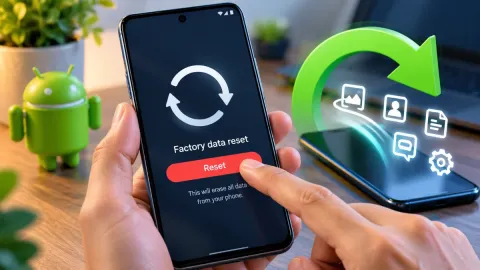
Perform a Factory Data Reset via Android Recovery
If your Pixel continues to crash, fail during startup, or experience extreme lag after trying all software fixes, a fundamental incompatibility in user data exists. A factory reset restores the phone to clean factory defaults while retaining the updated operating system version. While this step wipes local photos, downloads, and app configurations, it eliminates deep system file corruptions that simple reboots cannot reach.
If the device interface is completely inaccessible, you can execute the reset directly from the hardware recovery console:
- Power off your Pixel. Hold down Power and Volume Down until the Fastboot menu appears.
- Use the volume rocker buttons to cycle through options until you highlight Recovery mode, then press the Power button to select it.
- When the Android robot lying down with the text No command appears, press and hold the Power button, tap the Volume Up button once, and immediately release both.
- In the Android Recovery menu, use the volume keys to highlight Wipe data/factory reset and press Power.
- Select Factory data reset to confirm.
Once the formatting finishes, select Reboot system now. When the device restarts, log in with your primary Google account to restore your cloud backup, contacts, and cloud-synced photos.
The bottom line
A malfunctioning Google Pixel after a major update is frustrating, but it is almost always a temporary software synchronization failure rather than hardware damage. By methodically moving from a forced restart and Safe Mode diagnostics to clearing system caches and utilizing Google's official rescue tool, you can resolve the issue without losing your data. If your phone still exhibits severe instability after a clean recovery reset, contact Google Store Support or visit an authorized repair center to verify whether a preexisting hardware component suffered an electrical failure during the installation cycle.
Frequently asked questions
Can I downgrade my Google Pixel to the previous Android version?
While technically possible by unlocking the bootloader and flashing an older factory image, downgrading is not recommended and is often blocked by Android rollback index protection (anti-rollback). Furthermore, unlocking the bootloader wipes all user data and disables security-sensitive applications like Google Wallet and banking apps.
Why is my Pixel battery draining so fast after an update?
Immediately after an update, Android runs intensive background optimization tasks, such as ART compilation, database indexing, and cache generation. This heavy background processing often causes temporary battery drain and device warmth for 24 to 48 hours. If excessive drain persists, clear the cache for Google Play Services.
Will using the official Pixel Repair Tool void my warranty?
No. The Pixel Repair Tool hosted on pixelrepair.withgoogle.com is an official Google support service designed specifically for consumer diagnostics and firmware recovery. Using it does not void your warranty or trip security flags.
What should I do if my Pixel screen stays completely black after updating?
First, connect your Pixel to an official fast charger and wait 15 minutes to eliminate battery exhaustion. Next, press and hold both the Power and Volume Up buttons simultaneously for 30 to 40 seconds to force a hardware reboot. If the phone vibrates but the screen remains dark, test connecting the device to an external monitor or use the Pixel Repair Tool via a computer.