Why Is Your Router Blinking Orange? How to Fix It
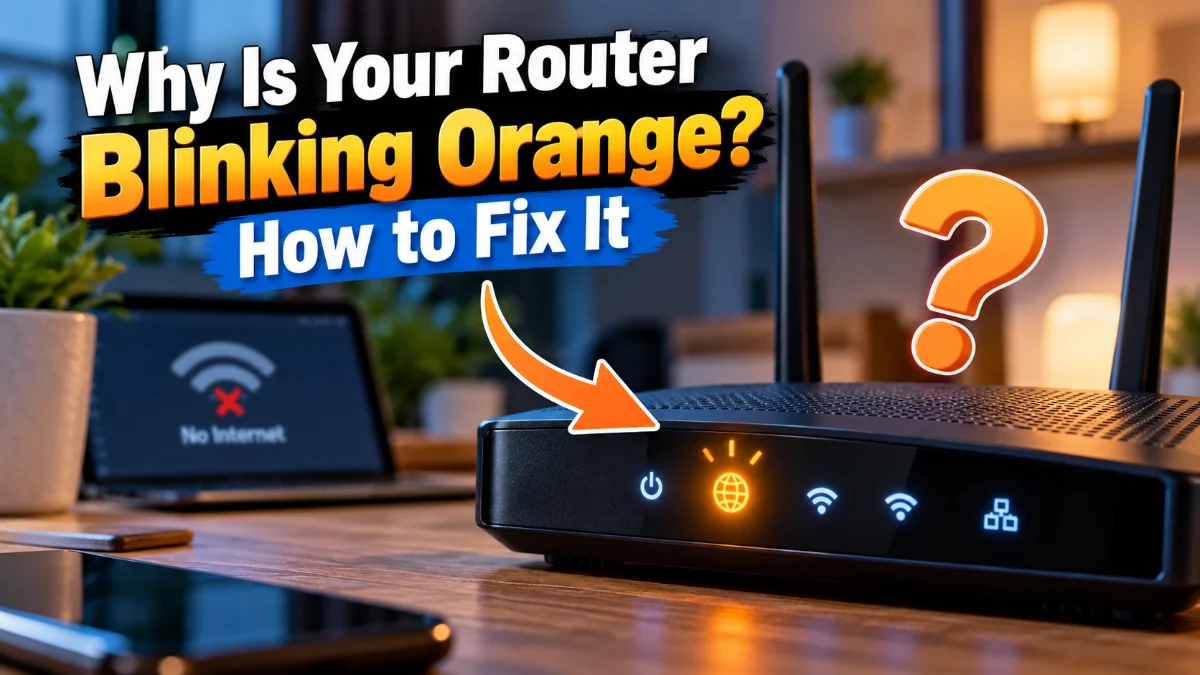
A router blinking orange almost always indicates that your network equipment cannot establish a working internet connection with your Internet Service Provider (ISP). While your router might power on successfully and broadcast a local Wi-Fi signal to your phones and computers, it is failing to receive a valid wide area network (WAN) IP address, cannot reach your provider's gateway, or has lost physical contact with your broadband modem.
Different router manufacturers use orange or amber LEDs to communicate specific states, ranging from a damaged Ethernet cable to an active ISP outage or an interrupted firmware update. Before you replace any expensive hardware, you can pinpoint the exact cause and resolve the problem using a systematic troubleshooting routine.
Understanding What the Orange Light Means on Different Brands
Router manufacturers design their LED indicators to provide quick diagnostics, but color schemes vary slightly between models. On most consumer routers from brands like Netgear, TP-Link, Asus, Linksys, and ISP-provided gateways, a solid white or green LED indicates a normal connection, while orange or amber signals a warning.
| Router Brand | LED Behavior | Primary Meaning |
|---|---|---|
| Netgear | Blinking amber on Internet icon | Modem sync failure, cable negotiation error, or no WAN IP |
| TP-Link | Blinking orange or amber | Ethernet cable unplugged, modem offline, or ISP authentication failed |
| Asus | Blinking red or orange WAN LED | No physical cable connection or ISP gateway unreachable |
| Linksys | Pulsing or blinking amber | Internet signal not detected during startup or normal operation |
| ISP Hubs (Sky, BT, Spectrum) | Flashing orange or amber | Broadband synchronization in progress or service connection lost |
A fast-blinking orange light usually suggests that the router is actively attempting to establish a handshake or download a firmware patch. A slow, steady blink typically points toward a missing physical signal, such as an unplugged broadband line or a modem that is refusing to assign an IP address.
Power Cycle Your Modem and Router in the Correct Sequence
The single most effective fix for an orange internet light is a full power reset, but order of operations matters. If you restart both devices simultaneously or restart the router before the modem, the router will request an IP address before the modem finishes establishing its upstream and downstream broadband channels, leaving the LED flashing orange.
- Unplug the power cables from both your standalone broadband modem (or fiber optical network terminal) and your Wi-Fi router.
- Leave both devices completely disconnected from power for at least 60 seconds to clear residual charge and reset internal memory buffers.
- Plug your modem back into wall power first. Watch its front lights and wait two to three minutes until the power, downstream, upstream, and online lights settle into their stable green or white states.
- Plug your Wi-Fi router back into power. Allow it two to three minutes to boot up and request a fresh dynamic host configuration protocol (DHCP) lease from the modem.
In many cases, this controlled reboot forces your ISP's central server to release stale connection bindings and issue a fresh network lease, turning the blinking orange light back to solid white or green.
Inspect Ethernet Cables and Physical WAN Ports
A physical connection fault between your modem and router instantly triggers an amber or orange alert. Ethernet cables contain fragile copper twisted pairs and delicate plastic retention clips that can degrade, loosen, or crack over time due to tension or accidental tugging.
Check the rear panel of your router to confirm that the Ethernet cable coming from your modem is plugged into the dedicated WAN or Internet port, which is usually colored blue or yellow and set apart from the numbered LAN ports. Unplug the cable from both the modem and the router, examine the connector clips for physical damage, and push each end back in firmly until you hear an audible click.
If the router continues blinking orange, swap the cable with a verified Cat 5e, Cat 6, or Cat 6a patch cord. A micro-fracture inside an old cable might still supply partial voltage but fail the high-frequency packet transmission tests required by your router's network controller, causing the port status light to flash amber.
Check for Local Internet Service Provider Outages
When your hardware is working properly but cannot detect an incoming signal from your provider's local node, your router displays an amber light. Infrastructure repairs, downed utility poles, cut fiber lines, and unscheduled maintenance can sever your broadband connection without any prior warning.
Disconnect your smartphone from your local Wi-Fi and use cellular data to inspect your provider's official service dashboard or mobile application. Most major telecom providers (such as Comcast Xfinity, AT&T, Charter Spectrum, BT, or Virgin Media) update real-time service maps when regional outages occur.
If you have a fiber connection, take a close look at your Optical Network Terminal (ONT), the box mounted to your wall where the fiber enters your building. If the PON (Passive Optical Network) light is flashing or the LOS (Loss of Signal) light is glowing solid red, the problem originates outside your house, and no router troubleshooting will fix it until field technicians restore the fiber link.
Log into Your Router Dashboard to Inspect Connection Status
If the physical wiring and ISP status check out, your router software may be stuck on an authentication failure or DNS hang. You can access the router's internal web dashboard from a connected computer or phone to see the exact error code your router generates.
- Connect your computer to the router using a spare Ethernet cable, or connect to the Wi-Fi network (which usually remains broadcast even without active internet).
- Open a web browser and type your router's default gateway IP address into the address bar, typically
192.168.1.1or192.168.0.1, then press Enter. - Sign in using your administrative credentials, which are printed on the label beneath the router chassis if you haven't changed them.
- Navigate to Network > Internet or WAN Settings and inspect the Internet IP Address.
If the IP address displays 0.0.0.0, click the button labeled Renew or Release and Renew to force a fresh lease handshake. If your ISP requires PPPoE authentication (common with DSL and some fiber services), verify that your account username and password have not expired or reset.
Perform a Clean Factory Reset and Firmware Recovery
When a router's internal operating system encounters corrupted flash memory or stalls halfway through an automatic overnight firmware upgrade, the hardware becomes unresponsive and leaves the internet LED blinking amber continuously. A factory reset wipes bad routing tables and restores initial settings.
While the router is powered on, locate the small pinhole labeled Reset on the rear or bottom casing. Straighten a paperclip, press gently into the pinhole until you feel the interior microswitch click, and hold it firmly for 10 to 15 seconds. Release the pinhole once the LED indicators turn off and flash simultaneously.
Allow five minutes for the router to rebuild its internal file system and boot to factory defaults. Once the boot finishes, connect to the default Wi-Fi network printed on the unit's sticker, open your web browser, and complete the initial setup wizard. During setup, make sure to install the latest stable firmware update, which resolves lingering manufacturer bugs related to WAN handshake dropouts.
The bottom line
A router blinking orange is a direct signal that the router cannot exchange data with your ISP, whether due to physical cabling issues, a temporary modem desynchronization, or a service outage in your neighborhood. By following a sequential reboot, inspecting Ethernet integrity, verifying WAN settings, and performing a clean reset if necessary, you can resolve the amber light error and restore full internet connectivity quickly.
Frequently asked questions
Is a blinking orange light worse than a solid orange light?
A solid orange light usually means the router detects a physical cable connection but cannot obtain an IP address or reach the internet. A blinking orange light generally indicates an active attempt to connect, an ongoing firmware installation, or an intermittent physical signal.
Can a damaged wall outlet or surge protector cause an orange light?
Yes. If your modem or router does not receive stable voltage, its power supply capacitors may fail to drive the internal broadband tuner or Ethernet transceiver, causing repeated reboot loops and a flashing orange status light.
Why did my router start blinking orange after a thunderstorm?
Power surges or lightning near external utility lines often trip circuit protectors inside neighborhood fiber nodes or destroy the sensitive Ethernet transceiver on your modem's WAN port. Inspect your hardware for burnt smells and contact your ISP to test line continuity.
Does an orange light mean my Wi-Fi router is broken?
Not necessarily. In more than 80 percent of cases, the router itself is functioning properly and is simply alerting you that the incoming internet signal from the modem or ISP line is missing.