How to Fix Laptop Not Turning On
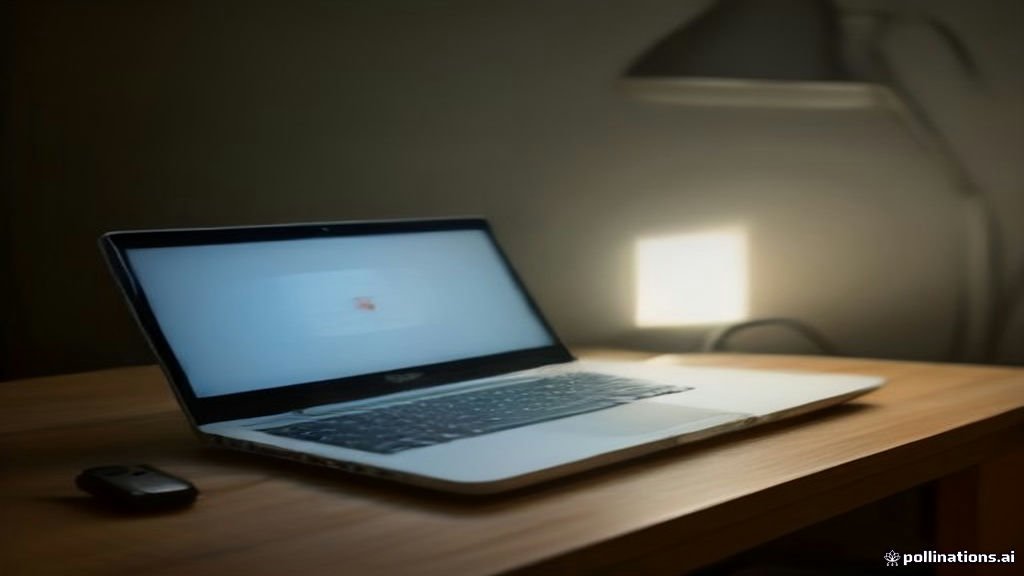
When your laptop refuses to turn on, start by identifying whether the device is receiving electrical power, stuck in a deep sleep state, or encountering a hardware failure during pre-boot checks. In most cases, a depleted battery, a faulty charging adapter, or trapped residual power inside the internal capacitors prevents the motherboard from initiating startup.
Before you consider sending the machine to an expensive repair shop, you can diagnose and resolve the issue yourself using a structured troubleshooting sequence. This guide walks you through verifying your power components, performing an electrical hard reset, waking an unresponsive screen, and testing internal hardware on modern Windows laptops.
1. Inspect the Charger, AC Adapter, and Wall Outlet
The most common reason a laptop shows zero signs of life is a complete lack of power delivery. Modern USB-C and proprietary barrel chargers can fail without visible physical damage, or the wall outlet itself may have tripped a breaker. Begin by plugging another appliance into the same wall socket to confirm the outlet works properly. Avoid using unpowered surge protectors, passive multi-plug splitters, or cheap travel adapters during testing, as they frequently drop voltage.
Next, carefully examine the charger cable and power brick for signs of fraying, kinks, bent connector pins, or overheating. Plug the charger into your laptop and locate the charging status LED, which is usually situated beside the power port or on the front edge of the chassis:
- Solid white or amber light: The laptop detects power and the battery is actively charging or fully charged. Leave it connected for at least 30 minutes before trying to power on.
- Blinking or pulsing LED: This usually signals insufficient wattage, a loose handshake on USB-C Power Delivery (PD) lines, or a severely drained battery entering trickle-charge mode.
- No light at all: The laptop is not receiving any current. Try a different wall outlet, switch to an alternative certified USB-C PD charger (rated at 65W or higher for standard laptops), or replace the damaged adapter cable.
2. Perform a Hard Power Reset to Drain Residual Electricity
Capacitors on your laptop motherboard can hold residual electric charges that prevent the power management controller from registering a press of the power button. A 60-second flea power reset drains this trapped energy and forces the embedded controller (EC) to reboot into a fresh state, which frequently restores power without affecting any stored personal data.
Follow these steps to conduct a proper hard reset:
- Disconnect the AC power adapter, USB flash drives, wireless mouse dongles, external monitors, and memory cards.
- If your laptop has an older removable battery, unlock the latches and take the battery out of the bay. If your laptop has a built-in battery (standard on modern laptops), leave it in place.
- Press and hold the physical Power button down continuously for 30 to 45 seconds. Do not release it early, as the motherboard needs this full duration to deplete capacitor reserves.
- Reconnect only the original AC adapter directly into the charging port without inserting external accessories or secondary batteries.
- Press the Power button once normally to check if the laptop boots.
If the device powers up, you can safely shut it down normally via Windows, reinstall the removable battery if applicable, and reconnect your everyday accessories.
3. Wake the Display and Test for Screen Blackouts
Sometimes a laptop is actually running, but an unresponsive screen tricks you into believing the entire system is dead. Listen closely to the chassis: if you hear fans spinning, notice the keyboard backlighting turn on, or hear the familiar Windows startup chime, the motherboard is active while the display pipeline has stalled.
First, attempt to wake the graphics subsystem. Press Win + Ctrl + Shift + B simultaneously on your keyboard. You should hear a short system beep and notice a brief flicker as Windows forces the display driver to reload. In addition, tap the display brightness keys (often Fn + F6 or Fn + F7 depending on your manufacturer) to verify that the backlight was not accidentally dimmed to zero.
If the panel remains dark, connect your laptop to an external monitor or television using an HDMI or USB-C DisplayPort cable. If the external display immediately shows your Windows desktop, your laptop is operating normally, but its internal display cable has loosened or the LCD panel backlight has failed, requiring panel repair.
4. Disconnect All Peripherals and External Docks
Faulty USB peripherals, shorted cables, and unpowered docking stations can cause the laptop power delivery system to trigger an emergency thermal or electrical shutdown. When a plugged-in peripheral draws excessive current or sends an invalid wake signal, the laptop motherboard refuses to pass the initial Power-On Self-Test (POST) to safeguard internal chips.
Unplug everything connected to your machine, including:
- External keyboards, mice, and gaming controllers.
- Thunderbolt docking stations and multi-port USB hubs.
- External solid-state drives, flash thumb drives, and SD cards.
- Headphones, DACs, and external audio interfaces.
Once all ports are completely bare, press the power button. If the laptop powers on normally, reconnect your devices one at a time to identify which accessory is shorted or causing the boot stall. Be especially suspicious of damaged USB cables with bent internal metal pins that can touch the port housing and cause an active electrical ground fault.
5. Disconnect the Internal Battery and Use the Emergency Pin Reset
Many modern laptops, notably models from Lenovo, Acer, and ASUS, feature a hardware reset pinhole on the bottom casing designed to physically disconnect the internal battery circuit. If your device remains unresponsive after a basic power cycle, locate this pinhole on the underside of the laptop. Insert a straightened paperclip into the hole, press down gently until you feel a micro-switch click, hold it for 10 to 15 seconds, and then plug in your charger before attempting to turn it on.
If your model does not have an external pinhole and you are comfortable working with basic electronics, you can disconnect the battery manually:
| Laptop Brand | Built-in Battery Reset Method | Key Diagnostics Indicator |
|---|---|---|
| Lenovo ThinkPad / IdeaPad | Bottom emergency pinhole button or disconnect internal pack | Power LED blinks three times upon AC connection |
| Dell Inspiron / XPS | Hold power button for 30 seconds while unplugged | Front light flashes amber/white error codes |
| HP Pavilion / Envy | Hold Win + B + Power for 3 seconds | Caps Lock LED blinks in diagnostic sequence |
| ASUS ZenBook / Vivobook | Hold Power button for 40 seconds on AC power | Charging indicator changes from orange to white |
After disconnecting the internal battery cable from the motherboard, connect the AC charger directly and power on the machine. If the laptop boots up immediately without the battery attached, your battery pack has failed or suffered an internal cell short and must be replaced.
6. Run Motherboard Diagnostics and Clear CMOS Settings
Corrupted BIOS or UEFI firmware settings can freeze a laptop between power-on and the operating system handoff, leaving the machine in a semi-powered limbo where lights flash but nothing loads. Clearing the CMOS (Complementary Metal-Oxide Semiconductor) memory resets hardware clocks, memory timings, and voltage profiles back to safe factory defaults.
To trigger a BIOS auto-recovery on major modern laptops, shut down the device, hold down the brand-specific key combination, and plug in the power cord:
- HP Laptops: Press and hold Win + B (or Win + V), press the power button for 2 seconds, then release the power button while continuing to hold the letters until the BIOS recovery screen appears.
- Dell Laptops: Hold Ctrl + Esc while plugging in the AC adapter until the BIOS Recovery utility loads on screen.
- Lenovo and others: Press the dedicated Novo Button or rapidly tap F2 or F12 immediately upon pressing power to enter the setup menu.
Once inside the firmware interface, select Load Setup Defaults or Optimized Defaults, save your changes, and restart. This resolves memory training stalls, clears broken sleep states, and allows the Windows bootloader to initialize cleanly.
The bottom line
Diagnosing a laptop that will not turn on comes down to isolating power sources, clearing lingering electrical charges, and confirming the display hardware functions. By working through these steps systematically, you can resolve the majority of power and startup failures at home. If the charging indicator never lights up despite testing multiple confirmed functional chargers, the motherboard power delivery circuit or internal DC-in jack may need professional hardware repair.
Frequently asked questions
Why won't my laptop turn on even when it is plugged in?
If your laptop fails to start while plugged in, the charger may not be supplying sufficient voltage, the charging port could have bent or broken pins, or the battery might have suffered an internal short that trips the power controller. Test with a known working wall outlet and compatible charger, or perform a 45-second hard power reset.
Can a completely dead battery stop a laptop from turning on?
Yes. Some laptops route all incoming electrical current through the battery circuit before passing it to the motherboard. If the battery is deeply discharged, degraded, or has an open circuit, the laptop may refuse to power on until the battery receives enough trickle charge to reach minimum operating threshold.
What does it mean if the power light comes on but the screen is black?
This indicates the laptop successfully passes initial power distribution but stalls during the display initialization or Power-On Self-Test (POST). Press Win + Ctrl + Shift + B to reset the graphics driver, adjust screen brightness, or connect an external monitor via HDMI to see if the internal screen backlight has failed.
How do I know if my laptop charger is broken?
Check the charging status LED on your laptop when the adapter is inserted. If the LED does not illuminate, the power brick remains cold after being plugged in, or the cable feels loose and wobbles inside the charging jack, the charger or its connector is likely damaged.