How to Fix Google Pixel Boot Loop
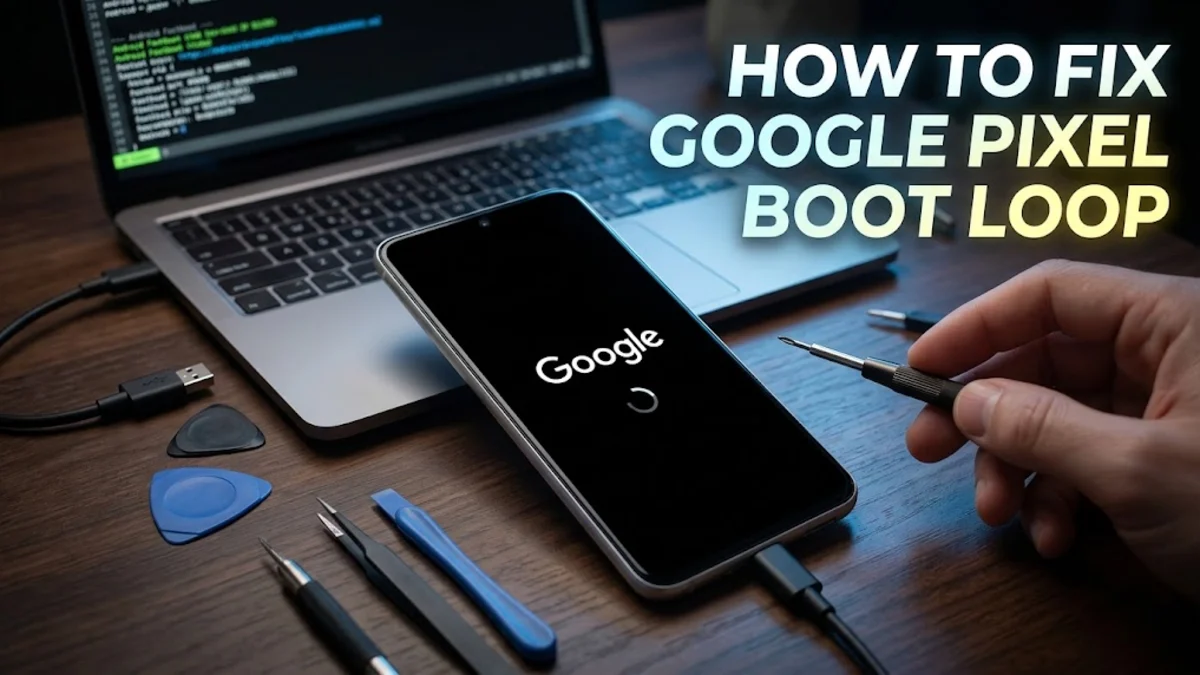
A Google Pixel boot loop is a frustrating situation where your phone repeatedly restarts and fails to reach the home screen. This usually happens when the Android operating system encounters a critical error during the startup sequence, often staying stuck on the G logo or the loading animation. In most cases, this is caused by corrupted system files, a failed over-the-air (OTA) update, or incompatible third-party applications.
While a boot loop can look like a total hardware failure, it is frequently a software-based conflict that can be resolved without visiting a repair shop. Whether you are using a Pixel 9 Pro or the latest Pixel 10 series, the troubleshooting steps follow a specific hierarchy from simple forced restarts to more advanced recovery techniques. This guide will walk you through the process of diagnosing the cause and applying the correct fix to get your device back into working order.
Understanding the Causes of a Pixel Boot Loop
Before diving into the fixes, it is important to understand why your Google Pixel is stuck in a loop. In 2026, most boot loops on Android 16 or 17 devices are the result of the A/B partition system failing to switch correctly. Modern Pixels use two system partitions; if an update installs incorrectly on one, the phone tries to boot from it, fails, and then attempts to roll back. If both partitions encounter issues, the device enters a continuous reboot cycle. This can be triggered by a low battery during an update or a sudden loss of internet connectivity while the system is verifying the update package.
Another common cause is corrupted app data in the system cache or a third-party app that has gained deep system permissions and is now crashing the System UI. This often occurs right after a major OS upgrade when older apps are no longer compatible with the new architecture. Less frequently, physical hardware issues can be the culprit. A stuck power button is a classic Pixel problem that simulates a boot loop because the device constantly receives the 'restart' signal. Similarly, a failing lithium-ion battery that can no longer provide a consistent voltage during the high-power-draw startup phase may cause the phone to shut down and try again indefinitely.
Force a Hard Restart and Test Safe Mode
The first and simplest step is to break the cycle by forcing a hard restart. This clears the temporary volatile memory and can sometimes bypass a minor software glitch. To do this, press and hold both the Power button and the Volume Up button simultaneously for at least 30 seconds. Do not let go until the screen goes completely black and the Google logo reappears. In many cases, this manual interruption forces the hardware to re-initialize the boot sequence correctly.
If the phone successfully reaches the G logo but loops shortly after, you should attempt to enter Safe Mode. Safe Mode loads the operating system without any third-party applications running. To enter Safe Mode during a boot loop, wait for the G logo to appear, then immediately press and hold the Volume Down button until the phone finishes booting. If the phone starts in Safe Mode (indicated by a label at the bottom left), a third-party app is definitely the cause. You should then go to Settings > Apps > See all apps and uninstall any recently updated or suspicious applications before restarting normally.
Using the Pixel Repair Tool and Rescue OTA
Google provides a specialized web-based tool for Pixels that is far more effective than standard Android troubleshooting. The Google Pixel Update and Software Repair Tool is designed to fix startup issues by re-installing the latest firmware without necessarily wiping your data. To use this, you will need a computer with the Chrome browser and a high-quality USB-C cable. Connect your Pixel to the computer and put the phone into Fastboot Mode by holding the Power and Volume Down buttons while the device is off.
Once in Fastboot, navigate to the official Pixel Repair website. The tool will verify your device and offer a 'Rescue OTA' option. This is a critical feature because it replaces the entire system image with a fresh, verified copy from Google's servers. Unlike a factory reset, a Rescue OTA attempts to keep your photos and files intact while repairing the underlying OS. It is the most professional way to fix a boot loop caused by a corrupted update or a damaged system partition. Ensure your internet connection is stable, as the tool will download several gigabytes of data during the repair process.
Clearing System Data via Recovery Mode
If the repair tool is unavailable, you must use the built-in Recovery Mode to perform more drastic actions. Start by entering Fastboot Mode (hold Power and Volume Down). Use the volume keys to scroll through the options until you see Recovery Mode in red, then press the Power button to select it. You will likely see an image of a fallen Android robot with the text 'No command.' To bypass this screen, hold the Power button and then press the Volume Up button once, then release both.
In the Recovery menu, you no longer have a 'Wipe Cache Partition' option on modern Pixels (it was removed in favor of the A/B system), but you can perform a Graphics Test or Run Locale Test, which sometimes triggers a system re-verification. However, the most effective step here if you want to avoid a full wipe is to select Apply update from ADB. This allows a technician or an advanced user to 'sideload' a fresh OTA image from a PC using the command adb sideload [filename].zip. This is essentially the manual version of the Pixel Repair Tool and is highly effective at fixing loops when the automated tool fails to recognize the device.
The Last Resort: Factory Data Reset
When all other software fixes fail, a Factory Data Reset is necessary. This will erase every piece of data on your device, including photos, messages, and app data, returning the phone to its original factory state. Only proceed with this if you have a cloud backup or have accepted that the data is unrecoverable. In the same Recovery Mode menu accessed in the previous step, use the volume buttons to highlight Wipe data/factory reset and press the Power button to confirm.
The device will ask for a second confirmation. Select Factory data reset. Once the process is complete, select Reboot system now. If the boot loop was caused by a deep-seated software corruption or a malicious file, the phone should now boot into the 'Welcome' setup screen. Be aware that Factory Reset Protection (FRP) will be active; you will need the original Google Account credentials previously used on the phone to unlock it. If the phone continues to loop even after a factory reset, the problem is almost certainly hardware-related, such as a failed NAND flash storage chip or a processor soldering issue.
Checking for Hardware Triggers
Sometimes the 'loop' isn't software at all, but a mechanical failure. A very common issue with the Google Pixel series involves the Power button becoming physically stuck or gunked up with debris. If the button is stuck in the 'pressed' position, the phone will constantly trigger a reboot. You can test this by clicking the button repeatedly or using a small amount of high-percentage (90%+) isopropyl alcohol on a cotton swab to clean around the button housing. Rapidly tapping the button can sometimes dislodge a stuck internal spring.
Additionally, check your USB-C port for lint or metallic debris. A short circuit in the charging port can interfere with the power management IC (Integrated Circuit), causing the device to fail the 'Power On Self Test' (POST) and restart. Use a non-metallic toothpick to gently clean the port. If your Pixel feels excessively hot during the boot loop, it may be a thermal safety shutdown. Let the device cool down completely, plug it into a verified PD (Power Delivery) charger for 30 minutes, and then try the forced restart again. If none of these physical checks work, it is time to contact Google Support for a warranty claim or a motherboard replacement.
The bottom line
Fixing a Google Pixel boot loop requires a systematic approach, starting with a simple forced restart and moving toward the Google Pixel Repair Tool. Most software-induced loops can be resolved by sideloading a Rescue OTA or, in extreme cases, performing a factory reset. If the device remains stuck after these steps, hardware failure is the likely culprit. By following this guide, you can confidently determine whether your Pixel can be saved at home or requires professional repair.
Frequently asked questions
Will a boot loop delete my photos?
If you can fix the loop using Safe Mode or the 'Rescue OTA' via the Pixel Repair Tool, your photos will remain safe. However, if you have to perform a 'Factory Data Reset' from Recovery Mode, all data not backed up to Google Photos or the cloud will be deleted.
How do I fix a Pixel stuck on the Google logo?
The most effective fix for a Pixel stuck on the G logo is to use the Google Pixel Repair Tool on a computer. Connect the phone in Fastboot mode and select the 'Rescue' option to reinstall the system software without wiping your personal data.
Can a bad battery cause a boot loop?
Yes. If the battery is old or damaged, it may not be able to provide the necessary peak voltage during the intensive startup process. This causes the system to crash and restart, creating a loop that only ends when the phone is plugged into a high-wattage charger.
What is the 'No Command' screen in Recovery Mode?
The 'No Command' screen is a security layer in Android recovery. To enter the actual menu, hold the Power button and press the Volume Up button once. This will reveal the options to wipe data or apply updates via ADB.
Why did my Pixel start looping after an update?
This usually happens because of a corrupted download or an interruption during the 'optimizing apps' phase. The A/B partition system likely failed to verify the new update, leaving the phone unable to boot into the new OS version.