Fix Android Phone Not Working on Wi-Fi

Diagnosing the problem requires a structured approach that moves from simple interface glitches to deeper system and router handshake conflicts. By isolating whether the glitch stems from hardware handshakes, randomized MAC addresses, or custom DNS resolvers, you can restore full internet access across Android 15 and Android 16 quickly without erasing personal data.
Verify the Local Network and Restart Radios
Before tweaking detailed Android settings, determine whether the breakdown exists on your smartphone or at the gateway router. Check whether laptops, smart TVs, or another handset on the same network can access websites. If all hardware is disconnected, power-cycle your modem and router by removing the power plug for 30 seconds before reconnecting. Solid green or white status lights confirm the modem has acquired an upstream IP lease from your internet service provider.
If the network works on other hardware, refresh the wireless radio on your phone. Swipe down twice from the top of the display to access the Quick Settings panel, tap the Airplane mode tile to enable it, wait 10 seconds, and tap it again to turn it off. This action forces the baseband processor and Wi-Fi chip to terminate active DHCP sessions and rebuild the physical radio connection from scratch.
Forget and Re-Add the Wireless Network Profile
Saved network profiles store security certificates, handshake keys, and IP assignment records that can become corrupted after operating system updates or router firmware refreshes. Deleting the profile clears these stale records and lets the phone negotiate a fresh authentication handshake.
To remove and re-add your wireless profile on modern Android versions, execute the following steps:
- Open Settings and tap Network & internet (on Samsung Galaxy devices, choose Connections > Wi-Fi).
- Select Internet and locate your current network name.
- Tap the gear icon next to your network and select Forget at the bottom of the screen.
- Turn the Wi-Fi toggle off, wait five seconds, and toggle it back on.
- Tap your network from the available list, enter your WPA2 or WPA3 password carefully, and tap Connect.
If the network still fails to exchange data, double-check that your router's security mode is set to WPA2/WPA3 Mixed rather than WPA3-Enterprise, which can cause key exchange issues on certain mobile chipsets.
Toggle Between Randomized MAC and Phone MAC
Modern Android operating systems enable MAC address randomization by default to prevent trackers from monitoring your device across different public hotspots. While this privacy feature works well in coffee shops and airports, many residential routers, mesh systems, and access points equipped with access control or device whitelists reject randomized addresses during DHCP lease renewals.
Switching your connection to use your device's native hardware address resolves these handshake failures. Go to Settings > Network & internet > Internet (or Connections > Wi-Fi on Samsung). Tap the gear icon next to your connected network, tap Advanced or expand View more, select Privacy (or MAC address type), and change the setting from Use randomized MAC to Use device MAC (labeled Phone MAC on One UI). The connection will drop for a brief second and reconnect with your phone's fixed hardware address, allowing the router to assign a consistent local IP lease.
Configure Static IP and Custom DNS Resolvers
When an Android device shows "Connected without internet," the culprit is frequently a failed domain name lookup or an exhausted router DHCP pool. Switching from automatic DHCP assignment to a manual static IP bypasses local router routing bottlenecks and verifies whether the domain name service is functional.
Open your Wi-Fi network settings by navigating to Settings > Network & internet > Internet, tapping the gear icon beside your network, and tapping the pencil edit icon at the top right (or View more > IP settings on Samsung). Change the IP settings dropdown from DHCP to Static.
| Setting Field | Recommended Value | Purpose |
|---|---|---|
| IP address | 192.168.1.185 (or match subnet) | Assigns a conflict-free local address |
| Gateway | 192.168.1.1 | Points to your router administration IP |
| Network prefix length | 24 | Defines standard subnet mask (255.255.255.0) |
| DNS 1 | 8.8.8.8 or 1.1.1.1 | Google or Cloudflare public primary DNS |
| DNS 2 | 8.8.4.4 or 1.0.0.1 | Reliable secondary fallback DNS |
Additionally, check your system-wide Private DNS setting. Go to Settings > Network & internet > Private DNS. If this option is set to a third-party hostname that is currently experiencing downtime, Android blocks all web traffic. Set Private DNS to Automatic or Off to restore immediate browser access.
Disable Conflicting VPNs, Metered Limits, and Hotspot Auto-Switch
Virtual Private Networks and intelligent connectivity managers run background services that intercept every network packet leaving your handset. A VPN profile that has lost its tunnel connection will invoke an integrated "Kill Switch," halting all outbound Wi-Fi traffic while remaining invisibly active in the background. Navigate to Settings > Network & internet > VPN and turn off any active third-party connection. If the option Block connections without VPN is active, toggle it off.
Furthermore, disable carrier and manufacturer auto-switch functions that create network instability. On Pixel devices, inspect Adaptive connectivity by heading to Settings > Network & internet > Adaptive connectivity and turn it off. On Samsung phones, open Settings > Connections > Wi-Fi, tap the three dots at the top right, select Intelligent Wi-Fi, and disable Switch to mobile data. This prevents your phone from continually disconnecting from weak 5 GHz bands when attempting to fall back onto cellular networks.
Reset Android Network Settings
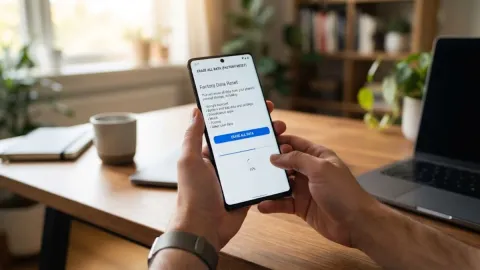
If manual configuration changes fail to resolve the problem, the underlying operating system network stack may contain damaged routing tables, corrupted Bluetooth pairings, or broken interface drivers. Resetting the network components flushes all network configurations without deleting your personal photos, messages, or downloaded applications.
Follow this procedure to reset your device network stack:
- Open the Settings application.
- Scroll down and select System (or General management on Samsung Galaxy devices).
- Tap Reset options (or Reset).
- Select Reset Mobile Network Settings and Reset Wi-Fi & Bluetooth (or Reset network settings on older builds).
- Tap Reset settings at the bottom of the screen and confirm your lock screen PIN or biometric scan.
Once the process completes, your phone will restart its cellular and Wi-Fi subsystems. You will need to re-enter your Wi-Fi security keys and reconnect your Bluetooth peripherals, but any persistent software locks inside the networking daemon will be cleared.
Check for Safe Mode Operation and Date Synchronization
A less obvious cause of Wi-Fi failure involves system clock skew. Modern web protocols rely heavily on SSL and TLS security certificates. If your phone's internal clock differs from the network time server by more than a few minutes, every HTTPS connection will be terminated for security reasons. Open Settings > System > Date & time and ensure both Set time automatically and Set time zone automatically are toggled on.
Finally, third-party security suites, ad blockers, and malware scanners can inject malfunctioning network filters. Boot your phone into Safe Mode to test this hypothesis. Press and hold the Power and Volume Up buttons simultaneously until the power menu appears, then touch and hold the Power off icon on the screen until the Safe mode prompt surfaces, and tap it. If your Wi-Fi functions seamlessly while running in Safe Mode, systematically uninstall recently acquired utility apps, ad blockers, and antivirus software until normal operation is restored.
The bottom line
An Android phone failing to communicate over Wi-Fi is almost always the result of bad cached handshake credentials, Private DNS timeouts, or conflicting MAC randomization protocols. Working systematically from basic radio toggles and MAC address adjustments to static IP assignment and network stack resets will get your device back online. If the issue persists across all accessible Wi-Fi hotspots, inspect your device for physical antenna damage or schedule an authorized diagnostic service.
Frequently asked questions
Why does my Android phone say Connected without internet on Wi-Fi?
This message indicates that your phone has established a physical link with your wireless router, but the router cannot route traffic to the broader internet. Common causes include internet provider outages, local IP assignment conflicts, or an unresponsive custom Private DNS provider configured in your Android settings.
Does resetting network settings delete my personal data?
No. Resetting network settings only clears your saved Wi-Fi networks, paired Bluetooth hardware, mobile data preferences, and VPN profiles. Your installed apps, media files, contacts, and photos remain completely untouched.
Why does my phone disconnect from Wi-Fi when the screen turns off?
Aggressive battery optimization tools can shut down network radios when the device enters a sleep state. Go to your battery settings, ensure Battery Saver is off, and check your Wi-Fi or Intelligent Wi-Fi preferences to make sure Wi-Fi power saving mode is disabled.
How do I know if the problem is my phone or my wireless router?
Connect another device, such as a laptop or a family member's phone, to the exact same Wi-Fi network. If the second device browses without trouble, your phone is misconfigured. If neither device has internet access, your router or internet service provider is the root cause.