How to Reset an Android Phone
Knowing how to reset an Android phone is an essential troubleshooting skill whether your device is freezing, suffering from unexplained battery drain, or being prepared for trade-in. A reset can mean anything from a quick reboot to clear memory leaks to a full factory data wipe that restores the operating system to its original factory state.
Before you wipe your device, taking the correct precautions ensures you do not lose precious memories or trigger security locks. This guide covers how to back up your personal files, perform non-destructive resets, factory reset Samsung Galaxy and Google Pixel devices, and use hardware recovery mode if the screen becomes unresponsive.
Essential Steps Before Resetting: Backup and Account Removal
A factory reset wipes everything stored on your device's internal storage, including photos, downloaded files, local messages, offline music, and login credentials. Before starting the wipe, ensure your phone is charged to at least 50% or connected to a charger, as a sudden shutdown during the erase process can corrupt the file system.
To create a fresh backup on modern Android systems, navigate to Settings > Google > Backup (or Settings > System > Backup) and tap Back up now. On Samsung Galaxy devices, you can also use temporary cloud backup by going to Settings > General management > Reset > Temporary cloud backup, which provides unlimited cloud storage for up to 30 days via your Samsung account.
If you are selling, trading in, or gifting your handset, you must disarm Factory Reset Protection (FRP). FRP prevents unauthorized users from using a stolen device by asking for the previous owner's password after a reset. To remove FRP cleanly, manually remove your accounts first:
- Go to Settings > Passwords & accounts (or Accounts and backup > Manage accounts on Samsung).
- Tap your primary Google Account and select Remove account.
- Repeat this process for your Samsung account or device manufacturer account.
- Remove any lock screen PIN, pattern, or biometric security under Settings > Security & privacy > Screen lock.
Soft Reset: How to Force Restart an Unresponsive Phone
If your phone is running sluggishly or an app has locked up the screen, you do not need to delete your data. A soft reset clears active RAM, terminates rogue background threads, and reboots the operating system without touching your stored documents, apps, or settings.
On standard Android devices and Google Pixel phones, press and hold the Power button and the Volume Up button simultaneously for approximately 10 to 15 seconds until the screen turns black and the manufacturer logo appears. Release the buttons immediately once you feel the vibration.
On Samsung Galaxy devices, press and hold the Side button (Power) and the Volume Down button together for 7 to 10 seconds. Do not let go when the power-off menu pops up; continue holding both buttons until the screen goes blank and the Samsung logo displays. If your device restarts normally, test your apps to see if the glitch has resolved.
Try Network and App Resets Before Erasing All Data
When troubleshooting persistent Bluetooth disconnections, dropped Wi-Fi signals, cellular handoff failures, or misbehaving app permissions, full erasure is rarely necessary. Android includes selective reset utilities designed to isolate and fix specific subsystems without touching personal files.
| Reset Option | What It Clears | What It Keeps |
|---|---|---|
| Reset Network Settings | Saved Wi-Fi passwords, Bluetooth paired devices, cellular preferences, VPN profiles | All apps, personal files, photos, account logins |
| Reset App Preferences | Disabled apps, notification restrictions, default app selections, background data limits | All app data, documents, accounts, media files |
| Reset All Settings (Samsung) | Display brightness, ringtones, system volume, lock screen preferences | Personal data, accounts, internal storage files |
To perform a network reset on Pixel or stock Android phones, open Settings > System > Reset options > Reset Mobile Network Settings or Reset Bluetooth & Wi-Fi. On Samsung Galaxy hardware, navigate to Settings > General management > Reset > Reset mobile network settings. You will need to re-enter your Wi-Fi passwords and pair your wireless headphones afterward.
How to Factory Reset a Samsung Galaxy Device
Samsung Galaxy devices running One UI organize reset tools within the General Management menu. Performing a factory data reset returns the handset to the out-of-the-box configuration and permanently removes all accounts, applications, music, photos, and system cache.
- Open the Settings app from your app drawer or home screen.
- Scroll down and tap General management.
- Select Reset near the bottom of the menu.
- Tap Factory data reset. A detailed summary will display all accounts, applications, and files scheduled for removal.
- Review the list, scroll to the bottom, and tap the blue Reset button.
- Enter your device PIN, pattern, or biometric confirmation.
- If prompted, tap Delete all and enter your Samsung Account password to authenticate the wipe.
Your Galaxy phone will restart automatically and initiate the deletion script. The process typically takes between 3 and 8 minutes depending on your storage capacity. Do not interrupt the process or press physical buttons while the phone displays the blue installation screen.
How to Factory Reset a Google Pixel or Stock Android Phone
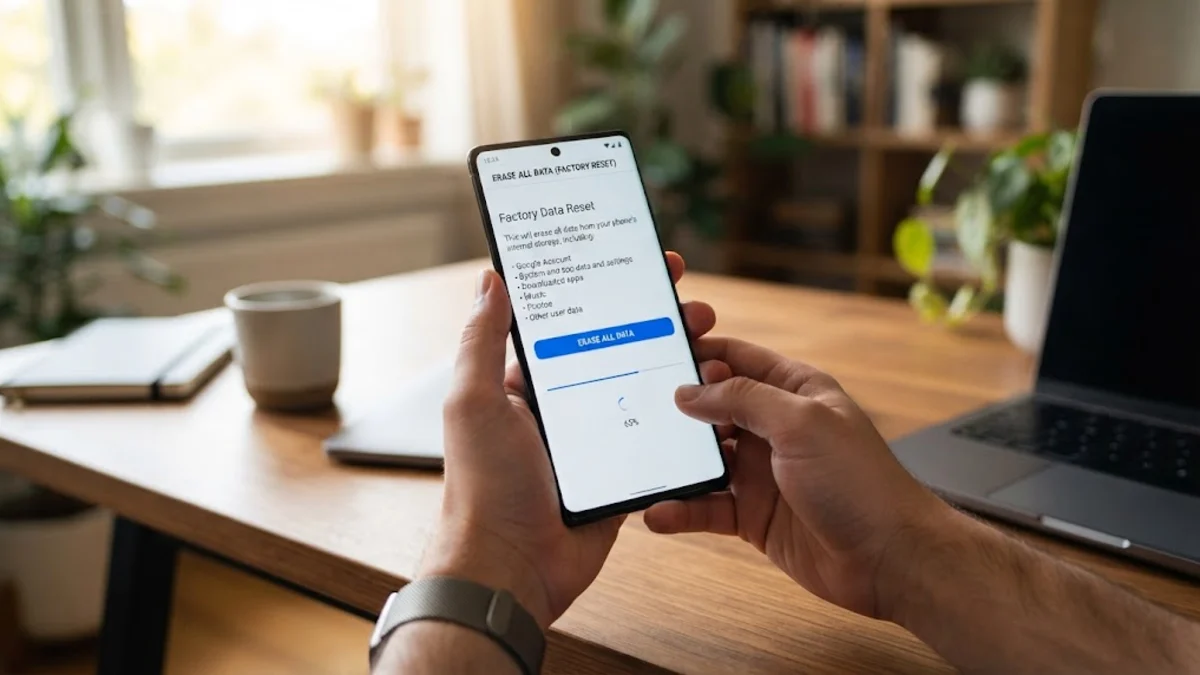
Google Pixel devices and phones running clean Android implementations use a streamlined system reset process. This interface also provides explicit control over whether embedded SIM cards (eSIMs) are preserved or erased alongside the operating system.
- Open Settings.
- Scroll down and tap System.
- Tap Reset options.
- Select Erase all data (factory reset).
- Review the accounts and data types listed on the confirmation screen. If you use an active eSIM profile with your mobile carrier, decide whether to check or uncheck Erase eSIMs. Keep the eSIM intact if you plan to continue using the device yourself.
- Tap Erase all data at the bottom right corner.
- Enter your screen lock PIN or pattern when prompted.
- Tap Erase all data one final time to confirm.
The phone will display the Google splash screen followed by a progress animation. Once finished, the phone reboots directly into the initial setup wizard, asking you to select your language and connect to Wi-Fi.
How to Hard Reset Android Using Recovery Mode
If your Android smartphone is stuck in a boot loop, experiences a permanent black screen after a software update, or cannot boot into the operating system, you can perform a hard reset using the native Android Recovery environment. This method relies entirely on hardware keys.
First, power down your device completely. If the screen is unresponsive, hold the power button for 15 seconds until the device shuts off. On many modern devices (notably Samsung Galaxy phones running modern Android releases), you must connect the phone to a computer or wired headphones via USB-C before hardware recovery key combinations will register.
- Hold the Volume Up button and the Power button simultaneously.
- When the brand logo appears or the phone vibrates, release the Power button while continuing to hold Volume Up until the recovery menu appears.
- Use the Volume Down button to highlight Wipe data/factory reset.
- Press the Power button to select the option.
- Use the volume buttons to highlight Factory data reset and confirm by pressing the Power button.
- Once the screen displays Data wipe complete at the bottom, highlight Reboot system now and press the Power button.
The bottom line
Resetting an Android phone provides a clean slate, eliminating persistent operating system bugs, clearing out system clutter, and safeguarding your private data before passing the hardware to someone else. Always attempt soft restarts and network resets first when dealing with everyday software hiccups. When a full wipe is required, remember to verify your cloud backups and manually remove your Google and manufacturer accounts to avoid triggering anti-theft lockout screens.
Frequently asked questions
Does a factory reset delete everything on an SD card?
By default, a factory data reset only wipes your phone's internal flash storage. However, during the confirmation screen on phones with expandable memory, Android often provides an optional checkbox asking whether you want to format the external SD card as well. If you have sensitive files on your micro-SD card, remove it physically before starting the reset.
What happens if I forget my Google password after a factory reset?
If you reset your phone without first removing your Google Account, Factory Reset Protection (FRP) will lock the device during the initial setup wizard. You will be required to log in with the exact Google Account credentials previously synced to that specific phone. If you forget your password, you must reset it via Google Account Recovery on a separate computer before you can finish setting up the phone.
Will a factory reset revert my phone to an older Android version?
No. A factory reset wipes user data, cached system files, and installed apps, but it does not roll back firmware or operating system updates. Your smartphone will remain on the most recent Android version and security patch level installed prior to the wipe.
How long does a full Android factory reset take?
On modern devices with fast UFS internal storage, a factory reset usually takes between 3 and 10 minutes. Devices with larger storage capacities (512GB or 1TB) that are nearly full may take slightly longer because the hardware encryption keys must be destroyed and storage blocks cleared.