Why Is Your Outlook Email Not Updating and How to Fix It
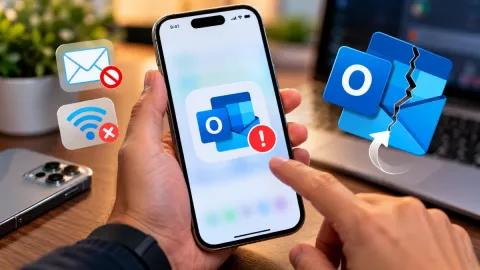
When your Outlook inbox stops receiving new messages, managing your daily communications can quickly become stressful. Whether you are missing important work updates or personal replies, figuring out why your synchronization has stalled is the first step toward getting back on track.
Check Your Internet Connection and Network Settings
The most common reason for Outlook email not updating is a temporary drop or interruption in your internet connection. Even if your web browser seems to load pages slowly, Outlook requires a stable, uninterrupted connection to sync with Microsoft servers and download incoming messages.
Start by verifying that your computer is properly connected to Wi-Fi or your Ethernet cable. Try opening a neutral website in your browser or running a quick speed test to confirm your bandwidth is active. If your network connection is unstable, restart your router and modem. Once your internet service is fully restored, close Outlook completely and reopen it to trigger a fresh synchronization sequence with your mail server.
Disable Work Offline Mode in Outlook
Microsoft Outlook features a convenient Work Offline mode that allows you to draft emails and view previously downloaded messages without an internet connection. However, if this mode is accidentally enabled, your client will completely stop sending and receiving new emails until you turn it off.
To check if this is causing your issue, look at the bottom right corner of your Outlook window in the status bar. If you see text that says Working Offline or Disconnected, you are currently severed from the server. Navigate to the Send / Receive tab in the top ribbon menu and click on the Work Offline button. The status bar should update within a few seconds to Connected to Microsoft Exchange or Connected, and your pending messages will begin downloading immediately.
Clear Outlook Cache and Temporary Files
Over time, accumulated cache files and corrupted temporary data can interfere with Outlook performance and prevent your mailbox from refreshing properly. Clearing out these redundant files forces the application to build a clean connection and download fresh data from the cloud server.
To clear your cache safely, press Windows + R to open the Run dialog box, type %localappdata%\Microsoft\Outlook and press Enter. Look for the folder containing your offline data files and temporary cache, and move older log files or unnecessary cache items to a backup location or delete them. Do not delete your active .ost file unless you are prepared to let Outlook rebuild it entirely. Restart the application to test the updated performance.
Repair Your Outlook Data File (.ost)
If your Outlook email is not updating and you use an IMAP or Exchange account, your local data file (.ost) might be corrupted. When this file becomes damaged, Outlook loses its ability to accurately sync changes between your computer and the remote mail server.
You can use the built-in Microsoft Inbox Repair Tool to diagnose and repair data file corruption. Close Outlook completely, open File Explorer, and navigate to your Microsoft Office installation directory to find SCANPST.EXE. Run the tool, browse to select your Outlook data file, and click Start to scan for errors. If errors are detected, click Repair to fix the file structure. Once completed, relaunch Outlook and allow it a few minutes to reconcile your mailbox data with the server.
Check Account Password and Server Settings
Authentication issues are another frequent culprit behind synchronization failures. If you recently changed your email password on the web version of Outlook or if your organization enforced a security update, your desktop client might be failing to authenticate with the mail server.
When authentication fails, Outlook will usually prompt you for credentials or display a status error at the bottom of the window. Go to File > Account Settings > Account Settings, select your email account, and click Repair or update your password manually. Ensure that incoming and outgoing server settings match your provider specifications if you are using custom IMAP or POP configurations. Entering correct credentials immediately restores background synchronization.
Update Microsoft Outlook to the Latest Version
Running an outdated version of Microsoft Outlook can lead to compatibility bugs, security certificate errors, and broken synchronization protocols as Microsoft updates its backend server infrastructure. Keeping your software up to date ensures seamless connectivity.
To check for pending updates, open Outlook and click on File > Office Account or Account. Under Product Information, click on Update Options and select Update Now. Windows will automatically scan for and install any missing patches or feature updates for your entire Office suite. After the installation finishes, reboot your computer and check if your inbox updates correctly.
The bottom line
Resolving synchronization issues in Outlook usually comes down to checking your network status, toggling offline settings, or repairing corrupted local data files. By methodologically working through these fixes, you can restore normal email updates and ensure you never miss an important message again.
Frequently asked questions
Why is my Outlook inbox stuck on updating folder?
This usually happens when your local .ost file is too large or corrupted. Running the Inbox Repair Tool or clearing your temporary Outlook cache will usually resolve the hang.
How do I force Outlook to sync manually?
You can force a manual sync by navigating to the Send / Receive tab in the top ribbon and clicking the Send/Receive All Folders button, or by pressing the F9 key on your keyboard.
Does a full mailbox prevent Outlook from updating?
Yes. If your mailbox storage limit has been reached on the server, Outlook will refuse to download new incoming messages until you delete or archive old emails to free up space.
Why does Outlook work on my phone but not on my PC?
If your mobile device is updating fine, the issue is specific to your computer client. It is usually caused by Work Offline mode being enabled, local firewall blocks, or a corrupted desktop profile.
Should I delete my .ost file to fix sync issues?
You can safely delete or rename your .ost file while Outlook is closed. When you reopen the application, Outlook will automatically download a fresh, clean copy of your mailbox from the server.