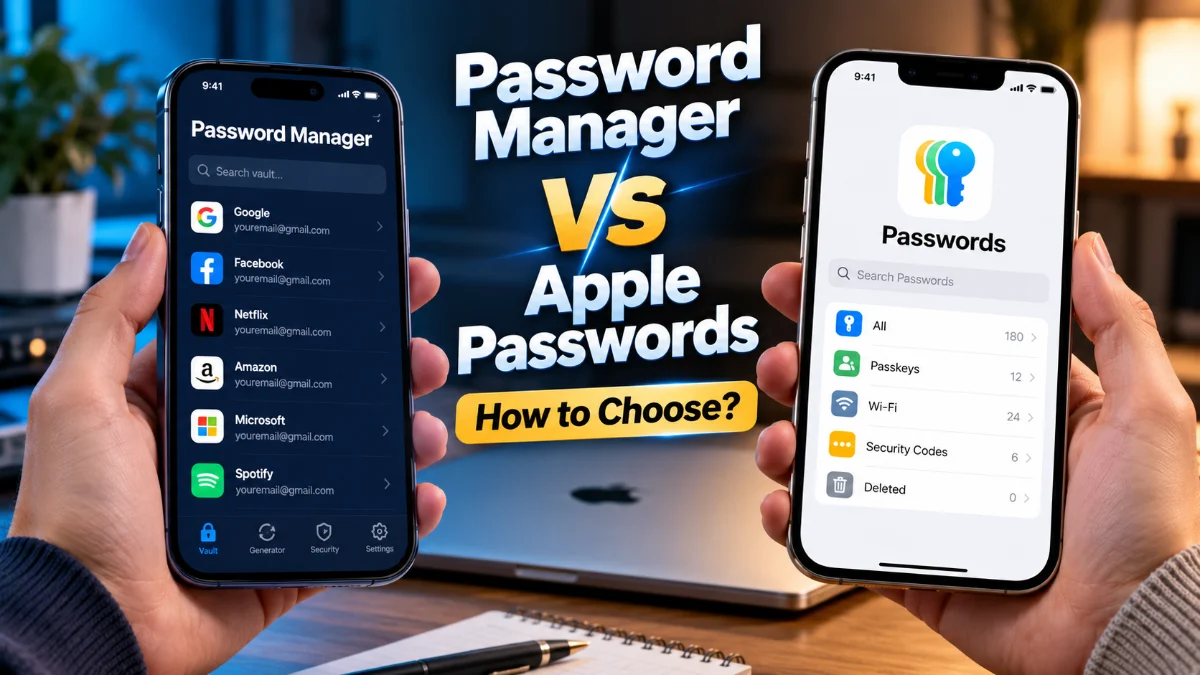
Password Manager vs Apple Passwords: How to Choose
When deciding between a dedicated third-party password manager and Apple Passwords, the right choice comes down to the devices you use daily and how much flexibility you need. Apple Passwords provides a seamless, free, and deeply integrated credential vault for Apple-first households. Dedicated tools like 1Password and Bitwarden offer robust cross-platform synchronization, flexible data storage, and superior business or multi-ecosystem collaboration.
Apple refined its standalone Passwords app to simplify credential management across iOS, iPadOS, and macOS, directly rivaling established password vaults. Understanding how these tools handle sensitive records, passkeys, platform transitions, and recovery options will help you determine whether Apple's native utility is enough or if a standalone service remains indispensable.
Core Differences and How Each System Works
Apple Passwords operates as a native component of Apple operating systems, backed by iCloud Keychain. Rather than requiring a separate background agent or specialized browser helper, it communicates directly with the operating system kernel to auto-fill credentials in Safari, third-party browsers, and native applications. It uses your device passcode, Face ID, or Touch ID for frictionless biometric unlocking. Because it is preinstalled, there is no setup fee, subscription tier, or third-party server infrastructure to configure.
In contrast, a dedicated password manager functions as an independent, platform-agnostic application. Services such as Bitwarden, 1Password, and Dashlane host your encrypted vault on private cloud architecture or allow on-premise self-hosting. Unlocking these tools typically relies on a distinct master password combined with local biometrics. While Apple Passwords is built specifically around personal consumer convenience within an existing Apple device setup, standalone password managers are purpose-built security hubs designed to protect diverse digital identities across any hardware environment.
Cross-Platform Accessibility and Ecosystem Lock-In
Platform availability is the most decisive factor when weighing your options. Apple Passwords works effortlessly on iPhone, iPad, Mac, and Apple Vision devices. Apple also provides an official iCloud for Windows desktop app and an extension for Google Chrome and Microsoft Edge on Windows PCs. However, Apple offers no native solution for Android devices or Linux desktop workstations. If you carry an Android phone for work, share credentials with a family member on a non-Apple phone, or rely on a Linux workstation, Apple Passwords creates significant access bottlenecks.
Third-party password managers excel in heterogeneous computing environments. A single subscription or free account syncs across iOS, Android, macOS, Windows, Linux, and web browsers like Chrome, Firefox, Brave, and Vivaldi. You can log into your vault through any secure web browser using an encrypted portal if your primary device is lost or out of battery. If you value technological independence and want to avoid ecosystem lock-in, a dedicated manager ensures your passwords follow you regardless of future hardware purchases.
Vault Features, Data Types, and Organization
Apple Passwords handles essential login credentials, two-factor authentication (2FA) verification codes, Wi-Fi network keys, passkeys, and basic notes. It also alerts you to compromised, reused, or easily guessable passwords through continuous breach monitoring. For everyday logins and standard website accounts, this streamlined approach removes clutter and keeps authentication simple.
Dedicated password managers provide much broader data modeling capabilities for complex personal and organizational records. In addition to website logins, standalone managers let you securely store:
- Payment details: Credit and debit cards with specific billing addresses, CVV codes, and bank account numbers.
- Secure documents: Scanned passports, driver's licenses, medical records, and recovery keys attached directly to vault items.
- Custom credential fields: Security questions, API tokens, software license keys, and server connection strings.
- Granular sorting: Nested folders, color-coded tags, and multiple distinct vaults to separate personal records from work assets.
If you only need to store website logins and Wi-Fi networks, Apple Passwords delivers adequate functionality. If your digital life includes legal paperwork, developer secrets, and complex metadata, a third-party vault provides superior utility.
Security Architecture, Sharing, and Account Recovery
Both approaches utilize industry-standard zero-knowledge end-to-end encryption. Apple Passwords secures your data in transit and at rest using AES-256 and curves derived from your iCloud security keys. Because Apple cannot read your keychain data, security remains solid. Credential sharing is handled via Shared Groups, which allows you to share specific logins with contacts in your Apple ecosystem. However, every recipient must possess an active Apple Account and a compatible Apple device.
Dedicated password managers employ independent cryptographic models, frequently pairing AES-256 or ChaCha20-Poly1305 with Argon2 or PBKDF2 key derivation functions. Many standalone options incorporate an additional Secret Key, a 128-bit randomized key stored locally on your devices, ensuring brute-force attacks remain computationally infeasible even if someone compromises your master password.
Account recovery also differs sharply. If you lose your Apple Account password and access to your trusted devices, Apple provides an account recovery workflow through trusted contacts or recovery keys configured in Settings > [Your Name] > Sign-In & Security > Account Recovery. With most standalone password managers, strict zero-knowledge architecture means the provider cannot reset your master password. If you lose your master password and your emergency rescue kit, your vault data is permanently unrecoverable. Some dedicated tools solve this by offering emergency contact access or designated vault delegates for family members.
Side-by-Side Feature Comparison
Reviewing the practical differences between both solutions helps clarify which system matches your hardware setup and administrative needs.
| Feature | Apple Passwords | Dedicated Password Manager |
|---|---|---|
| Cost | Free (built into Apple OS) | Free tiers available; $35 to $60/year for premium |
| Operating Systems | iOS, iPadOS, macOS, Windows (basic) | iOS, Android, macOS, Windows, Linux, Web |
| Passkey Support | Native, syncs via iCloud Keychain | Supported across all major platforms |
| Two-Factor Codes | Built-in authenticator tool | Built-in authenticator (usually premium tier) |
| File Attachments | Not supported | Supported (PDFs, images, documents) |
| Family Sharing | Apple users only via Shared Groups | Cross-platform family vaults and guest links |
| Emergency Access | Apple Account Recovery Contacts | Emergency kits, designated trusted delegates |
As shown in the comparison, Apple Passwords delivers a refined experience within the Apple ecosystem at no extra cost, while standalone managers justify their subscription prices through cross-platform versatility and comprehensive item storage.
When to Choose Apple Passwords or a Dedicated Tool
Choose Apple Passwords if your household operates almost exclusively on iPhone, iPad, and Mac hardware. It requires zero configuration, eliminates renewal fees, and provides immediate biometric access across Safari and native applications. For individuals who primarily need dependable password generation, 2FA code verification, passkey storage, and reliable Wi-Fi sharing with nearby guests, Apple Passwords provides more than enough security and speed without third-party overhead.
Choose a dedicated password manager if you work across mixed operating systems, such as combining an iPhone with a Windows desktop or an Android tablet with a Mac. A dedicated tool is also essential if you need to store sensitive files, share login credentials with non-Apple users, organize enterprise credentials, or retain full control over exportable vault backups. You can also run both simultaneously: use Apple Passwords for everyday consumer logins and keep an encrypted standalone vault for financial documents, tax records, and cross-platform shared vaults.
The bottom line
Deciding between a password manager vs Apple Passwords depends on your device variety and data storage requirements. If you remain inside Apple's ecosystem, Apple Passwords offers an exceptional, secure, and cost-free solution. If your computing routine spans Android, Linux, or non-Safari environments, a dedicated cross-platform password manager remains the smartest investment for your digital security.
Frequently asked questions
Can I use Apple Passwords on an Android phone?
No. Apple does not offer an official Passwords app or web vault for Android devices. If you use an Android smartphone or tablet, you will need a third-party cross-platform password manager to access your credentials.
Is Apple Passwords as secure as third-party password managers?
Yes. Apple Passwords utilizes end-to-end zero-knowledge encryption through iCloud Keychain. Apple cannot view your stored passwords, passkeys, or authentication tokens. Its security matches the core cryptographic standards used by top standalone managers.
Can I import my logins from a password manager into Apple Passwords?
Yes. On a Mac running macOS Sequoia or later, open the Passwords app, select File in the menu bar, and choose Import Passwords to upload a standard CSV export file from services like 1Password, Bitwarden, or LastPass.
Does Apple Passwords store credit cards and secure notes?
Apple Passwords supports secure notes inside login entries and manages Wi-Fi credentials. However, payment card auto-fill is handled separately through Safari AutoFill and Apple Wallet rather than directly inside the Passwords vault.
Can I run both Apple Passwords and a third-party manager on my iPhone?
Yes. In your iPhone settings under Settings > General > AutoFill & Passwords, you can enable both Apple Passwords and your third-party password manager simultaneously to auto-fill credentials across apps.