Why Is My Android Phone Black and White?
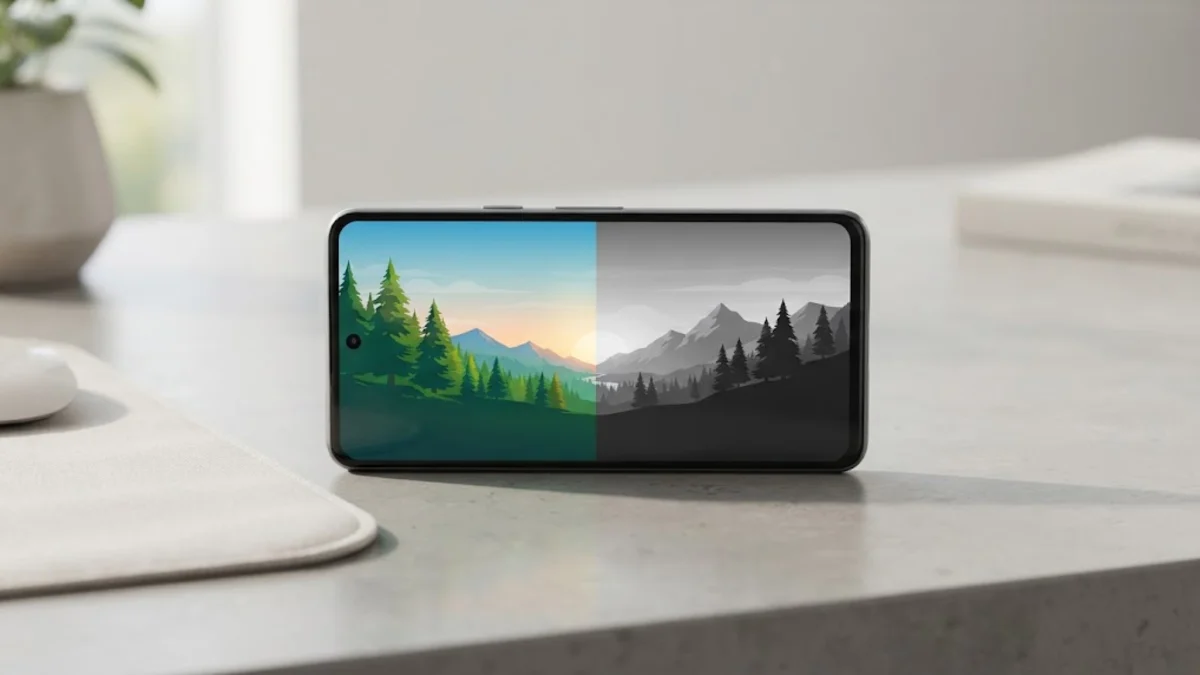
If your Android screen suddenly looks like a vintage newspaper, you are not alone. A monochrome display rarely indicates a damaged OLED panel or hardware failure. Instead, Android has several built-in wellness, accessibility, and power-saving features designed specifically to strip colors away to reduce screen addiction or prolong battery life.
Most often, this change happens automatically when a scheduled sleep profile kicks in or when an accessibility shortcut gets pressed by accident in your pocket. Here is why your Android phone turned black and white and how to restore your vibrant colors in a few quick taps.
Understanding Why Android Displays Turn Monochrome
When your display loses all color, the operating system is almost always running a software grayscale filter. Modern smartphones render color digitally before sending the frame buffer to the physical panel. If the pixels still display sharp text, clear contrast, and smooth transitions, your display hardware, ribbon cables, and graphics processors are functioning properly.
Several native Android subsystems possess the authority to engage grayscale filtering. The most frequent trigger is Digital Wellbeing, which schedules a bedtime routine to discourage late-night doomscrolling by making apps visually unappealing. Secondary culprits include Accessibility vision enhancements, automated automation routines (such as Modes and Routines on Samsung Galaxy devices), emergency power-saving profiles, and experimental color simulation flags hidden inside Developer Options.
Turn Off Bedtime Mode in Digital Wellbeing
On stock Android devices such as Google Pixel, Motorola, and modern Sony handsets, Google Bedtime mode is the primary reason screens lose their hue. Bedtime mode pairs a quiet Do Not Disturb state with a grayscale overlay intended to signal your brain that it is time to wind down.
To turn this off immediately or stop it from activating on a nightly timer, follow these steps:
- Open Settings on your phone.
- Scroll down and tap Digital Wellbeing & parental controls.
- Tap Bedtime mode.
- If Bedtime mode is currently running, tap Turn off for now.
- To prevent the screen from going gray every evening, tap Bedtime routine and select None, or tap Customize > Screen options at bedtime and toggle off Grayscale.
If you prefer using Bedtime mode solely for silencing calls and app alerts without desaturating your display, keeping the Grayscale toggle disabled ensures you retain full color 24 hours a day.
Disable Accessibility Color Correction and Color Adjustment
Android includes robust accessibility tools designed for users with color vision deficiencies. If an accessibility shortcut was configured to trigger when holding both volume keys or tapping an on-screen floating icon, color correction might have engaged without you realizing it.
To check and reset your accessibility color profile:
- Open Settings > Accessibility.
- On Google Pixel and stock Android, navigate to Color and motion > Color correction.
- Toggle off Use color correction.
- Verify that the selected correction mode is not locked onto Grayscale.
- Ensure the Color correction shortcut toggle is set to Off so you do not accidentally trigger it again while adjusting your volume.
On Samsung Galaxy devices running One UI, the path differs slightly: open Settings > Accessibility > Vision enhancements > Color adjustment, and make sure the master switch is set to Off.
Adjust Sleep Mode and Routines on Samsung Galaxy
Samsung separates bedtime management into its own system called Modes and Routines. If you use a Galaxy S, Z, or A-series handset, your phone may switch to black and white even if Google Digital Wellbeing is untouched.
You can adjust or override Samsung Sleep Mode using the following routine:
- Open Settings and select Modes and Routines.
- Tap Sleep under the Modes tab.
- If Sleep mode is active, tap Turn off.
- To disable the black-and-white screen while keeping the schedule active, tap Change settings under the When this mode starts section.
- Find the Grayscale option and tap the red minus symbol or deselect it so the screen preserves its standard color palette throughout the night.
Check the Routines tab as well. If you previously created an automated macro to conserve battery during low-power scenarios or work hours, inspect your active routines to ensure none of them include a command to enforce grayscale.
Inspect Battery Saver and Extreme Power Modes
When your battery dips into critical percentages, Android operating systems offer aggressive energy-saving modes. While standard Battery Saver merely limits background activities and lowers refresh rates, extreme power saving often turns the display monochrome to reduce graphical processing demands.
Samsung provides an Emergency Mode and a feature called Maximize Power Saving. When active, this limits your home screen to a simplified launcher, restricts background processes, and applies a dark grayscale palette to stretch remaining battery life across multiple hours.
To verify power settings:
- Open Settings > Battery.
- Tap Power saving (or Extreme Battery Saver on Pixel).
- Check your settings to confirm whether grayscale options are enabled.
- Plug your phone into a certified wall charger. If the screen instantly regains color once charging begins, your battery optimization profiles were responsible for the monochrome state.
Check Developer Options for Simulated Color Space
If you recently enabled Developer Options to adjust animation speeds, USB debugging, or Bluetooth audio codecs, you might have modified a rendering parameter known as Simulate Color Space. This setting allows software creators to test interfaces for accessibility compliance directly on hardware.
To inspect and disable this setting:
- Open Settings > System > Developer options (on Samsung devices, Developer options appears at the very bottom of the main Settings list).
- Scroll down to the Hardware accelerated rendering section.
- Look for the entry labeled Simulate color space.
- Tap it and confirm that it is set to Disabled. If it is set to Monochromacy, your entire graphical interface will render without color regardless of your accessibility or bedtime settings.
If you no longer need developer privileges, toggle the master Use developer options switch to Off at the top of the menu to reset all developer flags back to factory defaults.
Quick Comparison of Grayscale Triggers Across Android
Because Android interfaces differ across manufacturers, locating the exact switch depends on your device software. Review this comparison table to quickly navigate to the right menu on your specific brand.
| Android Manufacturer | Primary Menu Path | Setting Name |
|---|---|---|
| Google Pixel (Android 15 / 16) | Settings > Digital Wellbeing | Bedtime mode > Grayscale |
| Google Pixel (Accessibility) | Settings > Accessibility > Color and motion | Color correction |
| Samsung Galaxy (One UI) | Settings > Modes and Routines | Sleep mode |
| Samsung Galaxy (Vision) | Settings > Accessibility > Vision enhancements | Color adjustment |
| Motorola / OnePlus / Xiaomi | Settings > Display or Wellbeing | Bedtime mode / Reading mode |
After navigating to your manufacturer path, toggle off the corresponding feature. If the display remains gray, perform a standard restart by holding the power button and volume up button simultaneously, then tapping Restart to clear temporary UI glitches.
The bottom line
An Android phone stuck in black and white is almost never damaged; it is simply reacting to an automated routine, bedtime trigger, or accessibility setting. By checking Digital Wellbeing, Modes and Routines, and vision adjustment menus, you can pinpoint the active profile and restore your phone display to full color in seconds.
Frequently asked questions
Does keeping my Android phone in black and white save battery?
Only marginally on OLED and AMOLED screens. Because monochrome still lights up colored subpixels to generate white and gray tones, actual battery savings are minimal unless true black backgrounds turn the pixels completely off. The primary benefit of grayscale is psychological: reducing phone addiction by making screens less stimulating.
Why does my Android screen turn black and white only at night?
This behavior indicates an active Bedtime mode in Digital Wellbeing or a Sleep routine in Samsung Modes and Routines. These features are programmed to turn on grayscale automatically during your designated sleep schedule to encourage you to put your device down.
Can a third-party app turn my Android phone black and white?
Yes. Digital detox apps, reading tools, and custom minimalist launchers can request system permission to activate grayscale. If you recently installed a focus or productivity app, inspect its internal settings or uninstall it to see if full color returns.
What if my screen is black and white in safe mode?
Accessibility settings and developer options remain active even in safe mode. If your screen is still black and white in safe mode, check Settings > Accessibility > Vision enhancements (or Color correction) and verify Developer options > Simulate color space is disabled.