Why Is My ChatGPT Not Responding and How to Fix It
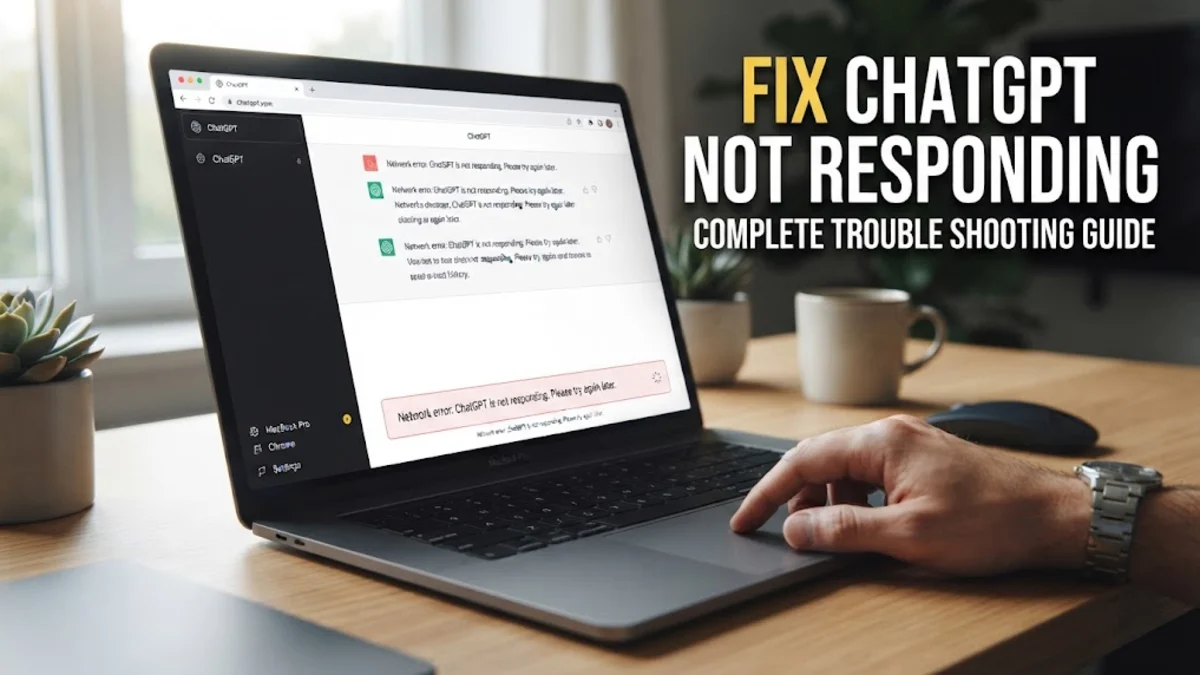
When ChatGPT suddenly stops generating answers or leaves you staring at a blank screen, it can completely disrupt your workflow. This frustrating issue typically stems from server-side outages, browser cache corruption, conflicting extensions, or minor network interruptions.
Fixing the problem quickly requires working through a series of targeted troubleshooting steps, starting from simple connection checks and moving toward more advanced browser and account resets.
Checking Server Status and Network Connection
When ChatGPT suddenly stops responding, the first step is to determine whether the issue is on your end or coming from OpenAI's servers. You can easily check the official system status page to see if there is a widespread outage affecting the service globally. If the dashboard shows a major disruption or degraded performance, your best option is simply to wait until the engineering team resolves the backend issue.
At the same time, a momentary drop in your internet connection can freeze the streaming response halfway through a generation. Try loading another data-heavy website in a new tab or resetting your router if your local network connection is unstable. Switching from Wi-Fi to a mobile hotspot can also help you quickly verify whether your local internet service provider is blocking API endpoints or experiencing routing problems.
Clearing Browser Cache and Cookies
Over time, accumulated cache files and corrupted cookies stored by your web browser can interfere with how dynamic web applications load and communicate with remote servers. If ChatGPT is stuck loading or fails to send prompts, clearing your browser data is an effective corrective action. In Google Chrome, you can quickly access this menu by pressing Ctrl + Shift + Delete on Windows or Cmd + Shift + Delete on Mac.
Once the clear browsing data window appears, make sure to select cached images and files along with cookies, then choose a time range such as all time before clicking clear data. Keep in mind that clearing cookies will sign you out of most websites, so you will need to log back into your OpenAI account once the process finishes and the browser restarts.
Disabling Conflicting Browser Extensions
Many third-party browser extensions, particularly aggressive ad blockers, privacy enhancers, script blockers, and custom translation tools, can inadvertently block the WebSocket connections that ChatGPT relies on to stream text responses in real-time. If an extension flags necessary background scripts as trackers, the interface may freeze completely or refuse to accept new text inputs.
To test whether an extension is causing the interference, open an Incognito window or private browsing session, which typically disables third-party extensions by default. If ChatGPT works normally in private mode, navigate to your browser extensions manager via Settings > Extensions, and disable your add-ons one by one until you identify the specific tool causing the conflict.
Switching Browsers or Testing Incognito Mode
Browser compatibility issues and outdated software versions can occasionally prevent modern JavaScript frameworks from executing properly. If you are using an older browser version, security policies or deprecated web APIs might prevent ChatGPT from rendering its chat interface correctly. Testing the platform on an entirely different web browser, such as Mozilla Firefox, Microsoft Edge, or Apple Safari, helps isolate whether the glitch is tied to your primary software.
Additionally, running the site in a clean incognito session eliminates interference from corrupted local storage databases and personalized settings. If the platform responds instantly in an alternative browser or private window, your main browser configuration requires a deeper cleanup, update, or a complete reset to its default factory settings.
Signing Out and Signing Back Into Your Account
Authentication tokens and session credentials stored in your browser can occasionally expire or become corrupted, leading to silent connection failures when sending prompts. When this happens, the web interface might appear normal, but any message you submit will fail to generate a reply or return a generic network error message. Refreshing your authorization state by re-authenticating is a reliable fix for this specific glitch.
To do this, click on your profile icon located at the bottom-left corner of the sidebar, select log out, and close the tab. Wait a few moments before navigating back to the login page, entering your credentials, and signing back into your account. This forces the server to issue a fresh session token and re-establish a stable communication channel.
Updating the Mobile App and Clearing App Cache
If you encounter freezing or unresponsiveness while using the official mobile application on iOS or Android, the problem is often linked to an outdated app version or corrupted local cache files on your smartphone. Outdated builds frequently experience compatibility bugs with recent server updates. Visit the Apple App Store or Google Play Store to check for any pending application updates and install the latest version immediately.
For Android users experiencing persistent freezing, go to your phone settings via Settings > Apps > ChatGPT > Storage, and tap on clear cache. On iOS, offloading or reinstalling the app entirely can resolve deep-seated file corruption issues, restoring normal chat responsiveness within minutes.
The bottom line
When ChatGPT stops responding, diagnosing the root cause usually comes down to checking server status, clearing outdated browser cache, or disabling overly restrictive extensions. Working through these methodical steps will quickly restore your access and keep your daily tasks running smoothly.
Frequently asked questions
Why does ChatGPT stop generating text halfway through an answer?
This usually happens due to an unstable internet connection or a sudden timeout in the WebSocket streaming connection. Refreshing the page or checking your network stability usually resolves the issue.
Does clearing my browser cache delete my chat history?
No, your chat history is stored securely on OpenAI's cloud servers linked to your account, not in your local browser cache. Clearing cache only removes temporary files and cookies.
Why is ChatGPT working on my phone but not on my computer?
If it works on mobile, your account and OpenAI servers are fine. The issue is likely caused by browser-specific extensions, corrupted cache, or outdated security settings on your computer.
What should I do if I get a persistent network error message?
Try switching to a different network, disabling your VPN or ad blocker, or logging out and logging back into your account to refresh your session authentication tokens.
Are VPNs known to block ChatGPT responses?
Yes, certain VPN server IP addresses are flagged or restricted by automated security systems, which can prevent chat responses from loading or trigger connection errors.