What Is Android Phone Safe Mode and How to Use It
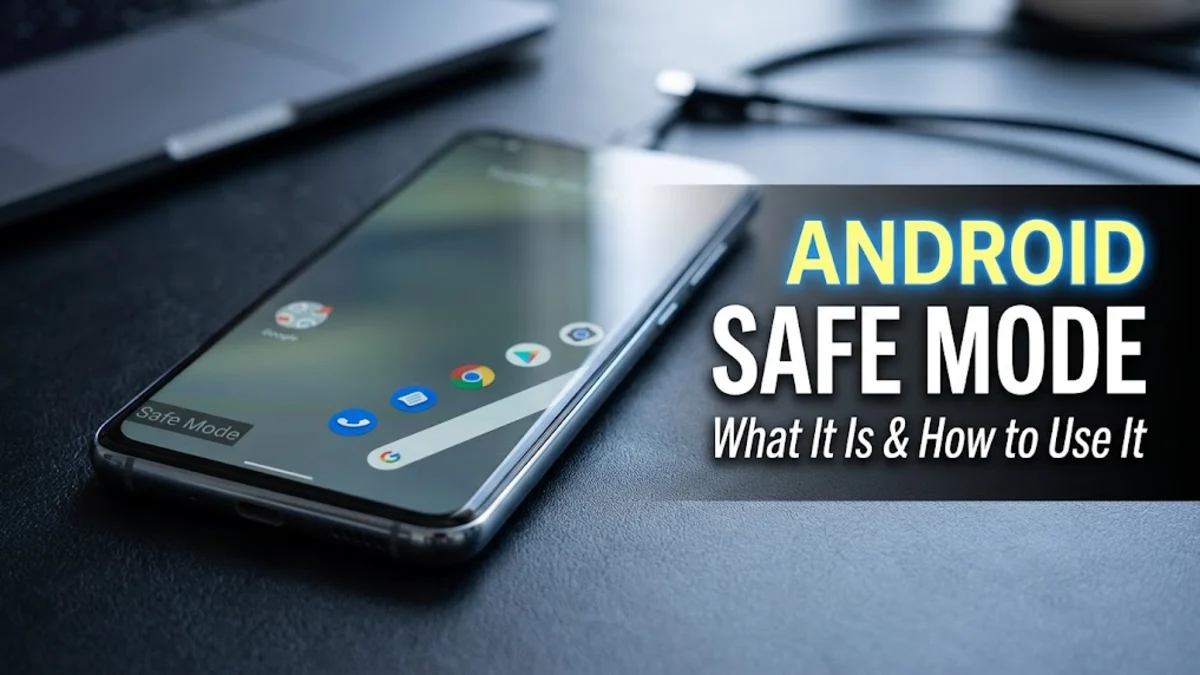
Android phone safe mode is a built-in diagnostic state that temporarily disables all third-party applications you have downloaded, allowing you to isolate and troubleshoot software issues. When your device starts acting sluggish, crashing unexpectedly, or draining battery rapidly due to a rogue app, safe mode lets you run your phone using only factory-installed system software.
Understanding how this feature works helps you diagnose performance problems without immediately resorting to a full factory reset. Whether you use a Samsung Galaxy, a Google Pixel, or another modern Android device, entering and exiting this diagnostic environment takes only a few seconds using physical buttons or quick settings menus.
Understanding Android Phone Safe Mode
Safe mode functions as a secure sandbox environment for your mobile operating system. When activated, the Android kernel loads exclusively core system services and pre-installed manufacturer applications such as your phone dialer, messaging app, and camera. Any downloaded applications from the Google Play Store or sideloaded APK files are temporarily hidden and prevented from running in the background.
This isolation is crucial for identifying software conflicts. If your phone stops overheating, freezing, or showing random pop-up advertisements while in safe mode, you can be certain that a recently installed third-party app is causing the trouble. It removes guesswork from troubleshooting and protects your personal data while you diagnose system anomalies.
When and Why to Use Safe Mode
You should turn to safe mode whenever your phone exhibits erratic behavior that standard reboots cannot resolve. Common triggers include sudden battery drain where your charge plummets even while idle, continuous application crashes immediately upon opening, or persistent freezing that makes the touch screen unresponsive. Malware, adware apps, and poorly optimized widgets are frequent culprits behind these symptoms.
Another primary scenario for utilizing this mode is when you suspect a background app is interfering with core system functions like Wi-Fi connectivity or Bluetooth pairing. By stripping away all variable user software, safe mode establishes a clean baseline. If your hardware functions normally under these restricted conditions, you immediately know the issue is software-based rather than a failing battery or processor.
How to Enter Safe Mode on Samsung Galaxy Phones
Entering safe mode on a modern Samsung Galaxy device requires interacting with the power menu. First, press and hold both the Side Key and the Volume Down button simultaneously until the power off prompt appears on your screen. Instead of tapping the normal power off icon, touch and hold your finger on the Power off button on the display until a new prompt labeled Safe mode appears.
Tap the Safe mode icon to confirm your choice. Your phone will automatically restart, and you will see a distinct Safe mode watermark displayed in the bottom-left corner of your screen once the lock screen loads. If your Samsung phone is completely frozen and you cannot access the touchscreen menu, you can trigger safe mode during a cold boot by powering off the device completely, turning it back on, and pressing and holding the Volume Down button as soon as the Samsung logo appears on screen until the system boots up fully.
How to Enter Safe Mode on Google Pixel Phones
Google Pixel devices use a very similar hardware combination to access diagnostic environments. Press and hold the Power button (or Power and Volume Up depending on your specific Pixel generation) until the power menu pops up on your display. Tap and hold your finger on the Power off option until a confirmation dialog box pops up asking if you want to reboot to safe mode.
Tap OK or Restart to safe mode, and your Pixel will reboot automatically. When the phone finishes loading, you will notice that all third-party app icons are greyed out or hidden, and a clear Safe mode indicator appears at the bottom of your home screen. This confirms that your device is successfully running only on essential Google system packages and pre-installed utilities.
What Happens While Safe Mode Is Active
While your phone operates in safe mode, you will experience several immediate changes to your user interface and functionality. All downloaded applications from third-party developers will be disabled, meaning you cannot open them, receive notifications from them, or use their background services. Furthermore, any custom widgets you placed on your home screen from downloaded apps will disappear temporarily, though they will reappear once you exit the mode.
You can still use pre-installed core features like making phone calls, sending text messages via default messaging apps, taking photos with the stock camera, and connecting to trusted Wi-Fi networks. This limitation allows you to test core hardware functionality and uninstall any problematic applications directly from your settings menu without interference from malicious or crashing software.
How to Exit Safe Mode on Your Android Device
Exiting safe mode is remarkably straightforward on almost all Android smartphones. In most cases, you simply need to restart your phone normally. Press and hold your device Power button until the power options menu appears, then tap Restart or Power off and turn the phone back on.
If a normal reboot does not remove the safe mode indicator, it usually indicates that a hardware button (such as the volume down key) is physically stuck or pressed down due to a tight protective phone case. Remove your phone case, clean around the physical buttons with a dry microfiber cloth, and restart the device again. Once the phone boots up normally, all your third-party applications will return to full functionality.
Troubleshooting Persistent Issues After Testing
Once you confirm that your phone works perfectly in safe mode, your next task is to identify and remove the offending software causing your original problems. Navigate to Settings > Apps > See all apps, and begin uninstalling recently downloaded applications one by one, starting with utilities, games, or tools you installed right before the phone started acting up.
After removing each suspicious app, restart your phone normally to check if the performance issues have disappeared. If uninstalling apps does not resolve the underlying crash or freezing loop, you may need to back up your critical photos and messages to cloud storage and perform a complete factory reset through Settings > System > Reset options > Erase all data.
The bottom line
Android phone safe mode is an indispensable troubleshooting tool that helps you pinpoint software conflicts and rogue apps without risking your personal data. By isolating core system files from third-party software, you can quickly determine whether your phone's issues stem from a bad download or hardware failure. Remember to simply restart your device when you finish diagnosing to return to normal operation.
Frequently asked questions
Will I lose my personal data or photos when using safe mode?
No, entering safe mode does not delete, erase, or alter any of your personal photos, messages, contacts, or downloaded files. It only temporarily hides and disables third-party applications until you restart your phone normally.
Why won't my phone exit safe mode automatically?
If your phone stays in safe mode after a restart, it usually means your physical volume down button is stuck, held down by a tight phone case, or experiencing a hardware malfunction. Remove your case and check the buttons.
Can I use downloaded apps while in safe mode?
No, all third-party applications downloaded from the Google Play Store or installed manually are greyed out and disabled while safe mode is active to prevent interference with system diagnostics.
How do I uninstall a bad app while in safe mode?
Open your device settings by going to Settings > Apps, select the problematic application you want to remove, and tap Uninstall. The system allows app removal while in diagnostic mode.
Does safe mode fix battery drain issues?
Safe mode does not directly repair a battery, but it helps you identify if a background rogue app is causing excessive battery drain. If battery life stabilizes in safe mode, a downloaded app is responsible.