How to Fix Windows 11 Bluetooth Headphones Not Working
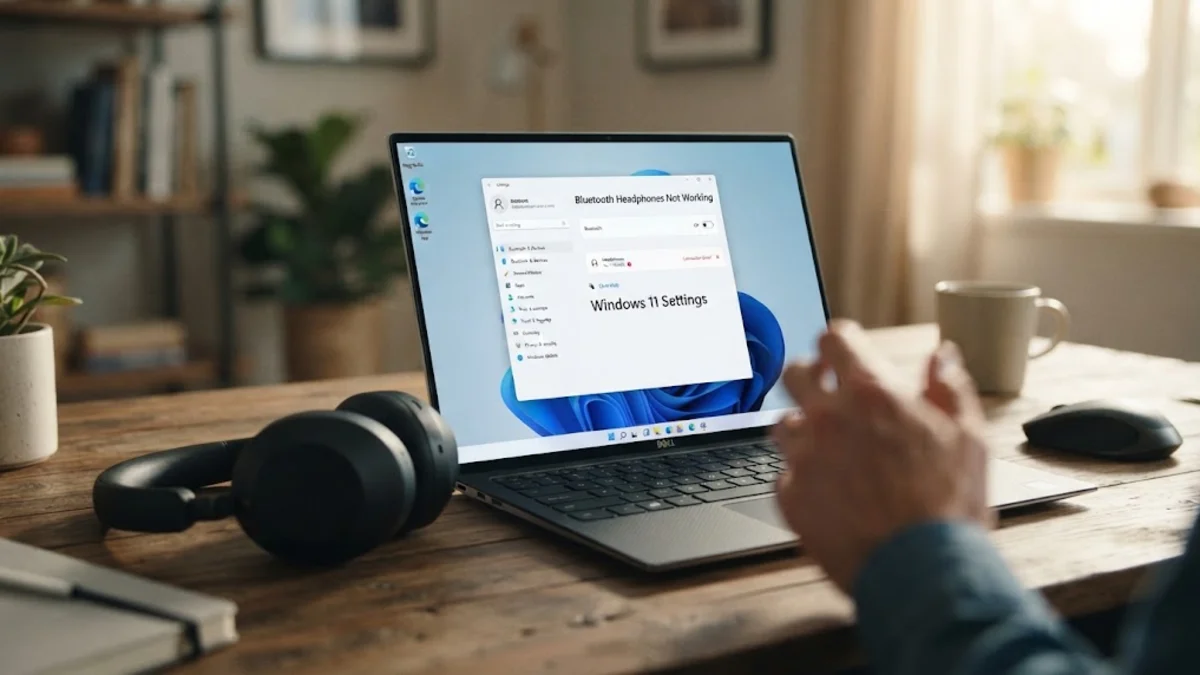
When your Bluetooth headphones refuse to connect or play sound on Windows 11, it can quickly disrupt your work or relaxation. This frustrating issue typically stems from outdated drivers, conflicting audio output settings, or minor glitches in the system's wireless stack.
In this guide, you will learn how to systematically diagnose and resolve your Bluetooth headphone problems using built-in Windows tools, driver updates, and correct device pairing procedures.
Toggle Bluetooth and Verify Hardware Switches
The quickest way to resolve minor handshake failures between your PC and your headphones is to cycle the Bluetooth radio off and back on. This forces Windows 11 to reset its wireless connection cache and search for nearby devices anew. Press Win + A to open the Quick Settings panel, click the Bluetooth icon to turn it off, wait five seconds, and turn it back on.
Additionally, check your physical headphones for a dedicated power switch or hardware mute button. Some wireless headphones enter a deep sleep mode or low-power state to conserve battery, which can disconnect them from your PC. Make sure your headphones are powered on, fully charged, and not simultaneously connected to your smartphone or another nearby device.
Remove and Re-Pair Your Bluetooth Headphones
Corrupted pairing profiles are a frequent culprit when headphones stop working properly after a system update. To clear out corrupted data, you need to completely remove the device from your operating system and set it up from scratch. Open your system settings by pressing Win + I, navigate to Bluetooth & devices > Devices, locate your headphones in the list, click the three-dot menu icon, and select Remove device.
Once removed, put your headphones into pairing mode by holding down the power or Bluetooth button until an LED indicator flashes or an audio prompt plays. Return to the Windows 11 Bluetooth settings menu, click Add device, choose Bluetooth, and select your headphones from the discovered list. Follow any remaining on-screen prompts to finish establishing a fresh connection.
Run the Built-in Windows Bluetooth Troubleshooter
Windows 11 includes dedicated automated diagnostic tools designed to scan for common connectivity flaws and apply automatic fixes. The Bluetooth troubleshooter checks radio status, driver integrity, and service configurations without requiring advanced technical knowledge. To access it, open Settings > System > Troubleshoot > Other troubleshooters.
Scroll down until you find the Bluetooth entry, then click the Run button next to it. Allow the diagnostic wizard a few moments to inspect your system and follow any recommended remediation steps. If the utility detects a misconfigured service or a corrupted registry key, it will attempt to repair the issue automatically before prompting you to reboot your computer.
Update or Reinstall Your Bluetooth Drivers
Outdated or corrupted wireless drivers often cause sudden audio dropouts, pairing loops, or total connection failures on Windows 11. To check your adapter status, right-click the Start button and select Device Manager. Expand the Bluetooth category, look for your primary wireless adapter (such as Intel Wireless Bluetooth or Realtek Bluetooth Adapter), right-click it, and choose Update driver. Select the option to search automatically for drivers.
If Windows reports that your current driver is already up to date, you can try a clean reinstallation. Right-click your Bluetooth adapter in Device Manager and select Uninstall device. Check the box to attempt removing the driver for this device if prompted, then restart your PC. Upon reboot, Windows 11 will automatically reinstall a fresh, default driver package to stabilize your hardware connection.
Configure Correct Default Audio Output Devices
Even when your headphones are successfully paired and connected, Windows 11 may still route system sounds through your laptop speakers or an external monitor. You must manually verify that your wireless headphones are designated as the primary playback device. Click the volume icon in your taskbar, then click the arrow next to the volume slider to view all available audio endpoints.
Select your headphones from the list, making sure you choose the profile labeled as Headphones rather than Headset if you want higher fidelity stereo playback without microphone mixing. If you still encounter issues, open Settings > System > Sound and verify that your device volume is turned up and not muted in the master sound mixer.
Restart Essential Windows Audio Services
Windows background services manage everything from hardware detection to sound routing. If one of these background processes freezes or crashes, your Bluetooth headphones will stop receiving audio data. Press Win + R to open the Run dialog box, type services.msc, and press Enter to launch the system services manager.
Scroll down the alphabetical list to find Windows Audio and Bluetooth Support Service. Right-click each service individually and select Restart. If the service is not currently running, right-click it, select Properties, change the startup type to Automatic, click Start, and apply your changes before testing your headphones again.
The bottom line
Fixing Bluetooth headphone issues on Windows 11 usually comes down to resetting the connection profile, refreshing your hardware drivers, or ensuring the correct output device is selected. By following these methodical troubleshooting steps, you can eliminate annoying audio dropouts and enjoy seamless wireless sound.
Frequently asked questions
Why do my Bluetooth headphones connect but have no sound?
This usually happens when Windows connects your headphones as a hands-free telephony headset instead of a stereo output device, or when the system volume is routed to a different playback source. Check your taskbar audio settings to ensure your headphones are selected as the active playback device.
How do I put my headphones into pairing mode?
Most Bluetooth headphones require you to hold down the power button or a dedicated Bluetooth button for 3 to 7 seconds until an LED indicator flashes blue and red, or until you hear an audible voice prompt saying pairing mode is active.
Should I choose Headphones or Headset in Windows sound settings?
Choose 'Headphones' if you want high-quality stereo audio for music and media. Choose 'Headset' only if you need to use the built-in microphone for voice calls, as the microphone profile lowers overall audio playback quality.
What should I do if my Bluetooth toggle is missing in Windows 11?
A missing Bluetooth toggle typically indicates a driver crash or a hardware disconnection. Shut down your PC completely, unplug the power cable for 30 seconds, and turn it back on to force a hard reset of your motherboard's Bluetooth controller.