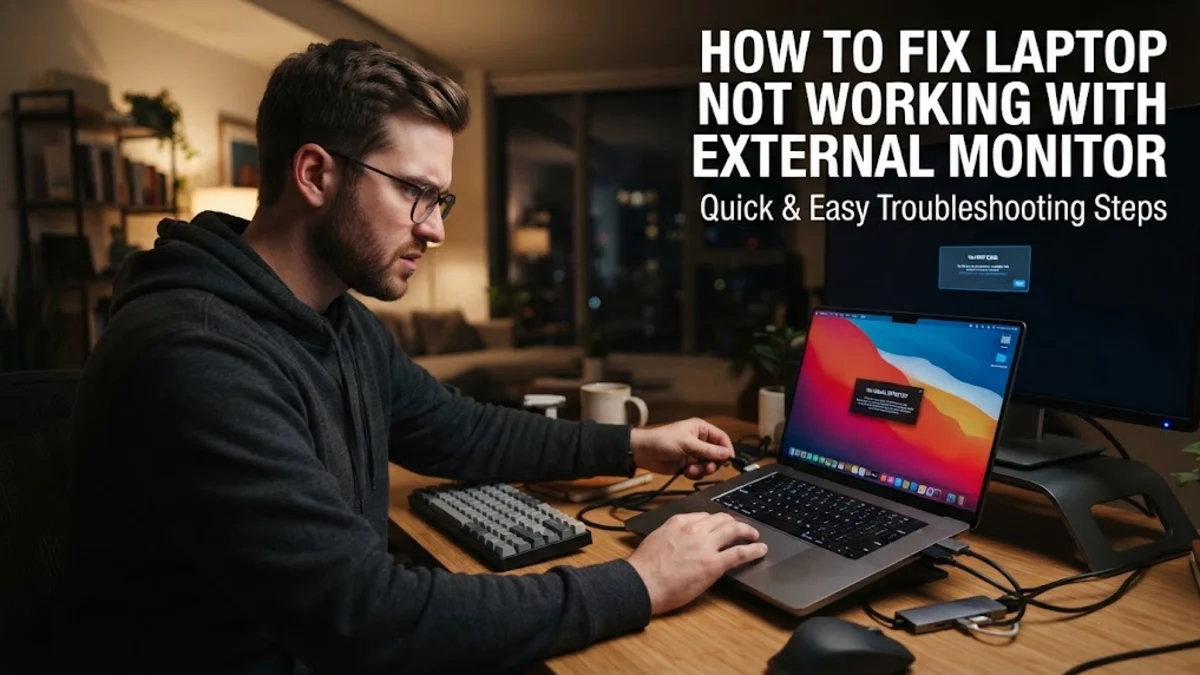
When your laptop fails to recognize an external monitor, it is usually caused by loose cable connections, incorrect projection settings, or outdated graphics drivers. Resolving this issue quickly gets your multi-screen setup back on track so you can work or game without interruption.
1Check Physical Connections and Cables
The very first step when troubleshooting a laptop not working with an external monitor is to verify all physical connections. Power down both your laptop and the external monitor before unplugging and re-plugging all video cables, including HDMI, DisplayPort, or USB-C cords. If you are using an adapter, docking station, or USB-C hub, make sure it is receiving adequate power from its own wall adapter, as unpowered hubs often lack the bandwidth or voltage required to drive an external display. Inspect the cables themselves for any visible fraying, bent pins, or loose connectors. If possible, test the cable on another device to rule out a broken wire. A secure, properly seated cable connection eliminates hardware interruption as the primary source of the blank screen problem.
2Change Projection Modes Using Keyboard Shortcuts
Sometimes Windows fails to send a video signal because the projection mode is set incorrectly, leaving your external monitor without instructions on what to display. To quickly fix this, press the Win + P keys simultaneously on your keyboard to open the Project flyout menu on the right side of your screen. You will see four options: PC screen only, Duplicate, Extend, and Second screen only. Use your arrow keys or mouse to select either Extend if you want a dual-monitor workspace or Second screen only if you want your laptop lid closed and your monitor acting as the primary display. Press Enter to apply the selection and check if the monitor springs to life.
3Force Windows to Detect the External Display
If Windows still does not recognize the connected monitor after adjusting your projection settings, you can manually force the operating system to search for connected hardware. Right-click any empty space on your desktop and select Display settings from the context menu, or navigate directly to Settings > System > Display. Scroll down to the Multiple displays section, click to expand it, and click the Detect button right next to 'Connect to a wireless display' or 'Detect another display'. Windows will scan all video ports for any newly attached monitors. If the screen is successfully discovered, you can rearrange its layout and click Keep changes to save your preferred screen arrangement.
4Update, Roll Back, or Reinstall Graphics Drivers
Outdated, corrupted, or faulty graphics drivers are a frequent culprit when an external monitor stops receiving a video signal from your laptop. Right-click the Start button and select Device Manager from the menu. Expand the Display adapters category to view your graphics hardware, which typically includes an integrated GPU and a dedicated GPU. Right-click your primary graphics driver and select Update driver, then choose 'Search automatically for drivers'. If you recently installed an update and the monitor stopped working immediately afterward, right-click the adapter, select Properties, go to the Driver tab, and click Roll Back Driver if the option is available. Alternatively, you can uninstall the device completely and restart your laptop; Windows will automatically reinstall a clean driver upon rebooting.
5Verify the Correct Input Source on the Monitor
External monitors often feature multiple input ports such as HDMI 1, HDMI 2, DisplayPort, and USB-C. If your monitor is set to listen on the wrong input channel, it will display a 'No Signal' message even though your laptop is successfully outputting a video feed. Locate the physical control buttons on your external monitor—usually found along the bottom edge or the back right corner—and open the on-screen display menu. Navigate to the Input Source or Source settings and manually select the exact port your laptop cable is plugged into. Once the correct channel is selected, the monitor should establish a handshake with your laptop and display your desktop background.
6Adjust Resolution and Refresh Rate Settings
If your external monitor flickers, turns completely black, or displays an 'Out of Range' error message after connecting, the resolution or refresh rate set by Windows may exceed the monitor's physical capabilities. Go to Settings > System > Display and select your external monitor box at the top. Scroll down and click on Advanced display. Check the current refresh rate and resolution settings. Lower the refresh rate or select a standard recommended resolution that matches your monitor's native specifications. Once adjusted, click Keep changes to stabilize the display output and prevent ongoing signal drops.
Frequently asked questions
Why is my external monitor saying no signal when connected to my laptop?
A 'no signal' message usually means the monitor is looking at the wrong input source, the cable is loose, or Windows has not detected the display. Check your monitor's source settings and press Win + P to change your projection mode to Extend.
How do I force Windows to find my second monitor?
Go to Settings > System > Display > Multiple displays and click the Detect button to force Windows to scan your physical video ports.
Can a bad HDMI or USB-C cable cause an external monitor not to work?
Yes. Damaged wires, cheap uncertified cables, or cables lacking sufficient data bandwidth can prevent video signals from reaching your external monitor.
What keyboard shortcut controls laptop screen projection?
Pressing Win + P opens the Project menu, allowing you to switch between PC screen only, Duplicate, Extend, and Second screen only.
How do I update my graphics driver to fix display issues?
Open Device Manager, expand Display adapters, right-click your graphics card, and select Update driver to search for the latest software.