Why Is My iPhone Not Ringing for Incoming Calls
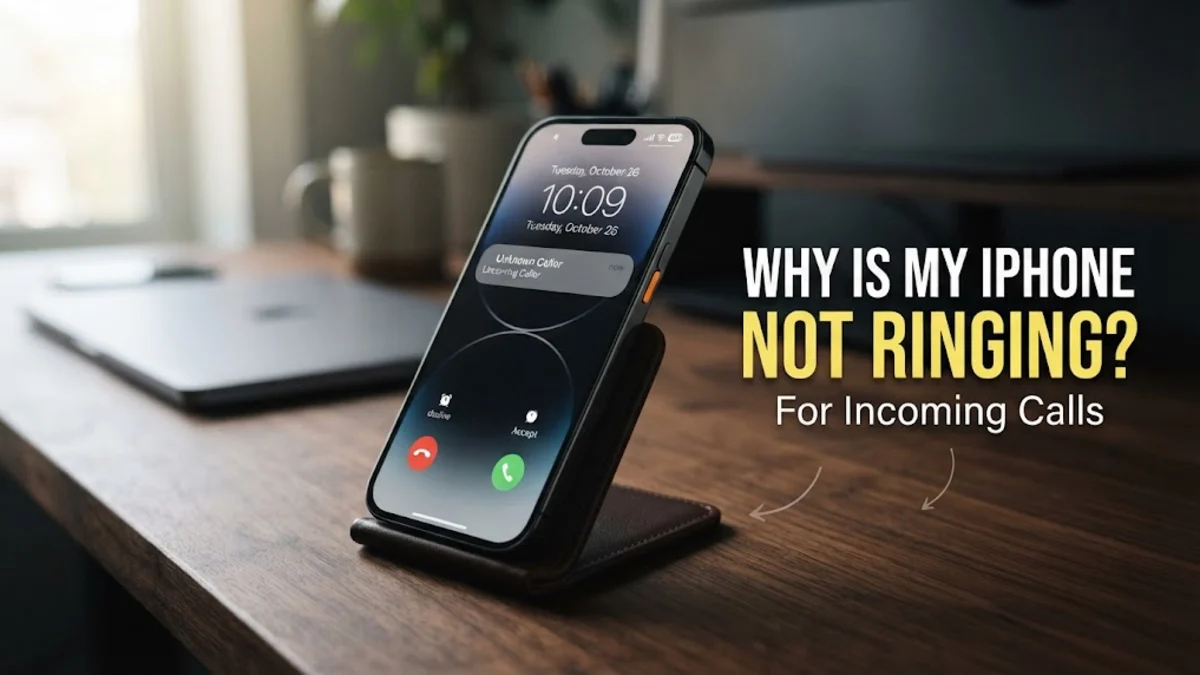
Missing important phone calls because your iPhone fails to ring can be frustrating, especially when you know the device is powered on and nearby. This common issue usually stems from accidental software toggles, active Focus modes, or minor audio routing glitches rather than hardware failure.
In this guide, you will learn why your iPhone is not ringing for incoming calls and how to methodically diagnose and resolve the problem using straightforward troubleshooting steps.
Check the Physical Ring/Silent Switch and Volume Levels
The most frequent reason an iPhone fails to ring is an accidental adjustment to the physical hardware controls or volume sliders. On the side of most iPhone models, you will find the Ring/Silent switch. If the orange indicator is visible, your phone is set to silent mode, which mutes incoming rings while often still allowing vibrations. Additionally, software volume levels for ringers and alerts might be turned all the way down.
To fix this, check the switch on the side of your device and flip it so the orange indicator is hidden. Next, unlock your screen and press the physical volume up button on the side, or navigate to Settings > Sounds & Haptics. Adjust the slider under Ringer and Alerts to a high level. You can also toggle off Change with Buttons if you want to prevent accidental volume adjustments from lowering your ringer.
Disable Active Do Not Disturb and Custom Focus Modes
Apple's advanced Focus modes, including Do Not Disturb, Personal, and Work profiles, are designed to silence notifications and calls when you need concentration or rest. If a Focus mode is accidentally left enabled, incoming calls from anyone outside your allowed contacts list will be silenced automatically, sending callers straight to voicemail or muting the ringer entirely without your knowledge.
To check and disable active Focus modes, swipe down from the top-right corner of your screen to open the Control Center. Look for the active Focus icon, such as a crescent moon or person silhouette. Tap it to turn it off. Alternatively, go to Settings > Focus, select each profile, and verify whether any schedules or automation rules are unintentionally triggering silence during your working or sleeping hours.
Turn Off Silence Unknown Callers Feature
Apple includes a helpful built-in security feature called Silence Unknown Callers, which automatically silences phone numbers that are not saved in your contacts, recent outgoing call history, or Siri Suggestions. While this is great for blocking spam, it frequently catches users off guard when legitimate delivery drivers, medical offices, or new acquaintances try to reach them and the phone remains completely silent.
If you suspect this feature is masking important incoming conversations, you can disable it or adjust your permissions. Go to Settings > Apps > Phone and scroll down to locate Silence Unknown Callers. Tap the toggle switch to turn it off completely. Once disabled, your phone will ring for every incoming number, ensuring you never miss an unrecorded contact again.
Check for Bluetooth Audio Routing Issues
Sometimes your iPhone is actually ringing, but the audio is being routed to a connected Bluetooth accessory, such as wireless earbuds, a car audio system, or a smart speaker that is sitting in another room. When an active Bluetooth connection hijacks your audio profile, incoming ringtones play directly through the connected device rather than your iPhone's built-in external speakers.
To rule out Bluetooth routing errors, swipe open the Control Center and check if the audio output icon indicates a connected headset or speaker. Alternatively, temporarily turn off Bluetooth by navigating to Settings > Bluetooth and flipping the main switch to off. If your phone immediately starts ringing out loud for incoming test calls, you know a rogue Bluetooth accessory was stealing your audio stream.
Review Call Forwarding and Carrier Settings
If your local device settings appear completely normal but calls still refuse to ring, the issue might stem from your cellular carrier or misconfigured network features. Call forwarding, for instance, sends all incoming calls directly to another number or voicemail box before your device ever has a chance to register the incoming connection signal.
To inspect these carrier features, open Settings > Apps > Phone > Call Forwarding and make sure the toggle is turned off. Next, check for any pending carrier updates by going to Settings > General > About. If a carrier update is available, a prompt will appear on your screen within a few seconds to install it automatically.
Reset Network Settings and Update iOS
Persistent software glitches deep within the iOS operating system can sometimes corrupt cellular routing and audio notification handlers. When all standard fixes fail, resetting your device configurations or applying the latest software patches usually restores normal functionality to your calling subsystem.
Begin by checking for system updates via Settings > General > Software Update and installing any available patches. If the problem persists, perform a clean network reset. Go to Settings > General > Transfer or Reset iPhone > Reset > Reset Network Settings. Note that this action clears saved Wi-Fi passwords and Bluetooth connections, but it safely clears out corrupted cellular configurations that prevent your phone from ringing.
The bottom line
Troubleshooting an iPhone that refuses to ring for incoming calls usually comes down to checking simple audio switches, adjusting Focus profiles, or managing unknown caller filters. By working through these practical steps systematically, you can quickly restore your device's normal ringtone alerts and ensure you never miss an important conversation again.
Frequently asked questions
Why does my iPhone vibrate but not ring for incoming calls?
This usually happens because your physical Ring/Silent switch is set to silent, your ringer volume is turned all the way down in settings, or a specific contact has a custom vibration set with no ringtone assigned.
Does Do Not Disturb block calls from favorite contacts?
By default, standard Do Not Disturb silences all calls. However, you can configure exceptions by going to Settings, selecting Focus, choosing Do Not Disturb, and adding specific people to your allowed callers list.
How do I know if my calls are being forwarded?
You can check your call forwarding status by navigating to Settings, tapping Apps, selecting Phone, and tapping Call Forwarding to see if the feature is toggled on.
Will resetting network settings delete my photos or apps?
No. Resetting network settings only clears saved Wi-Fi networks, paired Bluetooth devices, cellular settings, and VPN configurations. Your personal photos, apps, and messages remain completely safe.
What should I do if none of these fixes work?
If your phone still refuses to ring after trying all software fixes and network resets, contact your cellular provider to verify that your account status and SIM card or eSIM provisioning are active and correct.