How to Fix a Laptop Not Turning On
When your laptop refuses to power on, it can quickly derail your workday or studies. Fortunately, many startup failures stem from minor power glitches or external accessory conflicts rather than permanent hardware damage.
Check the Power Supply and Connections
When your laptop completely fails to respond, the most common culprit is a simple lack of electrical power. Start by inspecting the AC adapter, power brick, and all cable connections to ensure nothing is loose or damaged. Unplug the charger from both the wall outlet and the laptop, then plug it back in firmly. Look for any indicator lights on the power brick itself; many chargers feature a small LED that lights up when they receive power from the wall. If your adapter has an LED and it remains unlit, the issue might be a faulty wall outlet or a broken charging cable rather than the laptop itself. Try plugging another device, like a lamp or phone charger, into the exact same outlet to verify that electricity is flowing. Furthermore, check the charging port on your laptop for accumulated dust, lint, or bent pins. Over time, debris can block the metal connectors, preventing a proper electrical current from reaching the internal battery. Clean the port gently using a wooden toothpick if you notice any obstructions, taking extreme care not to damage the delicate internal components. If the adapter or cable shows signs of fraying, exposed wires, or melting, stop using it immediately and replace it with a certified OEM replacement.
Perform a Hard Power Reset
A hard power reset, also known as a power drain, clears any residual electrical charge lingering on the motherboard's capacitors and forces the system to reset its hardware state. This method frequently resolves instances where the laptop appears completely dead due to a temporary motherboard glitch or static electricity buildup. To perform a hard reset, begin by unplugging the AC adapter and removing all external accessories, flash drives, and connected monitors. If your laptop features a removable battery, take it out carefully by sliding the release latches on the bottom casing. Press and hold down the laptop's power button continuously for a full 30 to 40 seconds. This action drains any remaining electrical current stored within the internal circuits. After holding the button, reconnect only the power adapter while leaving the battery out for a moment, then press the power button normally to see if the device responds with fan noise or indicator lights. If the laptop powers on successfully, turn it down safely, reattach the battery, and boot it up once more. This simple trick fixes countless mysterious startup failures on both Windows 10 and Windows 11 machines without requiring any technical disassembly or software tools.
Disconnect All External Devices and Docks
Faulty peripherals, corrupted USB hubs, or malfunctioning docking stations can easily prevent a laptop from completing its initial power-on self-test. When a connected device experiences an electrical short or hardware failure, the laptop's motherboard may immediately cut power to protect itself from permanent damage, resulting in a completely unresponsive system. Unplug every single external accessory currently attached to your machine, including USB mice, keyboards, external hard drives, printers, SD cards, and multi-port USB-C hubs. If you use a proprietary docking station, detach the laptop from the dock entirely and attempt to power it on using only its direct wall charger. Once all peripherals are removed, try pressing the power button again. If the laptop boots up normally without the accessories attached, you can isolate the problematic device by plugging your peripherals back in one by one, testing the system after each addition. When you identify the specific accessory that causes the laptop to freeze or fail to start, discontinue its use immediately and check for updated hardware drivers or firmware. This step eliminates external conflicts and ensures a clean hardware environment for the boot sequence.
Test the Display and Monitor Connections
Check for Overheating or Thermal Shutdowns
Severe overheating can trigger an automatic thermal shutdown protection mechanism, preventing your laptop from turning back on until internal temperatures drop to safe levels. If your laptop was running intensive applications like video editors or games right before it shut down, or if it was placed on a soft surface like a bed or blanket that blocked the ventilation intake ports, heat may have accumulated rapidly. Feel the bottom chassis of the laptop; if it still feels unusually hot to the touch, allow the device to cool down completely in a well-ventilated area for at least thirty to forty-five minutes. Once the laptop has reached room temperature, attempt to turn it on again. To prevent future thermal shutdowns, make sure you always use your laptop on a hard, flat surface to keep the intake vents unobstructed. Over time, dust and pet hair can also accumulate inside the cooling fans and heatsink fins, blocking airflow entirely. If you feel comfortable doing so, use a can of compressed air to blow out dust from the exterior vents, or have a technician clean and reapply thermal paste to the processor to ensure optimal cooling performance.
Inspect and Reseat the Internal Battery
A degraded or completely dead internal battery can sometimes short-circuit the power delivery system, preventing the laptop from drawing electricity from the wall adapter even when plugged in. If your laptop has a removable external battery, take it out completely, leave the AC adapter plugged into the wall and the laptop, and press the power button. Many modern laptops are designed to run directly on AC power without any battery installed. If the laptop successfully turns on without the battery attached, you have confirmed that the old battery is dead or shorted out and needs to be replaced with a new unit. For laptops with internal non-removable batteries, troubleshooting becomes slightly more complex, as accessing the battery requires removing the bottom cover of the chassis. If you have experience with basic hardware maintenance, you can unscrew the bottom panel, disconnect the battery cable from the motherboard for a few minutes, and plug it back in securely to reset its connection. If the laptop still refuses to power on after bypassing or resetting the battery, the motherboard power management integrated circuit may be damaged, requiring professional hardware diagnostics or warranty service.
The bottom line
By working through these troubleshooting steps systematically, you can quickly identify whether your laptop's startup issue stems from a simple power cable problem, an accessory conflict, or a deeper hardware failure. Take your time with each check to avoid unnecessary repair costs.
Frequently asked questions
Why does my laptop light up for a second and then turn off?
This behavior usually indicates a short circuit, a failing battery, or a tripped motherboard protection circuit. Performing a hard power reset often resolves this issue.
Can a bad charger prevent a laptop from turning on?
Yes. If the power adapter is damaged or fails to deliver the correct voltage, the laptop cannot charge its battery or draw operating power from the wall.
How do I know if my laptop battery is completely dead?
If the laptop runs normally when plugged into the wall charger with the removable battery taken out, the battery itself has failed and needs replacement.
What should I do if my laptop gets wet and won't turn on?
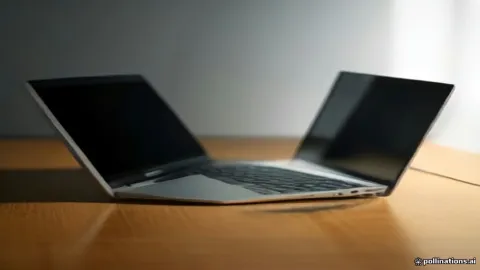
Immediately unplug the charger, turn off the laptop if possible, remove the battery, and place it upside down in a V-shape to drain. Do not attempt to turn it on until it dries completely for at least 48 hours.
Will removing the battery erase my personal files?
No. Removing the battery or performing a hard power reset only clears temporary electrical charge and does not affect your hard drive or stored data.