How to Enable Two-Factor Authentication on Apple ID
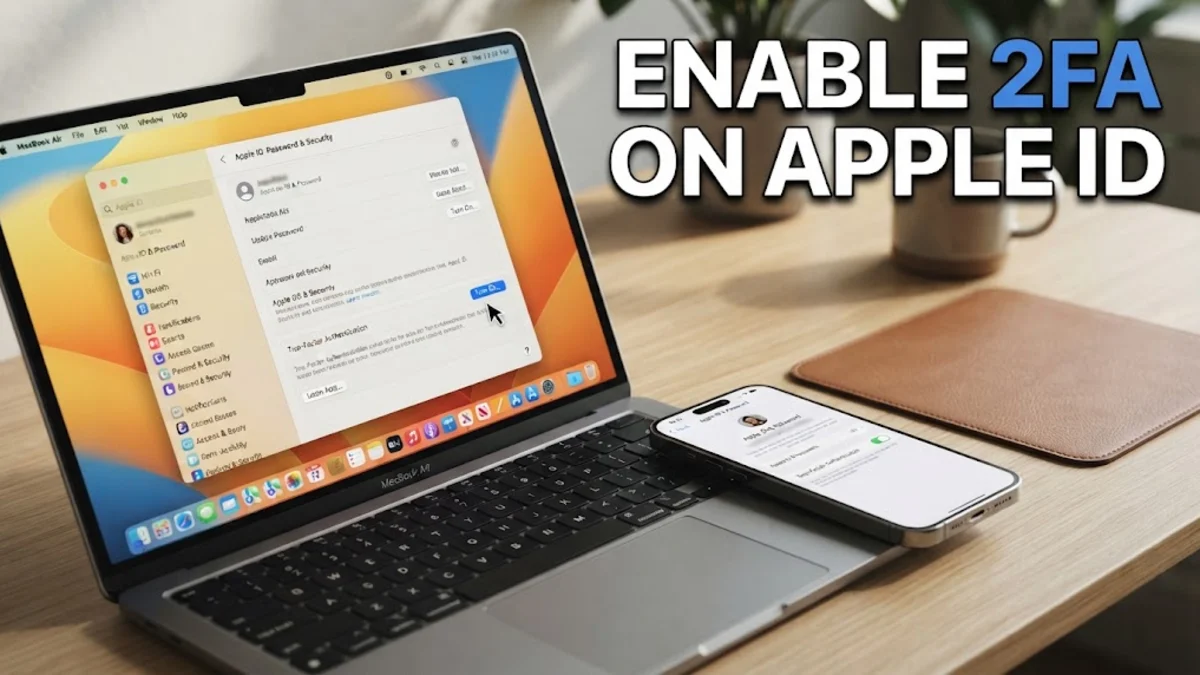
To enable two-factor authentication (2FA) on your Apple ID, go to Settings > [Your Name] > Sign-In & Security and tap Turn On Two-Factor Authentication. This security layer ensures that your account can only be accessed on devices you trust, such as your iPhone, iPad, or Mac, by requiring both your password and a six-digit verification code.
Why Two-Factor Authentication is Essential in 2026
In 2026, the digital landscape has evolved to a point where traditional passwords are no longer sufficient to protect sensitive personal data. Two-factor authentication (2FA) for Apple ID is the most critical security feature for any Apple user, as it prevents unauthorized access even if a malicious actor discovers your password. By requiring a second form of identification—typically a code sent to a trusted device or a hardware security key—Apple ensures that the person attempting to sign in is actually the account owner. This is particularly important for protecting iCloud Photos, Keychain passwords, and Apple Pay information.
Apple has made 2FA a mandatory requirement for using many of its newest services, such as Advanced Data Protection and Apple Card sharing. If you are still using the older "Security Questions" method, your account is significantly more vulnerable to social engineering and brute-force attacks. Transitioning to 2FA not only boosts your security but also simplifies the recovery process should you ever lose access to your devices. With the integration of Passkeys in iOS 20 and macOS 17, 2FA serves as the foundational trust layer for biometric authentication, making your digital life both safer and more convenient.
Enabling 2FA on iPhone and iPad
If your account does not already have two-factor authentication enabled, you can set it up directly from your mobile device. Ensure your device is running the latest version of iOS 20 to access the most streamlined security interface. Follow these steps to activate the protection:
- Open the Settings app on your iPhone or iPad.
- Tap on your Apple ID Name at the very top of the menu.
- Select Sign-In & Security.
- Locate the option labeled Two-Factor Authentication and tap Turn On.
- Tap Continue on the introductory screen that explains the service.
- Enter a trusted phone number where you can receive verification codes via text message or a phone call.
- Verify the phone number by entering the code sent to you by Apple.
A common mistake during this process is providing a temporary or VoIP number. Apple’s security systems often flag these numbers as unreliable. Always use a permanent mobile or landline number that you plan to keep for several years. Once enabled, your iPhone becomes a "trusted device," meaning it can display verification codes for other devices attempting to sign into your account.
Setting Up 2FA on a Mac
For users who primarily work on a desktop or laptop, enabling two-factor authentication via macOS is equally straightforward. This is often necessary if you are setting up a new Mac or if you have recently reset your Apple ID security settings. Ensure you are signed into iCloud before beginning the process.
- Click the Apple Menu in the top-left corner of your screen and select System Settings.
- Click on your Name (Apple ID) at the top of the sidebar.
- Select Sign-In & Security from the right-hand pane.
- Next to Two-Factor Authentication, click the Turn On button.
- Follow the on-screen prompts to confirm your identity and link a trusted phone number.
If you encounter an issue where the "Turn On" button is greyed out, it usually means your account is managed (such as a school or work account) or there is a pending security update that must be completed first. Ensure that your Mac is running the latest 2026 software updates to resolve any compatibility bugs. Once activated on your Mac, you can use the computer to authorize logins on your Apple TV, Apple Watch, or web browser via iCloud.com.
Managing Trusted Devices and Numbers
A "Trusted Device" is an iPhone, iPad, or Mac that Apple knows belongs to you and can be used to verify your identity. Managing this list is vital for maintaining account access. In the Sign-In & Security menu, you can see a full list of devices currently signed into your Apple ID. If you see a device you no longer own, tap it and select Remove from Account immediately. This prevents that device from ever receiving a 2FA code again.
Adding a secondary trusted phone number is a highly recommended safety measure. If you lose your primary iPhone, you can have the 2FA code sent to a partner's phone or a home landline. To do this, go to Sign-In & Security > Two-Factor Authentication and tap Edit next to Trusted Phone Number. Adding a second number ensures you are never locked out of your account due to a single point of failure. Professional users often add their office line or a secondary work mobile to this list for maximum redundancy.
Using Hardware Security Keys for Maximum Protection
For users at higher risk of targeted attacks, such as journalists or executives, Apple supports physical hardware security keys. These are small USB or NFC devices (like a YubiKey) that serve as your second factor instead of a digital code. In 2026, this remains the gold standard for preventing phishing because the physical key must be present to authorize a login.
| Feature | Verification Code (SMS/Device) | Hardware Security Key |
|---|---|---|
| Ease of Use | High (Built-in) | Medium (Requires physical device) |
| Phishing Resistance | Moderate | Extreme |
| Device Dependency | Requires Apple Device/Phone | Works via USB-C, Lightning, or NFC |
| Cost | Free | Requires Purchase ($25-$70) |
To set this up, go to Sign-In & Security > Two-Factor Authentication > Security Keys. You will need at least two FIDO-certified keys to complete the setup—one to use daily and one to keep in a safe place as a backup. Note that once you enable hardware keys, Apple will no longer send 6-digit codes to your devices; the physical key becomes the only way to authorize new sign-ins.
What to Do if You Cannot Get a Verification Code
It is a common frustration: you are trying to sign in on a new device, but your trusted iPhone is dead or has no signal. If you find yourself in this situation, do not panic. On the sign-in screen where the code is requested, tap Didn't get a code?. This menu allows you to choose an alternative method, such as sending the code to a backup trusted phone number via SMS or a voice call.
If you have no access to any trusted device or phone number, you may need to use an Account Recovery Contact or a Recovery Key. A Recovery Contact is a trusted friend or family member who can receive a special code to help you get back into your account. A Recovery Key is a 28-character code you generate yourself. Be warned: if you use a Recovery Key and lose both the key and your devices, Apple cannot help you recover the account; the data will be lost forever. Always store your Recovery Key in a physical safe or a dedicated offline password manager.
The bottom line
Enabling two-factor authentication on your Apple ID is the single most effective step you can take to secure your digital life in 2026. Whether you use standard device-based codes or opt for the extreme security of hardware keys, this system ensures that your private data remains in your hands. Take five minutes today to verify your trusted numbers and devices to ensure you never lose access to your memories and files.
Frequently asked questions
Can I turn off two-factor authentication after enabling it?
In 2026, if your account was created recently or has already been updated to use 2FA, you generally cannot turn it off. Apple considers this level of security foundational. If you recently enabled it on an older account, you may have a 2-week window to opt-out via the confirmation email you received, but this is not recommended.
What happens if I lose my trusted phone and don't have another device?
You can still receive a code on a trusted phone number (SMS or call). If you have no access to that number, you must use an Account Recovery Contact or start the automated Account Recovery process at iforgot.apple.com, which can take several days to verify your identity.
Do I need a verification code every time I sign in?
No. Once you sign in on a device, it becomes 'trusted.' You will only need a code again if you sign out completely, erase the device, or need to change your Apple ID password for security reasons.
Is 2FA the same as a Passkey?
They are related but different. 2FA is the system of using two factors to verify identity. A Passkey is a specific technology that replaces passwords entirely using your device's biometrics (Face ID/Touch ID) and is backed by the 2FA trust architecture.