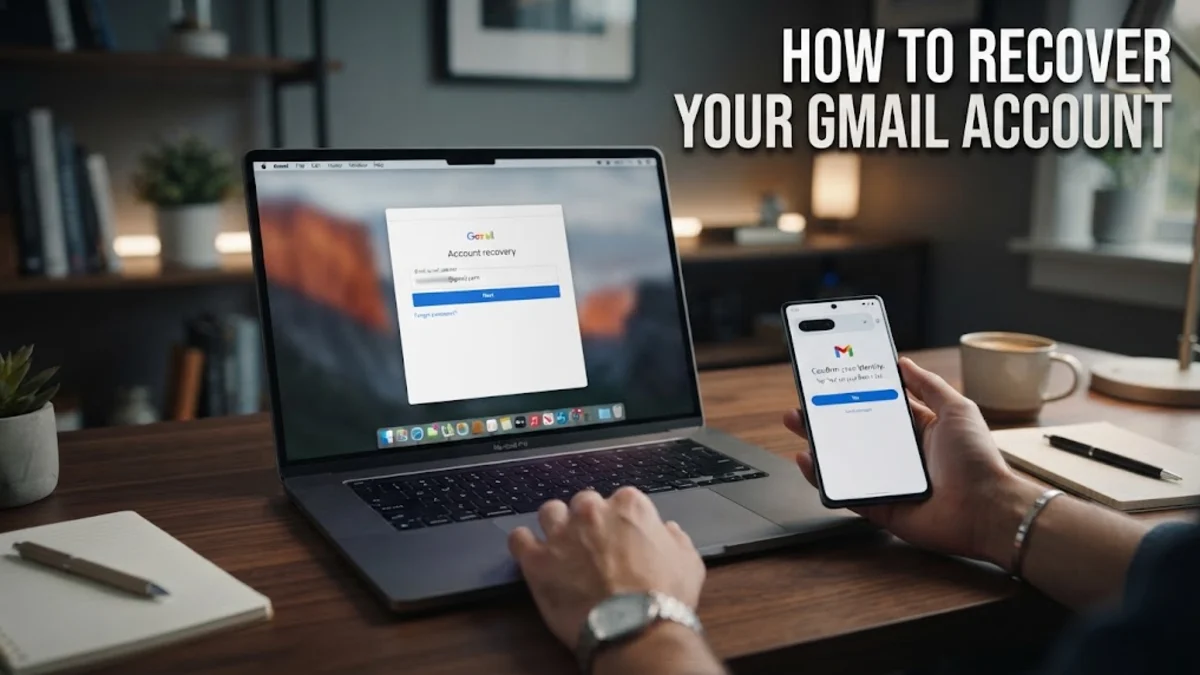
To recover your Gmail account, the most direct and effective method is to use the official Google Account Recovery tool. This automated system is designed to verify your identity through a series of security questions, secondary contact methods, and device verification signals. Because Google prioritizes security, the recovery process requires you to provide evidence that matches the account's historical data, such as previous passwords or access from a recognized Wi-Fi network. If you find yourself locked out due to a forgotten password, a changed phone number, or a potential security breach, following the structured recovery path is the only way to regain access. In 2026, Google has integrated more advanced authentication methods like Passkeys and hardware-based security keys into the recovery flow, making it easier for users with updated security settings to bypass traditional password resets. This guide will walk you through every possible scenario to ensure you can get back into your email as quickly as possible.
1Using the Official Account Recovery Tool
The first step for any Gmail account recovery is navigating to the official recovery page at accounts.google.com/signin/recovery. When you start this process, Google will first ask for the email address or phone number associated with the account. A common mistake users make is trying to recover an account using a device they have never used before. Google tracks the unique hardware signature and IP address of your devices; therefore, your chances of success increase dramatically if you perform the recovery from a laptop, tablet, or smartphone where you have previously signed in. Ensure you are connected to a familiar Wi-Fi network, such as your home or office connection, rather than a public hotspot or a VPN. When prompted for your password, enter the most recent one you remember. If you do not remember your last password, click Try another way. In 2026, the system may prompt you to use a Passkey. If you have a Passkey saved on your current device, you can simply use your fingerprint, face scan, or screen lock to verify your identity without needing a password at all. This is often the fastest way to bypass the recovery questionnaire. If you are prompted for a recovery email, check your secondary inbox for a six-digit verification code. Enter this code carefully and press Enter to proceed to the password reset screen.
2Recovering Without a Phone Number or Recovery Email
Many users face the challenge of performing a Gmail account recovery after losing access to their recovery phone number or secondary email address. If you no longer have the phone or the email address listed in your security settings, do not panic. When Google asks to send a code to your old number, select I don't have my phone. The system will then attempt to verify you through other means, such as a prompt on another device where you are still signed in. Check your other mobile devices for a notification that asks, 'Is it you trying to sign in?' Tapping Yes, it's me will immediately grant you access to the password reset page. If you are not signed in anywhere else, Google may ask security questions you set up years ago, though these are becoming less common in 2026 in favor of device-based verification. Another alternative is using a trusted Wi-Fi network that the account has frequented for months. Google’s backend systems can sometimes recognize the consistency of your location and allow a reset based on 'trusted environment' signals. If all automated methods fail, you may be asked to provide an email address where Google can contact you later. In this case, a manual review by Google's security system may take 3 to 5 business days. Avoid submitting multiple requests during this window, as it can reset the timer and flag your account for suspicious activity.
3How to Reclaim a Hacked Gmail Account
If you suspect your account has been compromised, speed is of the essence. Hackers often change the recovery email and phone number immediately to lock you out. To start a Gmail account recovery for a hacked account, go to the recovery page and enter your email. If the system says your password was changed recently, click Try another way. Google allows you to use a previously used password to prove you are the rightful owner. If the hacker has enabled 2-Step Verification with their own device, you must look for the Try another way to sign in link. Google may ask you when you created the account (month and year) or ask you to verify the identity of someone in your Google Photos or contacts. Once you regain access, the first thing you must do is navigate to Manage your Google Account > Security and check the Your devices section. Click on any device you do not recognize and select Sign out. This ensures the hacker is booted off immediately. You should also check your Gmail settings for any unauthorized forwarding addresses that might be sending your incoming mail to the attacker. Go to Settings > See all settings > Forwarding and POP/IMAP to verify no unknown emails are listed there.
4Common Recovery Errors and Troubleshooting
During the Gmail account recovery process, you might encounter the frustrating message: 'Google couldn't verify this account belongs to you.' This usually happens when there isn't enough signal (device info, location, or recovery data) to prove ownership. To fix this, try clearing your browser cache by pressing Ctrl + Shift + Delete and restarting the process. Sometimes, a stale cookie can interfere with the verification flow. Another common issue is the 'Too many failed attempts' error. If you see this, you must wait at least 24 to 48 hours before trying again. Repeatedly guessing passwords or requesting SMS codes triggers an automated lockout to prevent 'brute force' attacks from hackers. If you are using a mobile browser, try switching to a desktop computer on the same network. Desktop browsers often provide more robust identity signals to Google. Additionally, ensure that your browser is updated to the latest 2026 version. Modern recovery flows rely on specific WebAuthn protocols that may not function correctly on outdated software. If you are using a work or school account, the recovery process is different; you must contact your organization’s IT administrator, as they hold the master permissions to reset your credentials through the Google Workspace Admin Console.
5Using Passkeys and Security Keys for Recovery
In 2026, Passkeys have become the primary method for securing Google Accounts, significantly simplifying the Gmail account recovery process. A Passkey is a digital credential tied to your device’s hardware that replaces traditional passwords. If you previously set up a Passkey on your iPhone, Android, or laptop, you can recover your account by simply clicking Use Passkey during the sign-in flow. Your device will prompt you for your biometric data or PIN, and once authenticated, Google will trust the request. This method is virtually unhackable because the private key never leaves your device. Alternatively, if you use a physical security key like a YubiKey, you can plug it into your USB port or tap it against your phone’s NFC reader when prompted. Security keys are considered the 'gold standard' for account recovery because they provide physical proof of ownership. If you have these enabled, Google will prioritize them over SMS or email codes. To manage these in the future, go to Settings > Security > How you sign in to Google > Passkeys and security keys. Having at least two different Passkeys (e.g., one on your phone and one on your computer) ensures that even if you lose one device, you have a built-in recovery path on the other.
6Comparison of Recovery Verification Methods
Different recovery methods offer varying levels of security and convenience. Understanding which one to use during your Gmail account recovery can save time.
| Method | Speed | Security Level | Requirements |
|---|
| Passkey | Instant | Very High | Pre-registered device with biometrics |
| Recovery Email | Fast | Medium | Access to a secondary inbox |
| SMS Code | Fast | Low | Access to the registered phone number |
| Security Key | Instant | Highest | Physical USB or NFC hardware key |
| Backup Codes | Instant | High | Printed or saved 8-digit codes |
| Manual Review | 3-5 Days | Variable | Providing historical account data |
While SMS is the most common, it is also the most vulnerable to SIM-swapping attacks. If possible, prioritize Passkeys or Security Keys. If you are currently in the middle of a recovery, look for the 'Backup Codes' option if you were wise enough to print them out when you first enabled 2-Step Verification. These are one-time use codes that bypass all other security checks.
7Securing Your Account Post-Recovery
Once your Gmail account recovery is successful, you must take immediate steps to prevent another lockout. Start by updating your recovery phone number and email address to accounts you currently have active access to. Navigate to Security > How you sign in to Google and verify that the Recovery phone and Recovery email are correct. Next, generate a set of 10 backup codes. These codes are your last line of defense; if you lose your phone and your password, these codes will always let you back in. Go to 2-Step Verification > Backup codes, print them, and store them in a physical safe or a secure, offline location. In 2026, it is also highly recommended to enable 'Advanced Protection' if you are a high-risk user, such as a journalist or business executive. This mode requires a physical security key for all sign-in attempts and adds extra layers of scrutiny to any recovery requests. Finally, run a Security Checkup from the Google Account dashboard. This tool will highlight any third-party apps that have access to your data. Revoke access for any apps you no longer use, as these can sometimes be a back-door for attackers to gain entry to your account information.
Frequently asked questions
How can I recover my Gmail account if I forgot everything?
If you forget your password, recovery email, and no longer have your phone, your best option is to use the Account Recovery page from a device you have previously used to sign in. Google will use device and network 'fingerprinting' to verify you. If that fails, you will need to answer historical questions about the account, such as when it was created, or use a Passkey if you previously set one up.
Is there a Google support phone number for Gmail recovery?
No, Google does not provide a phone number for Gmail account recovery. Any number you find online claiming to be 'Google Support' for password resets is likely a scam. The recovery process is entirely automated through the Google Account Recovery website to ensure maximum security and privacy.
Can I recover a Gmail account after 10 years of inactivity?
Google has a policy of deleting accounts that have been inactive for more than two years. If your account was deleted due to inactivity, it is generally not recoverable, and the email address cannot be reused. However, if the account still exists, you can try the standard recovery process, though it may be difficult if you no longer have the original recovery info.
What are Gmail backup codes?
Backup codes are a set of ten 8-digit numbers that you can generate in your security settings. Each code can be used once to bypass 2-Step Verification. They are specifically designed for situations where you lose access to your phone or cannot receive SMS codes, making them a vital tool for successful account recovery.
How long does Google take to process a recovery request?
Automated recovery via Passkey, SMS, or recovery email is instant. However, if Google needs to manually verify your identity because you lack those recovery methods, it typically takes 3 to 5 business days. You will receive an update at the contact email address you provided during the recovery flow.