What Is Router Bridge Mode and When to Use It
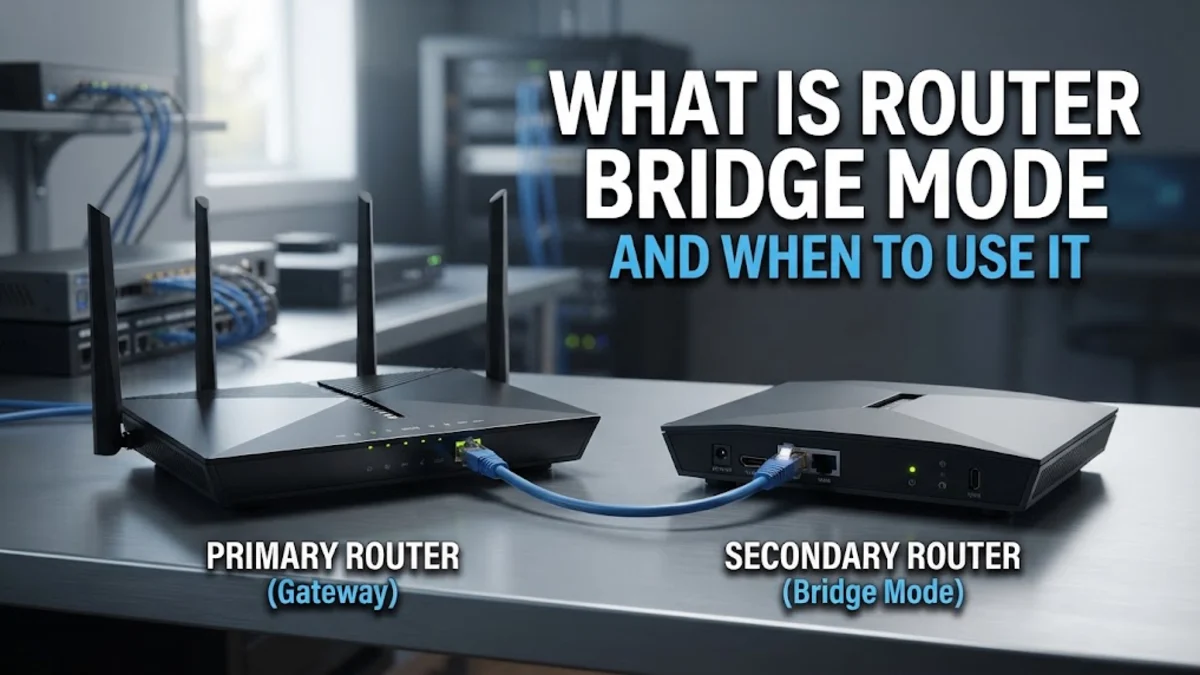
Router bridge mode is a configuration setting that disables a router's internal routing, firewall, and Wi-Fi broadcast capabilities, converting it into a transparent passthrough device. Instead of managing IP addresses and network traffic, a bridged router simply hands off the internet signal directly to another connected device, such as a standalone router or mesh Wi-Fi system.
Internet service providers frequently supply combo units that bundle an optical terminal or cable modem with a Wi-Fi router. When you add a separate high-performance router or multi-node mesh system to upgrade your home coverage, leaving both devices in standard router mode creates network conflicts. Enabling bridge mode cleanly eliminates these collisions while letting your new hardware manage your home network.
Understanding How Bridge Mode Works
In standard operation, a residential router performs multiple roles simultaneously: it negotiates your public IP address with your ISP, translates incoming data packets using Network Address Translation (NAT), distributes local private IP addresses through a DHCP server, filters threats via a firewall, and broadcasts wireless signals. These coordinated functions allow dozens of smartphones, laptops, and smart appliances to share a single public connection safely.
When you switch a gateway into bridge mode, you strip away those upper-layer networking features. NAT, DHCP, parental controls, and firewall inspection are turned off, and the local Wi-Fi radios are silenced. The device steps back into operating purely as a Layer 2 networking bridge. It passes your provider's external IP address straight through an Ethernet port to the WAN port of your secondary router, allowing that downstream unit to handle all routing tasks without interference.
Bridge Mode vs. Router Mode vs. Access Point Mode
Choosing the correct operational mode depends on the role each piece of hardware plays in your setup. Leaving a device in standard router mode is ideal only if it is the sole gateway in your building. When combining equipment, choosing between bridge mode and access point (AP) mode determines where your network intelligence resides.
| Feature | Standard Router Mode | Bridge Mode | Access Point Mode |
|---|---|---|---|
| NAT & Routing | Active | Disabled | Disabled |
| DHCP Server | Active (assigns local IPs) | Disabled | Disabled |
| Firewall Protection | Active | Disabled | Disabled |
| Wi-Fi Radio | Active | Disabled | Active |
| Best Used For | Standalone gateway setups | Modem/router combos connected to a primary router | Adding wireless coverage to an existing wired router |
In bridge mode, you rely on a downstream router to provide firewalls and IP addresses. In access point mode, the primary gateway retains routing, NAT, and DHCP responsibilities, while the secondary device simply extends the wireless network coverage across additional rooms without creating isolated subnets.
Why and When You Should Use Bridge Mode
The primary motivation for enabling bridge mode is resolving double NAT. When two cascading routers perform Network Address Translation simultaneously, incoming data packets are translated twice across two separate private subnets, such as 192.168.0.x and 192.168.1.x. This layout breaks peer-to-peer online gaming matchmaking, generates strict NAT errors on consoles, interrupts VoIP telephony, and interferes with port forwarding and remote access tools.
- Mesh Wi-Fi deployment: Modern mesh hardware systems require centralized control over channel management and client roaming. Bridging your ISP gateway gives your primary mesh node full authority over traffic management.
- Custom third-party hardware: If you invest in an enthusiast-grade router running advanced firmware, bridging the ISP combo ensures you can manage QoS traffic shaping, VPN servers, and custom DNS without restriction.
- Reduced latency and CPU load: Gateway combos provided by carriers often have modest processors. Removing NAT processing and packet filtering from an ISP combo prevents thermal throttling and packet buffering during heavy multi-device downloads.
When You Should Not Enable Bridge Mode
Bridge mode is not a universal performance booster and will disrupt your internet connectivity if applied in the wrong environment. If your network consists of a single standalone modem-router gateway with no secondary router connected behind it, enabling bridge mode leaves your network non-functional. Because DHCP and routing are disabled, only the first device plugged into an Ethernet port will receive an IP address, while all other devices will lose network access.
Furthermore, bridging an ISP gateway disables any auxiliary features built into that specific unit. If your home telephone service relies on an integrated RJ11 VoIP voice port, or if you subscribe to carrier-provided television set-top boxes that require specific multicast VLANs configured on the gateway, bridge mode can interrupt those services. Always check your service provider's documentation to confirm if landline or television services are tied to gateway routing functions before toggling the setting.
How to Enable Bridge Mode on Your Gateway
The specific menu structure varies across hardware manufacturers, but the configuration process follows a consistent pattern across major residential internet service providers. Before changing settings, connect a computer directly to the ISP gateway using an Ethernet cable to avoid losing your administrative connection when Wi-Fi shuts off.
- Open a web browser and enter your gateway's default IP address into the address bar, typically
192.168.1.1,192.168.0.1, or10.0.0.1. - Log in using the admin credentials printed on the gateway's sticker or your previously configured password.
- Navigate to the network settings menu, commonly found under Gateway > Connection > Advanced or LAN Setup > Operation Mode.
- Locate the setting labeled Bridge Mode, toggle it from Disabled to Enabled, and apply your changes. (On some fiber gateways, this feature is labeled IP Passthrough or DMZplus).
- Power down both your ISP gateway and your personal router. Connect an Ethernet cable from LAN Port 1 on the bridged gateway to the WAN port on your personal router.
- Power on the ISP gateway and wait three minutes for it to re-establish its broadband handshake. Then power on your personal router.
Troubleshooting Bridge Mode and Common Pitfalls
The most common issue after activating bridge mode is losing access to the ISP gateway's management interface. Because the gateway no longer acts as your local DHCP server, entering its original IP address into your browser will time out. Most gateways remain reachable on a fallback management address, such as 192.168.100.1. If this address fails to open, assign a temporary static IP address in the same subnet to your PC's Ethernet adapter, such as 192.168.100.50 with a subnet mask of 255.255.255.0, to log in.
If your personal router fails to obtain an internet connection after bridging the upstream device, your service provider might be locking the public IP lease to the gateway's old MAC address. You can resolve this by unplugging the power cables from both units for five minutes to clear the ISP lease cache. Alternatively, check your provider's requirements: fiber connections using PPPoE require you to input your account username and password directly into your personal router's WAN settings interface.
The bottom line
Router bridge mode is an essential networking tool whenever you introduce a secondary router or mesh system to an existing ISP gateway. By disabling unnecessary translation layers and redundant firewalls, bridge mode prevents double NAT errors, lowers connection latency, and lets your hardware deliver its full routing potential.
Frequently asked questions
Does enabling bridge mode make my internet connection faster?
Bridge mode does not increase the raw bandwidth supplied by your broadband subscription. However, it can improve network responsiveness, lower gaming latency, and prevent packet queuing by passing all routing duties to faster, more capable hardware.
Is my network safe when bridge mode is enabled?
Yes, provided you have a capable standalone router plugged into the bridged gateway. While the bridged unit turns off its own firewall, your downstream router's built-in SPI firewall and NAT immediately protect your local devices from external threats.
What is the difference between bridge mode and IP passthrough?
Bridge mode fully deactivates Layer 3 routing on the modem. IP Passthrough (often found on fiber gateways) keeps routing tables active within the unit while assigning the external public IP directly to one designated MAC address, bypassing its internal NAT for that device.
How do I reverse bridge mode if I make a mistake?
If you cannot access the gateway's web portal, locate the physical reset pinhole on the back or bottom of the device. Press and hold the reset button with a paperclip for 15 to 30 seconds until the status lights blink, restoring original factory settings and standard router mode.
Can I plug multiple devices into the remaining Ethernet ports of a bridged modem?
No. When a gateway is in bridge mode, all secondary Ethernet ports are either disabled or non-functional for local networking. You must connect only your personal router to Port 1, and then plug your remaining computers, switches, and consoles into your personal router.