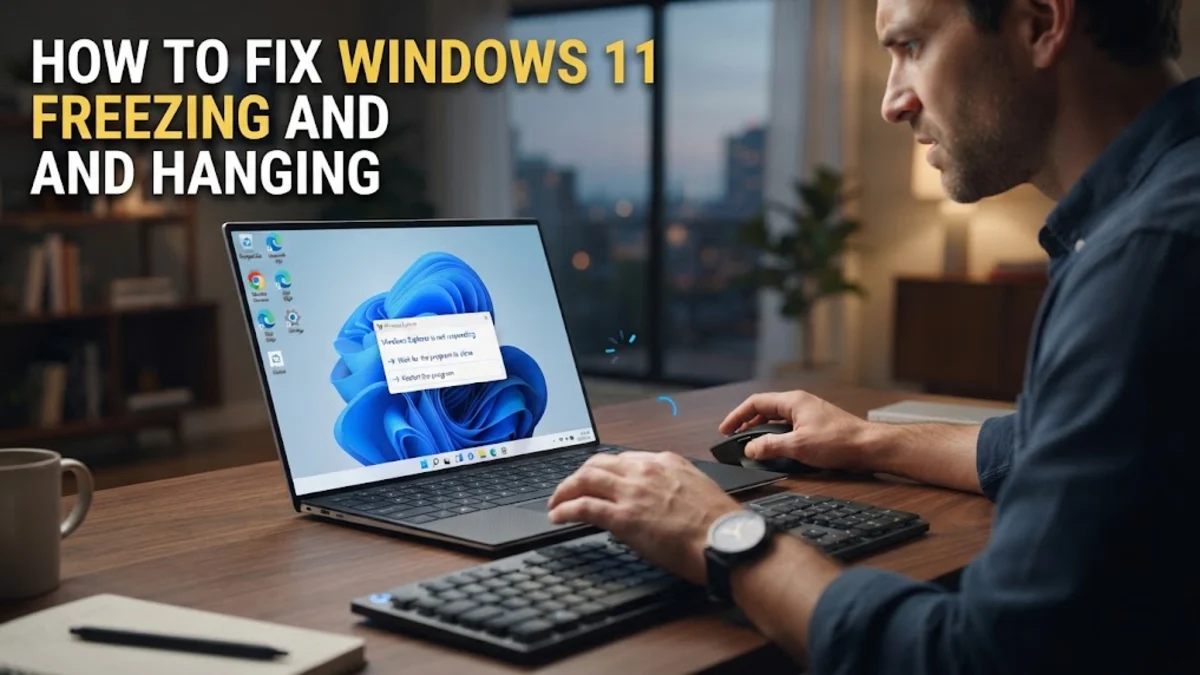
Windows 11 freezing or hanging unexpectedly can disrupt your workflow and cause data loss. This issue usually stems from outdated graphics drivers, corrupted system files, or background processes consuming excessive CPU and RAM resources. In some cases, power management settings or hardware overheating may also be the primary culprit behind the instability. To fix Windows 11 freezing, you must identify whether the hang is a temporary software glitch or a deeper system conflict. By following a systematic approach—starting with quick software resets and moving toward hardware diagnostics—you can restore your computer to a smooth and responsive state without needing a professional technician.
1Identify and Terminate Resource-Heavy Applications
When Windows 11 freezes, the first step is to determine if a specific application is causing the lockup. Often, a single program becomes unresponsive and hogged system resources, making it appear as though the entire OS has crashed. You can check this by pressing Ctrl + Shift + Esc to open the Task Manager. Once open, click on the Processes tab and look for any application with a high percentage in the CPU, Memory, or Disk columns. If you find a program that is using an unusual amount of power or is marked as Not Responding, right-click it and select End task. This often releases the system hold immediately and returns control to the user. Experts recommend monitoring the Efficiency Mode column in 2026; sometimes, Windows 11 aggressively throttles apps, leading to perceived freezes. If an essential app is constantly freezing, you may need to disable Efficiency Mode for that specific process to ensure it has the priority it needs to function. Also, check the Startup apps tab to see if too many programs are launching simultaneously, which can cause the system to hang during the initial login phase.
2Repair System Files with SFC and DISM
Corrupted or missing system files are a common reason for frequent Windows 11 hangs. Even a small error in the system kernel or a DLL file can cause the Explorer.exe process to crash or freeze. To fix this, you can use the built-in System File Checker (SFC) and the Deployment Image Servicing and Management (DISM) tool. To start, right-click the Start button and select Terminal (Admin) or Command Prompt (Admin). Type sfc /scannow and press Enter. This utility will scan all protected system files and replace corrupted files with a cached copy. If SFC cannot fix the errors, you must use the DISM tool to repair the Windows image. In the same terminal window, type DISM /Online /Cleanup-Image /RestoreHealth and press Enter. This process connects to Windows Update servers to download clean copies of corrupted files. It is important to let this process reach 100 percent, even if it appears stuck at certain intervals. After both commands are finished, restart your computer to apply the repairs. Many users forget to run DISM before SFC, but running them in sequence ensures the underlying component store is healthy before the system files are verified.
3Update Graphics Drivers and BIOS
Outdated or incompatible display drivers are frequently responsible for Windows 11 freezing, especially during video playback or gaming. Because Windows 11 in 2026 relies heavily on GPU acceleration for its visual interface, any instability in the driver can lead to a total system freeze. To update your drivers, right-click Start and go to Device Manager. Expand the Display adapters section, right-click your graphics card (Nvidia, AMD, or Intel), and select Update driver. Choose Search automatically for drivers. For the best results, visit the official manufacturer's website and download the latest stable driver package specifically for Windows 11. In some cases, a clean installation is required; tools like Display Driver Uninstaller (DDU) can help remove old driver remnants that cause conflicts. Additionally, check your motherboard manufacturer's website for BIOS or UEFI updates. A BIOS update can resolve low-level hardware compatibility issues that standard software updates cannot reach. Be cautious when updating BIOS, as a power failure during the flash process can damage your motherboard. Always ensure your laptop is plugged into a power source before starting this procedure.
4Disable Fast Startup and Adjust Power Settings
The Fast Startup feature in Windows 11 is designed to reduce boot times by saving a part of the system state to the hibernation file. However, this can lead to driver initialization errors that cause the system to freeze after waking up or during a cold boot. To disable this, navigate to Control Panel > Hardware and Sound > Power Options and click on Choose what the power buttons do. Click the Change settings that are currently unavailable link at the top, then uncheck Turn on fast startup (recommended). Click Save changes. Beyond this, you should check your active power plan. Go back to Power Options and ensure you are using the Balanced or High Performance plan. If you are on a laptop, being in Power Saver mode can sometimes throttle the CPU so aggressively that it causes stuttering or temporary freezes when trying to perform intensive tasks. Adjusting the Minimum processor state to 5% and Maximum processor state to 100% under Advanced power settings ensures your processor scales correctly according to demand.
5Clear Temporary Files and Manage Virtual Memory
A cluttered hard drive or improperly configured virtual memory (page file) can cause Windows 11 to hang while it struggles to swap data between RAM and the disk. First, clear out temporary system data by going to Settings > System > Storage > Temporary files. Select all the boxes, including DirectX Shader Cache and Delivery Optimization Files, and click Remove files. This frees up valuable space and removes potentially corrupted cache files. Next, evaluate your Virtual Memory settings. Navigate to Settings > System > About > Advanced system settings. Under the Advanced tab, click Settings in the Performance section. Go to the Advanced tab again and click Change. While the default is Automatically manage paging file size for all drives, some users find that setting a Custom size helps stability if they have limited RAM. If you choose custom, set the Initial size to 1.5 times your total RAM and the Maximum size to 3 times your total RAM. This prevents Windows from constantly resizing the page file, which can cause micro-stutters and freezes on systems with older SSDs or HDDs.
6Check Hardware Health and Temperatures
If software fixes do not resolve the freezing, you may be facing a hardware issue such as failing RAM or an overheating processor. High temperatures cause the CPU to throttle or lock up to protect itself from permanent damage. Use a hardware monitoring tool to check if your CPU or GPU temperatures exceed 90 degrees Celsius under load. If they do, you may need to clean the dust out of your PC fans or replace the thermal paste. To check your RAM, use the Windows Memory Diagnostic tool. Press Win + R, type mdsched.exe, and press Enter. Choose Restart now and check for problems. Your computer will reboot into a blue screen environment and test your memory modules for errors. If errors are found, you likely have a faulty RAM stick that needs to be replaced. Additionally, check the health of your SSD using the chkdsk command. Open Terminal (Admin) and type chkdsk C: /f /r. You will be asked to schedule the scan for the next restart. This tool identifies bad sectors on your drive and attempts to recover readable information, which is a common fix for freezes occurring during file access.
7Reset Windows 11 as a Last Resort
If you have tried all the steps above and Windows 11 continues to freeze, the OS installation itself might be fundamentally damaged. In this case, performing a system reset is the most effective solution. This process reinstalls Windows 11 while giving you the option to keep your personal files. Go to Settings > System > Recovery and click Reset PC. You will be presented with two options: Keep my files or Remove everything. Selecting Keep my files is usually sufficient for fixing software-related freezes. When asked how you would like to reinstall Windows, choose Cloud download. This option downloads a fresh, updated copy of Windows 11 from Microsoft's servers rather than using the local files on your hard drive, which might be the source of the corruption. Ensure your computer is connected to the internet and a power source. This process can take anywhere from 30 minutes to two hours depending on your hardware speed and internet connection. Once finished, you will have a clean environment, and you should re-install your apps one by one to monitor if a specific program was the original cause of the freezing.
The bottom line
Fixing Windows 11 freezing requires a patient, step-by-step approach to isolate whether the issue is software or hardware-based. By cleaning up system files, updating critical drivers, and ensuring your hardware is not overheating, you can resolve the vast majority of system hangs. If the problem persists after a full system reset, it is likely time to inspect your physical components, such as the RAM or SSD, for failure. Always remember to back up your important data before performing major system repairs or hardware replacements to ensure you are protected against unexpected failures.
Frequently asked questions
Why does Windows 11 freeze randomly but the mouse still moves?
When the mouse still moves but you cannot click anything, it usually means the Windows Explorer process (explorer.exe) has hung. This is often caused by a shell extension conflict or a driver delay. You can restart it by opening Task Manager, finding 'Windows Explorer' in the list, and clicking 'Restart.'
Can a Windows Update cause my computer to freeze?
Yes, occasionally a Windows Update can introduce compatibility issues with certain hardware configurations. If your PC started freezing immediately after an update, go to Settings > Windows Update > Update history > Uninstall updates and remove the most recent one to see if stability returns.
Is 8GB of RAM enough for Windows 11 in 2026?
While 8GB is the minimum for basic tasks, Windows 11 in 2026 often requires more for multitasking and modern apps. If you frequently experience freezes while having many tabs or programs open, upgrading to 16GB or 32GB of RAM is highly recommended.
Does overheating cause the screen to freeze?
Yes, overheating is a major cause of total system freezes. When the CPU or GPU reaches its thermal limit, it may stop processing data entirely to prevent hardware damage. Ensure your fans are working and the vents are not blocked by dust.
Will disabling startup apps help with freezing?
Absolutely. Too many startup apps can overwhelm your CPU and RAM immediately after login, leading to a period where the system is unresponsive. Use the Startup tab in Task Manager to disable apps you do not need running in the background.