Password Manager vs Writing Them Down: Which Is Safer?
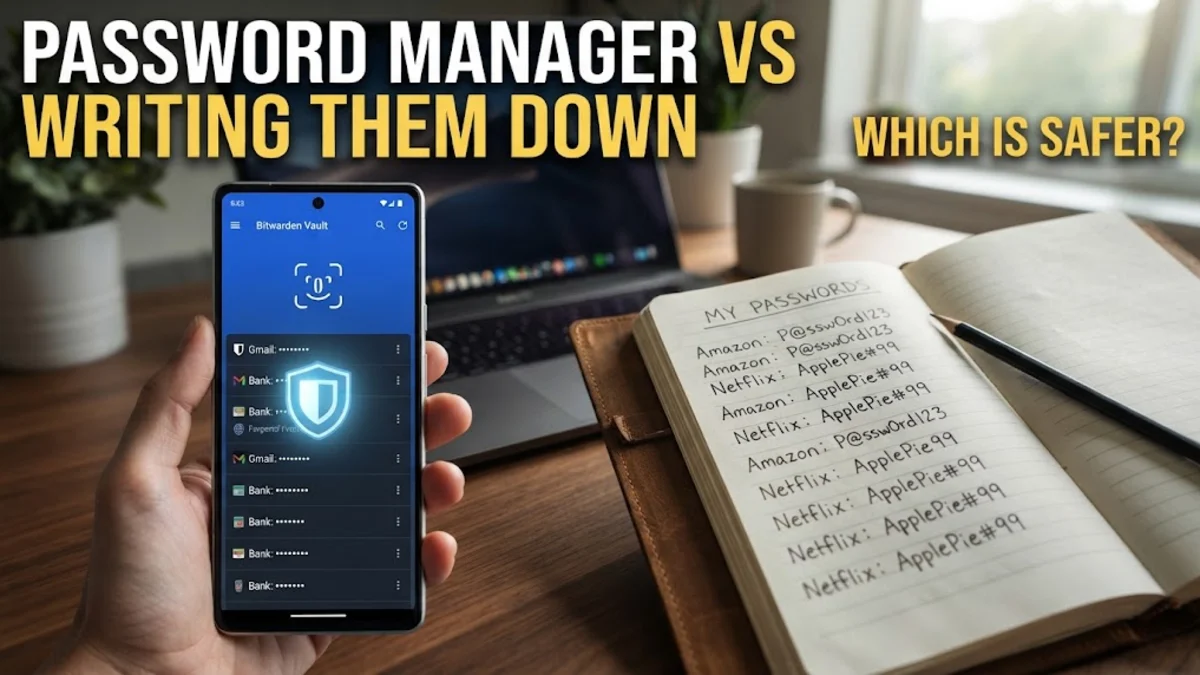
The debate of using a password manager vs writing them down has evolved significantly as we move through 2026. While many security experts previously suggested that a physical notebook was a safe 'air-gapped' solution for non-technical users, the sheer volume of online accounts the average person now manages has made manual record-keeping increasingly risky. Choosing the right method depends on your threat model—whether you are more concerned about a remote hacker in another country or a physical intruder in your home.
The Security Profile of Physical Password Lists
Writing passwords down on a piece of paper or in a dedicated notebook is often referred to as an 'analog' or 'air-gapped' security method. The primary advantage of this approach is that a hacker in a remote location cannot digitally infiltrate a physical notebook. In 2026, with the rise of sophisticated AI-driven phishing and automated brute-force attacks, having your most sensitive credentials stored offline provides a layer of protection that even the most advanced encryption cannot replicate. If the data isn't on a network, it cannot be intercepted through a network. This makes physical lists particularly appealing for 'root' credentials, such as the recovery key for your primary email or the master password to a digital vault.
However, the physical list approach has significant drawbacks that often outweigh its benefits. The most obvious risk is physical loss or damage. A house fire, a spilled cup of coffee, or simply misplacing the notebook can result in a total 'digital lockout' from your entire life. Furthermore, paper lists do not offer any form of encryption. If a guest, a roommate, or a burglar finds your list, every one of your accounts is instantly compromised. There is also the issue of scalability; writing down 150 unique, 20-character passwords containing symbols and numbers is prone to human error. If you misread a single '1' as an 'l' or an 'O' as a '0', you are locked out. Most people who write passwords down eventually succumb to 'password fatigue,' leading them to create shorter, weaker passwords that are easier to write but much easier for hackers to guess using automated tools.
How Digital Password Managers Function in 2026
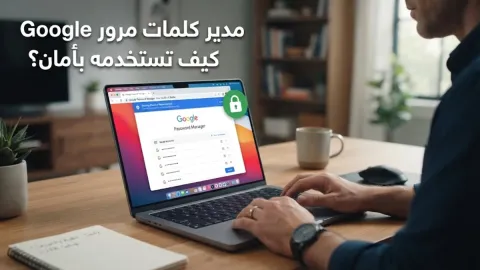
Modern password managers have transitioned from simple database tools to comprehensive identity hubs. In 2026, these applications do much more than just store strings of text; they manage Passkeys, generate time-based one-time passwords (TOTP) for two-factor authentication, and monitor the dark web for leaked credentials. When you use a digital manager, your data is encrypted using high-level standards like AES-256 or XChaCha20. This encryption happens locally on your device before the data ever reaches the provider's servers. This means that even if the password manager company is hacked, the attackers only get scrambled, unreadable data that would take billions of years to decrypt without your master password.
The practical benefits of a digital manager include cross-device synchronization and automated entry. When you visit a website on your iPhone or Android device, the manager can instantly recognize the URL and fill in your credentials. This prevents 'look-alike' phishing attacks; if you accidentally visit a fake version of a banking site, the password manager will refuse to autofill because the domain name doesn't match its records. For users in the United States and Canada who frequently shop online, these tools also securely store credit card information and shipping addresses, reducing the number of places where your raw data is typed into a keyboard, which protects you from 'keylogger' malware that records your keystrokes.
Comparing the Risks: Remote Hacking vs. Physical Theft
| Feature | Physical Notebook | Password Manager |
|---|---|---|
| Remote Hacking Protection | Excellent (Air-gapped) | Very High (Encrypted) |
| Physical Theft Protection | Low (Visible/Readable) | High (Biometric/PIN Lock) |
| Backup/Recovery | Manual/Difficult | Automatic/Cloud Sync |
| Password Complexity | Limited by handwriting | Unlimited (Random Gen) |
| Phishing Protection | None | Automatic Domain Matching |
The Dangerous Middle Ground: Digital Unsecured Lists
Practical Tips for Using a Password Manager Safely
The Hybrid Solution: The Emergency Recovery Sheet
The most robust security strategy in 2026 is actually a hybrid of both methods. You should use a digital password manager for your day-to-day life—managing your 200+ accounts for shopping, social media, and utilities—but you should 'write down' the master password and the emergency recovery codes for that manager. This physical piece of paper should be treated like a birth certificate or a passport. Store it in a fireproof safe or a bank safety deposit box. This solves the 'forgotten password' problem that plagues many digital users; if you ever forget your master passphrase or lose your 2FA device, this physical backup is your only way back into your digital life.
When creating this recovery sheet, do not label it 'My Passwords.' Instead, use a cryptic label or store it inside another boring document. Some users prefer the 'clue' method: instead of writing the actual password, they write a hint that only they would understand. However, for an emergency recovery sheet, it is generally better to write the exact characters clearly using block letters to avoid any ambiguity. In 2026, many password managers like 1Password provide a 'Setup Code' or 'Emergency Kit' PDF. Printing this out and storing it physically combines the absolute remote-security of paper with the high-tech convenience of a digital vault, giving you the best of both worlds.
The bottom line
In the comparison of a password manager vs writing them down, the digital password manager is the clear winner for daily use due to its ability to handle complex, unique passwords and protect against phishing. However, the physical 'writing it down' method remains an essential backup strategy for your most critical master keys. By using a manager for your accounts and a physical safe for your recovery codes, you create a multi-layered defense that protects you from both global hackers and local accidents.
Frequently asked questions
Is it safe to store passwords in my browser?
Browser-based managers (like those in Chrome or Edge) have improved greatly by 2026, but they are still less secure than dedicated managers like Bitwarden or 1Password. Browsers often stay logged in while you are using the computer, making it easier for someone with physical access to your device to see your passwords. Dedicated managers offer better 'locking' mechanisms and more robust cross-platform features.
What happens if a password manager gets hacked?
If a reputable 'zero-knowledge' password manager is hacked, the attackers only obtain encrypted 'blobs' of data. Because the service provider does not have your master password, they cannot decrypt this data. As long as you have a strong master password and 2FA enabled, your accounts remain secure even during a server-side breach.
Can I use a notebook and just keep it in my pocket?
While keeping a notebook on your person prevents others from finding it at home, it increases the risk of loss or theft while you are out. Additionally, it is highly inconvenient to manually type long passwords from a notebook into a mobile device every time you need to log in, which often leads people to revert to shorter, less secure passwords.
Are passkeys better than passwords?
Yes, in 2026, passkeys are the gold standard. They are cryptographic keys stored on your device that cannot be phished or guessed. Most modern password managers now support passkey storage, allowing you to log in to sites using biometrics like FaceID or a fingerprint instead of typing a password at all.