How to Change Language in Google Gemini
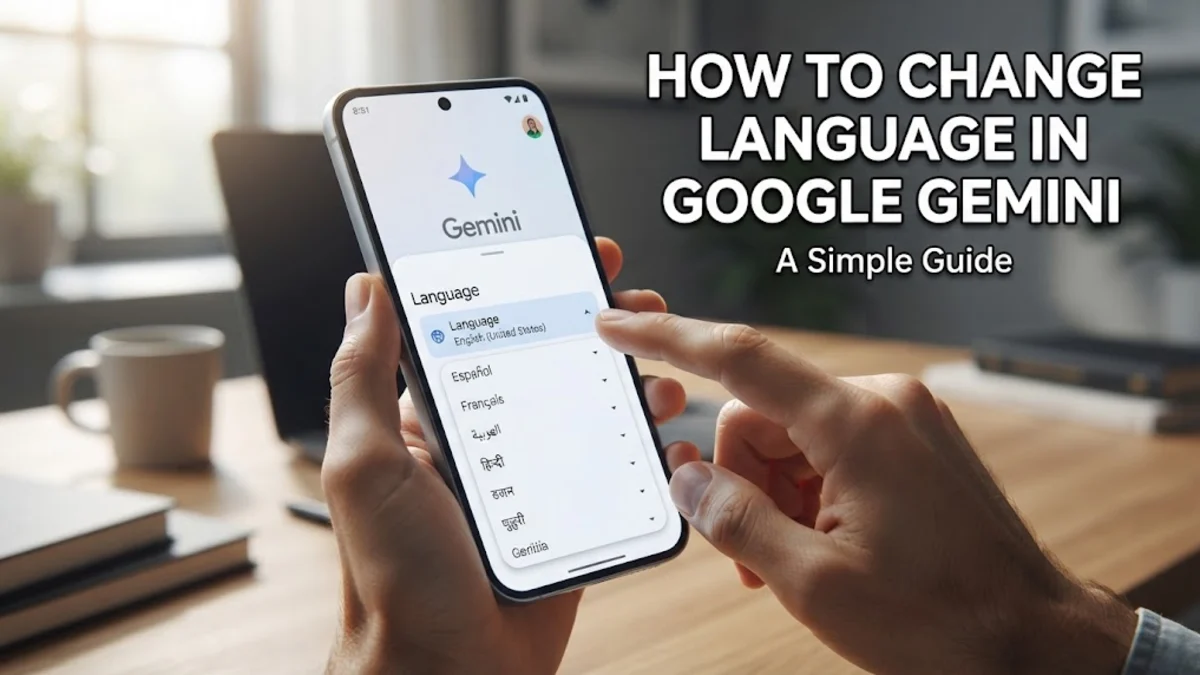
You can change language in Gemini by updating your Google Account settings, adjusting your device app preferences, or giving Gemini direct prompt instructions. Because Google Gemini draws its preferred display and spoken language from your Google profile and operating system, changing these settings updates Gemini across web browsers and mobile apps automatically.
If Gemini suddenly starts responding in a foreign language or fails to speak your native language on Android or iOS, this guide walks you through quick account adjustments, mobile configuration steps, and prompt overrides to get your assistant communicating in the exact language you want.
Understanding How Gemini Determines Your Operating Language
Google Gemini does not feature a single standalone toggle inside its chat menu for language preferences. Instead, it inspects multiple layers of your account and device environment to decide which language to display and speak. Primary input comes from your default Google Account preferred language, followed by your device system language, web browser headers, and active location IP address.
When a mismatch occurs, it is usually because one of these settings has desynced. For example, using a VPN connected to another country can cause Gemini to serve localized content, while typing with a multi-language keyboard might lead Gemini to infer you want replies in a secondary tongue. Knowing which setting controls each interface makes it easy to apply a permanent fix.
Step 1: Change Language Settings in Your Google Account
Because Gemini links directly to your Google ecosystem profile, updating your global Google Account preferred language is the most effective way to change language in Gemini for web and desktop browser sessions.
Follow these steps to set your account primary language:
- Open your web browser and go to myaccount.google.com, making sure you are signed into the Google profile you use for Gemini.
- Click Personal info from the left-hand navigation sidebar.
- Scroll down to the General preferences for the web section and select Language.
- Click the pencil icon next to Preferred language and choose your desired language (for example, English - United States or English - Australia).
- If you frequently work in multiple languages, click Add another language to keep secondary options active without overriding your primary preference.
After saving your choice, open gemini.google.com in a new tab or press Ctrl + F5 (Cmd + Shift + R on Mac) to force refresh the page. Gemini will immediately switch its interface buttons and default generation language.
Step 2: Change Gemini Language on Android Phones and Tablets
On Android devices running recent versions of the OS, Gemini relies on per-app language settings and your Google Assistant speech settings. If the Gemini app displays menus or responds in an unexpected language, you can override system defaults directly in Android settings.
Follow these steps to adjust your Android configuration:
- Go to Settings > System > Languages > App languages.
- Scroll down and tap Gemini (or Google if Gemini is assigned as your default voice assistant).
- Select your preferred language from the list to lock the application interface.
- To change the voice spoken by Gemini Live, open the Gemini app, tap your profile picture in the top-right corner, select Settings, and tap Google Assistant languages to set your default voice recognition language.
If your phone model does not support per-app language settings, change your global phone language under Settings > System > Languages and move your preferred language to the top of the preference list.
Step 3: Change Gemini Language on iPhone and iPad
If you use the standalone Gemini app or access Gemini through the Google app on iOS, changing your preferred language requires adjusting the iOS system-level application settings or device locale.
Here is how to set the correct language on Apple devices:
- Open the Settings app on your iPhone or iPad.
- Scroll down through your list of installed applications and tap Gemini.
- Under the Preferred Language heading, tap Language and select your target language.
- If you access Gemini via a mobile web browser like Safari or Chrome, go to Settings > General > Language & Region to ensure your primary iPhone language is positioned first.
Relaunch the Gemini app by swiping up from the bottom of the screen to close it completely, then open it again. The app interface and spoken feedback will update to match your selected language.
Step 4: Use Prompt Overrides and Custom Instructions for Temporary Language Changes
You do not need to alter your system account settings if you only need Gemini to respond in a different language temporarily for study or translation. You can enforce prompt-level language constraints directly in your conversation or through Gemini system instructions.
Here are practical prompt methods to control output language:
- Direct Command: Start your prompt with a clear constraint, such as:
Please answer all following questions in Spanish, regardless of the prompt language. - Bilingual Formatting: Request dual-language output by writing:
Provide the answer in German, followed by an English translation in brackets. - Custom Context Rules: If you use Gemini Advanced or enterprise workspaces, add permanent formatting rules to your instruction profile to always lock responses to your native tongue.
The table below summarizes how each language configuration method works across environments:
| Method | Scope | Persistence | Best Used For |
|---|---|---|---|
| Google Account Settings | Web, Desktop, Apps | Permanent | Fixing default account language across all devices |
| Android / iOS App Settings | Mobile App Only | Permanent | Fixing app UI and voice interaction language |
| Prompt Overrides | Current Chat Thread | Session Only | Translating, studying, or writing foreign content |
Troubleshooting Gemini Language Stuck or Incorrect Issues
If Gemini continues generating answers in the wrong language after you updated your account and app settings, corrupt browser cache or active network redirects are usually to blame. A common mistake is leaving automatically added languages active under your Google Account profile, which permits Gemini to switch languages based on localized search data.
To clear persistent language glitches, try these targeted steps:
- Delete Browser Cache: Open browser settings, clear cookies and site data for
google.com, and restart your browser. - Turn Off Auto-Added Languages: In your Google Account language settings, disable Automatically add languages so Google stops adding regional languages based on your search history.
- Disconnect VPN Services: If your VPN routes traffic through servers in another country, Gemini may default to that region's local language. Pause your VPN connection and reload the app.
- Sign Out and Back In: Sign out of your Google Account inside the Gemini web interface or mobile app, then re-authenticate to force a refresh of your profile metadata.
The bottom line
Changing the language in Google Gemini is straightforward once you know where the service pulls your preferences from. Updating your Google Account language fixes web interface issues, while app settings on Android and iOS control mobile speech and display choices. For temporary translations, simple prompt commands give you full control without modifying your profile settings.
Frequently asked questions
Why does Gemini keep answering in the wrong language?
Gemini may switch languages if your Google Account has secondary languages listed, if you are connected to a VPN in another country, or if your device keyboard input triggers multi-language detection. Disable automatically added languages in your Google Account to prevent this.
Can I speak to Gemini Live in one language and get text in another?
Yes. You can instruct Gemini verbally or through your prompt rules to listen to your voice in one language and generate the text output or audio reply in a different language.
Does changing my Google Account language affect other Google apps?
Yes. Changing your primary language at myaccount.google.com updates your default language across Google Search, Gmail, Google Drive, and Google Maps.
How do I change Gemini Live voice language on mobile?
Open the Gemini app, tap your profile picture, go to Settings > Google Assistant languages, and choose your preferred spoken language for voice interactions.