How to Fix a PC Not Working After Cleaning
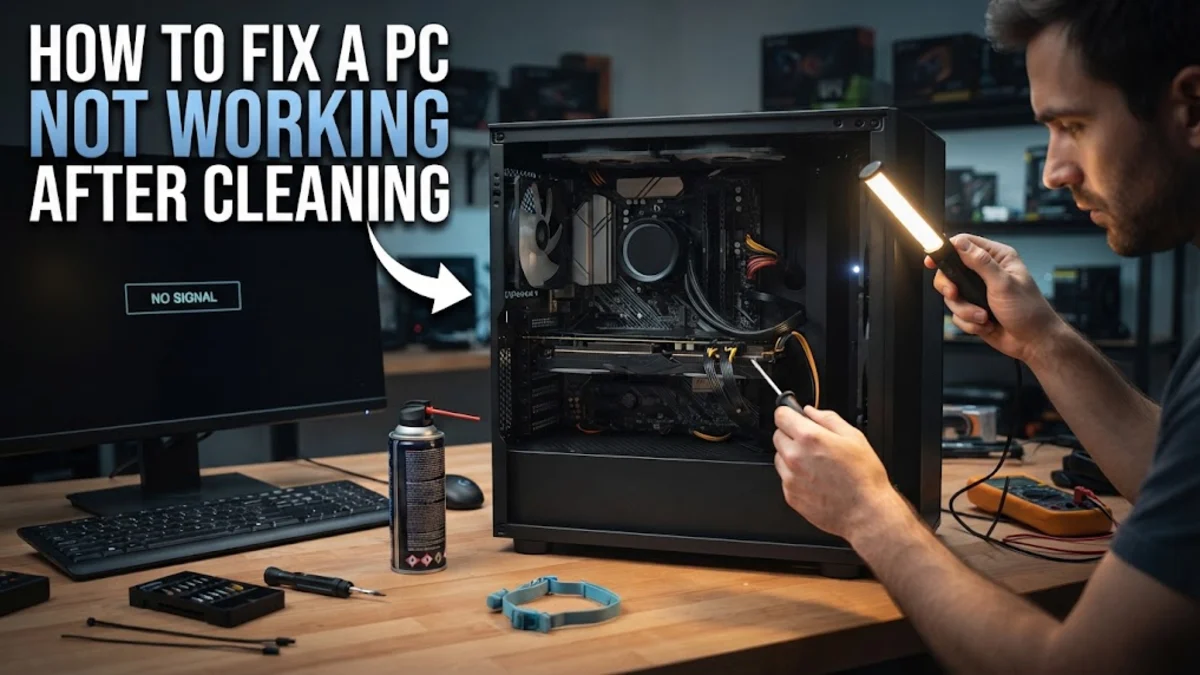
If your desktop computer refuses to turn on or display a signal after you opened it up to clear out dust, a loose connection or static discharge is usually to blame. Fortunately, most post-cleaning issues can be resolved at home without professional repair.
This troubleshooting guide walks you through the systematic steps to diagnose and fix a PC that will not boot after cleaning, starting from the quickest physical checks to more involved hardware resetting.
Check the Main Power Supply and Wall Outlet
When a computer fails to show any signs of life after cleaning, always start with the most basic power components. It is very common to accidentally nudge the power cord loose from the back of the case or switch off the power supply unit (PSU) master toggle switch while wiping down the chassis.
First, inspect the back of your desktop to ensure the heavy power cable is firmly pushed into the power supply inlet. Next, check the physical switch located directly next to the cable plug; it should be flipped to the I position rather than the O position. If you use a surge protector or power strip, verify that its indicator light is on and that the strip itself is fully plugged into the wall outlet. Try plugging the computer directly into a known working wall socket to rule out an external power failure before opening the case again.
Reseat the RAM Modules
Memory sticks are among the most sensitive components inside a computer. If you wiped down the interior with a cloth, canned air, or a brush, you may have slightly shifted one of the RAM sticks out of its slot, causing the motherboard to halt the boot process and display no video output.
To fix this, turn off the PC completely and unplug the power cable from the wall. Press and hold the power button for ten seconds to drain any residual electrical charge from the capacitors. Open the side panel, push down on the plastic retention clips at both ends of each RAM stick, and pull the module straight up out of its slot. Inspect the slot for any stray dust or debris, then firmly push the RAM module back down into the slot until the retention clips snap back into place by themselves. Make sure both sides click securely.
Reconnect the Graphics Card and Display Cables
Dedicated graphics cards are heavy and often get bumped during interior cleaning. If your computer turns on and fans spin, but your monitor displays no signal, the graphics card might be improperly seated or its auxiliary power cables may have come loose.
Begin by checking the external cable running from your monitor to the back of the PC. Ensure it is plugged into the dedicated graphics card ports lower down on the back panel rather than the motherboard video ports near the top. If the external connection is secure, power down the system, open the case, and locate the graphics card. Release the PCIe slot retention latch, gently pull the card out, and push it back into the slot until it clicks firmly. Finally, verify that all PCIe power cables coming from your power supply are plugged securely into the receptacles on the side or end of the graphics card.
Verify Front Panel Headers and Case Connectors
While cleaning dusty corners or routing cables, it is remarkably easy to brush against the tiny wires connecting your case power button to the motherboard. If these front panel headers are loose or dislodged, pressing the power button on the front of your case will do nothing at all.
Consult your motherboard user manual to find the exact pin layout for the front panel headers, commonly labeled as JFP1 or system panel connectors. Look closely at the bottom edge of your motherboard to confirm that the power switch, reset switch, and LED wires are still firmly seated on their corresponding metal pins. If any wire has slipped off, gently slide it back onto the correct dual pins. Ensure that internal fan headers and storage drive data cables are also firmly attached and have not been pulled loose during the cleaning process.
Clear the CMOS to Reset Motherboard Settings
Static electricity or momentary short circuits during cleaning can corrupt the basic input output system settings stored in the motherboard's complementary metal-oxide-semiconductor memory. Clearing the CMOS forces the motherboard to revert to its factory default settings, which often resolves sudden boot failures.
Before attempting this, ensure the PC is completely unplugged from the wall outlet. The easiest method is to locate the coin-sized CR2032 lithium battery on your motherboard, gently press the metal release tab, and remove the battery. Wait for about five minutes to let all power drain completely, then place the battery back into its holder with the positive side facing upward. Alternatively, if your motherboard features dedicated pins for this purpose, you can touch the two clear CMOS pins with a metal screwdriver tip for five seconds while the system is unplugged to achieve the same reset effect.
Check for Loose Internal Power Cables
Modern desktop systems feature numerous modular or attached power cables running from the power supply to the motherboard, storage drives, and cooling fans. A partially unplugged cable can prevent the system from passing its initial hardware power-on self-test.
Carefully trace every major power cable inside your case. Ensure the thick 24-pin main motherboard connector is clicked completely into place on the right side of the board. Next, check the 8-pin CPU power connector located near the top left corner of the motherboard. Give each connector a gentle tug to verify that the locking latch has engaged properly. If you used compressed air, make sure no liquid propellant droplets settled into the cable connectors or component slots before attempting to power the system back on.
The bottom line
Getting a PC that is not working after cleaning can be stressful, but it is almost always caused by a physical dislodgement rather than permanent hardware damage. By methodically checking your power supplies, reseating your RAM and graphics card, and verifying internal cables, you can easily restore your system to full working order.
Frequently asked questions
Why won't my PC turn on at all after cleaning?
This is usually caused by a loose power cable, a switched-off power supply toggle switch, or a dislodged front panel power switch header on the motherboard.
My PC turns on and fans spin, but my monitor has no signal. What should I do?
This typically indicates that your graphics card or RAM modules were shifted out of place. Turn off the computer, reseat both components, and ensure your monitor cable is plugged directly into the graphics card.
Can canned air damage computer components?
Compressed air can sometimes expel liquid propellant if the can is tilted too far. Always keep the can upright during use and ensure all internal surfaces are completely dry before turning the computer back on.
How do I prevent static electricity damage when cleaning my PC?
Always unplug the power cord from the wall outlet, leave the power supply plugged into the grounded socket with the PSU switch off, or wear an anti-static wrist strap while working inside the case.
Should I remove components when cleaning dust?
For routine dusting, leaving components installed is fine. However, if you are doing a deep clean with compressed air, removing the graphics card and holding fans still with your finger prevents them from spinning and generating harmful electrical feedback.