How to Update Windows 10
Keeping your operating system current is essential for security, performance, and hardware compatibility. Knowing how to update Windows 10 properly ensures your computer runs smoothly while protecting your personal data from emerging vulnerabilities.
Whether you prefer using the built-in system settings or manual installation tools, this guide walks you through every method to get your system fully up to date without losing files or running into frustrating installation blocks.
Checking for Updates via Windows Settings
The quickest and most reliable way to check for pending system patches is directly through the main operating system settings. Microsoft delivers monthly cumulative updates, security fixes, and feature enhancements through this interface. To begin, open your configuration panel by pressing the Windows + I keys simultaneously on your keyboard.
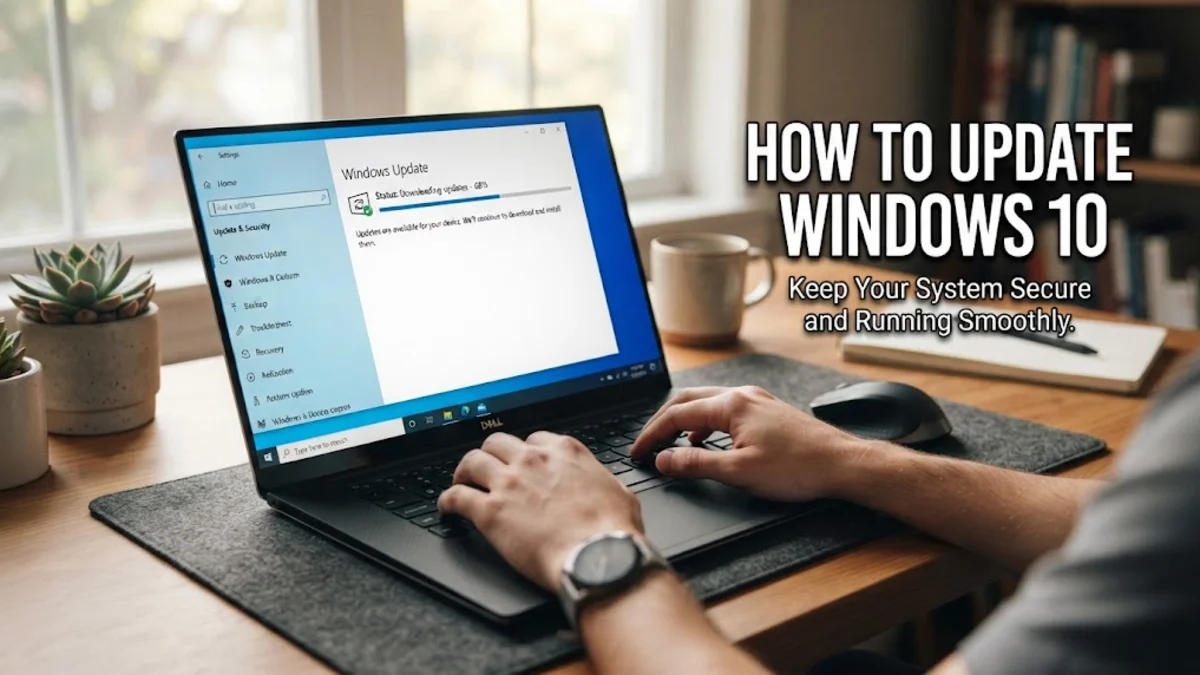
Once the settings window appears on your screen, navigate to Update & Security and then select Windows Update from the left-hand menu. Click on the prominent button labeled Check for updates. If any new packages are available, Windows will automatically begin downloading and installing them. Keep your computer powered on and connected to a stable internet connection throughout this process to prevent any interruption during the installation phase.
Using the Windows Update Assistant
Sometimes standard system checks fail to fetch the latest major release due to corrupted cache files or pending prerequisite patches. When this happens, you can force your system to upgrade using the official Microsoft Update Assistant tool. This standalone utility bypasses standard update queue restrictions and forces your device to download the necessary installation files directly from Microsoft servers.
To use this method, visit the official Microsoft software download page, download the Update Assistant executable, and run it with administrator privileges. The tool will automatically verify your current system build compatibility and prompt you to download the required packages. Click Update Now and follow the on-screen instructions. The utility will handle the heavy lifting while you monitor the progress percentage on your display.
Fixing Common Installation Errors
Encountering numerical error codes like 0x80070002 or 0x80244007 during an installation attempt is a common frustration for many users. These errors usually indicate corrupted temporary update caches or stalled background services. A quick way to resolve minor glitches is by restarting the background intelligent transfer service and the cryptographic services via the Windows services manager.
If a specific package continues to fail, you can download the standalone installer package directly from the Microsoft Update Catalog website. Search for your specific update knowledge base number, download the correct architecture file for your system, and execute it manually. Additionally, running a quick system file checker scan using the command prompt can repair damaged operating system components that block updates.
Freeing Up Disk Space for Large Updates
Major operating system upgrades require substantial free storage space on your primary drive—often needing at least 16 to 20 gigabytes of unallocated room to unpack and apply installation files successfully. If your drive is nearly full, the download will either fail immediately or pause indefinitely without warning.
To clear out unnecessary clutter, open Settings > System > Storage and enable Storage Sense to automatically purge temporary files. You should also run the built-in Disk Cleanup utility by typing it into your taskbar search box, selecting your main drive, checking the boxes for previous Windows installations and temporary files, and clicking clean up system files.
Pausing and Managing Active Hours
Unscheduled reboots can disrupt your workflow if your computer decides to install downloaded packages right in the middle of an important task. To prevent this, Windows allows you to configure active hours so the operating system knows precisely when you are actively using your device.
Go to Settings > Update & Security > Windows Update and click on Change active hours to set your custom schedule. Furthermore, if you need immediate quiet time, you can temporarily pause updates for up to seven days by selecting the pause option. Just remember to resume updates later to maintain optimal system security.
Resetting Update Components Manually
When standard troubleshooting steps fail to resolve stubborn installation loops, you can manually reset the core update components using an elevated command prompt. This involves stopping the software distribution folders and restarting the system update queues entirely.
Right-click the start button and select Terminal (Admin) or Command Prompt (Admin). Type the commands to stop the wuauserv, cryptsvc, bits, and msiserver services one by one. Next, rename the SoftwareDistribution and Catroot2 folders to clear out corrupted update history caches. Finally, restart the services and reboot your computer before attempting to check for updates again.
The bottom line
Keeping your system updated is vital for long-term stability and security. By following these methods, you can easily troubleshoot installation errors, clear out storage space, and ensure your PC runs smoothly with the latest patches.
Frequently asked questions
Why is my Windows update stuck at zero percent?
Updates often appear stuck when downloading large installation files or when background services encounter a minor glitch. Restart your computer, check your internet connection, and give the process up to an hour to progress before attempting manual troubleshooting.
How much free space do I need to update Windows 10?
Major feature updates typically require between 16GB and 20GB of free space on your primary C drive to successfully download, unpack, and install the new system files.
Can I block specific updates from installing?
Windows 10 does not provide a direct built-in toggle to block individual updates permanently, but you can use official Microsoft troubleshooting tools to hide specific problematic patches.
What should I do if error codes appear during installation?
Note the specific error code number, clear your temporary software distribution cache, run the built-in system file checker tool, or download the standalone package directly from the Microsoft Update Catalog.
Will updating delete my personal files?
Standard monthly security updates and feature upgrades preserve all your personal files, installed applications, and customized settings. However, it is always wise to back up important documents before starting a major system upgrade.