How to Fix Google Sheet Cell Size
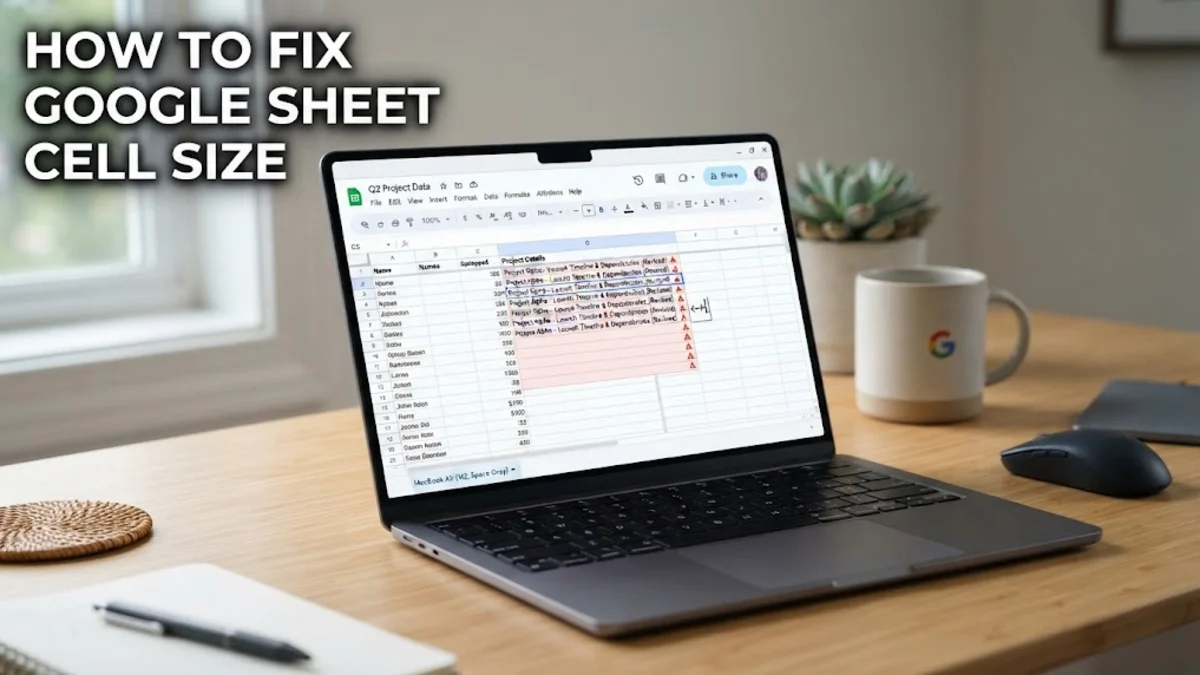
When working with large datasets, dealing with awkward Google Sheet cell size issues can instantly ruin the readability of your spreadsheet. Text might get cut off, numbers may display as hashes, or rows might look uneven and cluttered.
This step-by-step guide walks you through the exact methods to fix cell sizes, auto-fit rows and columns, and keep your data clean and easy to read.
Auto-Fitting Columns and Rows Quickly
The fastest way to fix a compressed or overly wide cell is to use the built-in auto-fit feature. If you notice that your data is spilling over into adjacent cells or getting cut off by a boundary, you do not need to guess the correct dimension. Hover your mouse cursor over the dividing line between two column headers (for example, between column A and column B) until the cursor turns into a double-sided arrow.
Once the cursor changes, double-click your left mouse button. Google Sheets will automatically analyze the longest entry in that column and resize the cell width to fit the content perfectly. You can apply this exact same technique to rows by hovering over the border between row numbers on the left sidebar and double-clicking when the cursor transforms. This simple trick saves you time and instantly resolves most basic layout clutter without manual dragging.
Resizing Multiple Rows or Columns Uniformly
Sometimes fixing a single cell size leaves your spreadsheet looking inconsistent because neighboring rows or columns remain different sizes. To maintain a clean and uniform aesthetic, you can adjust multiple rows or columns simultaneously. Click and drag across multiple column headers or row numbers to select the entire group you want to modify. Alternatively, you can hold down the Shift key while clicking to select a continuous range.
After selecting your target rows or columns, right-click anywhere within the highlighted header area and choose the resize option from the context menu. You can then enter a specific pixel dimension or select the fit-to-data option. Applying measurements across a whole range ensures that your entire table maintains equal spacing, which is especially helpful when designing professional invoices, schedules, or financial logs for work or school.
Fixing Text Wrapping in Tight Cells
If your text is extremely long and you do not want your column to stretch across the entire screen, adjusting the cell size alone might not be the best solution. Instead, you should enable text wrapping so the row expands downward automatically while keeping the column width compact. Select the cells containing the long text, then navigate to the top menu bar and click Format > Wrapping > Wrap.
Once text wrapping is active, Google Sheets will force the sentences or long words to stack vertically within the existing column boundary, expanding the row height dynamically. If you ever need to revert this change, you can return to the same menu and select overflow or clip. Text wrapping is an essential skill when dealing with descriptive feedback columns, notes, or long addresses where horizontal space is limited.
Setting Custom Pixel Dimensions Manually
When standard auto-fitting does not give you the exact layout you want, setting manual pixel dimensions provides total control over your spreadsheet grid. To set a precise column width or row height, right-click the specific row number or column letter and select Resize row or Resize column from the pop-up menu.
A small dialog box will appear asking you to enter a new size in pixels. Type in your desired numeric value and click OK. Using exact pixel measurements is particularly useful when you need to export your sheet, print specific ranges on standard paper sizes, or create structured templates where alignment is critical. Keep in mind that making rows too small will hide your text, so always preview your sheet after applying custom sizing.
Resolving Merged Cell Sizing Conflicts
Merged cells are a frequent source of frustration when trying to fix Google Sheet cell size issues. When you merge multiple cells together, Google Sheets locks those dimensions, making standard column and row resizing behave unpredictably or throw formatting errors. To fix a stubborn cell size problem caused by a bad merge, highlight the affected cells, go to the top toolbar, click the merge icon, and select Unmerge.
Once the cells are separated back into individual grid units, you can freely adjust the rows and columns using the double-click auto-fit method or manual sizing. If you still need a title banner across your sheet, re-apply the merge only after your surrounding columns and rows are finalized and properly proportioned.
The bottom line
Mastering Google Sheet cell size adjustments ensures your data remains clean, professional, and easy to read. By using auto-fit shortcuts, text wrapping, and precise pixel measurements, you can avoid formatting headaches and present your spreadsheets with confidence.
Frequently asked questions
Why is my text getting cut off in Google Sheets?
Text gets cut off when the adjacent cell contains data, causing the view to clip the text. You can fix this by enabling text wrapping or double-clicking the column border to auto-fit the width.
How do I make all rows the same size in Google Sheets?
Select all the rows you want to change by dragging across their numbers, right-click the selection, choose resize row, and enter your desired pixel height.
What does a series of hash symbols mean in a cell?
A row of hashes usually means the column is too narrow to display a number or date properly. Widening the column fixes the issue immediately.
Can I auto-fit all columns and rows at once?
Yes, you can click the grey rectangle in the top-left corner where the row numbers and column letters meet to select the entire sheet, then double-click any column or row border.
Why won't my column resize properly?
If a column refuses to resize, check if there are merged cells overlapping that area. Unmerging the cells will restore normal sizing functionality.