Why Is Your Router Flashing Yellow and How to Fix It
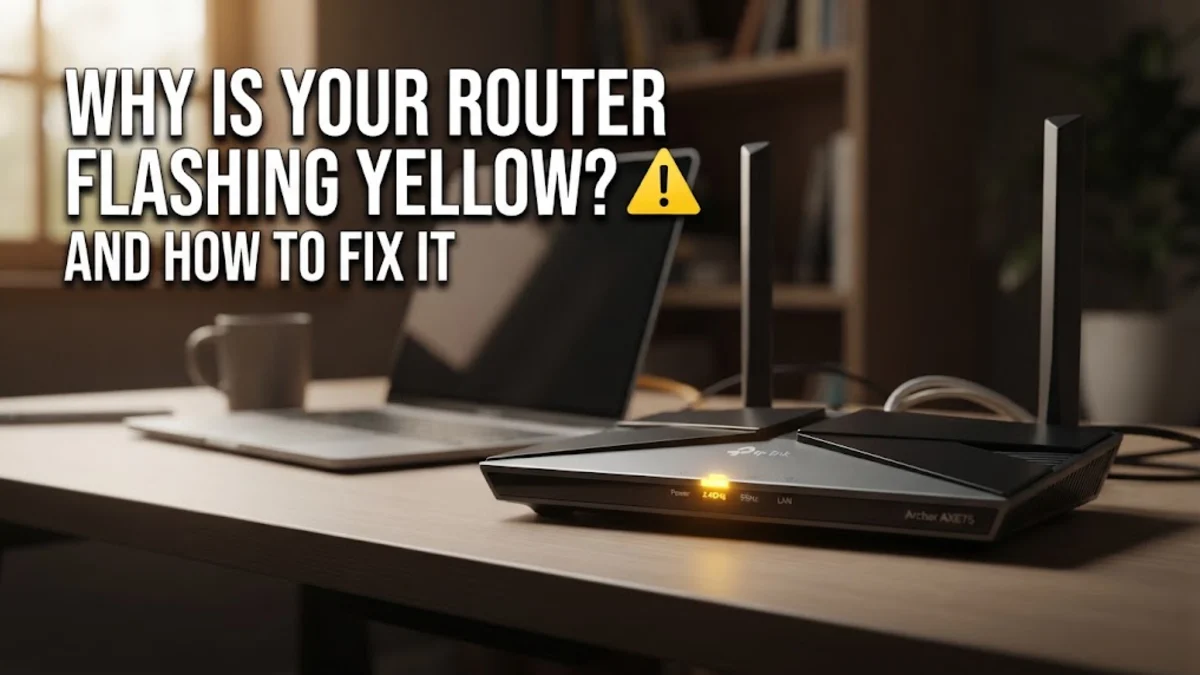
Seeing a blinking amber or yellow light on your networking hardware can instantly disrupt your workday, streaming, or gaming. A flashing yellow indicator typically signals that your device has powered on successfully but is currently struggling to establish a stable connection with the internet service provider.
Understanding the Yellow Flashing Light on Your Router
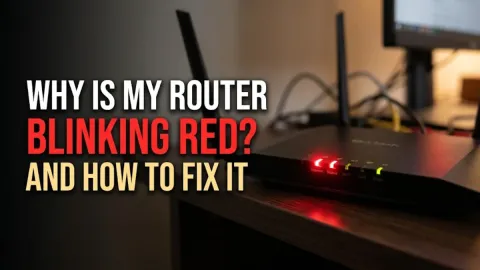
Before jumping into troubleshooting, it helps to understand what your specific hardware manufacturer is trying to tell you. On most modern mesh systems and standard routers, a solid green or white light means everything is operating normally. Conversely, a flashing yellow or amber light generally points to one of three common issues: an active firmware update, a failed authentication handshake with your modem, or a total loss of upstream internet signal. Check your user manual or the manufacturer sticker to confirm the exact status code definitions for your specific model. Ignoring this warning light will usually leave you without Wi-Fi access until the underlying communication barrier is cleared.
Step 1: Inspect All Physical Cable Connections
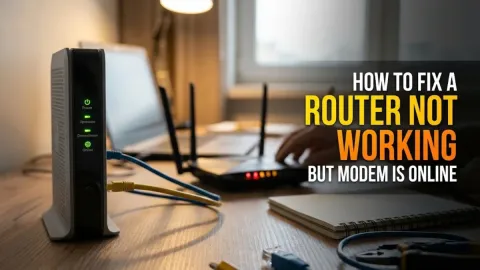
A loose, damaged, or disconnected cable is the most frequent culprit behind a flashing yellow router light. Go behind your equipment and check every single wire connected to both your modem and your router. Ensure the Ethernet cable linking the modem to the internet port on your router is clicked securely into place on both ends. If you use a cable or fiber setup, inspect the coaxial cable or fiber patch cord to ensure it is screwed down tightly or seated properly. Dust, pet hair, or accidental bumps can slightly dislodge these sensitive connections, cutting off the data flow and triggering the amber warning signal on your network devices.
Step 2: Perform a Complete Power Cycle
When network hardware encounters temporary software glitches or handshake failures, a thorough power cycle often restores normal operation. Unplug the power cords from both your modem and your router, ensuring all indicator lights go completely dark. Wait for at least sixty seconds to allow the internal capacitors to discharge entirely. Plug your modem back in first and wait a couple of minutes until its online light turns solid. Next, plug your router back into the power outlet and give it up to five minutes to fully reboot, resynchronize, and establish a clean connection with your internet service provider.
Step 3: Check for Internet Service Provider Outages
If your physical cables are secure and you have already power-cycled your equipment, the problem might originate outside your home. Internet service providers frequently perform routine maintenance or experience localized network outages that cut off the external data feed to your neighborhood. Use your mobile phone's cellular data connection to visit your provider's official support app or website outage map. You can also check status tracking platforms or call customer service to see if an active outage is affecting your area. If the network is down on their end, your router will automatically turn solid green or white once service is restored.
Step 4: Account for Automatic Firmware Updates
Many modern smart routers download and install firmware updates automatically during off-peak hours to patch security vulnerabilities and improve performance. During an active firmware installation, the status light will often flash yellow or amber to warn users not to disconnect the power source. Interrupting this delicate process by unplugging the device can brick the router or corrupt the operating system entirely. If your router has been flashing yellow for less than ten minutes, leave it alone and let the update finish. If it remains stuck in this loop for over an hour, a manual reboot may be necessary.
Step 5: Perform a Factory Reset If All Else Fails
When standard troubleshooting steps fail to clear the error, returning your device to its factory default settings can resolve deep software corruption. Locate the small recessed reset button on the back or bottom of your router. Using a paperclip or a SIM ejector tool, press and hold that button for about ten seconds until the indicator lights begin to flash or change color. Once the router reboots, you will need to reconfigure your network name, password, and custom settings using the manufacturer app or web interface. This fresh start clears out bad routing tables and persistent configuration errors.
Practical Tips to Prevent Future Connection Drops
Maintaining a reliable home network requires careful hardware placement and basic preventive maintenance. Keep your modem and router in a cool, well-ventilated area away from direct sunlight, thick concrete walls, and heavy electronic interference from microwaves or baby monitors. Plug your network equipment into a reliable surge protector to shield sensitive internal components from sudden electrical spikes and voltage drops. Finally, check for companion mobile apps provided by your hardware brand to monitor network health, track bandwidth usage, and install security patches proactively before connection failures occur.
The bottom line
Resolving a flashing yellow router light usually comes down to verifying your cables, power cycling your devices, and checking for local service outages. By working through these troubleshooting steps methodically, you can quickly diagnose the root cause and restore stable internet access to your entire home.
Frequently asked questions
What does a flashing yellow light on a router mean?
It typically indicates that the router is powered on but cannot establish an internet connection, is undergoing a firmware update, or is failing to communicate properly with the modem.
How long should a router take to update its firmware?
Most automatic firmware updates complete within five to ten minutes. You should never unplug your router while it is updating to avoid damaging the device software.
Can a bad Ethernet cable cause a yellow light?
Yes. A damaged, frayed, or loosely plugged Ethernet cable can interrupt the data signal between your modem and router, triggering a connection error light.
Should I reset my modem and router at the same time?
Yes. Unplugging both devices, waiting a minute, and turning the modem on before the router ensures a clean synchronization sequence.
What should I do if a factory reset does not fix the light?
If resetting the device and checking all cables fails, contact your internet service provider to verify your line status or request hardware replacement assistance.