Why Is My Windows 11 Lagging and How to Fix It
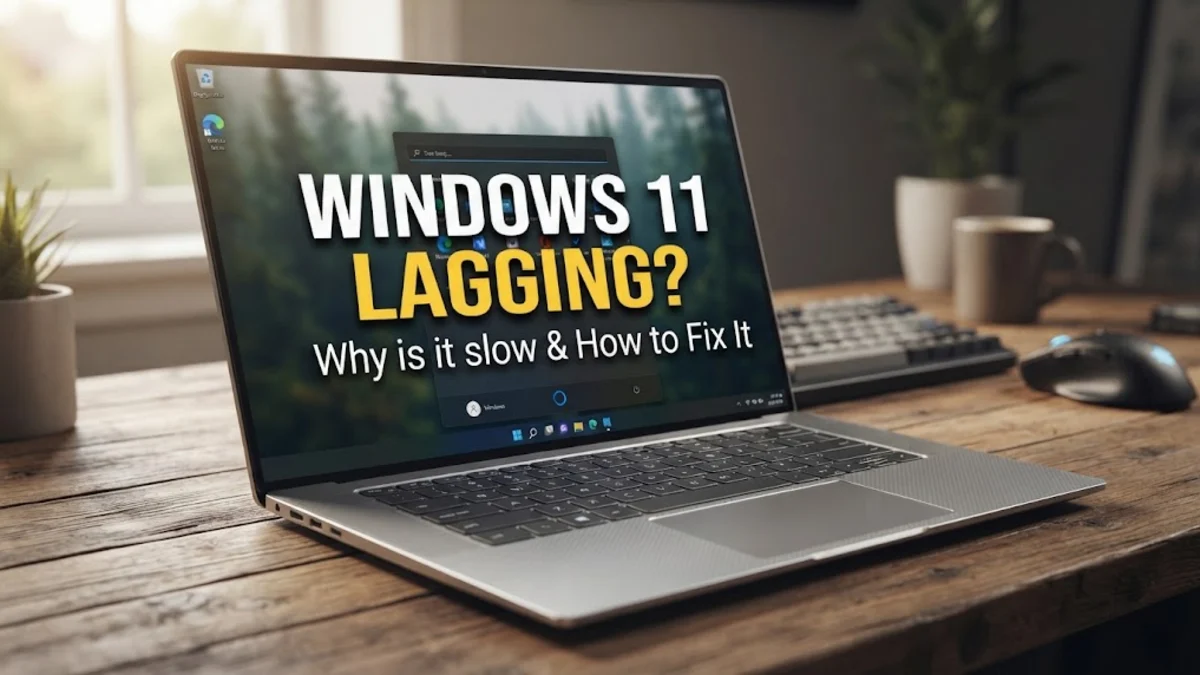
When your computer slows down unexpectedly, troubleshooting performance issues can quickly become frustrating. If you notice that your system feels sluggish, freezes, or takes too long to open files, you are likely dealing with background resource hogs, cluttered storage, or outdated system configurations.
This step-by-step guide walks you through the most effective methods to diagnose why your computer is slowing down and provides practical solutions to restore your device back to its optimal speed without needing advanced technical expertise.
Check for Resource-Heavy Background Apps
One of the most common reasons your computer loses speed is that too many background applications are consuming your CPU, memory, or disk resources. When unnecessary programs run quietly in the background, they starve active applications of the power they need to operate smoothly.
To find out which programs are causing the slowdown, press Ctrl + Shift + Esc to open the Task Manager. Look at the Processes tab and sort the list by clicking on the CPU, Memory, or Disk column headers to see the highest consumers. If you notice an application you rarely use taking up massive resources, right-click it and select End task to immediately free up system bandwidth.
Managing Startup Apps
Many apps automatically configure themselves to launch the moment your computer boots up, increasing the time it takes to reach a usable desktop and creating lingering background lag. You can easily manage these items by navigating to Settings > Apps > Startup. Review the list of applications and toggle off any non-essential programs that do not need to run automatically every time you turn on your device.
Disable Visual Effects and Transparency
While modern user interfaces look sleek with drop shadows, animations, and translucent windows, these graphical enhancements require continuous GPU and CPU overhead. On lower-spec hardware or systems experiencing performance dips, these visual flairs can trigger noticeable stuttering and input lag during daily tasks.
You can streamline your interface by turning off transparency and animation effects. Open your settings menu and go to Settings > Accessibility > Visual effects. From here, toggle off both Transparency effects and Animation effects. You will notice windows open and close instantly without the fading or sliding transitions, giving your operating system an immediate responsiveness boost.
Advanced Visual Performance Settings
If you want to fine-tune individual graphic elements further, press the Windows Key, type sysdm.cpl, and press Enter. Go to the Advanced tab, click Settings under the Performance section, and select Adjust for best performance. This disables non-essential window animations while keeping fonts smooth and readable.
Free Up Storage Space on Your Main Drive
Your operating system requires a certain amount of free space on its primary installation drive to create virtual memory swap files and manage temporary caches efficiently. When your main drive becomes nearly full—typically leaving less than 10 to 15 percent available capacity—the system struggles to write temporary data, resulting in severe overall lag.
To check your storage health and clean out unnecessary junk files, go to Settings > System > Storage. Enable Storage Sense so that the operating system automatically deletes temporary files and old system data on a regular schedule. Additionally, click on Temporary files to review downloaded items, previous installation files, and error logs that you can safely remove to reclaim gigabytes of valuable space.
Update Graphics and System Drivers
Outdated or corrupted hardware drivers are a frequent culprit behind sudden system slowdowns, particularly regarding graphics cards and motherboard chipsets. If your display driver is outdated, animations will stutter, video playback will drop frames, and desktop navigation will feel heavy and unresponsive.
Make sure your system has the latest patches by navigating to Settings > Windows Update and clicking Check for updates. For graphics drivers specifically, use the official software provided by your hardware manufacturer, such as NVIDIA App, AMD Software, or Intel Graphics Command Center, to download and install the latest stable driver release tailored for your exact card model.
Run System File Checker and DISM Scans
Corrupted system files can disrupt background operations, causing unpredictable performance drops, application crashes, and input lag. Fortunately, built-in diagnostic tools can scan your entire directory structure and automatically repair damaged components without requiring a full reinstallation of the operating system.
Right-click the Start button and select Terminal (Admin) or Command Prompt (Admin). Type the Deployment Image Servicing and Management command DISM.exe /Online /Cleanup-image /Restorehealth and press Enter. Once that process completes, type sfc /scannow and press Enter. This second utility scans all protected system files and replaces corrupted entries with cached copies. Restart your computer after the scan finishes to apply the repairs.
Adjust Power Plan Settings for Maximum Performance
Operating systems often balance energy efficiency and computing power to conserve electricity or extend laptop battery life. However, if your computer is locked into an aggressive power-saving mode, your processor may throttle its clock speeds below what is needed for smooth daily operation.
To switch to a more responsive power profile, open the classic control panel by pressing the Windows Key + R, typing control, and pressing Enter. Navigate to Hardware and Sound > Power Options. If available, switch your plan from Balanced to High performance. If you are using a laptop plugged into a wall outlet, this simple adjustment ensures your processor delivers its full potential speed whenever you need it.
The bottom line
Resolving system lag usually comes down to eliminating unnecessary background tasks, cleaning up storage space, and ensuring your hardware drivers are fully up to date. By applying these troubleshooting steps systematically, you can restore your computer's speed and maintain a smooth, responsive desktop experience for all your daily tasks.
Frequently asked questions
Why is my new PC lagging?
A brand new computer often lags initially because it is downloading and installing numerous background updates, indexing files, and running initial antivirus scans. Let the system run uninterrupted for a few hours, or check the Windows Update screen to see if background setup tasks are still finishing.
How much RAM do I need to stop lag?
For smooth multitasking and general application use, 16GB of RAM is considered the modern standard. If your system only has 8GB, you will experience lag whenever you open multiple browser tabs or heavy productivity software simultaneously.
Can a virus cause my computer to lag?
Yes. Malware, spyware, and crypto-mining viruses often consume high amounts of CPU and network resources in the background. Running a full scan using Windows Defender or an approved security utility can help identify and remove malicious programs.
Does turning off transparency actually speed up the computer?
Disabling transparency and visual animations reduces the workload on your graphics processor and window manager. While the performance gain might be subtle on high-end gaming rigs, it provides a noticeable improvement in fluidity on older hardware.
How often should I restart my PC?
It is good practice to restart your computer at least once a week. Reboots clear out temporary RAM memory leaks, close hung background processes, and apply pending system updates properly.