PC Not Working After Moving? How to Fix It
Moving to a new home is stressful enough without your desktop computer refusing to turn on or display anything once you arrive. When your PC is not working after moving, the issue is almost always physical rather than software-related, caused by vibrations and bumps during transit.
Fortunately, most post-move computer problems can be resolved at home with a screwdriver and a few minutes of troubleshooting. Follow this step-by-step guide to safely check your hardware connections, reseat loosened components, and get your system back up and running.
Check Power Connections and Wall Outlet
When your PC fails to boot after a move, the culprit is often as simple as a loose power connection. During transit, vibrations and shifting can loosen the power cable running from the wall outlet to the back of your computer's power supply unit. First, ensure that the power cord is firmly plugged into both the back of the PC and the wall outlet. If you are using a surge protector or power strip, verify that the strip itself is turned on and functioning correctly by plugging another device into it. Sometimes, the physical power switch on the back of the power supply unit may have been accidentally flipped to the off position during packing. Locate the small rocker switch next to where the power cable plugs into the PC and ensure it is pressed to the I position rather than the O position. If these external checks do not resolve the issue, try swapping out the power cord with a known working cable to rule out internal cable damage. Taking these initial steps saves you from tearing down the computer unnecessarily and addresses the most common cause of post-move power failure.
Reseat RAM and Graphics Card
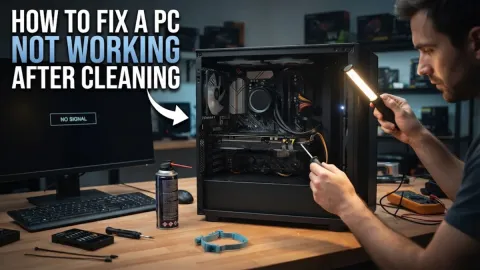
Physical shock and vibrations during transportation can cause heavy internal components like your graphics card and memory sticks to shift slightly out of their slots. Even a microscopic dislodgement can break the electrical connection, preventing your computer from posting or displaying an image on your monitor. To fix this, unplug the computer from the wall, open the side panel of the case, and ground yourself to avoid static discharge. Locate your RAM sticks and graphics card. For the graphics card, unscrew it from the back expansion slot, press the plastic retention clip at the end of the PCIe slot, and gently pull the card straight out. Inspect the gold contacts for any dust or debris, then push it back firmly until the retention clip clicks into place. Next, release the latches on both ends of your RAM sticks, remove them completely, and reinsert them firmly until you hear or feel a secure click. This physical resetting clears out any temporary contact misalignment caused by the bumpiness of moving day.
Check Front Panel and Power Switch Wires
Inspect Internal Cables and Storage Drives
Storage drives, including traditional hard disk drives and modern solid-state drives, can experience connection failures when jostled during a move. If your PC turns on and reaches the BIOS screen but fails to boot into Windows, a loose SATA data or power cable is likely the issue. Power down your system completely, disconnect the power cord, and open the computer case. Locate your storage drives and check both the SATA cable running to the motherboard and the power cable running from the power supply. Push each connector firmly to ensure a snug fit. If you use M.2 NVMe solid-state drives attached directly to the motherboard, unscrew the tiny retention screw, remove the drive, check the slot for dust, and reinsert it at a 30-degree angle before pressing it flat and securing the screw. Ensuring all data pathways are secure restores communication between your storage and operating system.
Clear CMOS if BIOS Settings Corrupted
The bottom line
Getting your desktop computer moved safely to a new location can be tricky, but systematic troubleshooting usually uncovers the culprit. By checking your external power cords, reseating loose RAM and graphics cards, and verifying internal connections, you can quickly overcome transit bumps and get back to using your PC.
Frequently asked questions
Why won't my PC turn on at all after moving?
The most common reason is a loose power cord, a tripped power strip, or the power supply switch being accidentally flipped to the off position during packing.
My PC turns on and fans spin, but my monitor says no signal. What should I do?
This usually happens when the graphics card has shifted out of its PCIe slot during transport. Open your case and reseat the graphics card firmly.
Could static electricity damage my PC while moving?
While static buildup inside moving boxes is rare, it is always best to touch a grounded metal object or wear an anti-static wrist strap before touching internal motherboard components.
Should I remove components like graphics cards before moving a PC?
Yes. For long-distance moves or rough transport, removing heavy graphics cards and large CPU air coolers prevents them from snapping the motherboard slots from vibration.