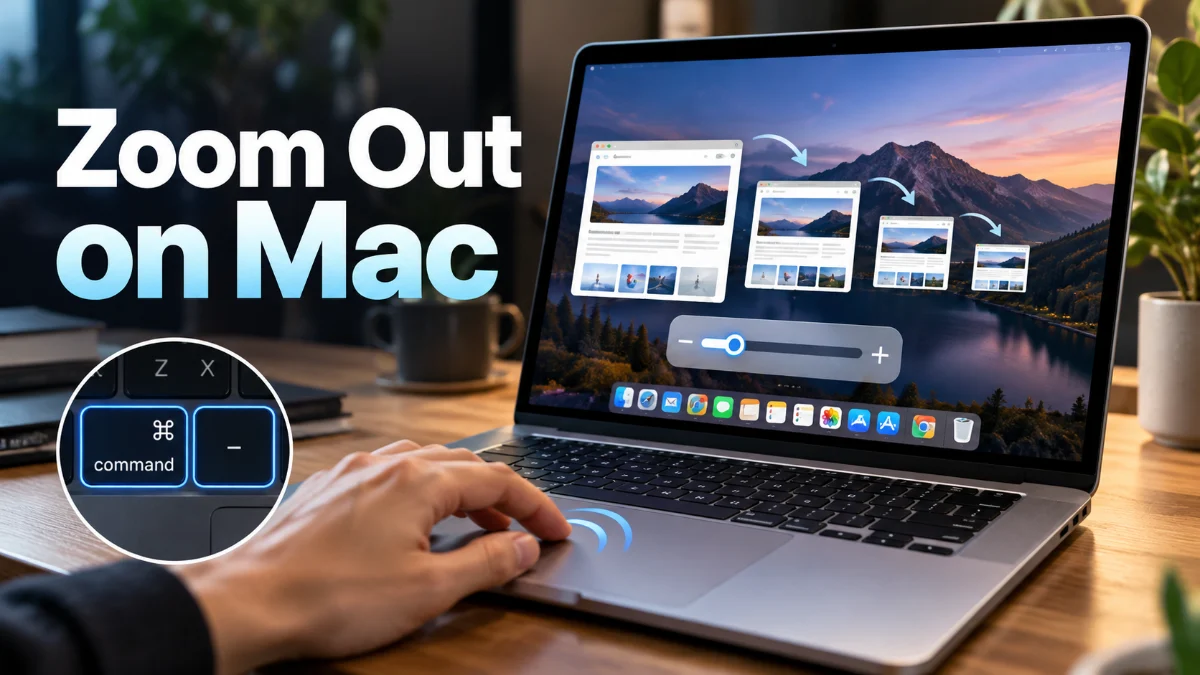
To zoom out on Mac instantly when your entire screen is magnified, press Option + Command + 8 to toggle the accessibility zoom off, or press Option + Command + - (minus) repeatedly. If only a web page or document appears too large, pressing Command + 0 resets your browser view to standard scale immediately.
Getting trapped in an enlarged desktop view is a frequent issue on macOS, usually caused by an accidental finger brush across the trackpad while holding a modifier key or a miskeyed shortcut. Here is a walkthrough of every method to restore your normal screen magnification, disable unwanted zoom triggers, and adjust app-level scaling.
1Use macOS System Zoom Shortcuts to Restore Full View
When your entire screen suddenly magnifies so much that you cannot see the menu bar or the Dock, macOS Accessibility Zoom has been activated. The fastest way to restore your screen to 100% is through built-in keyboard shortcuts designed to override the magnifier immediately.
Press Option + Command + 8 on your keyboard. This command acts as a master toggle that turns accessibility zooming on or off. If that shortcut is disabled on your Mac, press and hold Option + Command and tap the - (minus) key several times until your display returns to its full default dimensions. Conversely, pressing Option + Command + = zooms back in if you ever need focused reading assistance.
2Zoom Out Using Trackpad Gestures and Scroll Wheel Modifiers
Modern Mac laptops and Magic Trackpads feature multi-touch gestures that can magnify or reduce the screen with minimal effort. If your screen zoomed in abruptly while browsing, a stray gesture is the most probable trigger.
Place two fingers on your trackpad and pinch them together inward, exactly like zooming out on an iPhone or iPad photo. If this gesture does not pull the screen back, your Mac may have scroll-modifier zoom enabled. Hold down the Control key on your keyboard and swipe downward on your trackpad with two fingers (or scroll downward with the wheel of an external mouse). This smoothly slides the magnification level back to standard desktop scale.
3Disable Accessibility Zoom in System Settings
If your screen keeps magnifying unexpectedly while typing or resting your palms on the trackpad, turning off the accessibility trigger prevents it from happening again. macOS lets you manage these triggers directly inside the system preferences.
Open the Apple menu in the top-left corner and navigate to System Settings > Accessibility > Zoom. Review the toggles listed under this panel:
Use keyboard shortcuts to zoom: Switch this off if you frequently hit Option + Command combinations by accident.
Use trackpad gesture to zoom: Turn this off if double-tapping with three fingers accidentally blows up your screen.
Use scroll gesture with modifier keys to zoom: Either turn this off completely or change the modifier key from Control to Command or Option to avoid accidental scrolls.
Under Zoom style, ensure your selection matches your preference. Setting it to Picture-in-picture rather than Full screen prevents accidental magnifications from hiding your entire desktop interface.
4Reset Zoom Levels in Safari, Chrome, and Other Web Browsers
Sometimes your macOS interface remains standard, but the content inside Safari, Google Chrome, or Mozilla Firefox looks massive. Web browsers maintain independent page zoom settings that persist across restarts and remember preferences on a per-website basis.
To reset any web page back to standard 100% scale, press Command + 0 (zero). If you want to step down magnification gradually, press Command + - (minus) repeatedly. You can also click the magnifying glass icon or percentage badge in the address bar and select Reset. In Safari, you can check default scaling across all sites by opening Safari > Settings > Websites > Page Zoom and setting default zoom to 100%.
5Check Display Resolution and Scaling in macOS
If text, icons, and windows appear permanently oversized even when no accessibility zoom or browser magnification is active, your Mac display resolution might be set to a low or overly scaled display profile. This frequently occurs after disconnecting from an external monitor or projector.
Navigate to System Settings > Displays. Under the resolution selector, look at the available scaling options. If a larger text option is highlighted, click Default or select a higher resolution tile that provides more screen space. If you are using an external monitor that looks stretched or cropped, toggle Show all resolutions, select your monitor native resolution (such as 3840 x 2160 for 4K), and ensure the refresh rate matches your panel specifications.
6Manage App-Specific Zoom and Window Magnification
Productivity applications such as Microsoft Word, Excel, Apple Pages, and Photoshop feature their own dedicated document zoom engines that do not respond to universal system shortcuts. When working inside these applications, using generic macOS zoom keystrokes may fail to bring your canvas back into view.
Look for the zoom percentage slider located at the bottom right corner of the document window in apps like Microsoft Word or Excel. Alternatively, select View from the top menu bar, choose Zoom, and pick 100% or Fit to Window. In Adobe Creative Cloud applications, use Command + 0 to fit the canvas to the screen, or Command + 1 to view actual pixel size.
The bottom line
Zooming out on a Mac comes down to determining whether the entire system is magnified, your display resolution changed, or an individual application scale was adjusted. Memorizing Option + Command + 8 for system zoom and Command + 0 for browser windows ensures you can quickly recover your workspace whenever your screen unexpectedly expands.
Frequently asked questions
Why did my Mac screen zoom in by itself?
Your Mac screen usually zooms in because an accessibility gesture was triggered accidentally. Holding down the Control key while scrolling your mouse or dragging two fingers across the trackpad activates screen zoom if that feature is enabled in System Settings.
What is the keyboard shortcut to zoom out on Mac?
To zoom out the system display, press Option + Command + - (minus). To toggle the screen zoom completely off, press Option + Command + 8. In browsers and office applications, press Command + - or Command + 0 to reset.
How do I fix a Mac trackpad that keeps zooming in?
Go to System Settings > Accessibility > Zoom and disable the toggles for Use trackpad gesture to zoom and Use scroll gesture with modifier keys to zoom. This stops touch gestures from changing screen magnification.
Why won't my Mac zoom out past a certain point?
Accessibility zoom cannot shrink the display below 100% of your chosen native resolution. If you want more space on your screen and smaller icons, go to System Settings > Displays and choose a higher scaled resolution like More Space.