How to Fix Outlook Not Working on iPhone
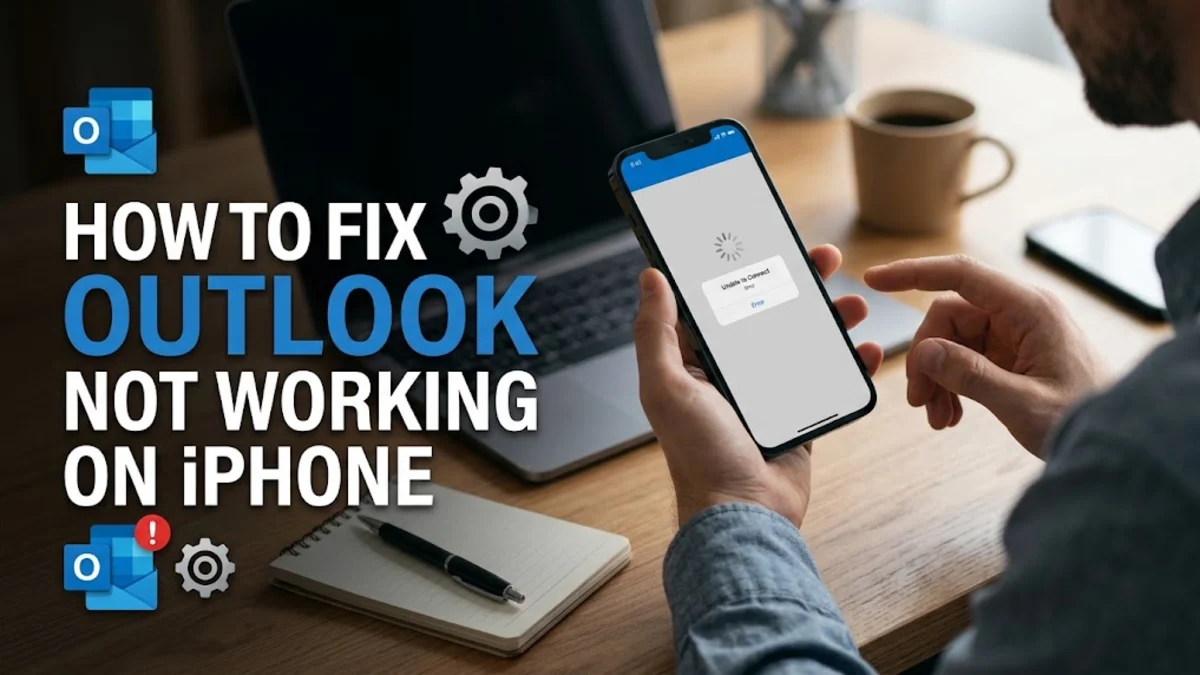
When Microsoft Outlook stops working on your iPhone, it usually stems from expired authentication tokens, corrupted local app cache, disabled background data permissions, or temporary cloud server disruptions. You might notice new emails fail to load, sent messages get stuck in the Outbox, notifications stop appearing, or the app closes immediately after opening.
To fix the issue quickly, start by forcing the app to restart and checking Microsoft 365 service status. If the problem persists, resetting your mail account sync within the app or adjusting your iOS background permissions will restore full functionality without losing your saved messages or calendar events.
Why Outlook Fails to Sync or Open on iOS
Understanding why Outlook fails on iOS helps pinpoint the correct fix faster. Mobile email clients rely on persistent secure tokens to communicate with Microsoft Exchange, Outlook.com, or IMAP servers. When you change your account password on another device, or when security policies trigger an automatic re-authentication requirement, the local token on your iPhone becomes invalid. Instead of prompting you for a password right away, the app may simply freeze, show a continuous sync spinner, or display a vague connection error.
Another primary cause is iOS network or resource management. Apple's operating system strictly monitors battery consumption and mobile data usage. If background processing permissions are revoked or low data mode is enabled on your Wi-Fi or cellular network, Outlook cannot pull incoming emails or sync calendar invitations when the screen is locked. Corrupted app data stored in your iPhone's local flash storage can also cause unexpected crashes upon launch.
Force Close Outlook and Restart Your iPhone
Before tweaking complex account settings, perform a complete restart of the Outlook application and your mobile hardware. Swiping away from an app returns it to a suspended background state, but force closing it clears the active memory allocation and terminates stuck background threads.
To force close the application, swipe up from the bottom of your home screen and pause briefly in the middle of the display to open the App Switcher. Swipe left or right to locate the card preview for Outlook, then drag the preview card straight up to close it. Next, press and hold the side button along with either volume button until the power-off slider appears. Drag the slider to power down your device, wait 30 seconds, and turn it back on before reopening the app.
Reset Your Account Sync Inside the App
Microsoft Outlook for iOS includes a built-in diagnostic tool designed to repair broken synchronization channels. Using the Reset Account feature forces the application to clear its local message databases for that specific mailbox and download fresh server headers without requiring you to set up your account from scratch.
Follow these steps to perform an account reset:
- Open the Outlook app on your iPhone.
- Tap your profile avatar or the menu icon located in the top-left corner of the screen.
- Tap the Settings gear icon at the bottom-left of the sidebar menu.
- Under the Mail Accounts heading, select the email address that is failing to update.
- Scroll down to the bottom of the account settings page and tap Reset Account.
- Confirm your choice when prompted. The application will close briefly and re-index your inbox.
Check Background App Refresh and Mobile Data Permissions
If your emails only update when you manually open the app, your iOS background data settings are likely restricted. iOS allows users to turn off background network access on a per-app basis, which stops push notifications and auto-fetching routines.
Navigate to Settings > Outlook on your iPhone. Ensure that the toggle next to Background App Refresh is enabled in green. Additionally, check that Cellular Data is toggled ON; if this permission is toggled off, Outlook will only fetch mail when connected to a Wi-Fi network.
You should also verify system-wide background access by navigating to Settings > General > Background App Refresh. Ensure the top option is set to Wi-Fi & Cellular Data rather than Off. Finally, open Settings > Wi-Fi, tap the information icon next to your active network, and confirm that Low Data Mode is disabled, as this feature explicitly restricts background synchronization.
Remove and Re-Add Your Email Account
If resetting the account sync fails to resolve persistent sending or receiving errors, completely removing the account deletes expired security tokens and forces a fresh multi-factor authentication (MFA) handshake with your mail provider.
To remove and re-add your account:
- Open Outlook and go to Settings by tapping your profile icon in the upper left, then the gear icon.
- Tap the problematic email account listed under Mail Accounts.
- Scroll to the bottom and select Delete Account.
- Choose Delete from This Device to confirm.
- Return to the main settings page in Outlook and tap Add Mail Account.
- Enter your full email address, tap Add Account, and complete the sign-in prompt, including any authenticator app approvals.
Reinstall the Outlook App and Reset Cache
When Outlook crashes immediately upon launch or fails to open altogether, the application binaries or cached files stored on your iPhone storage may be corrupted. Uninstalling the application removes all locally stored app files while leaving your email safely stored on the mail server.
Touch and hold the Outlook app icon on your home screen until the quick action menu appears. Select Remove App, then tap Delete App to confirm removal. Restart your iPhone to flush any temporary cache files from system memory. Once restarted, open the App Store, search for Microsoft Outlook, and download the latest version. Re-launch the app and enter your credentials to complete the setup process.
Verify Service Health and System Status
If none of the local fixes resolve the problem, the issue may stem from a broader cloud outage on Microsoft's infrastructure or an Apple notification service outage. Microsoft Exchange Online and Outlook.com occasionally experience backend maintenance periods or unexpected service disruptions that prevent mobile clients from establishing a handshake.
You can verify current operational conditions by searching for Microsoft 365 Service Health online or checking official incident reports. If a cloud server outage is active, local troubleshooting steps on your iPhone will not fix the connection; you must wait until Microsoft resolves the infrastructure event on their end.
The bottom line
Troubleshooting Outlook on your iPhone usually requires addressing simple network restrictions, re-establishing expired login tokens, or clearing out corrupted local storage files. Starting with a quick app restart or an account sync reset resolves the vast majority of email fetching issues. If you regularly encounter sync failures, keeping both iOS and the Outlook app updated ensures optimal compatibility and security.
Frequently asked questions
Why is Outlook not sending emails from my iPhone?
Emails usually get stuck in the Outbox due to an interrupted internet connection, oversized file attachments, or expired account authentication credentials. Try switching from Wi-Fi to cellular data or removing and re-adding your email account.
Will deleting the Outlook app remove my saved emails?
No, deleting the app only removes local cached files from your iPhone. All your emails, contacts, and calendar events remain safely stored on your provider's mail server and will reappear when you log back in.
How do I fix missing Outlook notifications on iOS?
Go to iOS Settings > Notifications > Outlook and ensure Allow Notifications is toggled on. Next, open Outlook, go to Settings > Notifications, and verify that notifications are configured for Focused and Other Inboxes.
Why does Outlook sync on desktop but not on my iPhone?
This mismatch occurs when the mobile app loses its security token or when iOS restricts background data. Perform an account reset inside Outlook Settings or check if Low Data Mode is active in your iOS Wi-Fi settings.