Why Is My iPad Battery Draining Fast? How to Fix It
If you pick up your iPad expecting hours of productivity or streaming only to discover the charge dropping before your eyes, you are dealing with one of the most frustrating tablet issues. An iPad battery should comfortably last through a full day of typical browsing, reading, and video playback. Sudden, aggressive battery drain usually points to runaway background processes, unoptimized apps, misconfigured settings, or natural hardware aging.
Finding the root cause requires a systematic approach rather than random guessing. By examining iPadOS diagnostics and adjusting system features that quietly consume power around the clock, you can pin down what is sapping your battery and restore reliable, all-day runtime.
Identify Battery-Hogging Apps in Settings
Before turning off every feature on your tablet, inspect the built-in power analytics to see which apps consume the most energy. iPadOS tracks power consumption across twenty-four-hour and ten-day windows, displaying both on-screen time and background activity for every app installed on your device.
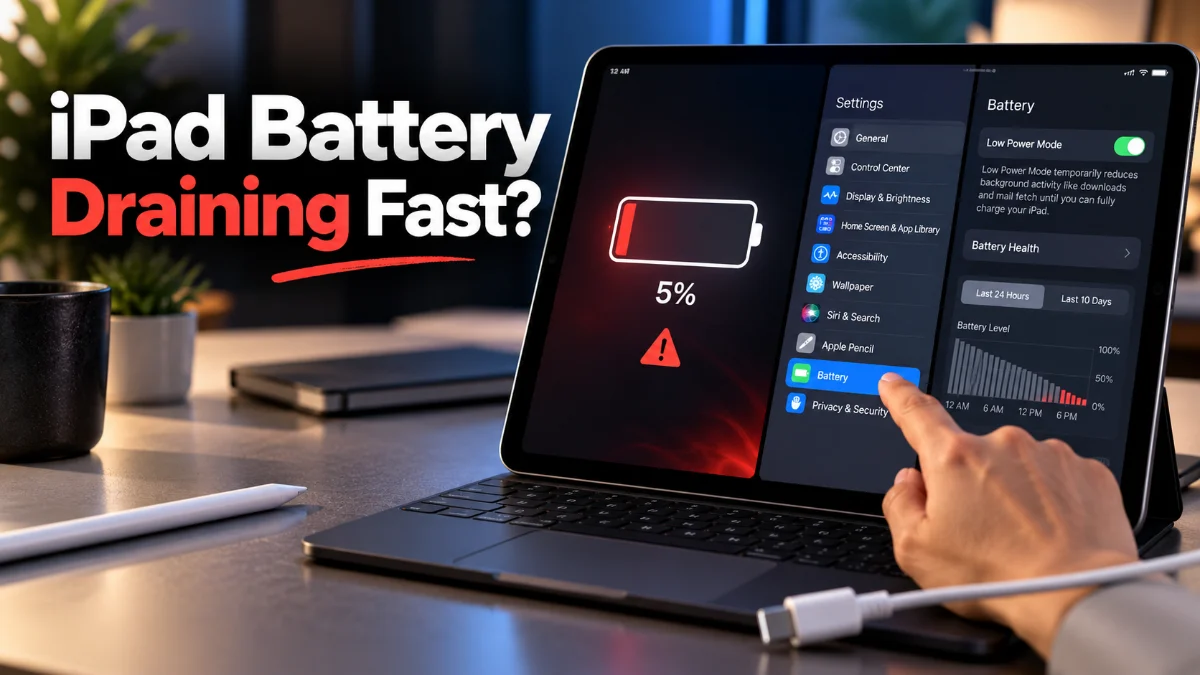
Open Settings > Battery and wait a few moments for the graphs to generate. Scroll down to the app list and tap Show Activity. Look closely for applications with high battery percentages despite minimal on-screen use; entries labeled Background Activity or Audio frequently run rogue sync tasks. If you spot a social media client, streaming app, or game using twenty to thirty percent of your battery while idling in the background, force close the app by swiping up from the bottom of your screen to the App Switcher and flicking the app card away. If the problem persists across multiple days, delete the offending app and reinstall it fresh from the App Store.
Turn Off Background App Refresh and Adjust Push Email
Background App Refresh allows installed applications to ping remote servers, fetch fresh content, and update feeds while you are doing other things or when the iPad is asleep. While convenient for messaging tools, dozens of apps abuse this privilege to track telemetry or pre-load high-resolution media, keeping the iPad's processor awake when the screen is locked.
You can tame this drain without sacrificing core notifications:
- Go to Settings > General > Background App Refresh.
- Switch the main toggle from Wi-Fi & Cellular Data to Wi-Fi, or toggle it completely Off for maximum battery longevity.
- If you prefer selective control, leave the master switch on and individually toggle off non-essential apps like retail stores, games, and photo editors.
Next, address your email fetching schedule. Constant IMAP server polling is a silent battery killer. Navigate to Settings > Mail > Accounts > Fetch New Data. Turn off Push at the top, scroll down to the Fetch schedule, and set it to Every 30 Minutes or Manually. This single change prevents the Mail daemon from constantly waking your cellular or Wi-Fi radio.
Optimize Display Brightness, Auto-Lock, and ProMotion
The iPad's vibrant display is its largest hardware power draw. Driving millions of pixels on a Retina, Liquid Retina, or tandem OLED screen requires substantial power, and running excessive brightness burns through your battery faster than any background software process.
First, verify that your display turns off promptly when not in use. Go to Settings > Display & Brightness > Auto-Lock and select 2 Minutes instead of leaving it set to 15 Minutes or Never. Next, ensure automatic brightness adjustments are active so the tablet lowers backlighting in dark environments. This control is tucked away under Settings > Accessibility > Display & Text Size; scroll to the very bottom and verify Auto-Brightness is enabled.
If you use an iPad Pro equipped with a 120Hz ProMotion display, high refresh rates deliver silky animations at the expense of extra GPU cycles. When you need to preserve remaining juice during travel, you can cap the frame rate at 60Hz by navigating to Settings > Accessibility > Motion and toggling on Limit Frame Rate.
Audit Location Services and Unnecessary Radios
Apps that continually monitor your geographic location force the iPad's internal GPS receiver and wireless scanning hardware to run at maximum duty cycles. While mapping tools legitimately need this data during navigation, weather apps, shopping utilities, and casual games rarely need continuous access.
Head to Settings > Privacy & Security > Location Services. Review the list of apps and modify their permissions:
- Change apps set to Always to While Using the App or Never.
- Disable Precise Location for apps like news portals or food delivery services that only need an approximate neighborhood to function.
- Scroll to the bottom of the list, tap System Services, and turn off discretionary options like Significant Locations, iPhone Analytics, and Location-Based Suggestions.
Additionally, check your wireless connections. If you leave AirDrop set to Everyone for 10 Minutes or continually leave Personal Hotspot broadcasting, the iPad broadcasts low-energy beacon signals nonstop. Keep AirDrop set to Contacts Only or Receiving Off in Settings > General > AirDrop when you are in public areas.
Address Post-Update Indexing and Software Glitches
If your iPad battery started draining rapidly immediately after installing an iPadOS update, the cause is often temporary system indexing rather than a software bug. Following major updates, Spotlight searches, Photos facial recognition, and iCloud file synchronization rebuild their local databases in the background. This high-load activity can cause the tablet to feel warm and deplete the battery within three to four hours.
Under normal circumstances, indexing settles within twenty-four to forty-eight hours if you leave the iPad connected to a charger and connected to Wi-Fi overnight. If the aggressive drain continues beyond three days, a stalled system daemon is likely caught in an infinite loop. Perform a hard restart to clear volatile cache memory:
- For iPads without a Home button: Press and quickly release the volume button closest to the top button, press and quickly release the volume button farthest from the top button, then press and hold the top power button until the Apple logo appears.
- For iPads with a physical Home button: Press and hold both the top power button and the Home button simultaneously until the Apple logo displays on screen.
After rebooting, go to Settings > General > Software Update to ensure no minor patch updates have been released to address verified thermal or battery bugs.
Assess Physical Battery Health and Chemical Aging
Lithium-ion batteries are consumable components with a finite chemical lifespan. Over hundreds of charge cycles, their capacity diminishes, resulting in faster discharge curves and occasional sudden shutdowns under demanding computational loads like video rendering or intense 3D gaming.
Check your battery's hardware health by navigating to Settings > Battery > Battery Health (available on modern iPad models). Here you will see the Maximum Capacity percentage relative to when the device was brand new:
| Maximum Capacity | Battery Condition | Recommended Action |
|---|---|---|
| 100% – 85% | Optimal Health | Normal runtime; focus on software optimization. |
| 84% – 80% | Moderate Wear | Noticeable runtime drop; enable Low Power Mode during heavy tasks. |
| Below 80% | Degraded Capacity | Hardware replacement recommended through Apple Support. |
If your iPad's battery capacity has fallen below eighty percent, software adjustments will offer only marginal gains. At that stage, booking a battery service appointment at an Apple Store or authorized service provider is the only permanent solution to regain original battery life.
The bottom line
An iPad battery that drains too fast is almost always reacting to rogue background syncs, improper screen brightness, unneeded location polling, or temporary post-update file indexing. By reviewing the Battery diagnostics menu, locking down Background App Refresh, and performing a forced restart, you can eliminate software power drains. If the battery health statistics indicate serious chemical depletion, scheduling an authorized battery replacement will restore your tablet to its original all-day performance.
Frequently asked questions
Does using an Apple Pencil drain the iPad battery faster?
Yes. When an Apple Pencil is magnetically attached to the side of an iPad, it continuously sips power to maintain its own battery at one hundred percent. Furthermore, active drawing and note-taking apps sample the digitizer at 240Hz, which significantly increases processor and screen power consumption.
Is it safe to leave Low Power Mode on all the time?
Yes, leaving Low Power Mode turned on is completely safe. It reduces power consumption by dimming the display slightly, pausing iCloud Photos auto-syncing, reducing system animations, and capping processor frequencies. It turns off automatically once your iPad charges past eighty percent.
Why does my iPad battery drain overnight when I am not using it?
Overnight idle drain usually stems from background notifications, automatic cloud backups, or push email connections keeping the Wi-Fi radio active. To stop standby drain, turn off Background App Refresh for non-essential apps or place the iPad into Airplane Mode before going to sleep.
How many charging cycles does an iPad battery last?
Apple designs iPad batteries to retain up to eighty percent of their original capacity after approximately one thousand complete charge cycles under normal operating conditions, which typically equates to three to four years of regular daily use.