Why Is Microsoft Word Not Opening? How to Fix It
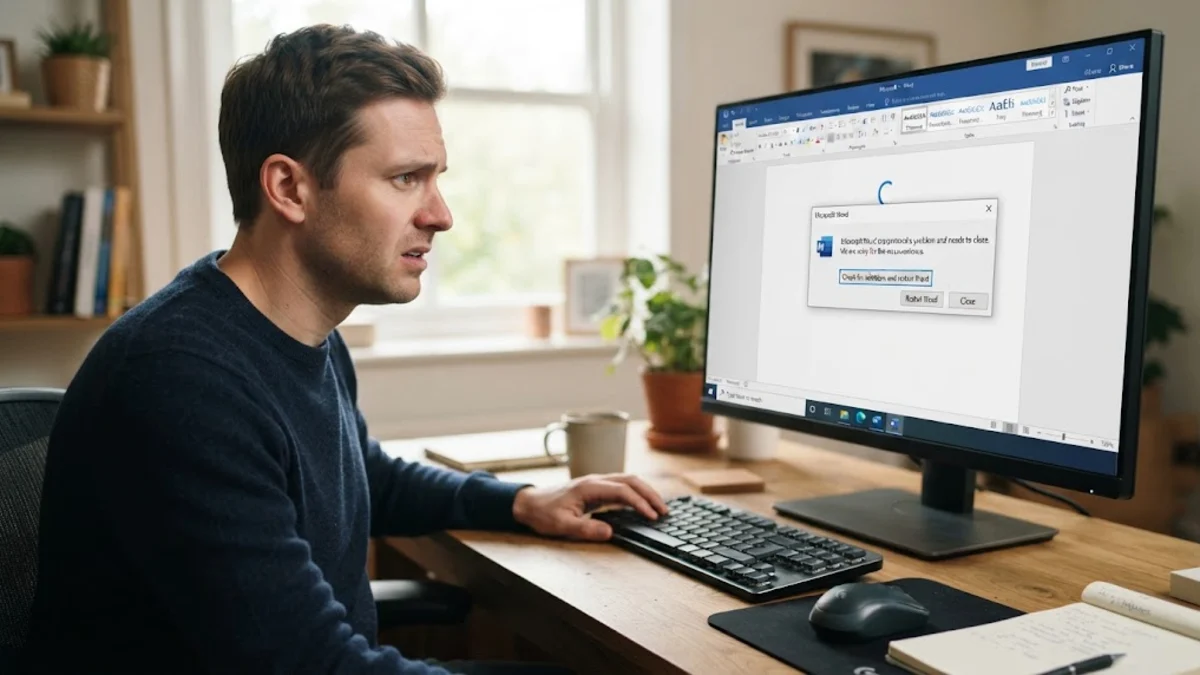
When you click the Microsoft Word shortcut and nothing happens, your entire productivity schedule grinds to a halt. In most cases, Word fails to launch because a previous background session never closed properly, a third-party add-in crashed during startup, or the global default template file became corrupted. System updates and damaged installation files can also prevent the application from opening its main interface.
You do not need to reinstall your entire operating system or purchase a new office license to resolve this issue. By following a structured troubleshooting sequence, you can isolate whether the problem stems from lingering background processes, conflicting plugins, or damaged local configuration files. Here is why Microsoft Word refuses to open and the exact steps to get it running again.
Common Reasons Microsoft Word Refuses to Launch
Understanding the root cause behind Microsoft Word's failure to open helps you choose the correct fix right away. The application relies on several supporting services, external registry keys, and local template files every time it boots. If any single component encounters an unhandled exception during initialization, Word quietly shuts down before rendering a visual window on your desktop.
The most frequent culprits include:
- Ghost Background Processes: A previous Word session froze during closure, leaving
WINWORD.EXEactive in memory and blocking new instances from starting. - Incompatible COM Add-ins: Extensions like PDF converters, citation managers, or grammar checkers failing to handshake with Word's startup routine.
- Corrupted Normal.dotm Template: The default blank document layout has corrupted styling or macro instructions that trigger an immediate crash.
- Damaged Program Binaries: A partial Microsoft 365 background update that left core dynamic link libraries (.dll files) broken or incomplete.
- Strict Security Permissions: Controlled folder access or third-party endpoint antivirus suites mistakenly quarantining Word execution scripts.
Step 1: End Lingering Word Processes in Task Manager
When you attempt to launch Word repeatedly, you might trigger multiple background instances that block each other from displaying the graphical interface. If an earlier instance crashed silently while autosaving or syncing with OneDrive, Windows will consider the executable already active and reject subsequent launch commands.
To force close these zombie processes:
- Press Ctrl + Shift + Esc to open Task Manager.
- Ensure you are in the Processes tab. Look under Apps and scroll down to the Background processes list.
- Search for any entry named Microsoft Word or WINWORD.EXE.
- Right-click the entry and select End task. Repeat this for every Word instance listed.
- Wait five seconds, then launch Word normally from your Start menu.
If you are using a Mac, press Option + Command + Esc to open the Force Quit Applications dialog, select Microsoft Word, and click Force Quit.
Step 2: Start Word in Safe Mode and Disable Faulty Add-ins
If terminating background tasks does not help, an installed add-in is the most probable cause. Third-party extensions such as Adobe Acrobat PDFMaker, EndNote, Grammarly, or customized macro toolbars hook directly into Word during boot. When an extension conflicts with your current version of Office, Word hangs indefinitely on the splash screen or disappears instantly.
Launching Word in Safe Mode bypasses all extensions, customized toolbars, and custom templates:
- Press Win + R to open the Run dialog box.
- Type
winword /safeand press Enter (or hold down the Ctrl key while double-clicking your Word desktop shortcut until a prompt asks if you want to start in Safe Mode). - If Word opens successfully in Safe Mode, navigate to File > Options > Add-ins.
- At the bottom of the window, ensure the Manage dropdown is set to COM Add-ins, then click Go.
- Uncheck all active add-ins and click OK.
- Close Word and relaunch it normally. If it boots without issue, re-enable your add-ins one by one to identify the specific plugin causing the crash.
Step 3: Reset the Normal.dotm Global Template
Every new document you create in Microsoft Word inherits styles, margins, and default font settings from a global master file called Normal.dotm. If Word crashes during an automatic save or if a macro injects conflicting code into this template, Word will crash every time it tries to read the file during startup.
Resetting this template forces Word to generate a factory-fresh copy upon launch:
- Close all instances of Microsoft Office programs.
- Press Win + R, paste the following path into the field, and press Enter:
%appdata%\Microsoft\Templates - Locate the file named Normal.dotm. If file extensions are hidden, look for a template file named Normal with a Word macro-enabled template type.
- Right-click Normal.dotm and rename it to Normal.old. Renaming rather than deleting ensures you can restore custom macros later if needed.
- Launch Microsoft Word. Word will automatically build a pristine
Normal.dotmfile in that directory.
Step 4: Run an Office Quick Repair or Online Repair
Corrupted application registries, missing DLL files, or interrupted automatic updates can render Word executable files unreadable. Windows includes a built-in diagnostic and repair utility specifically for Microsoft 365 and standalone Office suites that repairs these system files without touching your saved personal documents.
To run the repair utility on Windows 11:
- Right-click the Start button and select Installed apps (or navigate to Settings > Apps > Installed apps).
- Type Microsoft 365 or Office in the search bar.
- Click the three horizontal dots icon next to your Office installation and select Modify. Click Yes on the User Account Control prompt.
- Select Quick Repair first. This checks for common corruptions and fixes missing files locally within two to three minutes without requiring internet connectivity.
- Click Repair and test Word once the process completes.
If Quick Repair finishes but Word still refuses to open, return to the repair menu, select Online Repair, and click Repair. Online Repair runs a comprehensive replacement of all core Office files by downloading fresh copies from Microsoft servers. This process takes between 10 and 20 minutes depending on your internet connection.
Step 5: Check Windows Controlled Folder Access and Display Drivers
Modern security software and hardware acceleration incompatibilities can also prevent Word from drawing its window. Windows Security features a defensive layer called Controlled Folder Access designed to prevent ransomware from modifying user directories. Occasionally, this feature blocks legitimate Word processes from writing temporary cache files to your Documents folder.
To verify that Windows Security is not blocking Word:
- Open the Start menu, search for Ransomware protection, and open the system setting.
- Check if Controlled folder access is toggled On.
- If enabled, click Allow an app through Controlled folder access.
- Click Add an allowed app > Recently blocked apps. If you see
WINWORD.EXEon the list, grant it permission.
Additionally, outdated graphics drivers can cause Word to crash if the application fails to initialize hardware graphics acceleration. Ensure your GPU drivers are updated via Windows Update or the dedicated software suite from Intel, AMD, or Nvidia.
The bottom line
When Microsoft Word refuses to open, the issue almost always points to a lingering background task, a broken COM add-in, a corrupted Normal.dotm template, or damaged installation binaries. By ending hidden processes, testing in Safe Mode, and utilizing the native Office Online Repair tool, you can quickly restore your word processing environment. If these solutions fail, running the official Microsoft Support and Recovery Assistant will perform a clean uninstallation and reinstall the latest compatible release.
Frequently asked questions
Why does Microsoft Word say 'Processing' or freeze on the splash screen?
This freezing behavior almost always indicates that Word is struggling to load a damaged COM add-in, verify a networked printer driver, or read a corrupt Normal.dotm template. Starting Word in Safe Mode using the 'winword /safe' command allows you to bypass these initial loading routines and identify the offending component.
Will repairing Microsoft Office delete my saved documents?
No. Running either Quick Repair or Online Repair only checks and replaces program binaries, registry keys, and core application files. Your saved .docx documents, OneDrive synchronizations, and personal files remain completely untouched.
Why is Word listed in Task Manager but not showing on my screen?
This occurs when Word encounters an invisible error during startup, gets confused by a disconnected secondary monitor setup, or gets stuck executing a background macro. Ending the task in Task Manager and restarting Word usually fixes the issue. If you use dual displays, press Win + Shift + Left/Right Arrow to bring an off-screen window back into view.
How do I fix Microsoft Word not opening on a Mac?
On macOS, quit all Office apps, open Finder, click Go > Go to Folder, and navigate to ~/Library/Containers/com.microsoft.Word/Data/Library/Preferences. Move the 'com.microsoft.Word.plist' file to the Trash to reset your preferences. You can also start your Mac in Safe Mode to clear font caches and system temporary files.