How to ChatGPT a Picture: Upload and Analyze Images
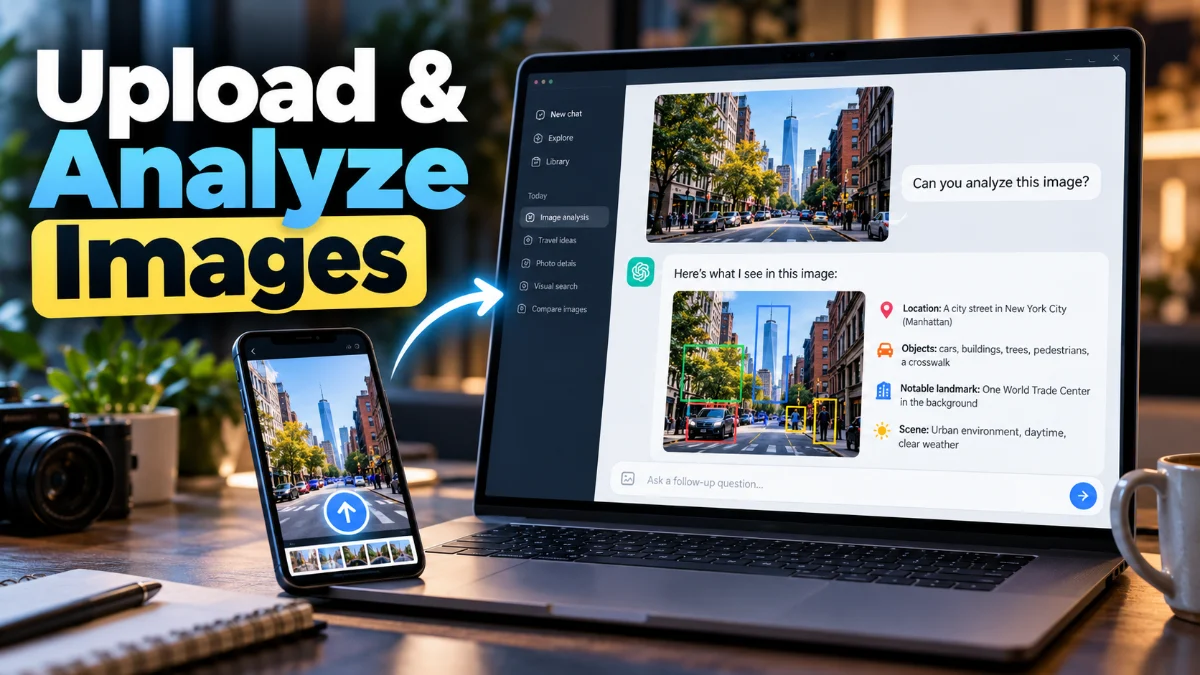
Using ChatGPT to analyze pictures allows you to extract text from images, identify unknown objects, solve complex homework problems, and turn visual sketches into clear written instructions. Whether you are working with handwritten notes, receipts, infographics, or photos of physical items, ChatGPT processes visual data alongside standard text prompts.
In this guide, you will learn how to chatgpt a picture using both the web version and mobile apps. We will cover step-by-step instructions for uploading files, crafting effective prompts for visual analysis, generating updated images, and troubleshooting common upload errors.
Understanding ChatGPT Vision and Image Capabilities
When you ask how to chatgpt a picture, you are using the Multimodal capabilities of ChatGPT. Powered by models such as GPT-4o, ChatGPT can interpret visual inputs directly. Instead of relying solely on text descriptions, the AI breaks down pixel data to detect objects, read embedded text via optical character recognition (OCR), interpret graphs, and evaluate layout structures.
Image analysis is available across free and paid tier accounts, though usage limits and processing speed vary based on your subscription level. Paid plans provide higher rate limits and faster responses for complex visual processing, while free accounts share access during standard traffic periods. You can upload standard image formats including JPEG, PNG, WEBP, and non-animated GIF files directly into the conversation bar.
How to Upload and Analyze a Picture on Desktop
To upload a picture to ChatGPT on a Windows PC, Mac, or Chromebook, open your preferred web browser and navigate to the official website. Make sure you are logged into your account before starting a new conversation.
- Open your browser and navigate to
chatgpt.com. - Click the + (plus icon) or paperclip icon located at the far left of the text input box at the bottom of the screen.
- Select Upload from computer from the pop-up menu.
- Browse your local file directory, select your image file, and click Open. Alternatively, you can drag and drop an image file directly from your file manager into the prompt box.
- Type a clear prompt in the text box explaining what you want ChatGPT to do with the image, then press Enter or click the Send button.
For example, if you upload an image of a handwritten recipe, your prompt could be: "Extract all ingredients and instructions from this photo into a formatted text list." ChatGPT will scan the image and output the converted text immediately.
How to Upload and Analyze a Picture on Mobile
Using the official ChatGPT mobile app on iOS or Android makes processing images even faster because you can snap photos directly using your device camera or select existing images from your photo gallery.
- Launch the ChatGPT app on your iPhone or Android smartphone.
- Tap the + (plus) icon located to the left of the message bar.
- Choose Camera to capture a fresh photo, or select Photos to open your photo library.
- If capturing a photo, frame your subject clearly and take the shot, then tap Use Photo. If selecting from your gallery, tap the specific image or choose multiple images.
- Type your prompt in the text area beneath the image preview and tap the Send arrow.
Using the mobile app is ideal when you are on the go. For example, you can photograph a home appliance model number plate and ask: "Where can I find the user manual for this device, and how do I clear the filter warning light?"
Effective Prompts for Analyzing Pictures
The quality of ChatGPT's analysis depends heavily on the specificity of your prompt. Asking generic questions like "What is this?" produces simple descriptions, whereas detailed prompts unlock precise analysis. Combining image context with structured text queries ensures accurate and practical results.
| Goal | Example Prompt | Expected Output |
|---|---|---|
| Extract Text (OCR) | "Transcribe all readable text in this document scan exactly as written." | Plain text copy of documents, receipts, or signs. |
| Solve Math Problems | "Solve the equation in this image step by step and explain the rule used." | Detailed mathematical solution with intermediate steps. |
| Identify Objects | "Identify the plant species in this photo and describe its care instructions." | Botanical name, lighting needs, and watering schedules. |
| UI/Design Feedback | "Critique the layout of this web page mockup and suggest three improvements." | Actionable suggestions for spacing, contrast, and layout. |
If an image contains multiple objects or dense text, use cropping tools on your device to highlight the relevant area before uploading. This helps the AI focus on the exact detail you want analyzed without getting distracted by background elements.
How to Edit or Generate Pictures using ChatGPT
In addition to analyzing uploaded photos, ChatGPT allows you to edit uploaded images or generate entirely new images from visual references. This feature combines vision processing with image generation capabilities like DALL-E 3.
To modify an existing image or request a variation, upload your image and specify the visual changes you want to apply. For instance, you can upload a rough sketch of a logo and type: "Render a polished, professional vector illustration based on this hand-drawn sketch, using a blue and dark gray color scheme."
When modifying images, keep your prompts specific regarding style, lighting, colors, and subject positioning. If the generated output is not quite right, ask follow-up refinements such as: "Keep the same composition, but change the background setting to a wooden desk surface."
Troubleshooting ChatGPT Picture Upload Errors
If you experience issues uploading or processing images in ChatGPT, several common factors could be causing the failure. Following these troubleshooting steps will resolve most image processing errors quickly.
- Unsupported File Format: Ensure your image is formatted as JPEG, PNG, WEBP, or GIF. Unsupported formats like HEIC (common on iPhones) or RAW files should be converted to JPEG or PNG before uploading.
- Excessive File Size: Large photos from modern camera sensors can cause timeout errors. Compress files over 20 MB or lower the photo resolution before attaching them.
- Browser Extension Interference: Ad blockers, privacy extensions, or script blockers can prevent file uploads. Disable extensions temporarily or test in an Incognito / Private Browsing window.
- Corrupted Browser Cache: Clear your browser cookies and site data for
chatgpt.com, then restart your browser. - Corrupted Mobile App State: Force close the mobile app, check your app store for pending updates, or reinstall the application if upload buttons become unresponsive.
If ChatGPT returns an error stating it cannot read the image text, ensure the picture is properly lit, free of motion blur, and turned right-side up. High contrast between text and background significantly improves accuracy.
The bottom line
Learning how to chatgpt a picture expands what you can accomplish with conversational AI. By following the upload steps on desktop or mobile and using targeted prompts, you can convert printed text, solve visual problems, analyze complex diagrams, and transform visual ideas into creative projects in seconds.
Frequently asked questions
Why can't I upload pictures to ChatGPT?
Upload failures usually occur due to unsupported file formats (like HEIC or RAW), oversized file sizes exceeding limits, browser extension conflicts, or temporary server outages. Convert your image to JPEG or PNG and try disabling browser extensions.
Can ChatGPT identify people in uploaded photos?
For privacy and safety reasons, ChatGPT is intentionally restricted from identifying real individual human faces in uploaded photographs.
What image formats does ChatGPT accept?
ChatGPT supports standard image formats including JPEG, PNG, WEBP, and non-animated GIF files.
Is image analysis available on free ChatGPT accounts?
Yes, visual analysis is available on free accounts using models like GPT-4o, though free accounts have strict dynamic rate limits during peak usage hours.