How to Take a Screenshot on Samsung Galaxy
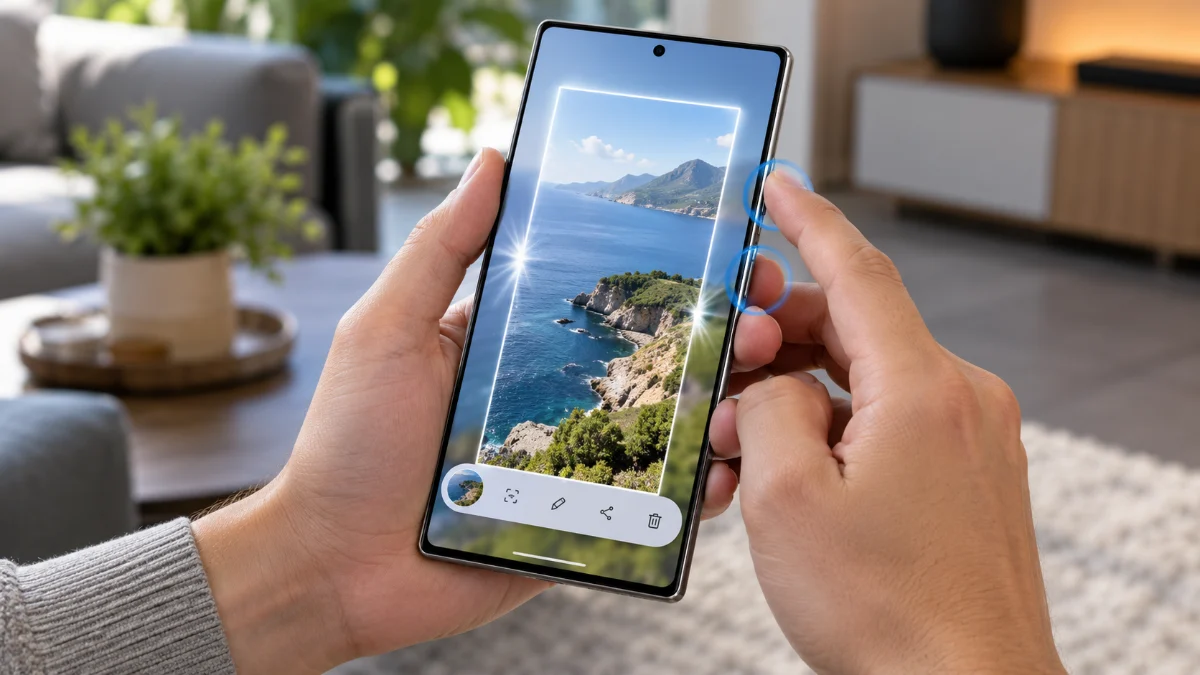
Taking a Samsung Galaxy screenshot is straightforward once you know the exact button timing and gesture settings. Whether you are running One UI on a Galaxy S series flagship, a Galaxy Z foldable, or a Galaxy A series device, Samsung provides several built-in methods to capture your display instantly.
Many users struggle because holding the buttons down for too long triggers the power menu or Samsung Wallet instead of snapping the screen. This guide covers every reliable way to capture full screens, long web pages, custom shapes, and hands-free voice screenshots.
Quick Press Button Combination
The standard physical method relies on the hardware keys located along the frame of your phone. On all modern Galaxy smartphones, you capture the display by pressing the Side button (power button) and the Volume Down button at the exact same moment. The screen will flash white briefly, and the screenshot toolbar will pop up at the bottom of your screen to confirm the capture.
The most common mistake users make is holding both buttons down for two or three seconds. If you press and hold, your phone will interpret the input as an attempt to open the power-off screen or trigger Samsung digital assistant features. To get a clean capture, treat the action like clicking a mouse: press both keys simultaneously with a quick, split-second tap and release them immediately.
Palm Swipe to Capture Gesture
Samsung includes a proprietary gesture feature that lets you snap your screen without touching physical buttons. To use it, place the side of your open hand (the edge of your pinky finger and palm) perpendicular to the glass, making gentle contact from the right or left edge of the screen. Sweep your palm smoothly across the glass horizontally toward the opposite edge. When performed correctly, the screen flashes and saves the image.
If the swipe does not trigger, ensure the feature is enabled in your device settings. Navigate to Settings > Advanced features > Motions and gestures, then toggle the switch beside Palm swipe to capture to the On position. Keep in mind that this gesture is automatically disabled when the on-screen keyboard is open to prevent accidental captures while typing. Heavy glass screen protectors can also reduce edge sensitivity, requiring a slightly firmer glide.
Capture Long Pages with Scroll Capture
When you need to save an entire webpage, long chat thread, or document, you do not need to take multiple individual shots. Take an initial screenshot using either the button combination or palm swipe. Look immediately at the floating toolbar that appears at the bottom of the screen and tap the Scroll capture icon, which appears as two downward-pointing chevrons inside a square.
Each tap of the button scrolls the page down and stitches another section onto the bottom of your original capture. You can tap it repeatedly or press and hold it to let the system automatically scroll down a continuous page. When you reach the end of the content or release your finger, tap anywhere outside the toolbar. Your Galaxy compiles the entire stream into a single high-resolution vertical PNG image in your gallery.
Smart Select and Edge Panels for Custom Crops
If you only want to save a specific graphic, receipt, or paragraph without cropping it later in an editor, Edge panels offer the fastest route. Swipe inward from the Edge panel handle located along the upper side of your screen, then locate the Smart select panel. This tool gives you instant access to rectangular, oval, pin-to-screen, and animation capture tools.
To activate this tool, go to Settings > Display > Edge panels, turn the main switch On, and tap Panels to check the box for Smart select. Once selected, choose Rectangle to drag a bounding box directly over the area you want. The tool also includes a built-in optical text recognition button that allows you to extract and copy printed text directly from the captured zone without keeping the graphic.
Using the S Pen on Ultra and Fold Devices
Galaxy Ultra and Galaxy Z Fold users have dedicated stylus tools built into the S Pen firmware. Pop out the S Pen or hover its tip close to the glass and press the physical barrel button to launch the floating Air command menu. Tap Screen write to immediately freeze the entire screen and open an instant markup interface.
Screen write automatically saves the base capture while allowing you to draw annotations, highlight text, change pen colors, or crop sections before exporting. If you only want a partial screen clipping, select Smart select from the Air command wheel, outline the exact subject on your panel, and tap the save icon at the bottom right corner of the floating interface.
Hands-Free Captures with Voice Assistants
You can capture your screen hands-free when your hands are wet, dirty, or when you are testing an app that closes whenever physical buttons are pressed. Both Google Gemini and Samsung Bixby handle system-level screen capture commands reliably on One UI.
For Bixby, say your wake command or hold the Side button, then state clearly: Take a screenshot. For Google Assistant or Gemini, prompt the device with: Take a screenshot. The assistant captures whatever is visible behind the listening overlay, excludes its own interface elements, and prompts you to save or share the result directly without altering the underlying window.
Troubleshooting Common Screenshot Failures
If your Galaxy phone refuses to capture an image, several operating system safeguards or software glitches may be active. Review the common obstacles below to identify the cause:
- Protected Content Restrictions: Banking apps, streaming platforms like Netflix or Disney+, and secure enterprise portals block screen captures via Android secure flags. The screen will either turn black or display an error reading Cannot capture screenshot due to security policy. This cannot be bypassed natively.
- Storage Space Exhaustion: When your device reaches less than 1 GB of free storage, One UI restricts image creation. Open Settings > Battery and device care > Storage to clear cached files or trash folders.
- Toolbar Not Appearing: If screenshots save but you cannot scroll or edit immediately, navigate to Settings > Advanced features > Screenshots and screen recordings, and ensure Show toolbar after capturing is enabled.
The bottom line
Mastering screenshot shortcuts on your Samsung Galaxy ensures you capture important receipts, chats, and articles effortlessly. For daily tasks, the quick-tap button shortcut remains the fastest option, while Edge panels and Scroll capture eliminate tedious post-cropping. Adjust your capture toolbar settings in One UI to keep your workflow fast and organized.
Frequently asked questions
Where are screenshots saved on a Samsung Galaxy?
Screenshots are automatically saved to your internal storage inside the DCIM > Screenshots folder. You can view them directly in the Samsung Gallery app under the Albums tab in the dedicated Screenshots album, or access raw files using the My Files app.
Why does my screen turn black when I take a screenshot?
Streaming apps, password managers, and banking applications flag their windows with Android secure display parameters (FLAG_SECURE) to prevent data theft. When you take a screenshot of these apps, the system deliberately outputs a solid black image or displays a security policy warning.
How do I change the screenshot file format to PNG or JPG?
Go to Settings > Advanced features > Screenshots and screen recordings > Format. From there, select either JPG to save storage space or PNG for maximum graphic sharpness and clearer text.
Can I take a screenshot without the navigation bar or status bar?
Yes. Open Settings > Advanced features > Screenshots and screen recordings, then toggle on Hide status and navigation bars. Your phone will automatically crop out the battery indicator, clock, and bottom navigation controls from all future screenshots.