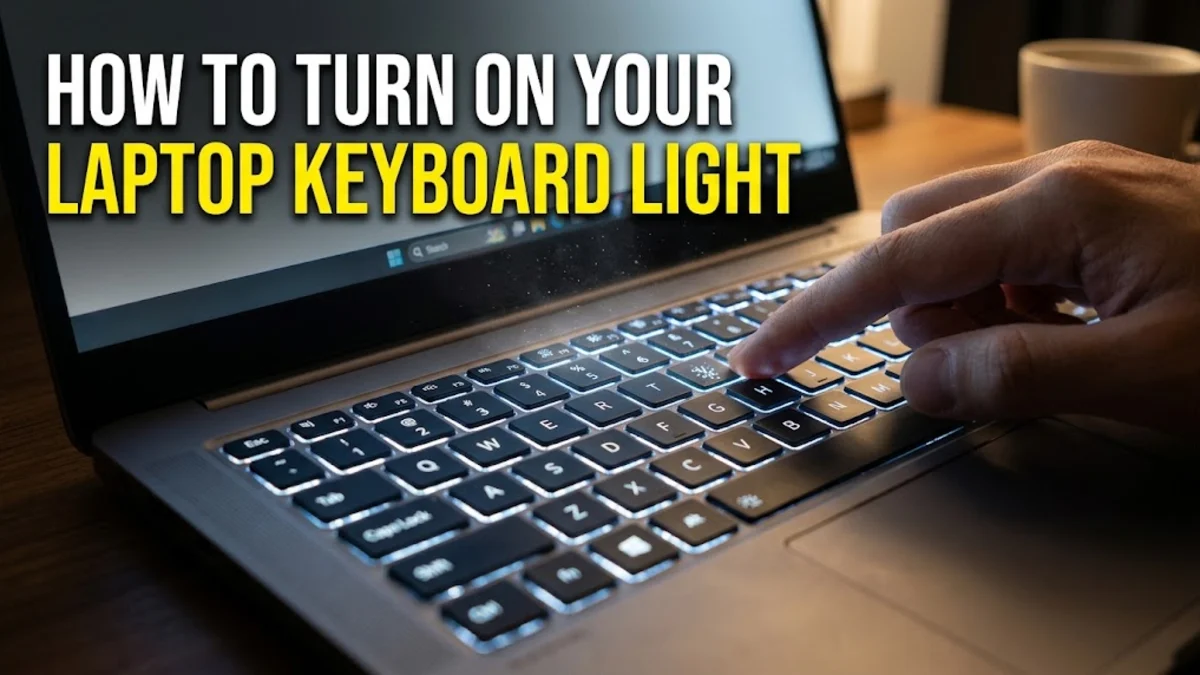
Turning on your laptop keyboard light is usually a simple task, but the exact method varies significantly depending on your laptop's manufacturer and model. Most modern laptops in 2026 feature backlit keyboards to assist with typing in low-light environments, though this feature is often disabled by default to preserve battery life or might be hidden behind a specific combination of keys.
In this guide, we will walk you through the most common keyboard shortcuts, software settings, and BIOS configurations to enable your keyboard's illumination. Whether you are using a high-end gaming rig or a professional ultrabook, these steps will help you illuminate your keys and troubleshoot common reasons why the backlight might not be responding to your commands.
1Using Keyboard Shortcuts for Instant Access
The most direct way to turn on the laptop keyboard light is by using a dedicated function key or a key combination. Most manufacturers use a 'sun' icon or a 'keyboard' icon with light rays to denote the backlight toggle. Typically, you will need to hold the Fn key (usually located in the bottom-left corner) and press one of the function keys across the top row. For instance, on many Dell laptops, the shortcut is Fn + F10 or F5. On HP devices, you should look for the F5, F4, or F11 key. Lenovo users almost always find success with the Fn + Spacebar combination.
It is important to note that many laptops now offer multiple levels of brightness. Pressing the shortcut once might turn the light on at a dim setting, while pressing it a second or third time will increase the intensity before finally turning it off again. If you press the key and nothing happens, check if your laptop has an 'Fn Lock' enabled. When Fn Lock is active, you may only need to press the function key itself without holding Fn. Conversely, if you have a gaming laptop from brands like ASUS or MSI, look for the arrow keys or dedicated 'Aura' keys which often double as backlight controllers when paired with the function modifier.
2Enabling Backlighting via Windows 11 Mobility Center
If the physical keys are not working or if you prefer a software-based approach, the Windows Mobility Center is a reliable tool that still exists in the 2026 version of Windows 11. To access this, right-click the Start button and select Mobility Center from the Power User menu, or press Windows Key + X and then B. Within the Mobility Center window, look for a tile labeled Keyboard Brightness. If your laptop drivers are correctly installed and the hardware supports it, you will see a slider or a toggle button here to adjust the illumination level.
In some newer builds of Windows 11, these settings have also started appearing in the Quick Settings panel. You can click on the Network/Volume/Battery icons in the bottom-right corner of your taskbar to open the panel. If you do not see a keyboard icon, click the Edit Quick Settings (pencil icon) and see if Keyboard Brightness is available to be pinned to your main view. This provides a quick, mouse-driven way to manage your lighting without memorizing manufacturer-specific key combinations, making it an excellent fallback for those using external or third-party keyboards that might not have standard laptop function mappings.
3Configuring Lights Through Manufacturer Control Apps
Many modern laptops rely on proprietary software to manage hardware features like fan speeds, battery health, and RGB lighting. If your keyboard light refuses to turn on, it may be because the manufacturer's control app has overridden the Windows settings. For Lenovo users, the Lenovo Vantage app is the primary hub for these settings. You can find the backlight toggle under Device > Input & Accessories. ASUS users should look into Armoury Crate or MyASUS, where lighting effects and brightness are often controlled under the 'Lighting' or 'Customization' tabs.
Dell users can often find these settings within the Dell Peripheral Manager or the Alienware Command Center for gaming models. HP owners should check the HP Command Center. These applications often provide more granular control than the standard Windows settings, allowing you to set 'sleep timers' for the backlight. For example, you can configure the keyboard light to automatically turn off after 30 seconds of inactivity to save power. If you find that your light turns off too quickly, these manufacturer apps are the only place where you can usually adjust that specific timeout behavior.
4Adjusting Backlight Settings in the BIOS or UEFI
On some professional-grade laptops, such as the Dell Latitude or HP EliteBook series, the keyboard backlight can be enabled or disabled entirely at the firmware level. If you have tried all the keyboard shortcuts and software toggles without success, you may need to check your BIOS/UEFI settings. To do this, restart your laptop and repeatedly tap the BIOS key (usually F2, F10, or Del) before the Windows logo appears. Once inside the BIOS, navigate to a section typically named System Configuration, Input, or Onboard Devices.
Look for an option titled Keyboard Illumination or Backlight. Here, you will usually find options to set the backlight to 'Disabled,' 'Dim,' or 'Bright.' In some cases, there is a setting called 'Auto-on' which uses the laptop's ambient light sensor to decide when to turn the light on. Ensure that the master toggle is set to enabled. After making changes, ensure you select Save and Exit (usually F10). This is a common solution for refurbished laptops or devices that have recently received a major firmware update that might have reset hardware defaults to a 'power save' mode.
5Troubleshooting When the Keyboard Light Won't Turn On
If you have followed the steps above and the keyboard remains dark, there are several troubleshooting steps to take before assuming a hardware failure. First, check if your laptop is in Battery Saver mode. In Windows 11, go to Settings > System > Power & battery. If Battery Saver is active, Windows may automatically disable the keyboard backlight to extend runtime. You can toggle this off or adjust the 'Battery saver' settings to allow the backlight to remain active even when power is low.
Another common culprit is a missing or corrupt keyboard driver. While Windows usually handles keyboard drivers automatically, the specific 'Hotkeys' driver provided by the manufacturer is often required for the Fn combinations to work. Visit the official support site for your laptop brand, enter your serial number, and look for 'Interface Drivers' or 'Hotkey Utility.' Download and install the latest version for 2026. Additionally, inspect the keyboard for any physical damage. If only certain keys are lit, or if the light flickers, the internal ribbon cable connecting the backlight to the motherboard might be loose or damaged, which may require professional repair.
6Checking for Hardware Compatibility
It is a frequent misconception that all modern laptops have backlit keyboards. If you are struggling to find the 'turn on laptop keyboard light' command, it is possible your specific model does not feature the necessary LEDs. To verify this, look closely at the keys, specifically the F5, F10, or Spacebar. If you do not see a small, translucent icon of a keyboard or a sun, your hardware likely lacks backlighting. Laptops without this feature usually have solid, opaque plastic keys where light cannot pass through.
You can also check your laptop's original specifications on the manufacturer's website using your Model Number. If your device is a budget-oriented model or an older 'Education' edition, backlighting is often omitted to reduce costs. In such cases, software updates or BIOS changes will not enable a feature that isn't physically present. If backlighting is essential for your work and your device lacks it, your best option is an external USB-powered LED light or a replacement keyboard module if your laptop model was sold with a backlit version as an optional upgrade.
Frequently asked questions
Can I change the color of my laptop keyboard light?
This depends on your hardware. Standard laptops usually only offer white light, while gaming laptops often feature RGB lighting. If you have an RGB keyboard, you must use the manufacturer's software, such as Razer Synapse, Alienware Command Center, or ASUS Armoury Crate, to change the colors or patterns.
Why does my keyboard light turn off by itself?
This is usually due to a timeout setting designed to save battery. Most manufacturers include a sensor or a timer that turns off the light after 30 seconds of inactivity. You can usually adjust this duration in the manufacturer's control app (like Lenovo Vantage or MyASUS) or sometimes in the BIOS/UEFI settings.
Will keeping the keyboard light on drain my battery?
Yes, but the impact is minimal. Modern LED backlights use very little power compared to the screen or the processor. On average, keeping the light on at full brightness might reduce your total battery life by 15 to 30 minutes over a full charge cycle.
How do I know if my laptop even has a backlit keyboard?
The easiest way is to look for a 'sun' or 'keyboard' icon on the function keys (F1-F12) or the Spacebar. If the letters on your keys are transparent/translucent rather than printed with solid white paint, that is a strong indicator that light is meant to shine through them.