How to Deactivate a Facebook Account in 2026
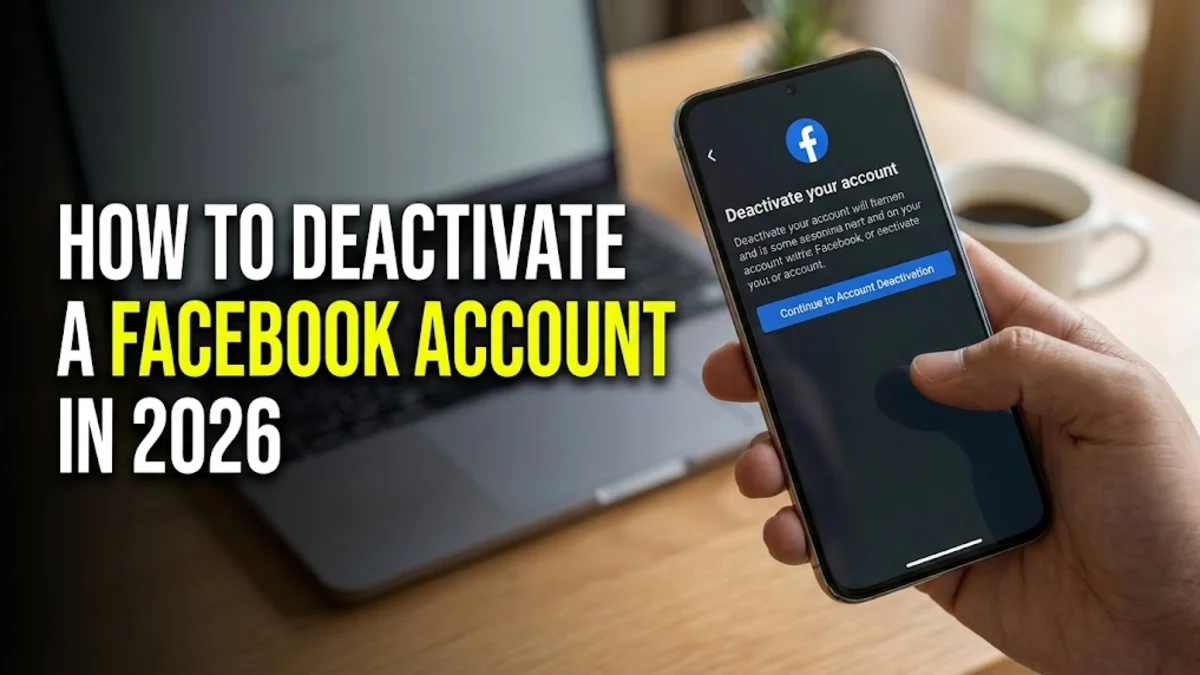
If you want to take a break from social media, knowing how to deactivate a Facebook account lets you step away without losing your photos, posts, or memories permanently. Unlike deleting your profile entirely, deactivation hides your timeline immediately while keeping the door open for your return.
Whether you are using a desktop browser or the mobile app, the process takes just a few minutes. Below, we break down everything you need to know about the differences between deactivation and deletion, along with step-by-step instructions for every device.
Understanding Deactivation Versus Permanent Deletion
Before you begin the process to deactivate a Facebook account, it is important to understand what actually happens to your data. Deactivation is designed as a temporary measure. When you deactivate your account, your profile becomes completely invisible to other users on the platform. People cannot search for your timeline, and your past posts, comments, and photos are hidden from public view.
However, Facebook saves all your data in case you decide to return later. Your friends list, photos, groups, and message history remain stored safely on Meta's servers. On the other hand, permanent deletion removes everything permanently with a grace period of up to 30 days. If you only want a digital detox or a temporary privacy shield, deactivation is always the safer, more flexible choice.
What Happens to Messenger and Connected Services
A common point of confusion when you deactivate a Facebook account is whether your Facebook Messenger access disappears as well. By default, deactivating your main Facebook profile does not automatically deactivate Messenger. You can choose to keep Messenger active to continue chatting with friends and family even while your main profile is hidden.
If you want to completely disappear from Messenger too, you must deactivate Messenger separately within the app settings before or after your main account deactivation. Furthermore, if you use your Facebook login to access third-party apps or websites like Spotify or Pinterest, those login links will stop working once your account is deactivated. You will need to switch those accounts to traditional email and password logins.
How to Deactivate Your Facebook Account on Desktop
If you prefer using a computer, you can easily deactivate your account through the web browser version of Facebook. First, log into your account, click your profile picture in the top right corner, and select Settings & privacy > Settings.
Next, click on Accounts Center in the left-hand sidebar. Inside the Accounts Center dashboard, look for Personal details and click on Account ownership and control. Here, you will see the option for Deactivation or deletion. Select your Facebook profile, choose Deactivate account, and click Continue. You will be asked to enter your current password to confirm your identity, select a reason for leaving, and finalize the choice.
How to Deactivate Your Facebook Account on the Mobile App
Most users manage their social media profiles directly from their smartphones. To deactivate a Facebook account using the iOS or Android mobile app, tap the menu icon (your profile picture or three lines) in the bottom or top right corner. Scroll down and tap Settings & privacy, then tap Settings.
Tap on Accounts Center near the top of the screen, followed by Personal details. From there, tap Account ownership and control and select Deactivation or deletion. Choose your Facebook account, tap Deactivate account, and follow the on-screen prompts. Enter your password when prompted and tap confirm to complete the process. Your profile will vanish from searches and feeds immediately.
How to Download a Copy of Your Data First
Even though deactivation keeps your data safely stored on Facebook's servers, many privacy-conscious users prefer downloading a backup copy of their photos, videos, and post history before stepping away. To do this, navigate to the Accounts Center through your settings menu and click on Your information and permissions.
Select Download your information and click Request a download. You can choose to download a complete copy or select specific data types and date ranges. Facebook will compile your archive and notify you when it is ready for download. This step ensures you have a personal local copy of your digital memories independent of any platform changes.
How to Reactivate Your Facebook Account Later
One of the main benefits of choosing to deactivate a Facebook account rather than deleting it is the ease of return. Whenever you feel ready to rejoin the platform, the reactivation process requires zero technical support or complex customer service tickets. You simply need to log back into Facebook using your original email address or phone number and your password.
As soon as you enter your credentials, Facebook recognizes that your account is in a deactivated state and prompts you to reactivate it. Click the confirmation button, and your entire profile, including your photos, friends list, and groups, is restored instantly. If you kept Messenger active, your chat history will also seamlessly reappear in your inbox.
The bottom line
Learning how to deactivate a Facebook account gives you total control over your digital footprint and online privacy. Whether you need a short weekend break or an extended social media detox, deactivation protects your information while leaving the door wide open for your return. Follow the steps carefully on desktop or mobile, and enjoy your offline time with complete peace of mind.
Frequently asked questions
Will my friends know if I deactivate my Facebook account?
No, Facebook does not send out notifications when you deactivate your account. Your profile simply disappears from searches, your friends list, and past comments, making it look as though you deleted your profile or logged out.
Can I still use Facebook Messenger after deactivating my account?
Yes, you can choose to keep Messenger active even when your main Facebook account is deactivated. However, you must deactivate Messenger separately if you want to stop all messaging activity completely.
How long can my Facebook account remain deactivated?
Your Facebook account can remain deactivated indefinitely. There is no time limit, and your profile data will stay safely stored on Meta's servers until you choose to log back in and reactivate it.
What is the difference between deactivation and deletion?
Deactivation is temporary and hides your profile while preserving your data so you can return anytime. Deletion is permanent, removes all your data after a 30-day grace period, and cannot be undone.
Why can't I find the deactivation button in my settings?
Meta updates its interface frequently. If you cannot find the setting, make sure your app is updated to the latest version, or navigate directly to the Accounts Center in your settings menu under Personal Details.