How to Split Screen on iPad
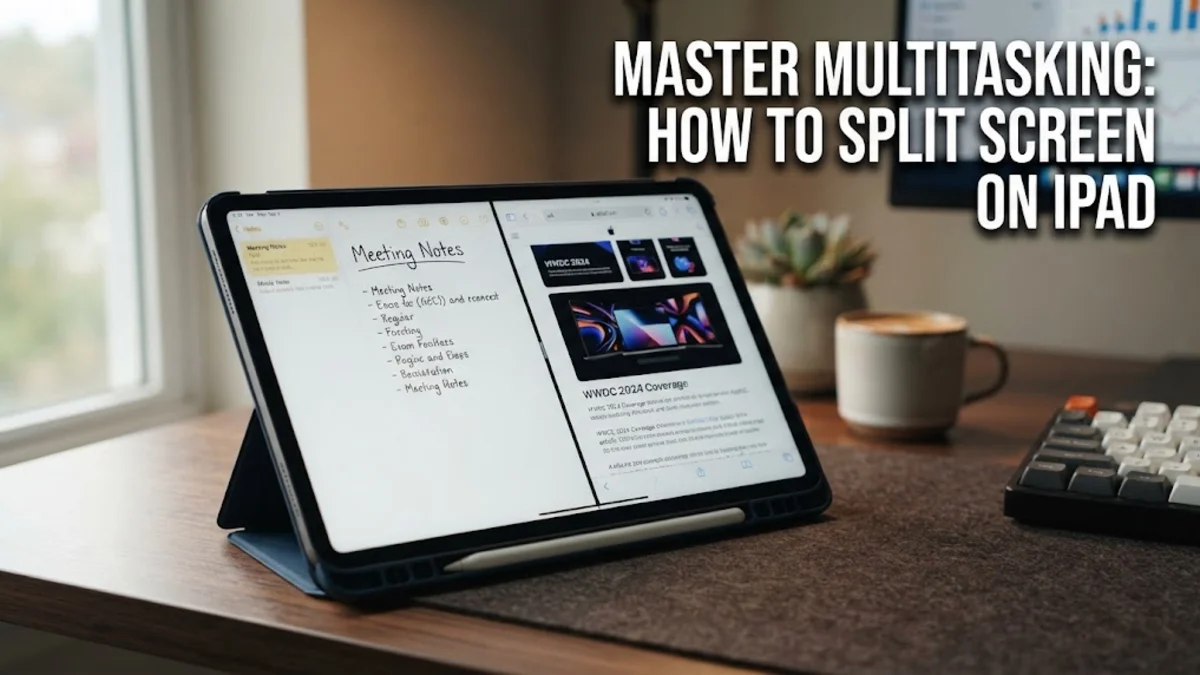
To split screen on an iPad, open your first app, tap the three-dot multitasking button at the top center of the display, and select Split View. Then pick your second app from the Home Screen, Dock, or App Library to place both apps side by side.
iPadOS offers flexible built-in tools to work with multiple applications simultaneously, including traditional Split View, floating Slide Over panels, and advanced Stage Manager windowing. Whether you need to take notes during a meeting, compare documents side-by-side, or manage messages while browsing the web, learning how to split screen on iPad will greatly boost your everyday productivity.
Enabling iPad Multitasking and Checking System Requirements
Before utilizing split-screen features, make sure your iPad supports multitasking and that the corresponding gesture features are enabled in system settings. Modern iPad models running recent iPadOS versions support Split View natively, though feature options differ slightly depending on whether you own a standard iPad, iPad mini, iPad Air, or iPad Pro model.
To verify that multitasking features are turned on, open the Settings app on your iPad. Navigate to General > Multitasking & Gestures. Ensure that Multitasking is set to Split View & Slide Over or Stage Manager depending on your tablet model. Additionally, enable Swipe with 4 or 5 Fingers and ensure system gestures are active so you can switch between active workspaces without smooth performance hiccups.
Opening Two Apps Side-by-Side Using the Multitasking Menu
The quickest way to initiate a split-screen session on your iPad is by using the dedicated multitasking menu located at the top center of active application windows. This three-dot icon provides instant controls to enter full-screen mode, Split View, or floating Slide Over mode without needing complex touch gestures.
Follow these steps to open two apps side-by-side using the multitasking menu:
- Open any primary application that supports multitasking, such as Safari, Pages, or Notes.
- Tap the Multitasking button (the three dots icon) located at the very top center of your iPad screen.
- Tap the Split View button (represented by a square split half-and-half). Your active app will slide slightly off screen to reveal the Home Screen.
- Tap the icon for your second app from the Home Screen, Dock, or App Library.
Once selected, both applications will automatically adjust to occupy equal halves of your iPad screen, allowing you to interact with both windows simultaneously.
Using the Dock to Drag and Drop Apps into Split Screen
If you frequently toggle between dynamic app pairs, pulling secondary apps from the iPad Dock provides a fluid way to enter split screen without returning to the Home Screen. This drag-and-drop workflow allows you to instantly open companion apps directly into your active workspace.
To use the Dock method, launch your primary app first. Swipe up gently from the bottom edge of the screen to reveal the iPad Dock. Touch and hold the icon of the second app you want to open, then drag it off the Dock toward the far left or right edge of the display until a dark frame box appears. Release your finger, and the second application will lock into Split View mode beside your first app.
Resizing, Swapping, and Closing Split Screen Windows
Once two apps are running side by side, iPadOS gives you full control to adjust window proportions, swap window positions, or close an active app panel. By default, Split View divides the iPad screen into an equal 50/50 proportion, but you can alter this view based on your task focus.
To resize your app layout, locate the vertical black divider bar positioned directly between the two open applications. Touch and drag this divider left or right to change the screen ratio to a 70/30 or 30/70 view. To swap positions between the left and right apps, tap the Multitasking button at the top of either app window and drag the window across to the opposite side of the screen. When you are finished, close Split View by grabbing the center divider bar and sliding it completely to the left or right edge of the screen to dismiss the unwanted application.
Using Stage Manager for Advanced Window Multitasking
For users with M-series iPad Air, M-series iPad Pro, or select recent iPad Pro models, Stage Manager delivers a desktop-class windowing interface that expands standard dual-window layouts. Stage Manager allows you to arrange up to four overlapping, resizable app windows on your iPad screen simultaneously and connects seamlessly with external monitors.
To activate Stage Manager, swipe down from the top-right corner of your iPad screen to open Control Center, then tap the Stage Manager button (an icon showing a large rectangle beside three smaller squares). Once enabled, drag app window corners to adjust their sizes freely, stack app windows over one another, and group complementary software together. To add a second or third app to your current workspace, open App Library or the Dock and drag the app icon directly into the central screen area.
Working with Floating Apps via Slide Over
Slide Over is a versatile multitasking mode that places a second application inside a floating vertical window over your main full-screen application or active Split View setup. This feature works remarkably well for quickly inspecting quick details like emails, calculators, password managers, or messaging chats without leaving your primary task.
To move an active app into Slide Over, tap its top Multitasking button and select the Slide Over button (an icon showing a small panel over a larger window). Alternatively, drag an app icon from the Dock into the center of the display rather than dragging it to the screen edge. The app will float over your active workspace. You can temporarily hide the Slide Over pane by swiping its top bar off the right edge of the screen, and bring it back instantly by swiping inward from the far right screen margin.
Troubleshooting Split Screen Not Working on iPad
If you cannot get split screen to work on your iPad, the problem is usually caused by individual app limitations, improper settings configurations, or system-level battery restrictions. Not all third-party applications support iPadOS multitasking; for example, specialized full-screen mobile games or smartphone-only apps often restrict side-by-side view by default.
If standard system apps fail to split screen, work through these practical troubleshooting steps:
- Confirm multitasking permissions by navigating to Settings > General > Multitasking & Gestures and ensuring Split View & Slide Over is selected.
- Disable Low Power Mode under Settings > Battery, as extreme battery saver options can limit dynamic window rendering capabilities.
- Force restart your iPad by quickly pressing and releasing Volume Up, pressing and releasing Volume Down, and holding the Power button until the Apple logo appears.
- Update your iPadOS operating system under Settings > General > Software Update to patch potential background software bugs affecting screen gestures.
The bottom line
Mastering split screen on iPad unlocks the true performance potential of your tablet. Whether you use basic Split View gestures, floating Slide Over panels, or Stage Manager windowing, running apps side-by-side streamlines everyday workflows. Test these methods with your favorite productivity apps to build a modern dual-screen layout tailored to your work style.
Frequently asked questions
Can every iPad model run split screen?
Most modern iPad models support standard Split View, including iPad Pro, iPad Air (2nd generation and later), iPad (5th generation and later), and iPad mini (4th generation and later). However, advanced features like Stage Manager require an M-series iPad processor or compatible iPad Pro hardware.
Why don't some apps work in split screen on iPad?
App developers must explicitly design their apps to support responsive window resizing on iPadOS. Apps that lack multitasking code, including fixed-orientation games or certain portrait-only phone apps like Instagram, will only launch in full screen or standard window formats.
How many apps can you run on screen at once on iPad?
In standard multitasking mode, you can run two apps side-by-side in Split View plus a third app floating in Slide Over mode. If your iPad supports Stage Manager, you can open up to four flexible windows on the iPad display simultaneously, plus four additional windows on an external display.
How do I turn off split screen on my iPad?
To exit split screen, tap and hold the vertical black partition bar situated between the two open apps, then drag it completely off the left or right side of the screen. The app you drag over will close, leaving the remaining app expanded in full screen.
How do I split screen using a keyboard shortcut on iPad?
When connected to an external keyboard, press Command + Option + D to bring up the Dock, then use your trackpad, mouse, or touch screen to drag an app onto your workspace. You can also press Globe + Control + Up Arrow to organize active windows in Stage Manager.