What Is iCloud Keychain and How to Use It
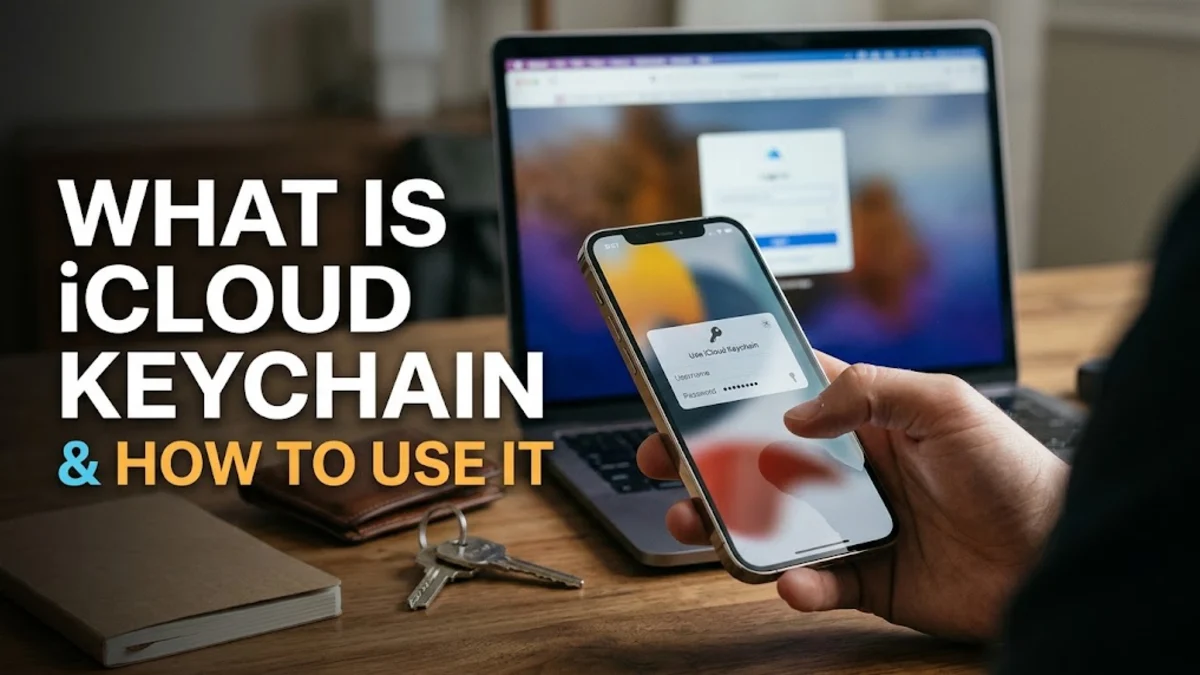
Understanding how this feature works helps you maintain robust digital security without needing standalone password apps. By leveraging end-to-end encryption, iCloud Keychain ensures that even Apple cannot read your sensitive personal data. Whether you are setting up a brand-new iPhone or migrating from another service, mastering this tool is essential for keeping your digital identity secure and easily accessible.
How iCloud Keychain Works Behind the Scenes
The architecture relies heavily on end-to-end encryption, which means only devices authenticated with your Apple ID and device passcode can decrypt and view the information. Apple maintains a zero-knowledge architecture regarding your passwords. This ensures that even in the event of a cloud server breach, unauthorized parties cannot access your login credentials or personal financial details. Furthermore, the system integrates seamlessly with your device's secure enclave hardware chip, providing an additional layer of hardware-backed protection that prevents tampering or unauthorized extraction even if the device operating system is somehow compromised.
What Data iCloud Keychain Stores Securely
Website usernames and secure passwords for Safari and third-party apps are stored with automatic monitoring for data leaks. Passkeys, which utilize biometric authentication instead of traditional character passwords, are also fully supported to provide phishing-resistant logins. Additionally, the keychain securely houses credit card numbers, expiration dates, and billing names, allowing you to check out online quickly and securely.
Saved Wi-Fi network passwords are automatically shared across your Apple ecosystem, letting your iPad or Mac connect to familiar networks without re-entering long passphrases. It also stores mail accounts, internet accounts, and personal contact details, ensuring your entire digital profile remains synchronized and readily available whenever you need it on any device.
How to Enable iCloud Keychain on Your iPhone
Open Settings > [Your Name] > iCloud > Passwords, then toggle on Sync this iPhone. Follow any on-screen prompts to confirm your device passcode or set up a device passkey if requested. Once enabled, any credentials you save will immediately begin syncing to your other trusted Apple devices.
If you encounter a prompt asking you to approve the device using another Apple device, simply accept the notification on your secondary device and enter its passcode when prompted. This verification step guarantees that no rogue device can harvest your stored credentials without explicit approval from an existing trusted hardware token.
Using AutoFill and Strong Passwords
When creating a new account, tap the suggested strong password field to let the system generate random character strings. Avoid reusing the same password across multiple online accounts to prevent credential stuffing attacks if one site experiences a breach.
You can also review the security recommendations menu to identify weak, reused, or compromised passwords flagged by automated monitors that cross-reference known public data leaks. Use Face ID or Touch ID authentication to instantly populate login forms without typing, ensuring maximum convenience combined with uncompromising security during your everyday browsing sessions.
Syncing Passwords Across Mac, iPad, and PC
For users who work across mixed operating system environments, Apple also provides cross-platform compatibility. By downloading the official iCloud application on a Windows computer and installing browser extensions such as iCloud Passwords, you can access and autofill your saved passwords and payment methods on Windows PCs seamlessly.
This cross-platform bridge ensures you never feel locked into a single operating system while maintaining the high security standards established by Apple's hardware-level encryption protocols.
Best Practices for Keeping Your Vault Safe
Always use a strong device alphanumeric passcode and enable biometric login like Face ID or Touch ID to prevent casual snooping. Keep your operating system updated to patch security vulnerabilities promptly as soon as Apple releases software updates.
Set up account recovery contacts and recovery keys to ensure you never lose access to your encrypted vault if you happen to forget your primary credentials. Periodically audit your saved credentials using the built-in security recommendations tool in your settings menu to eliminate outdated accounts and replace vulnerable passwords with strong automatically generated alternatives.
The bottom line
iCloud Keychain provides a secure, seamless, and free way to manage your digital life across all Apple products. By taking advantage of automatic syncing, strong password generation, and end-to-end encryption, you can protect your online accounts efficiently without relying on external software. Implementing these practices today ensures your personal data remains private and easily accessible wherever you go.
Frequently asked questions
Is iCloud Keychain free to use?
Yes, iCloud Keychain is completely free for all Apple device users who have an active Apple ID and iCloud account.
Can I use iCloud Keychain on a Windows PC?
Yes, you can access and sync your saved passwords on a Windows PC by installing the iCloud application and the official browser extension.
What happens if I forget my Apple ID password?
If you forget your Apple ID password, you can reset it using a trusted device, recovery key, or designated recovery contact associated with your account.
Is iCloud Keychain safe from hackers?
Yes, it uses robust end-to-end encryption with 256-bit AES encryption, ensuring that only you can read your data and that even Apple cannot access it.