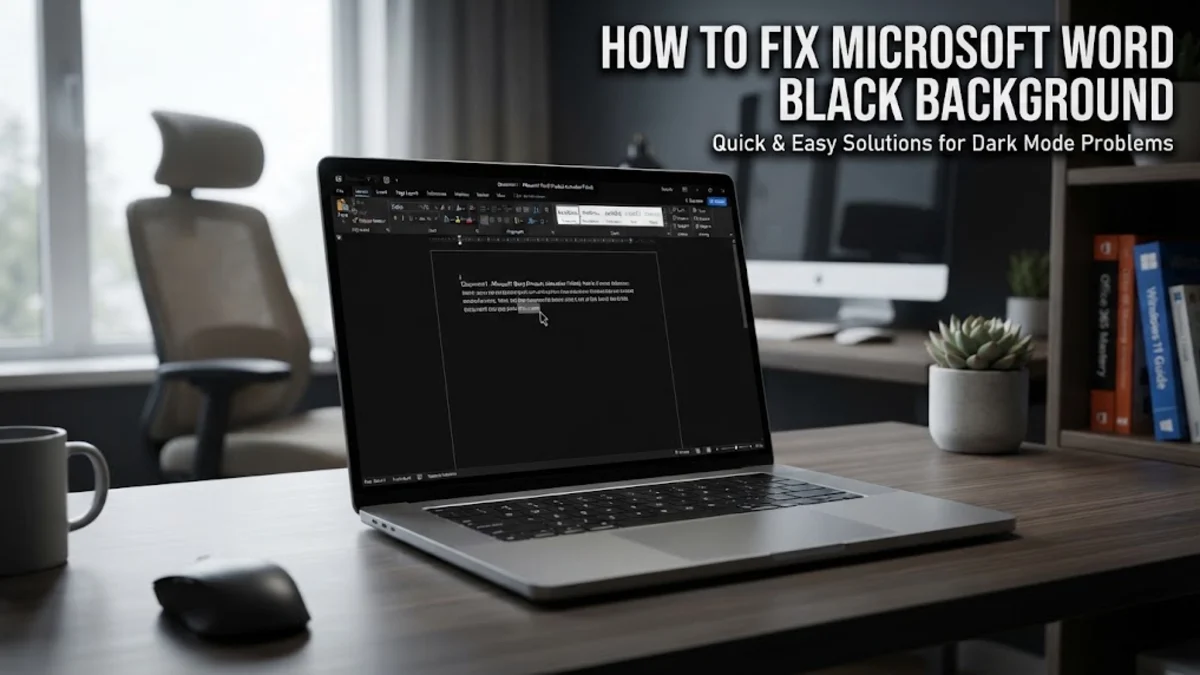
If your Microsoft Word interface or document page has suddenly turned black, you are likely seeing the effects of the Dark Mode feature or a specific accessibility setting. In the 2026 version of Microsoft 365, these display modes are more integrated than ever, often syncing automatically with your Windows or macOS system settings. This change can happen after a software update or if you accidentally toggled a keyboard shortcut.
Fixing a black background in Word involves checking three distinct areas: the Office Theme, the Dark Mode canvas settings, and your operating system's high-contrast accessibility options. Most users find that their 'page' is black while the text is white, which is a specific feature designed to reduce eye strain. This guide will walk you through the precise steps to restore the classic white-page look or adjust the interface to your preference.
1Understanding Why Microsoft Word Is Black
Before diving into the fixes, it is important to distinguish between a black interface and a black page. If the ribbons, menus, and sidebars are dark but the document area is white, you have the Dark Gray or Black theme enabled. However, if the actual 'paper' where you type is black with white text, you are using the full Dark Mode canvas. This is a common point of confusion for users who expect the document to always look like a printed sheet of paper. In 2026, Microsoft Word utilizes an 'adaptive canvas' that flips colors to protect your vision in low-light environments.
Another possibility is that the 'Page Color' has been manually changed in the document's design settings. Unlike Dark Mode, which is a personal preference that does not affect how the document prints, a manual Page Color change will actually try to print that black background if your printer supports it. Finally, system-wide accessibility settings in Windows 11 or macOS can force applications into a high-contrast mode, overriding individual app settings. Identifying which of these scenarios you are facing is the first step toward getting your workspace back to normal.
2How to Disable the Black Office Theme
The most common reason for a dark workspace is the Office Theme setting. This controls the color of the application window, including the ribbon and status bar. To change this, click on the File tab in the top-left corner of Word and select Account from the bottom of the sidebar. Under the Office Theme dropdown menu, you will see several options: Colorful, Dark Gray, Black, White, and Use system setting. If you want the classic look, select Colorful or White.
If you prefer to keep your Windows taskbar dark but want Word to remain light, avoid using the Use system setting option, as this will force Word to follow your OS-level personalization. Changing the theme here affects all Microsoft 365 applications, including Excel and Outlook. If you find that the File menu is too difficult to navigate while the screen is dark, you can also access these settings by going to File > Options > General and looking for the Personalize your copy of Microsoft Office section. This is often easier for users who are accustomed to the older configuration menus.
3Switching the Page Canvas from Black to White
Even if you enjoy a dark ribbon and menu, you might find typing on a black canvas distracting. Microsoft Word 2026 allows you to decouple the interface theme from the document page color. If your menus are dark and your page is also black, look at the View tab on the ribbon. In the Dark Mode group, you will see a button labeled Switch Modes (it often looks like a sun or moon icon). Clicking this button toggles the document canvas between black and white without changing the surrounding dark theme.
This is the most frequent 'fix' for users who want the best of both worlds: a dark interface that is easy on the eyes and a white page that represents the final printed product. If you want to permanently prevent the page from ever turning black, even when using the Black Office Theme, go to File > Options > General. Locate the Personalize your copy of Microsoft Office section next to the Office Theme dropdown. Check the box that says Never change the document page color. This ensures that regardless of your theme, your 'paper' always stays white. This setting is a lifesaver for editors who need to see accurate color rendering of images and text while working at night.
4Disabling Manual Page Color Settings
If the Switch Modes button does not work and your page is still black, the background color might be hardcoded into the document itself. This often happens when opening templates or documents created by others. To check this, navigate to the Design tab on the top ribbon. On the far right side, click the Page Color button in the Page Background group. If a color is selected, click No Color to restore the default white background.
You can verify if this is the issue by looking at the Print Preview by pressing Ctrl + P. If the preview shows a black page with white text, then the Page Color setting is definitely the culprit, as the standard Dark Mode canvas does not affect printing. It is a common mistake to use Page Color for 'night mode' typing, but this is bad practice because it can lead to massive ink consumption if the document is accidentally printed. Always use the View > Switch Modes feature instead for temporary visual comfort.
5Checking Windows Accessibility and High Contrast
If Word looks blocky, uses neon-colored borders, and has a pitch-black background that you cannot change within Office settings, your computer is likely in High Contrast mode. This is an operating system feature designed for users with visual impairments, and it overrides the styling of almost all installed programs. To disable this in Windows, press the Windows Key, type Contrast themes, and press Enter. In the settings window that appears, ensure the Contrast themes dropdown is set to None and click Apply.
On a Mac, you can find similar settings under System Settings > Accessibility > Display. Look for Invert colors or Increase contrast and ensure they are toggled off. Once these system-level filters are removed, Microsoft Word will return to its standard rendering engine, allowing you to use the Office Themes as intended. Many users trigger High Contrast mode by accidentally hitting a sequence of keys, such as Left Alt + Left Shift + Print Screen, so knowing this shortcut can help you avoid the problem in the future.
6Fixing Display Glitches and Outdated Drivers
Occasionally, Microsoft Word may appear black due to a 'ghosting' effect or a failure in hardware graphics acceleration. This usually manifests as the entire window turning black or flickering when you scroll. The first step is to ensure your Microsoft 365 installation is up to date. Go to File > Account > Update Options > Update Now. Software patches in 2026 frequently address compatibility issues with the latest GPU drivers. If the issue persists, you might need to disable hardware acceleration within Word, though this option is increasingly automated in newer versions.
If updating Office doesn't work, check your graphics card drivers. Right-click the Start button and select Device Manager. Expand Display adapters, right-click your GPU, and select Update driver. A corrupted display driver can cause the 'canvas' in Word to render incorrectly, often appearing as a solid black or gray box. If you are using a laptop with dual graphics (integrated and discrete), ensure that Word is set to use the integrated graphics for better stability, which can be adjusted in the Windows Graphics Settings menu.
Frequently asked questions
Why is my Word document black but the text is white?
This is likely because you have 'Dark Mode' enabled with a dark canvas. Go to the 'View' tab and click 'Switch Modes' to turn the page white while keeping the menus dark.
How do I make Word go back to the original white color?
Go to File > Account and change the 'Office Theme' dropdown to 'Colorful' or 'White'. This will restore the classic blue and white interface.
Will my document print with a black background?
If you are using Dark Mode, it will not print black; it will print normally (black text on white paper). However, if you changed the background via Design > Page Color, it may attempt to print the color.
Why can't I see the Switch Modes button in Word?
The Switch Modes button only appears when the Office Theme is set to 'Black'. If your theme is set to 'Dark Gray' or 'Colorful', this option will be hidden.
What is the shortcut to toggle Dark Mode in Word?
While there isn't a single default key for Dark Mode, you can quickly navigate the menus by pressing Alt followed by W, then D, and M to toggle the canvas mode.