How to Restart Your iPhone: Simple Steps for Every Model
Knowing how to restart your iPhone is one of the most effective ways to clear temporary memory glitches, fix unresponsive apps, and restore normal performance. Whether you use the latest flagship model or an older device, a simple reboot often resolves minor software quirks instantly.
Different iPhone models use different button combinations to power down and restart. This guide covers the exact steps for every modern and legacy iPhone configuration, including how to force restart a frozen device.
How to Restart iPhones with Face ID
For modern iPhones equipped with Face ID, such as the iPhone X, 11, 12, 13, 14, 15, 16, and newer variants, the power down process requires using a combination of the side button and either volume button. This design prevents accidental shutdowns while making regular reboots straightforward once you know the exact sequence.
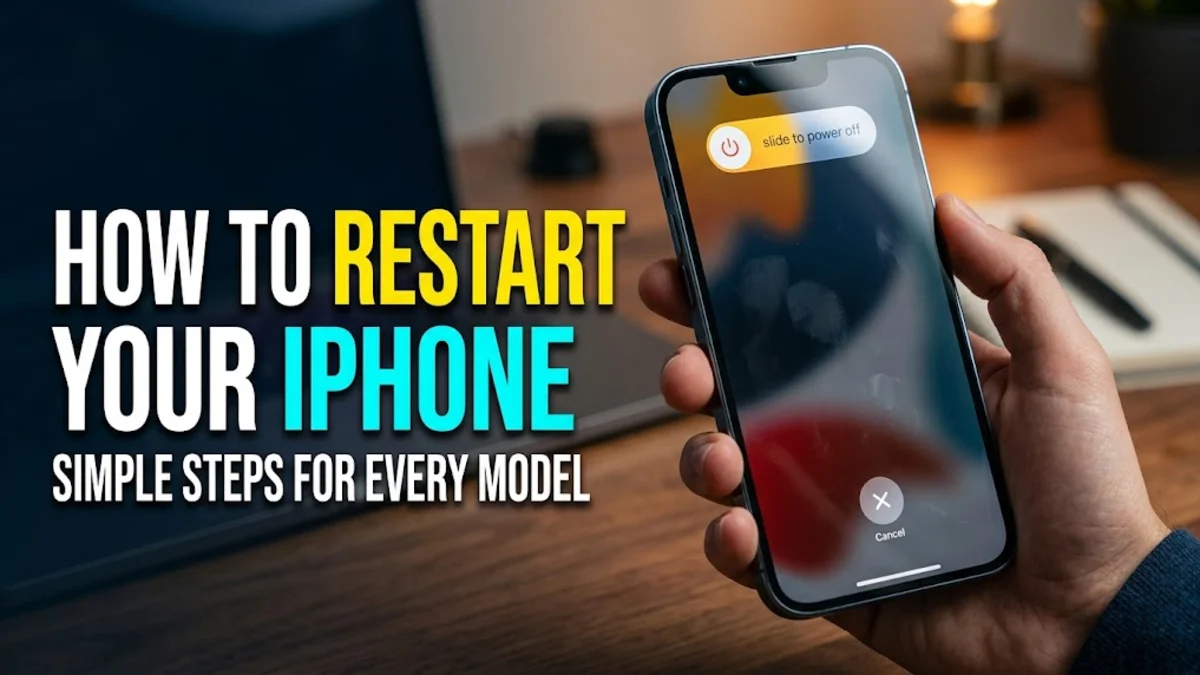
To turn off your device, press and hold the Side button and either the Volume Up or Volume Down button simultaneously. Keep holding both buttons until the power off slider appears on the top of your screen. Drag the slider to the right, then wait approximately 30 seconds for your device to turn completely off. Once the screen is black, press and hold the Side button again until the Apple logo appears.
If your screen remains black or unresponsive, or if the slider does not appear, your device might require a hard reset instead of a standard power down. Always ensure you give the phone adequate time to shut down completely before attempting to turn it back on to prevent data corruption or incomplete system processes.
How to Restart iPhones with a Home and Side Button
Apple used a side-mounted power button configuration for models like the iPhone 6, 7, and 8 series. If you are using one of these devices, the shutdown procedure relies on the button on the right edge of the phone combined with the circular physical Home button on the front face.
To initiate a restart, press and hold the Side button until the slide to power off slider appears across the top of your screen. Release the button and drag the slider from left to right. Wait a few moments until the display goes completely dark. After the device shuts down, press and hold the Side button once more until you see the Apple logo appear on your screen.
This method gracefully stops background tasks and clears RAM caches safely. If your phone freezes during daily use and ignores button inputs, you can bypass the standard menu by using a force restart sequence tailored specifically for these hardware configurations.
How to Restart iPhones with a Home and Top Button
Older iPhone models, including the iPhone 5s, 5, 4s, and original iPhone SE, position the power button on the top edge of the device. Although these legacy devices run older operating systems, the fundamental shutdown procedure remains consistent with Apple design principles.
Locate the Top button on the upper right corner of your phone chassis. Press and hold this button down until the red power off slider materializes on your display. Swipe the slider across the screen from left to right. Allow the device up to one minute to fully power down and terminate active background operations.
To turn the phone back on, press and hold the same Top button until the Apple logo materializes. If the button feels physically worn or unresponsive, you can explore alternative software-based shutdown methods available within the iOS settings menu to restart your device safely.
How to Force Restart an Unresponsive iPhone
When your iPhone freezes completely, touch inputs fail, and standard power sliders refuse to appear, a standard restart is impossible. In these scenarios, a force restart cuts power to the hardware directly without erasing your personal files, photos, or app data.
For Face ID iPhones and iPhone 8 or later models, execute a force restart using this rapid sequence:
- Quickly press and release the Volume Up button.
- Quickly press and release the Volume Down button.
- Immediately press and hold the Side button.
- Keep holding until the screen goes black and the Apple logo appears, which usually takes about 10 seconds.
For older models like the iPhone 7 series, press and hold both the Volume Down and Side buttons simultaneously until the Apple logo emerges. For iPhone 6s and earlier models with a top button, press and hold both the Home button and the Top button together. Release the buttons only when the Apple logo displays on the screen.
How to Restart Using AssistiveTouch Without Buttons
If your physical hardware buttons are broken, sticking, or completely non-functional, you can still restart your iPhone using built-in iOS accessibility features. AssistiveTouch places a virtual button on your screen that can replicate physical button presses and menu commands.
To enable this feature, open Settings > Accessibility > Touch > AssistiveTouch and toggle the switch to the on position. A floating semi-transparent button will appear on your display, which you can drag to any convenient edge of the screen.
Tap the AssistiveTouch button, select Device, choose More, and then tap Restart. Confirm your selection when prompted. Alternatively, you can navigate to Settings > General > Shut Down on modern iOS versions to power off your device entirely without touching any hardware buttons.
Why You Should Restart Your iPhone Regularly
Many smartphone users leave their devices powered on continuously for weeks or months at a time. However, regular reboots serve vital maintenance functions that keep your iOS operating system running efficiently and prevent sudden app crashes.
When applications run in the background, they allocate temporary memory and system resources. Over time, memory leaks and residual cache files can accumulate, causing sluggish performance, rapid battery drain, or unexpected overheating. Shutting down your phone clears out active RAM and terminates frozen background processes.
Making it a habit to restart your iPhone once a week helps maintain optimal hardware longevity and software stability. It also ensures that pending software patches and background updates apply properly upon system reboot, giving you a smooth user experience.
The bottom line
Restarting your iPhone is a quick and effective troubleshooting step that resolves many common software bugs and performance slowdowns. By understanding the correct button combinations or using software workarounds for damaged hardware, you can keep your device running smoothly and dependably every single day.
Frequently asked questions
Does restarting my iPhone delete my photos or data?
No, a standard restart or force restart only clears temporary memory and shuts down active processes. Your personal data, photos, messages, and apps remain safe and untouched.
How often should I restart my iPhone?
It is generally recommended to restart your iPhone once a week to clear out temporary cache files, stop background memory leaks, and maintain optimal system performance.
What should I do if my iPhone won't turn back on after restarting?
If your iPhone fails to turn on, connect it to a certified power adapter using a reliable cable and let it charge for at least 30 minutes. If the screen remains black, try performing a force restart while connected to power.
Can I restart my iPhone without using the physical buttons?
Yes. You can turn off your iPhone by navigating to Settings > General > Shut Down, or by using the AssistiveTouch feature located within the Accessibility settings menu.
Will a force restart fix a frozen screen?
Yes, a force restart interrupts frozen system loops and forces the hardware to reboot immediately, which is the most reliable fix for completely unresponsive screens.