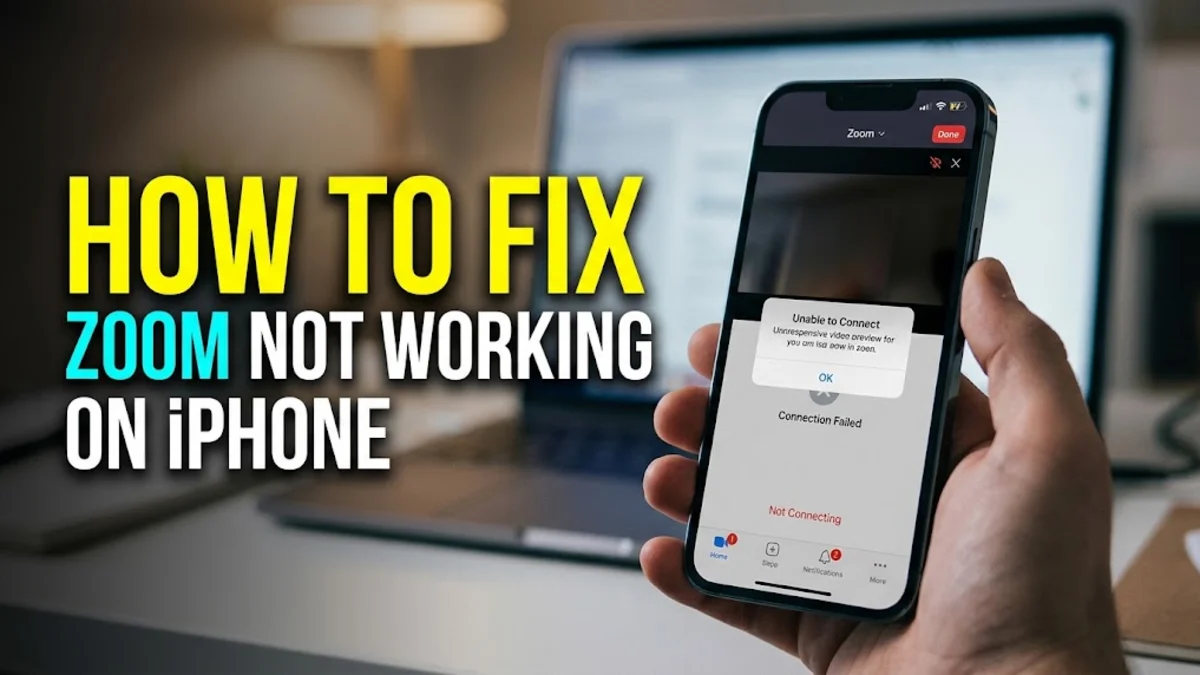
When Zoom stops working properly on your iPhone, it can disrupt your meetings, classes, and catch-ups with friends. Whether the app is crashing instantly upon opening, failing to connect to meetings, or refusing to transmit your audio and video, troubleshooting the root cause gets you back online quickly.
1Check Your Internet Connection and Network Settings
A weak or unstable internet connection is the most common reason why Zoom fails to join meetings or drops calls unexpectedly on an iPhone. If your cellular data or Wi-Fi signal is fluctuating, Zoom cannot maintain the stable data stream required for live video and audio transmission. To test your connection, try opening a web browser and loading a media-heavy website or running a speed test to ensure your bandwidth meets the minimum requirements for video conferencing.
If your network seems unstable, try toggling your connection by going to Settings > Wi-Fi and turning it off and back on again, or switch temporarily from Wi-Fi to cellular data to see if the issue persists. You can also reset your network settings completely by navigating to Settings > General > Transfer or Reset iPhone > Reset > Reset Network Settings. Keep in mind that resetting network settings will erase saved Wi-Fi passwords, so you will need to reconnect to your wireless networks afterward.
2Force Close and Restart the Zoom App
Temporary glitches, frozen background processes, and memory conflicts can cause the Zoom application to freeze or crash during launch. When an app becomes unresponsive, forcing it to close completely clears its temporary state from your iPhone memory and allows it to start fresh upon your next attempt. To force close Zoom on modern iPhones without a home button, swipe up from the bottom of your screen and pause slightly in the middle, then swipe up on the Zoom preview card. If you are using an older iPhone model with a physical home button, double-click the home button instead and swipe up on Zoom.
After force closing the application, wait about ten seconds before tapping the Zoom icon on your home screen to launch it again. This brief pause ensures that all background threads associated with the previous session have fully terminated. If the app still fails to open or crashes immediately, a simple reboot of your entire iPhone can clear lingering system conflicts that interfere with third-party applications.
3Update the Zoom App to the Latest Version
Running an outdated version of Zoom on iOS can lead to compatibility issues, connection timeouts, and unexpected crashes, especially when Apple releases major iOS updates. Software developers frequently push out patches specifically designed to address bugs, security vulnerabilities, and performance regressions affecting specific mobile devices. To check for available updates, open the App Store on your iPhone, tap your profile icon in the top right corner, and scroll down to see your pending application updates. If Zoom is listed, tap the update button next to it.
If you prefer a faster shortcut, you can simply search for Zoom directly in the App Store search tab. If an update is available, the button will read Update instead of Open. Enabling automatic app updates under Settings > App Store ensures that your productivity apps remain current without requiring manual checks, preventing many common software bugs before they disrupt your daily schedule.
4Verify Camera and Microphone Permissions in iOS
If you can join a meeting on Zoom but other participants cannot see you or hear you, your iOS privacy permissions are likely misconfigured. Apple implements strict privacy controls that require explicit user authorization before any application can access hardware components like the camera and microphone. If these permissions were accidentally denied during the initial app setup or modified later, Zoom will be blocked from capturing your video and audio feeds during active conference calls.
To restore these critical permissions, open your iPhone settings and scroll down until you find Zoom in your list of installed applications, or navigate to Settings > Privacy & Security > Camera and ensure the toggle next to Zoom is turned on. Repeat this exact verification process by going to Settings > Privacy & Security > Microphone to confirm that Zoom has permission to access your audio input device. Once these switches are enabled, return to the Zoom app and test your video and audio settings.
5Clear App Data and Reinstall Zoom
Corrupted cache files and damaged application installation packages can cause persistent errors that standard restarts and updates cannot resolve. When deep-seated software glitches prevent Zoom from functioning normally, completely removing the application and reinstalling a clean version from the official app repository is the most effective solution. To delete Zoom from your iPhone, touch and hold the Zoom icon on your home screen, tap Remove App, and confirm by selecting Delete App to purge all associated local files from your device storage.
After the uninstallation process is complete, open the App Store, search for Zoom Workplace, and download the fresh installation package to your iPhone. Reinstalling the app ensures that all system libraries and configuration files are completely renewed. Once downloaded, log back into your user account, verify your microphone and speaker settings, and join a test meeting to confirm that the troubleshooting steps have successfully resolved your technical issues.
Frequently asked questions
Why does Zoom keep crashing on my iPhone when I open it?
Zoom usually crashes on launch due to corrupted cache data, an outdated app version, or a temporary iOS memory conflict. Force closing the app, updating it via the App Store, or reinstalling it typically resolves the problem.
How do I give Zoom permission to use my camera on iOS?
Open your iPhone settings, tap Privacy & Security, select Camera, and make sure the toggle switch next to Zoom is turned on so the app can transmit your video.
What should I do if people in the meeting cannot hear me?
Check your iPhone microphone permissions under Settings > Privacy & Security > Microphone. Also, ensure you have tapped the Join Audio button and selected Call Using Internet Audio inside the Zoom meeting interface.
Does reinstalling Zoom delete my account or meetings?
No. Deleting and reinstalling the Zoom app only removes local app data and cache from your device. Your Zoom account, scheduled meetings, and profile settings remain securely stored on Zoom cloud servers.