How to Use Password Manager on iPhone
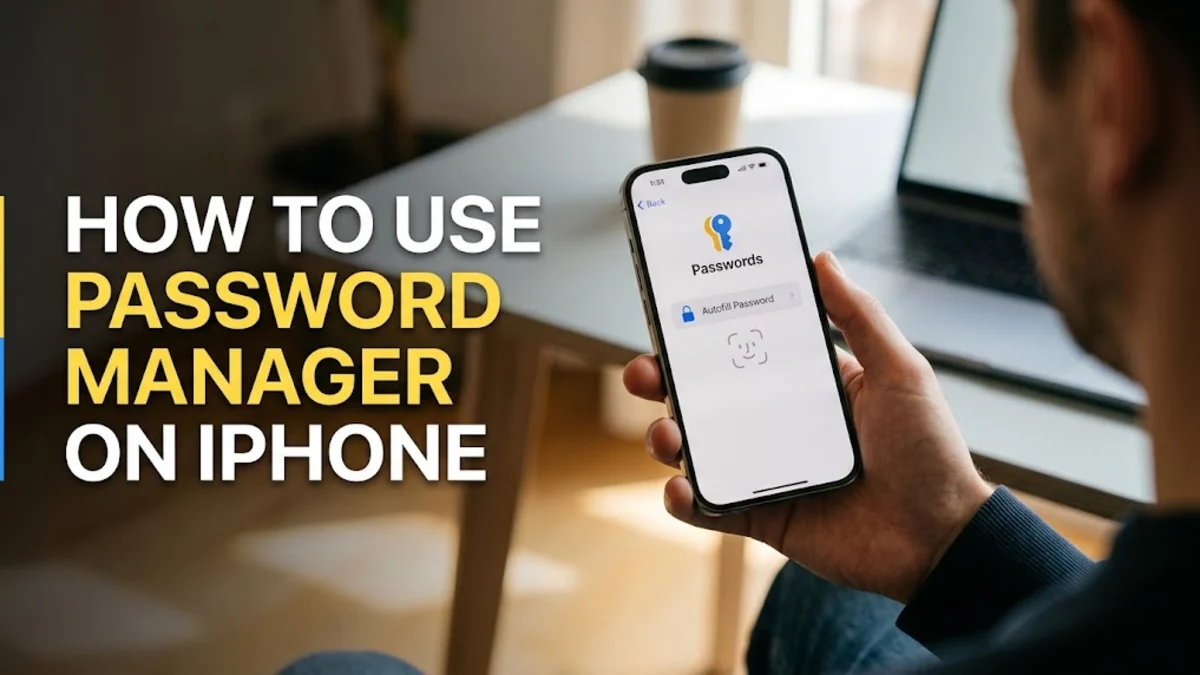
Managing your digital credentials securely on your mobile device is essential for protecting your personal data against cyber threats. Apple includes a robust, built-in password manager directly within iOS that securely encrypts and syncs your login details across all your Apple devices using iCloud Keychain.
Whether you want to view existing credentials, add new entries manually, or ensure your accounts use strong, unique keys, understanding how to navigate this feature will significantly improve your online security posture without requiring third-party downloads.
Accessing Your Saved Passwords in Settings
To view, edit, or manage the credentials already stored on your device, you need to navigate through your system preferences securely. Apple protects this sensitive information behind hardware-level biometric authentication such as Face ID, Touch ID, or your personal device passcode to ensure unauthorized users cannot access your accounts even if they are holding your unlocked phone.
Begin by opening your device and going to Settings > Passwords. You will immediately be prompted to authenticate your identity using Face ID, Touch ID, or by entering your alphanumeric device passcode. Once successfully verified, you will be presented with a comprehensive list of every website, application login, and Wi-Fi network key stored securely in your iCloud Keychain database.
You can scroll through this alphabetical list to find specific entries or tap the search bar at the top of the interface to type in a company name or domain. Tapping on any individual entry will reveal the associated username, password, website link, and any secure notes you attached when saving the record. From this detail screen, you can also copy the password to your clipboard with a single tap, make edits if you recently changed your login elsewhere, or completely delete the record if it is no longer needed.
Adding a New Password Manually
While Safari and modern iOS applications usually prompt you to save login details automatically when you create a new account or sign in for the first time, there are numerous instances where you will need to add a credential manually. This is particularly useful for legacy accounts, desktop-created logins, or sensitive notes that you want to keep accessible and synchronized across all your personal Apple hardware.
To add a new record yourself, navigate to Settings > Passwords and authenticate with your biometric data or passcode. Next, locate and tap the plus icon located in the upper-right corner of the screen. A new entry form will appear containing fields for the website URL, your username or email address, the password itself, and any optional notes you want to associate with the account.
When entering your password, take advantage of the suggested strong password generated automatically by iOS, which eliminates weak or guessable choices. Once all fields are filled out accurately, tap Done in the top-right corner to save the entry securely to your encrypted iCloud Keychain database.
Enabling and Using Autofill for Apps and Websites
Manually typing long, complex passwords on a mobile touchscreen keyboard is tedious and prone to typos. The iOS password manager includes a seamless autofill feature that automatically populates your login credentials into supported mobile applications and Safari web browser fields with just a single tap.
To ensure this feature is properly configured on your device, go to Settings > Passwords > Password Options and verify that the toggle next to Autofill Passwords and Passkeys is turned on. You can also verify your preferred provider if you utilize any alternative third-party credential managers alongside the native Apple system.
When visiting any login page within Safari or opening a supported mobile app, simply tap the designated input field. A suggested account bubble will appear directly above your keyboard containing your matching username. Tap that suggestion, confirm your biometric identity, and the system will instantly fill in both your username and password, allowing you to log in without delay.
Checking for Security Recommendations and Leaks
Having a secure password manager is only half the battle; ensuring your credentials remain strong and uncompromised is equally critical for complete digital hygiene. The built-in iOS manager includes an automated audit tool that continuously scans your stored database against known data breaches and flags vulnerable security practices.
Inside Settings > Passwords, look for the Security Recommendations section situated right near the top of the main menu. Tap into this option to inspect whether any of your saved keys have appeared in known third-party data leaks, are marked as easily guessable by automated scripts, or are being improperly reused across multiple different online services.
If the system flags an account, follow the provided prompts to visit the relevant website, change your password to a stronger unique combination, and update the record inside your keychain immediately to close potential security gaps.
Sharing Passwords Securely with Family and Friends
There are often everyday scenarios where you need to share access to a streaming subscription, family utility account, or home Wi-Fi network with family members, household residents, or trusted colleagues. Instead of transmitting credentials in plain text via messaging apps, you can use the secure sharing feature built directly into iOS to transmit keys safely.
To set this up, go to Settings > Passwords and select Family Passwords or tap the option to initiate a shared group. Choose the specific Apple ID contacts you wish to include in your trusted sharing circle. You can hand-pick which specific accounts to share with the group.
Any future updates made to those shared credentials will automatically synchronize across all approved group members' devices in real time while maintaining complete end-to-end encryption throughout the entire transfer and storage process.
The bottom line
Mastering the built-in iPhone password manager allows you to maintain robust security habits with minimal effort. By utilizing biometric authentication, automated autofill, and regular security audits, you can keep your digital life safe from unauthorized access.
Frequently asked questions
Are my iPhone passwords encrypted?
Yes, all credentials stored in iCloud Keychain are protected with end-to-end encryption using AES 256-bit keys, meaning even Apple cannot read your stored data.
Can I use the iPhone password manager on Windows or PC?
Yes, by downloading the iCloud for Windows application, you can sync and autofill your saved credentials into browsers like Google Chrome and Microsoft Edge on your computer.
What happens if I lose my iPhone?
Your passwords remain secure because they are locked behind biometric verification and your device passcode. When you get a new Apple device and sign in with your Apple ID, your encrypted passwords will restore automatically through iCloud.
Can I export my passwords from my iPhone?
Yes, you can export your keychain data into a file if you decide to switch to a different platform or third-party service, though you should handle the exported file with extreme care.
How do I generate a strong password on iPhone?
When creating a new account in Safari or inside the Passwords menu, iOS will automatically suggest a strong, randomized alphanumeric password that you can accept with a single tap.