Fix Windows 11 Not Working with Docking Station
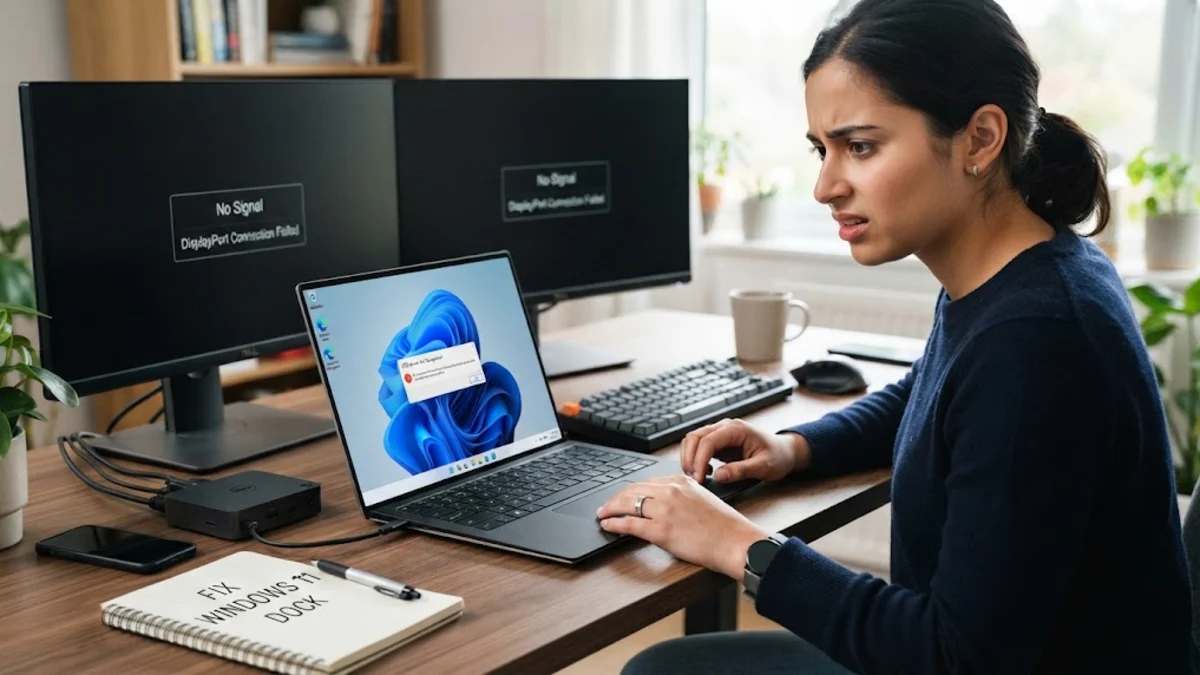
When your docking station suddenly stops communicating with Windows 11, your entire desktop setup grinds to a halt. External monitors stay dark, USB peripherals disconnect without warning, or your laptop simply refuses to draw power through the single USB-C or Thunderbolt umbilical cord. This failure typically stems from corrupted peripheral handshake states, outdated host controller drivers, aggressive power-saving protocols, or conflicts introduced during recent system updates.
Restoring full docking functionality does not require replacing expensive hardware or reinstalling your operating system from scratch. By methodically resetting the electrical bus, refreshing the correct display drivers, and configuring Windows 11 power policies, you can reliably get your monitors, wired network, and accessories running again.
Perform a Complete Hardware and Power Reset
Docking stations and modern USB-C power delivery circuits store residual electrical charges in their internal capacitors. When voltage spikes or unexpected disconnections occur, the docking controller can enter a frozen state where it ceases handshaking with Windows 11. Disconnecting the host cable alone rarely clears this condition because the dock remains powered by its external AC adapter.
Start by unplugging the dock's power adapter directly from the wall socket. Disconnect the USB-C or Thunderbolt cable from your Windows 11 laptop, along with all peripheral cables, including HDMI, DisplayPort, Ethernet, and USB accessories. While the dock is completely unplugged, press and hold its hardware power button for fifteen seconds to drain any residual capacitance. Turn off your laptop, wait sixty seconds, plug the dock back into wall power first, and then reconnect the host cable to your laptop before powering the computer back on. This forced handshake establishes a fresh bus enumeration across the Thunderbolt or USB4 controller.
Update the Dock Firmware and Host Chipset Drivers
Unlike passive USB hubs, docking stations run dedicated microcode that coordinates video multiplexing, PCIe tunneling, Ethernet bridging, and USB routing. When Windows 11 updates its kernel components, older docking station firmware may fail to negotiate display lanes or power delivery profiles correctly. Manufacturers like Dell, HP, Lenovo, and CalDigit frequently publish targeted firmware updates to address these compatibility mismatches.
To resolve hardware-level communication drops, visit your dock manufacturer's support portal, locate your exact model number, and download the latest utility package. If your dock is not detected during the firmware flashing process, connect it directly without any external displays attached. Simultaneously, update your laptop's core host controllers by heading to Settings > Windows Update > Advanced options > Optional updates. Install any available system firmware, Intel Thunderbolt controller updates, or AMD USB4 host controller driver packages listed there.
Reinstall or Update DisplayLink Graphics Drivers
Many universal USB-C and USB 3.0 docks (such as models from Plugable, Targus, and Kensington) do not rely exclusively on native DisplayPort Alternate Mode. Instead, they use DisplayLink compression technology to transmit multi-monitor video signals over standard USB data lines. If the underlying DisplayLink software becomes corrupted or fails after a major Windows 11 build release, connected displays will display a "No Signal" warning while USB ports continue functioning.
To fix this specific issue, open Settings > Apps > Installed apps, locate DisplayLink Graphics Driver, select the three dots, and click Uninstall. Restart your computer to remove residual registry keys. Next, navigate to the official DisplayLink website or install the DisplayLink Manager app from the Microsoft Store. Once the clean installation finishes, plug the docking station back in. Windows 11 will recreate the virtual display adapters without the conflicting legacy configuration.
Force Windows 11 Display Detection and Reset Video Subsystems
Sometimes the docking station communicates properly with the computer, but the Windows 11 desktop window manager fails to assign monitor identities or set supported resolutions. This frequently occurs when waking from sleep mode or connecting to monitors running mismatched refresh rates or non-standard aspect ratios.
You can quickly trigger a hardware redetection of all attached monitors by using a direct diagnostic key combination. Follow these steps:
- Press Win + Ctrl + Shift + B simultaneously. Your screens will flash black for a fraction of a second and emit a brief chime as the graphics subsystem restarts.
- Press Win + P and ensure your projection mode is set to Extend rather than PC screen only.
- Open Settings > System > Display, expand the Multiple displays drawer, and click the Detect button next to "Detect other display".
- Select each detected external monitor, click Advanced display, and set the refresh rate to a baseline of 60 Hz to rule out bandwidth saturation along the dock's video output buses.
Disable USB Selective Suspend and Power Management Caps
Windows 11 includes aggressive power management routines designed to prolong battery endurance on portable devices. Under default settings, the operating system can place specific USB root hubs and PCIe lanes into a low-power state when it calculates low data throughput. This often triggers intermittent peripheral dropouts, frozen keyboards, or dock disconnection errors during periods of high computing load.
Prevent Windows from shutting down your dock ports by modifying your hardware device flags and global power policies:
- Right-click the Start menu button and select Device Manager.
- Scroll down and expand the Universal Serial Bus controllers section.
- Right-click your primary USB Root Hub (USB 3.0) or Generic SuperSpeed USB Hub and select Properties.
- Click the Power Management tab, uncheck Allow the computer to turn off this device to save power, and select OK. Repeat this for all visible root hubs.
- Open the classic Control Panel by pressing Win + R, typing
control, and pressing Enter. - Navigate to Power Options > Change plan settings > Change advanced power settings.
- Expand USB settings > USB selective suspend setting, toggle both "On battery" and "Plugged in" to Disabled, then click Apply.
Configure Thunderbolt Security and PCIe Tunneling in BIOS
If you are utilizing a high-performance Thunderbolt 3 or Thunderbolt 4 docking station, your laptop's low-level firmware controls whether external devices can access system memory through Direct Memory Access (DMA). Windows 11 enforces Kernel DMA Protection to block unauthorized peripheral attacks, but stricter BIOS policies can block a dock entirely if it detects mismatched encryption signatures.
Reboot your laptop and press the manufacturer BIOS key (typically F2, F12, or Del) during initialization. Navigate to the Advanced, System Configuration, or Thunderbolt settings tab. Ensure that Thunderbolt Technology and PCIe Tunneling are enabled. If you see a setting named Thunderbolt Security Level, verify that it is configured to User Authorization or No Security rather than a restrictive pre-boot lock, then save changes and exit to allow Windows 11 to authenticate the dock bus directly.
Roll Back Problematic Graphics Drivers or Cumulative Updates
If your docking station worked flawlessly until a specific weekend update or display driver release, the fault usually lies in a newly deployed driver package that altered DSC (Display Stream Compression) handling. Dedicated graphics cards from NVIDIA, AMD, or integrated Intel Iris Xe processors coordinate video pipelines through the USB-C port, making them susceptible to sudden regressions.
Open Device Manager, expand Display adapters, right-click your dedicated or integrated graphics processor, and choose Properties. Navigate to the Driver tab; if the Roll Back Driver option is clickable, select it and follow the on-screen prompts to revert to the previous stable release. If the breakdown began immediately after a major monthly cumulative update, open Settings > Windows Update > Update history > Uninstall updates, locate the most recently installed package, and click Uninstall to verify if the issue clears.
The bottom line
A docking station failing on Windows 11 is almost always a software-level synchronization or driver configuration problem rather than physical hardware failure. Systematically completing a power cycle, updating host dock firmware, ensuring DisplayLink services are healthy, and disabling power-saving disconnects will resolve the vast majority of multi-monitor and accessory drops.
If issues persist across multiple ports, inspect your physical cable: always use the short, certified Thunderbolt 4 or USB4 cable provided with the dock. Long third-party charging cables often lack the required high-speed data lanes and video bandwidth needed to drive modern multi-display desktop workstations.
Frequently asked questions
Why does my docking station charge my laptop but not detect external monitors?
Power delivery and display transmission run across separate wiring pairs inside USB-C cables. Charging relies on basic Power Delivery negotiation, while video output requires high-speed DisplayPort Alternate Mode or PCIe tunneling. If monitors do not show up, your dock cable may be an inferior charge-only cable, the USB-C port may not support video output, or your graphics drivers require a fresh reinstallation.
Can I connect a Thunderbolt docking station to a standard USB-C port?
It depends on the dock generation. Newer Thunderbolt 4 and USB4 docking stations feature backwards compatibility and can run on standard USB-C ports with reduced bandwidth. Older Thunderbolt 3 docks strictly require a dedicated Thunderbolt-certified port on your laptop and will fail to power displays or accessories if connected to a standard data-only USB-C port.
Why do my dock monitors disconnect when my Windows 11 PC wakes from sleep?
This commonly happens when Windows 11 shuts down the USB root hub or PCIe bridge during sleep to conserve power, failing to re-enumerate the video handshakes upon waking. Disabling 'USB selective suspend' in your power plan and unchecking power-saving options under your USB Root Hubs in Device Manager prevents this drop.
How do I know if my docking station uses DisplayLink?
Docks that support multiple external displays over a standard USB Type-A port or budget USB-C connections usually employ DisplayLink hardware. You can confirm this by checking if the 'DisplayLink Manager' software is installed in your apps list, or by reviewing your dock manufacturer's technical specifications for DisplayLink certification.
Will a faulty USB-C cable cause docking station dropouts?
Yes. Docking stations push massive amounts of data—including high-resolution video streams, gigabit networking, and up to 100W of power—across a single cord. Damaged connectors, bent pins, or cables longer than one meter without active signal repeaters will degrade signal integrity and trigger random disconnects.