How to Delete Your Facebook Account
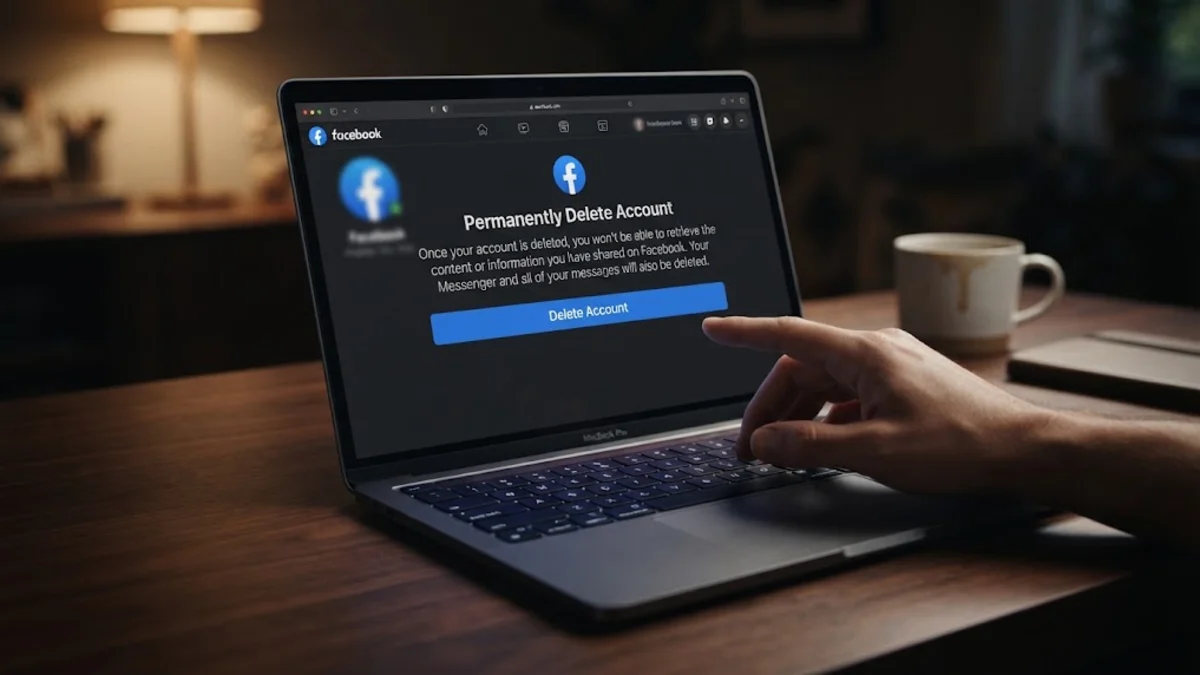
Before you begin the deletion process, it is essential to know that Facebook enforces a grace period before final removal. This guide walks you through backing up your memories, locating the correct menu paths, and successfully closing your account across desktop and mobile devices.
Understanding the Difference Between Deactivation and Deletion
Permanent deletion, on the other hand, is irreversible once the grace period expires. When you choose deletion, all your timelines, uploaded photographs, videos, marketplace listings, and Messenger message history are scheduled for total destruction. Pages where you are the sole administrator will also be deleted. If you are certain you will never use the service again, permanent deletion is the correct choice to protect your personal privacy and reduce your digital footprint across the web.
Backing Up and Downloading Your Facebook Data
Inside the information menu, select Download your information and click Request a download. You can choose to download a complete copy or select specific data types to save storage space. Select your preferred media quality and file format, then submit the request. Facebook will compile your archive, which can take anywhere from a few hours to a couple of days depending on the volume of media you have uploaded over the years. Once the notification arrives stating your file is ready, download it securely to your local computer or external hard drive before moving forward with account deletion.
Accessing Account Ownership and Control Settings
Once you are inside the Accounts Center dashboard, look for the account management section and tap Personal details. This menu controls your contact info, birthday, identity confirmation, and account ownership settings. Tap on Account ownership and control to reveal options for managing your legacy contact, memorialization preferences, or permanent account closure. If you cannot locate these options through the standard menu, use the in-app search bar at the top of the settings page and type delete account to jump straight to the correct administrative panel.
Navigating the Permanent Deletion Steps
Facebook will prompt you to provide a reason for leaving, though answering this optional survey is not strictly required. The platform will also attempt to persuade you to keep your account by suggesting alternatives, such as deactivating your profile or downloading your data archive one final time. Scroll past these suggestions and click Continue to account deletion. Review the summary of what will happen to your connected apps and business pages, and prepare to enter your security credentials in the final authentication step.
Entering Your Password and Confirming Deletion
Once you click the final Delete account button, you will be automatically logged out of the session, and your browser or app will return to the login screen. At this precise moment, your profile is hidden from the public and all your friends. Double-check that you have logged out successfully across all your shared devices, tablets, and smartphones to ensure no residual sessions remain active on other hardware you own.
What Happens During the 30-Day Grace Period
If you log back into Facebook using your standard username and password at any point during these 30 days, a cancellation prompt will appear on your screen. You can instantly click Cancel Deletion to restore your account to its exact prior state, retaining all your photos, groups, and connections. However, if you do not log in or interact with the platform for 30 consecutive days, the deletion process becomes permanent, and your data is systematically purged from Meta's active servers beyond recovery.
Troubleshooting Common Deletion Roadblocks
Another common issue involves third-party games, websites, or apps where you logged in using your Facebook credentials (such as Spotify or mobile gaming apps). If you delete your Facebook account without unlinking these apps first, you may lose access to those external accounts. Before hitting delete, visit the Apps and websites section in your settings to revoke third-party permissions and create separate email logins for any external services tied to your social media identity.
The bottom line
Deleting your Facebook account is a straightforward process once you know where to look in the Accounts Center. By backing up your data, verifying your choice, and respecting the 30-day grace period, you can safely remove your digital presence and protect your personal privacy.
Frequently asked questions
Can I recover my Facebook account after 30 days?
No. Once the 30-day grace period expires, Meta permanently deletes all your data, and recovery is impossible.
Does deleting my Facebook account delete my Messenger messages?
Yes. Once the permanent deletion is complete, your message history and chat logs will be erased from Facebook servers.
Why can't I delete my Facebook account?
You likely manage a Facebook Page as the sole admin, or you have active third-party apps linked to your login that require decoupling first.
Will my friends be notified when I delete my account?
No, Facebook does not send notifications to your friends when you deactivate or delete your account; your profile simply disappears.
Can I delete my account using the mobile app?
Yes, you can initiate account deletion through the Accounts Center menu inside both the iOS and Android Facebook apps.