How to Fix iPad Not Working on Wi-Fi
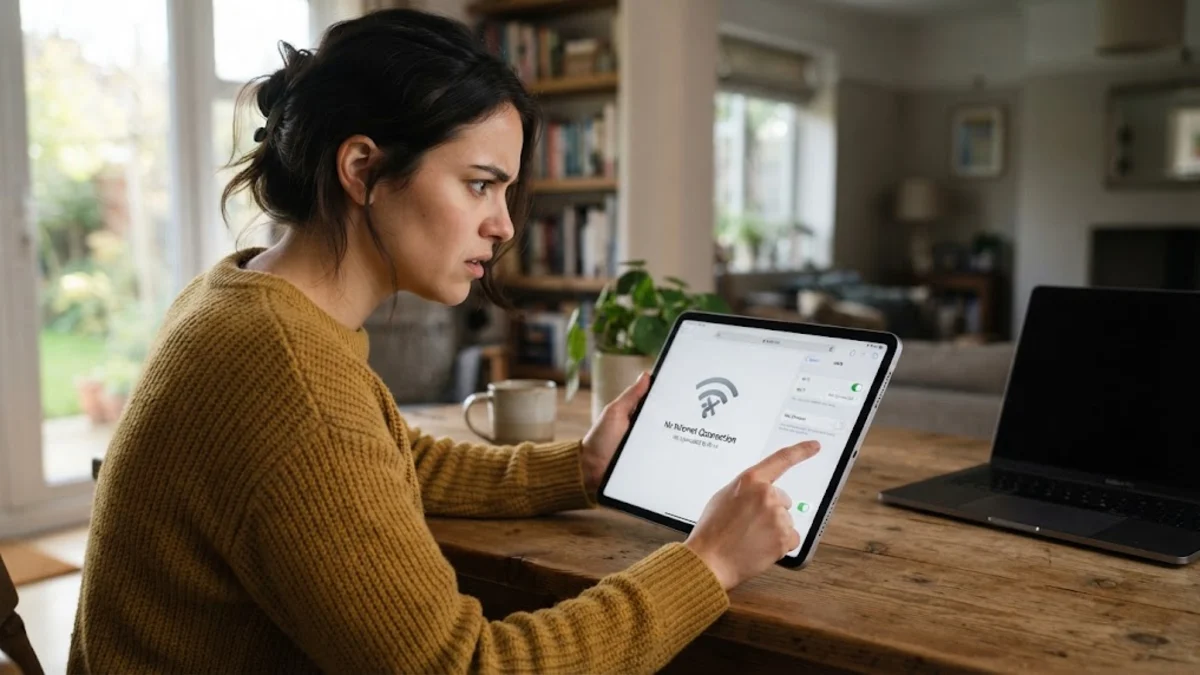
When your iPad refuses to connect to the internet or constantly drops its wireless signal, it can bring your work and entertainment to a halt. Fortunately, most Wi-Fi connection problems on iPadOS stem from temporary software glitches, incorrect router configurations, or cached network errors that you can resolve in a few minutes.
This troubleshooting guide walks you through proven, step-by-step methods to diagnose your wireless issues, clear corrupted network data, and restore a stable internet connection on your tablet.
Restart Your iPad and Home Router
The quickest and most effective first step in troubleshooting any connectivity issue is performing a simple power cycle on both your iPad and your wireless router. Over time, routers can experience cache congestion or IP allocation conflicts that prevent devices from maintaining a stable handshake. Unplugging your router clears its RAM and forces a fresh connection cycle.
To restart an iPad without a Home button, press and quickly release the Volume Up button, press and quickly release the Volume Down button, then press and hold the Top button until the Apple logo appears. For iPads with a Home button, press and hold both the Top and Home buttons simultaneously. While your device reboots, unplug your broadband router and modem from the wall outlet, wait for at least thirty seconds, and plug them back in. Once both devices are fully powered back on, check if your Wi-Fi network connects successfully.
Toggle Airplane Mode and Wi-Fi Switch
Sometimes your iPad's wireless card gets stuck in a loop trying to communicate with a faulty access point or suffers from a minor software glitch. Toggling your device's radios off and on forces the operating system to drop all current communication attempts and scan for available wireless networks completely afresh.
Swipe down from the top-right corner of your screen to open the Control Center. Tap the Airplane Mode icon to turn it on, wait for about ten seconds so all cellular and wireless connections drop completely, and then tap it again to turn it off. Alternatively, you can completely disable the wireless radio by navigating to Settings > Wi-Fi, toggling the switch to the off position, waiting ten seconds, and turning it back on. This refreshes the local networking stack without requiring a full device reboot.
Forget the Wi-Fi Network and Reconnect
Corrupted network profiles, changed router passwords, or outdated IP lease data can cause your iPad to reject an existing connection attempt repeatedly. Removing the network profile entirely deletes all stored passwords and configuration files, allowing your iPad to establish a pristine connection from scratch.
Open your settings application by tapping Settings > Wi-Fi. Find your target wireless network in the list and tap the blue information icon next to its name. On the network details screen, tap Forget This Network and confirm your choice when prompted. Return to the main Wi-Fi menu, select your network name from the available options, type in your wireless password carefully, and tap Join. This eliminates old authentication errors and creates a clean connection profile.
Reset Network Settings on Your iPad
If basic toggles and forgetting networks fail to resolve the problem, the underlying network configuration database within iPadOS may be corrupted. Resetting your network settings restores all cellular settings, VPN configurations, paired Bluetooth devices, and Wi-Fi passwords back to their factory default states.
Tap Settings > General > Transfer or Reset iPad > Reset > Reset Network Settings. Your iPad will ask you to enter your device passcode to confirm the action, and the device will restart automatically. Keep in mind that you will need to reconnect to your Wi-Fi networks and re-enter your passwords afterward, so make sure you have your network credentials handy before initiating this step.
Check for iPadOS Software Updates
Operating system bugs can occasionally interfere with networking protocols, causing intermittent drops, slow speeds, or complete connection failures. Apple frequently patches known wireless vulnerabilities and compatibility issues through regular system software updates.
Because your iPad cannot access the internet via Wi-Fi, you may need to connect it to a computer with an active internet connection using a USB cable, or temporarily share a cellular hotspot from your phone via USB or Bluetooth. Once connected, go to Settings > General > Software Update. If a new version of iPadOS is available, download and install it immediately. Ensure your tablet has at least fifty percent battery charge or is plugged into a power source during the installation process.
Inspect Router Settings and Interference
If your iPad connects to other wireless networks without any trouble but refuses to work on your home network, the issue likely resides with your router's configuration or physical environment. Heavy interference from thick walls, microwaves, or neighboring routers operating on overlapping channels can degrade signal quality significantly.
Log into your router's administration panel using a computer or phone connected to the same network. Ensure that MAC address filtering is disabled or that your iPad's specific MAC address is whitelisted. Additionally, if your router broadcasts separate 2.4GHz and 5GHz bands, try connecting your iPad to the alternative frequency. The 2.4GHz band offers better range and wall penetration, while the 5GHz band provides faster speeds over shorter distances closer to the router.
The bottom line
Fixing an iPad that will not work on Wi-Fi usually comes down to isolating whether the problem lies within the tablet software or your home network equipment. By following these troubleshooting steps systematically—from simple restarts and toggles to resetting network configurations and updating iPadOS—you can eliminate connection errors and get your device back online reliably.
Frequently asked questions
Why does my iPad keep disconnecting from Wi-Fi?
Frequent disconnections are often caused by wireless interference, an outdated router firmware, or corrupted network configuration files stored on your iPad. Try forgetting the network and reconnecting, or resetting your network settings.
Will resetting network settings delete my personal files?
No. Resetting network settings only erases saved Wi-Fi passwords, Bluetooth pairings, VPN setups, and cellular configurations. Your photos, documents, apps, and personal data remain completely safe and untouched.
How do I find my router's IP address to check its settings?
On your iPad, go to Settings, tap Wi-Fi, and tap the information icon next to your connected network. Look for the Router field, which displays the numerical IP address needed to access your router configuration page in a web browser.
Can a bad iPad case interfere with Wi-Fi signals?
Yes. Rugged cases containing heavy metallic plates, built-in kickstands, or magnetic closures can block or attenuate wireless signals, leading to poor Wi-Fi reception and slow connection speeds on your tablet.
What should I do if my iPad still won't connect after trying everything?
If software troubleshooting fails, your iPad's internal Wi-Fi antenna hardware may have suffered physical damage or failure. You should back up your device and contact Apple Support or visit an authorized service center for hardware diagnostics.