How to Access Password Manager on Any Device

To access your password manager, open your device's built-in credential settings or your web browser's security menu. On iPhones, launch the dedicated Passwords app; on Android, open your device settings and locate Google Password Manager; and in desktop browsers like Chrome or Edge, enter the password management hub directly through the main application menu.
Most modern operating systems and web browsers store your login credentials, passkeys, and autofill details inside a protected vault. Finding where these credentials live allows you to audit weak passwords, update outdated logins, copy complex strings, and safely export your data. Here is how to access password manager settings across every major platform and browser.
Accessing the Built-in Passwords App on iPhone and iPad
Opening Google Password Manager on Android
Finding Password Manager in Google Chrome on Windows and Mac
chrome://password-manager/passwords into the Chrome address bar and pressing Enter. If your computer uses biometric security or an operating system password, Chrome will prompt you to enter your Windows PIN or Mac administrator password before revealing or copying any sensitive password field. From the left sidebar, click Checkup to scan for breached data or Settings to import passwords from a CSV file.Accessing Microsoft Edge Password and Wallet Settings
edge://wallet/passwords into the Edge address bar and hitting Enter. Edge displays your saved entries with options to search, edit, or delete items. Clicking the eye icon next to a hidden password will prompt Windows Hello authentication (fingerprint, facial recognition, or PIN) or your macOS account credentials before decrypting the text on screen.Locating Saved Passwords in Apple Safari and macOS
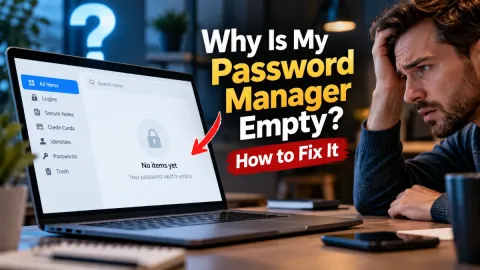
Troubleshooting Inability to Access or View Passwords
- Verify Account Sign-In: Ensure you are signed into the correct Google, Apple, or Microsoft profile. If you have multiple accounts, passwords saved on a work profile will not appear under your personal profile.
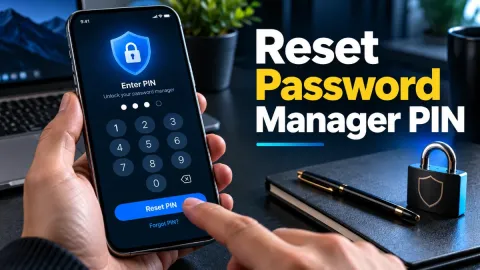
- Reset Biometric Authentication: If Face ID, Touch ID, or Windows Hello fails to prompt, restart your device or use your primary lock screen passcode or PIN to unlock the vault.
- Check Autofill Permissions: On mobile devices, ensure your preferred vault is permitted to supply credentials. On iOS, check Settings > Passwords > Password Options; on Android, check Settings > System > Languages & input > Autofill service.
- Clear Corrupt Browser Cache: If a desktop browser crashes when opening the password manager, restart the browser in safe mode with extensions disabled or clear temporary browser files.
The bottom line
Accessing your password manager takes only a few taps or clicks once you know where your operating system or browser stores credentials. Regular access helps you update compromised logins, delete duplicate accounts, and maintain robust security across all your online profiles.
Frequently asked questions
Where is the password manager located on a computer?
On Windows, password managers are typically built into your web browser, such as Google Chrome or Microsoft Edge, accessible via browser settings. On Mac, saved credentials live in the dedicated Passwords app and under System Settings > Passwords.
Why does my password manager ask for a PIN or fingerprint?
Password managers require biometric authentication or your device lock screen PIN as an extra layer of local encryption. This prevents unauthorized individuals who have physical access to your unlocked screen from viewing or copying your saved credentials.
Can I access my Google passwords on an iPhone?
Yes. You can access Google Password Manager on an iPhone by opening the Google Chrome app or the Google app, tapping your profile icon in the upper-right corner, and selecting Password Manager. You can also visit passwords.google.com in Safari.
How do I access third-party password managers like Bitwarden or 1Password?
Third-party password managers are accessed by opening their standalone desktop or mobile apps, clicking their browser extension icon in your browser toolbar, or logging into your web vault through the provider's official website.