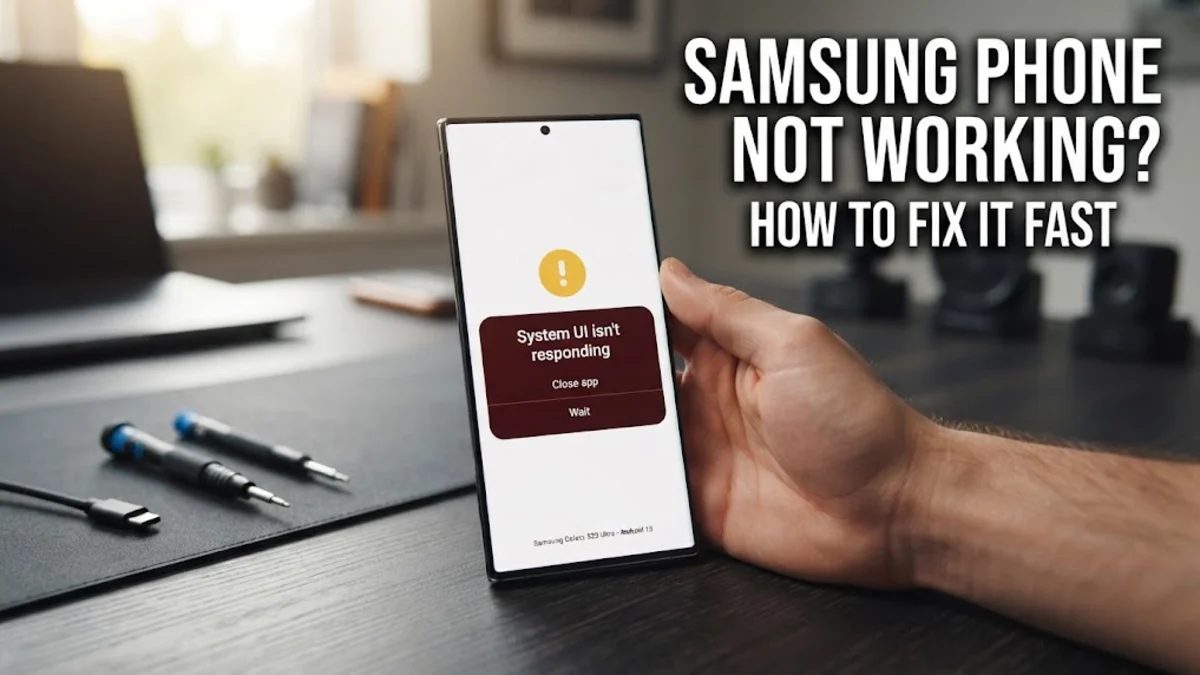
When your Samsung phone stops working properly, freezes, or refuses to respond, it can disrupt your entire day. Fortunately, most performance issues stem from temporary software glitches, outdated system files, or rogue third-party applications that can be fixed without professional help.
Whether your device is lagging severely, refusing to load apps, or failing to respond to touch inputs, working through a structured troubleshooting process will help you identify the root cause. Follow these practical steps to get your Galaxy phone back to running smoothly in no time.
1Perform a Force Restart
When your Samsung phone is completely unresponsive, frozen on a single screen, or lagging so badly that touch inputs do not register, a standard power-down may not work. The quickest initial fix is a forced restart, which cuts power to the hardware momentarily and reloads the One UI operating system cleanly without wiping any of your personal data or application settings. To perform a force restart on modern Samsung Galaxy devices, press and hold both the Side key and the Volume Down button simultaneously for approximately 10 to 15 seconds. Keep holding the buttons down until the screen goes completely black and the Samsung Galaxy logo appears on the display. Once the logo appears, you can release the buttons and allow the phone to finish booting up. This action clears temporary system memory leaks and background loops that frequently cause sudden lockups. If your device boots up normally but continues to act sluggishly, you should immediately proceed to checking your software updates and background application processes to prevent the freeze from happening again.
2Check for System and App Updates
An outdated operating system or outdated applications are among the leading causes of system instability and unexpected crashes on Samsung smartphones. Samsung regularly pushes out security patches and One UI updates designed to fix known bugs, optimize hardware performance, and resolve compatibility issues. To check for pending system updates, open your phone settings and navigate to Settings > Software update > Download and install. If an update is available, connect your phone to a stable Wi-Fi network and ensure your battery level is above 50 percent before initiating the download. Additionally, outdated apps downloaded from the Google Play Store or Galaxy Store can cause your entire system to crash or freeze. Open the Google Play Store, tap your profile icon, select Manage apps and device, and tap Update all to ensure every application is running its latest, most stable version. Neglecting updates often leaves security vulnerabilities open and keeps known software bugs active, which directly contributes to erratic device behavior and poor battery life.
3Boot into Safe Mode to Isolate Rogue Apps
If your Samsung phone frequently freezes, restarts on its own, or exhibits bizarre behavior after installing a recent application, a third-party app is likely the culprit. Safe Mode is a built-in diagnostic state that temporarily disables all downloaded third-party applications, allowing your phone to run strictly on its factory-installed system software. To enter Safe Mode, press and hold the Side key until the power menu appears on your screen. Next, tap and hold the Power off icon on the screen until the Safe mode prompt appears. Tap the Safe mode icon to confirm, and your phone will restart with Safe mode displayed in the bottom-left corner. Once your phone boots into Safe mode, test its performance. If the freezing and crashing stop, you can safely assume a recently installed application is causing the issue. Navigate to Settings > Apps, locate suspicious or recently downloaded apps one by one, and tap Uninstall. After removing the offending app, restart your phone normally to exit Safe mode.
4Wipe the System Cache Partition
Over months of daily use, temporary system files and cached data stored in the phone memory can become corrupted, leading to severe performance drops, touch unresponsiveness, and boot loops. Clearing the system cache partition through Android Recovery Mode forces your phone to rebuild these temporary files without deleting your personal photos, messages, or downloaded applications. To clear the cache partition, turn off your Samsung phone completely. Connect your phone to a computer using an official USB-C cable, or plug in a pair of USB-C headphones, as modern Samsung devices require an external USB connection to enter recovery mode. Press and hold both the Side key and the Volume Up button simultaneously until the Samsung logo appears, then release both buttons. Within a few seconds, the Android Recovery menu will appear on the screen. Use the Volume Down button to highlight Wipe cache partition, then press the Side key to select it. Navigate to Yes using the volume keys and press the Side key to confirm. Once completed, highlight Reboot system now and press the Side key to restart your phone.
5Check Storage and Free Up Space
When internal storage on a Samsung phone fills up beyond 90 percent capacity, the operating system struggles to find temporary workspace for virtual memory paging, background tasks, and application caches. This lack of free space triggers intense lag, app crashes, and failure to save photos or downloads. To inspect your storage allocation, go to Settings > Device care > Storage. Here, you will see a detailed breakdown of how space is being used by images, videos, system files, and unused applications. Samsung provides built-in tools such as Trash and Clean now to instantly remove residual junk files and temporary app caches. Furthermore, tap on Unused apps to review applications you have not opened in months and uninstall them to reclaim valuable gigabytes. Maintaining at least 15 to 20 percent free space on your internal storage ensures that your Samsung phone has adequate breathing room to manage background processes smoothly and maintain optimal flash memory lifespan.
6Perform a Factory Reset as a Last Resort
If you have tried force restarting, updating software, booting into safe mode, wiping the system cache, and freeing up storage, but your Samsung phone is still not working properly, deep system corruption may be present. A factory data reset restores your phone to its original out-of-the-box state, wiping all corrupted system files, stubborn malware, and configuration errors. Because a factory reset erases all personal data, photos, accounts, and downloaded apps, you must back up your important files to Samsung Cloud, Google Drive, or a computer before proceeding. To perform the reset, navigate to Settings > General management > Reset > Factory data reset. Review the list of accounts and data that will be erased, scroll to the bottom, and tap Reset. Enter your lock screen PIN or Samsung account password to confirm the action. Once the phone finishes the reset procedure, it will boot up as if it were brand new, allowing you to restore your clean backup and enjoy a fully functioning device.
Frequently asked questions
Why does my Samsung phone keep freezing and lagging?
Samsung phones typically freeze or lag due to insufficient free storage, outdated One UI software, corrupted system cache files, or background resource conflicts caused by rogue third-party applications.
Will wiping the cache partition delete my photos?
No, wiping the system cache partition only deletes temporary system data and residual app caches. Your personal files, photos, messages, and downloaded applications remain completely safe.
How do I know if a third-party app is causing my phone to crash?
You can boot your Samsung phone into Safe Mode. If the freezing and crashing stop while in Safe Mode, a downloaded third-party app is definitely causing the problem.
What should I do if my Samsung screen is completely frozen and won't turn off?
Perform a force restart by pressing and holding both the Side key and the Volume Down button simultaneously for 10 to 15 seconds until the phone vibrates and displays the Samsung logo.
Is it safe to do a factory reset on my Samsung phone?
Yes, a factory reset is safe for the hardware, but it will erase all personal data stored on the internal memory. Always back up your important files to cloud storage before resetting.