How to Fix a Zoomed In iPhone Screen
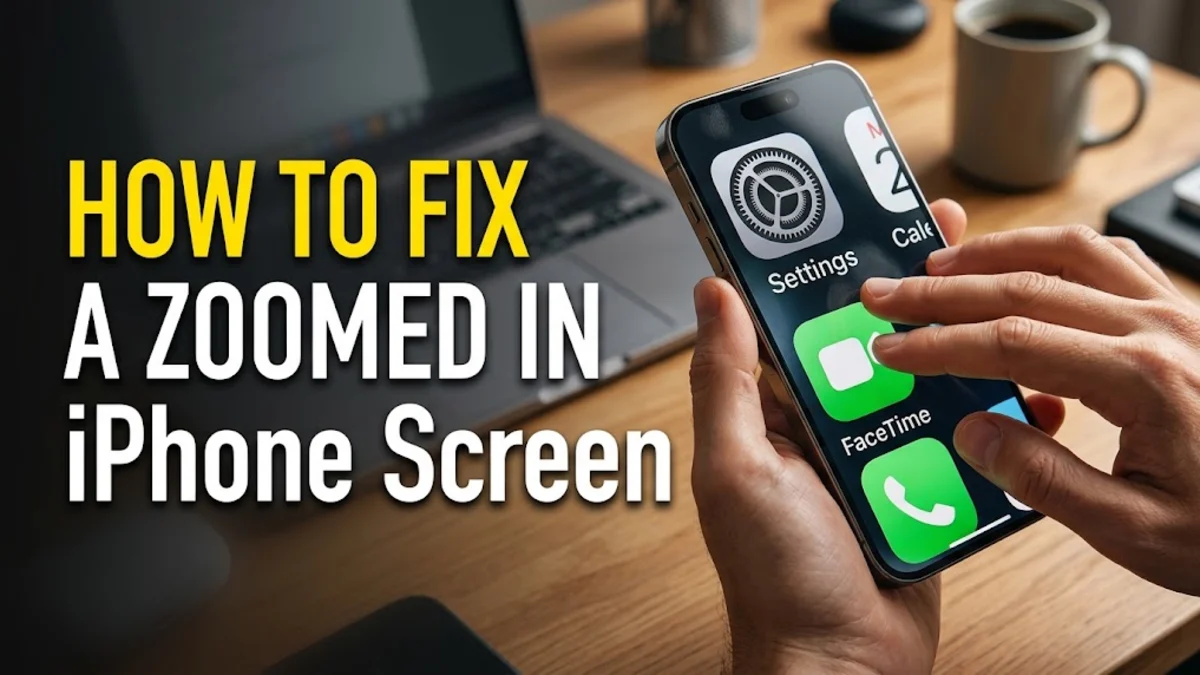
Is your iPhone screen stuck zoomed in so close that you can barely see your icons or unlock your device? This frustrating issue is almost always caused by the built-in iOS Accessibility Zoom feature being accidentally activated. You can usually fix it in seconds using a simple three-finger gesture or by tweaking your display settings.
Understanding Why Your iPhone Screen Is Zoomed In
When your iPhone screen suddenly magnifies to the point where only a few icons are visible on your display, it is rarely a hardware defect or a serious software glitch. Apple includes a dedicated accessibility feature called Zoom designed to help users with visual impairments read small text and view detailed images more easily. Unfortunately, this feature can be triggered inadvertently by specific multi-touch gestures, such as tapping or swiping with multiple fingers without realizing it.
Understanding this root cause helps you prevent the problem from happening again in the future. Many users accidentally activate the zoom magnifying glass when taking their phone out of a pocket, cleaning the screen while it is awake, or handing the device to children. Once enabled, the operating system magnifies whatever portion of the home screen or app you are currently interacting with, making standard navigation nearly impossible until you know the specific gestures or settings menus required to revert it back to normal.
Fixing the Issue with the Three-Finger Gesture
The fastest way to fix a zoomed in iPhone screen is by using the built-in gesture shortcut that controls the accessibility magnifier. If the zoom feature is active, your standard touch commands will only move the magnified viewport around rather than registering normal taps on your apps. To instantly toggle the zoom off or adjust the view, double-tap the screen using three fingers simultaneously.
If a double-tap with three fingers does not immediately restore your normal screen size, try placing three fingers on the screen and dragging them around to see if you can locate the zoom controller menu. When the small zoom window or controller appears, tap the controller once and drag the slider to the left to decrease the magnification level back down to zero percent. This shortcut bypasses the settings menu entirely and resolves the issue in less than five seconds.
Disabling Zoom in Accessibility Settings
If you keep accidentally triggering the magnification gesture, the best long-term solution is to completely turn off the zoom feature within your iOS settings. To do this, you need to navigate through the menus carefully, using your three-finger drag gesture if the screen is still magnified. Open your device by going to Settings > Accessibility > Zoom.
Once you are inside the Zoom configuration menu, locate the primary toggle switch at the top and turn the switch off. Disabling this toggle permanently prevents the three-finger double-tap gesture from magnifying your display ever again. If you occasionally use the feature on purpose, you can leave it enabled but scroll down to configure the maximum zoom level or turn off sticky keys to reduce accidental activations.
Adjusting Display Zoom and Standard View
Sometimes your screen may look oversized or zoomed in not because of the accessibility zoom feature, but because the system-wide display zoom setting was configured for larger text and icons. This setting changes the scaling of the entire user interface rather than acting as a temporary magnifying glass. To check and adjust this setting, go to Settings > Display & Brightness.
Scroll down toward the bottom of the display settings page and look for the Display Zoom section. Tap on the text option and switch your view from Zoomed to Standard, then tap Set in the top right corner. Your iPhone will briefly flash black while it applies the standard resolution scaling, returning your app grid and text sizes to their default factory dimensions.
What to Do If Your Screen Is Completely Unresponsive
If your iPhone screen is zoomed in and completely frozen, refusing to respond to any touch inputs or the three-finger gesture shortcuts, you will need to perform a hard restart. A forced reboot clears the temporary system cache and terminates frozen background processes that might be locking up your touch controller. The process varies slightly depending on your exact iPhone model.
For modern iPhones equipped with Face ID, press and quickly release the Volume Up button, press and quickly release the Volume Down button, and then press and hold the side power button until the screen goes black and the Apple logo appears. Release the button once the logo appears and wait for the phone to boot back up with normal screen scaling restored.
Resetting All Settings As a Last Resort
If you have tried the gesture shortcuts, disabled accessibility zoom, and performed a hard restart yet your screen remains stuck or distorted, a deeper system reset may be required. This troubleshooting step refreshes all system configurations back to factory defaults without erasing your personal photos, messages, or downloaded applications. Navigate to Settings > General > Transfer or Reset iPhone.
Tap on Reset at the bottom of the screen, and then select Reset All Settings from the popup menu. You will be prompted to enter your device passcode to confirm the action. Once the process completes, your iPhone will reboot with clean default system preferences, eliminating any stubborn software bugs causing display scaling anomalies.
The bottom line
Fixing a zoomed in iPhone screen is usually a quick process once you know the right gesture or settings path. By disabling the accessibility zoom feature or adjusting your display scaling, you can prevent future interruptions and keep your device easy to navigate.
Frequently asked questions
Why did my iPhone screen zoom in by itself?
Your iPhone screen typically zooms in because the accessibility zoom feature was accidentally triggered by a three-finger double-tap gesture on the display.
How do I unzoom my iPhone if I cannot reach the settings menu?
You can instantly unzoom your screen by double-tapping the display with three fingers simultaneously. You can also drag with three fingers to move around and find the settings app.
Will turning off zoom delete my photos or apps?
No, turning off the zoom feature in accessibility settings or resetting system configurations only affects how the display is rendered and will not delete any personal data.
What is the difference between Accessibility Zoom and Display Zoom?
Accessibility Zoom is a temporary magnifying glass controlled by hand gestures for visual assistance, while Display Zoom changes the overall text and icon scaling across the entire operating system.
How do I stop accidentally zooming in my screen?
You can prevent accidental magnification by going to Settings, selecting Accessibility, tapping Zoom, and turning the toggle switch off entirely.