Google Account Not Working Today? How to Fix It
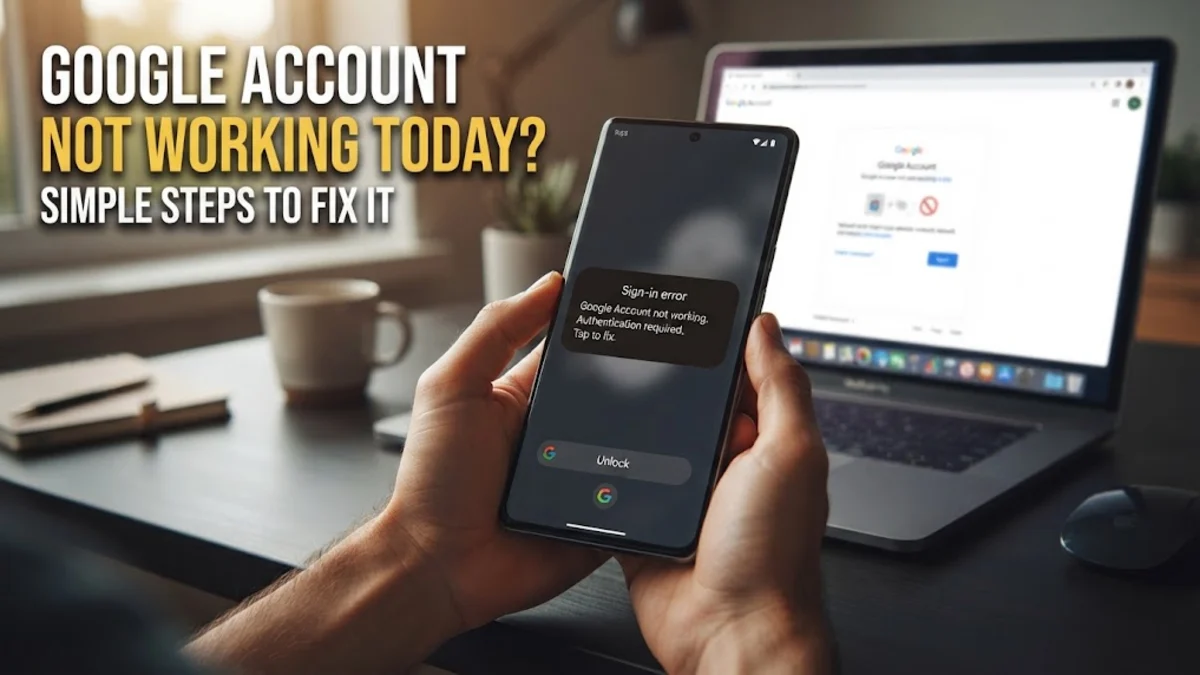
Finding that your Google account is not working today can instantly disrupt your workflow, blocking access to Gmail, Google Drive, YouTube, and vital saved passwords. Whether you are facing sudden sign-in errors, infinite loading loops, or unexpected disconnection notices, resolving the issue quickly depends on identifying the root cause.
Check Google’s Server Status First
Before you change your passwords or troubleshoot your device settings, you should verify whether Google itself is experiencing an outage. On rare occasions, core infrastructure services undergo unexpected downtime or maintenance glitches that prevent users from signing in globally. You can check independent outage monitors or official status dashboards to see if millions of other users are reporting identical connectivity failures right now. If Google servers are experiencing a widespread outage, your account is entirely safe, and you simply need to wait a short while for engineers to restore normal operations. Trying to force logins during a server outage can sometimes trigger temporary security lockouts due to repeated failed authentication attempts, so patience is key when server-side issues occur.
Clear Your Browser Cache and Cookies
Corrupted browser cache and outdated cookies are among the most common culprits when a Google account suddenly stops working on desktop computers. Over time, stored temporary session data can become mismatched with Google authentication servers, causing infinite redirection loops or persistent sign-in errors. To fix this, open your browser settings and navigate to your privacy data menu to clear cached images and cookies specifically for Google domains. Alternatively, you can test a quick fix by opening a private browsing window and attempting to log into your account there. If you can sign in successfully in private mode, clearing your main browser cache will permanently resolve the conflict. Make sure to restart your browser completely after clearing data before attempting a fresh login.
Verify Your Network Connection and VPN
Network routing problems and aggressive VPN configurations frequently trigger Google security protocols that block account access. If your IP address changes abruptly or appears suspicious due to a poorly configured virtual private network, Google may flag your login attempt as unauthorized activity. Temporarily disable any active VPN or proxy extensions running on your device and check if your standard internet connection is stable by loading other major websites. If you are on a public Wi-Fi network, captive portal authentication pages can interfere with background Google sign-in tokens. Switch to a trusted cellular hotspot or secure home network to rule out local ISP routing glitches before moving on to deeper device-level authentication troubleshooting steps.
Test in Incognito Mode or Another Browser
Browser extensions, ad blockers, and outdated extensions frequently interfere with Google account authentication scripts and JavaScript execution. To determine whether a third-party extension is breaking your login page, open an Incognito or Private browsing window and try signing into your account. If the login succeeds in private mode, one of your installed browser extensions is likely blocking essential security cookies or authentication tokens. Return to your main browser window, open your extension manager, and disable extensions individually until you identify the culprit. Common offenders include aggressive privacy blockers, script managers, and outdated password managers that conflict with native Google credential autofill features.
Check for Account Security Locks or Suspicious Activity
If Google detected unauthorized login attempts or policy violations, your account might be temporarily locked or restricted for your own protection. When this happens, you will typically see a security challenge prompt, a mandatory password reset notice, or an identity verification request asking you to confirm your recovery phone number or backup email. Follow the on-screen security prompts carefully to verify your identity and restore full account access. Avoid ignoring these security notifications, as leaving a flagged account unattended can lead to extended lockouts. Once you regain access, review your recent security activity and sign out of any unfamiliar devices or sessions to ensure your personal data remains fully protected.
Remove and Re-Add Your Account on Device Settings
The bottom line
Resolving a Google account issue requires a systematic approach, starting from server checks down to browser and device settings. By methodically clearing cache, disabling conflicting extensions, and verifying account security alerts, you can restore access quickly and keep your digital life secure.
Frequently asked questions
Why does my Google account keep signing me out automatically?
Automatic sign-outs usually happen due to cleared cookies, browser extensions blocking authentication data, or strict privacy settings that delete session tokens when you close your browser.
What should I do if I forgot my Google account password?
Use the official Google Account Recovery page to verify your identity through your recovery phone number or backup email address to securely reset your password.
Can a VPN cause Google account login errors?
Yes. Using a VPN with heavily shared or blacklisted IP addresses can trigger Google security filters, resulting in captchas, blocks, or login failures.
How do I know if Google servers are down?
You can check real-time status dashboards or online outage monitoring websites to see if other users are reporting widespread login problems.
Is it safe to remove my Google account from my phone and add it back?
Yes, removing and re-adding your account from your device settings is a standard troubleshooting method that refreshes sync tokens without deleting your cloud-stored emails or files.