Google Sheets vs Google Docs: Key Differences and Use Cases
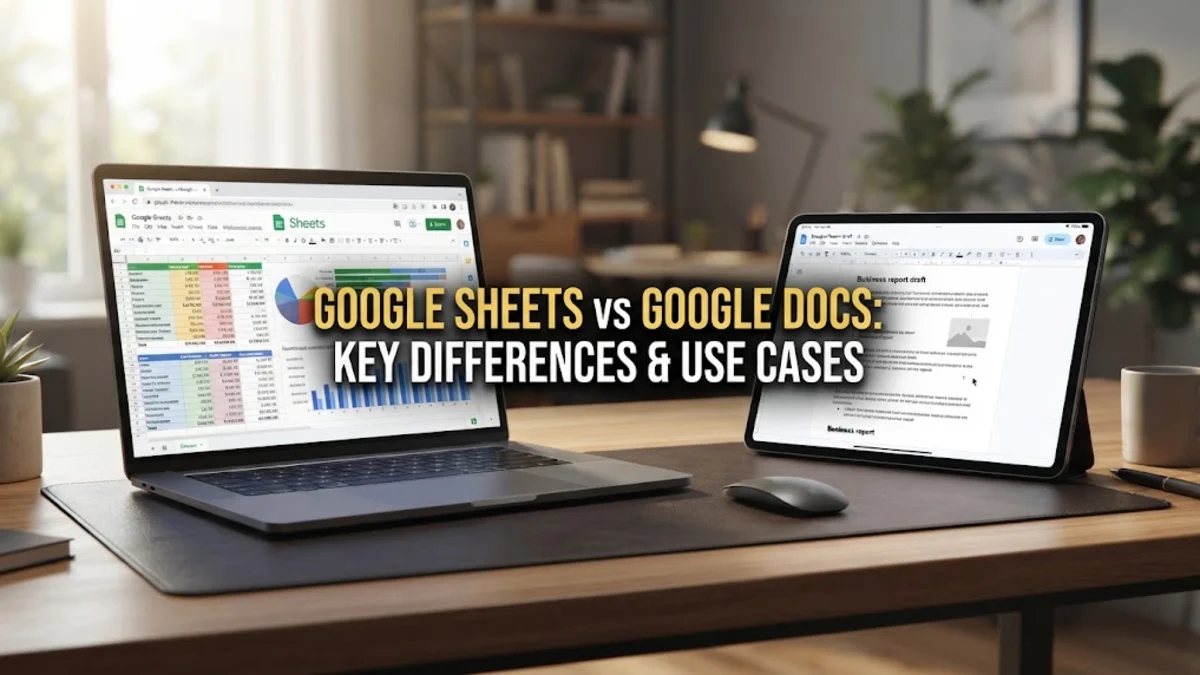
Choosing between Google Sheets vs Google Docs depends entirely on the nature of the information you are handling. While both applications are part of the Google Workspace ecosystem and share seamless collaboration features, they serve fundamentally different purposes. Google Docs is a dedicated word processor designed for creating text-heavy documents, reports, and resumes, whereas Google Sheets is a powerful spreadsheet application optimized for data organization, complex calculations, and statistical analysis. In 2026, these tools have evolved with deep AI integration through Gemini, making them more versatile than ever. Understanding when to reach for a sheet instead of a document can significantly improve your productivity. If your task involves narrative flow, paragraphs, and page-based layouts, Google Docs is the correct choice. Conversely, if you need to track numbers, build a budget, or manage a database that requires sorting and filtering, Google Sheets provides the structured environment necessary for those operations. Let's look closer at the specific features and workflows that set these two apart.
The Core Distinction: Structured Data vs. Narrative Flow
The most basic difference between Google Sheets and Google Docs lies in their underlying structure. Google Docs uses a 'canvas' approach where text flows linearly from the top of the page to the bottom. It is designed to mimic a physical piece of paper, though the 2026 version of Docs includes a Pageless mode which allows for wider tables and images that exceed traditional print boundaries. You can access this by navigating to File > Page setup > Pageless. This flexibility makes it ideal for drafting blog posts, legal contracts, and collaborative brainstorming sessions where the visual hierarchy of headings and paragraphs is paramount.
Google Sheets, on the other hand, is built on a grid system of cells, columns, and rows. Each cell is an independent data point that can be formatted, calculated, or linked to other cells. This structure is essential for anyone who needs to perform mathematical operations or maintain a searchable database. In Sheets, the relationship between data points is the priority. For instance, if you are tracking a project's budget, you can use formulas to automatically sum costs as they are entered. This is something Google Docs cannot do natively; while you can insert a table in Docs, it remains a static visual element rather than a functional calculator. This fundamental architectural difference dictates every other feature within the two apps.
Formatting Capabilities and Layout Tools
When it comes to formatting, Google Docs offers sophisticated typography and layout controls. It provides a wide range of paragraph styles, including Heading 1 through Heading 6, which automatically generate a clickable Table of Contents. In 2026, Docs also features advanced 'Smart Chips' that allow you to embed people, events, and file previews directly into the text by typing the @ symbol. These tools are designed to make documents interactive and easy to navigate. If you are writing a manual or a white paper, the ability to control line spacing, margins, and font kerning is vital for readability, and Docs excels in these areas.
In contrast, formatting in Google Sheets is geared toward data visualization and organization. You won't find traditional margin controls or page headers here. Instead, you have Conditional Formatting, which allows cells to change color based on their value. For example, you can set a rule in Format > Conditional formatting to turn a cell red if a project is over budget. Sheets also provides robust tools for sorting and filtering data. You can highlight a range and select Data > Create a filter to quickly isolate specific information. While Docs focuses on making text look professional, Sheets focuses on making data understandable at a glance through grids, borders, and heat maps.
Data Processing and Mathematical Functions
The true power of Google Sheets is found in its formula bar. With hundreds of functions available, from basic arithmetic like =SUM(A1:A10) to advanced data manipulation like =QUERY() or =XLOOKUP(), Sheets is a data scientist's playground. In 2026, AI-driven formula suggestions have become incredibly accurate, often predicting the calculation you need based on the column header. This allows users to build complex financial models, inventory trackers, and automated schedules that would be impossible to maintain in a standard text document. If your work involves any level of 'what-if' analysis or data aggregation, Sheets is the only viable option.
Google Docs lacks a formula engine. While you can manually type numbers into a table, any changes to those numbers will not update a 'total' elsewhere in the document unless you manually edit it. However, Docs has a unique integration feature that bridges this gap. You can create a chart or a table in Google Sheets and then go to Google Docs and select Insert > Chart > From Sheets. This creates a linked object. When the data changes in your spreadsheet, an Update button appears in the document, allowing you to sync the latest figures without re-typing anything. This is a common workflow for professional annual reports where data is pulled from a master spreadsheet into a polished narrative document.
Collaboration and Real-Time Editing in 2026
Both applications offer world-class collaboration tools, but they manifest differently based on the tool's purpose. In Google Docs, collaboration often takes the form of Suggesting mode. When you share a document, collaborators can make edits that appear as tracked changes, which the owner can then accept or reject. This is perfect for editing manuscripts or polishing copy. Comments in Docs are also highly contextual, allowing users to highlight a specific word or sentence to start a discussion thread. The 2026 'Live Pulse' feature even shows which paragraph a collaborator is currently reading, helping teams stay in sync during large-scale reviews.
Collaboration in Google Sheets is more about data integrity. Because one wrong entry can break a formula that affects the entire sheet, the Protected Ranges feature is crucial. You can restrict access to specific cells by right-clicking and selecting Protect range, ensuring that only authorized users can change core formulas while others enter data in designated areas. Sheets also offers a Filter View, which allows you to sort and filter data without changing the view for everyone else currently looking at the file. This is a lifesaver for large teams working on a single master list, as it prevents the confusion of the screen jumping around when multiple people apply different filters simultaneously.
AI Integration: Gemini in Docs vs. Sheets
By 2026, Google's Gemini AI has been deeply embedded into both apps, though it serves different functions in each. In Google Docs, Gemini acts as a creative partner. You can prompt it to 'Rewrite this paragraph to sound more professional' or 'Generate a summary of this 20-page report.' It can also scan your document and suggest missing sections or identify inconsistencies in your tone. For writers and administrators, this AI integration reduces the 'blank page' syndrome and speeds up the drafting process significantly. The AI can even generate images or icons to accompany your text based on the document's content, making Docs a one-stop shop for visual storytelling.
In Google Sheets, Gemini is focused on 'Help me organize.' Instead of writing prose, the AI in Sheets can build entire table structures from a single sentence. If you type 'Create a project tracker for a 3-month construction job with budget columns,' Sheets will generate the headers, dummy data, and even the necessary formulas to get you started. Furthermore, Gemini in Sheets is excellent at data cleansing. It can identify duplicate entries, fix inconsistent date formats, and suggest pivot tables that highlight the most important trends in your data. While Docs' AI helps you talk, Sheets' AI helps you see, turning raw numbers into actionable insights with minimal manual effort.
Decision Matrix: When to Use Which Tool
To help you decide which tool is best for your current task, consider the following scenarios. Use Google Docs if you are creating a resume, a newsletter, a meeting agenda, or a formal letter. These tasks require a high degree of control over visual presentation and a focus on the written word. Docs is also better for collaborative writing projects where version history and tracked changes are essential for maintaining the integrity of the narrative. In 2026, Docs is also the preferred choice for 'Live Briefings,' where a document acts as a central hub for a meeting, pulling in calendar invites and action items via Smart Chips.
Use Google Sheets if you are managing a household budget, tracking sales leads, creating a scientific log, or building a content calendar. These tasks rely on the ability to categorize information and view it from different angles. Sheets is also the right choice for any task that requires automation through Google Apps Script or Macros. If you find yourself manually calculating anything or repeating the same data entry patterns, Sheets can likely automate it for you. Below is a quick comparison table for reference:
| Task Type | Recommended Tool | Key Feature Used |
|---|---|---|
| Writing a Report | Google Docs | Styles and Headings |
| Financial Budget | Google Sheets | Formulas and Functions |
| Project Timeline | Google Sheets | Gantt Chart Extensions |
| Meeting Minutes | Google Docs | Meeting Notes Template |
| Customer Database | Google Sheets | Sorting and Filtering |
The bottom line
In 2026, the choice between Google Sheets vs Google Docs is less about which tool is 'better' and more about which tool fits the data you are processing. Google Docs remains the king of the written word, offering unmatched tools for layout, typography, and collaborative editing. Google Sheets continues to lead for data-driven tasks, providing the mathematical power and structural rigidity needed to manage complex information. By leveraging the strengths of both—and using the integration features to link them—you can create a professional, efficient workflow that handles both narrative and numbers with ease.
Frequently asked questions
Can I convert a Google Doc into a Google Sheet?
There is no direct conversion button, as the structures are fundamentally different. However, you can copy a table from Google Docs and paste it into Google Sheets. Sheets will attempt to place the data into individual cells. For a full document, you would typically need to manually reorganize the text into a spreadsheet format.
Which tool is better for making a checklist?
It depends on the complexity. For a simple to-do list, Google Docs has a native checklist feature in the toolbar. For a project with deadlines, owners, and status updates, Google Sheets is superior because you can sort the tasks by date or person and use checkboxes that interact with formulas.
Is Google Sheets as powerful as Microsoft Excel in 2026?
For the vast majority of users, yes. While Excel still holds an edge in extremely large datasets (millions of rows) and specialized financial modeling, Google Sheets has closed the gap with 2026 updates to its calculation engine and the superior integration of Gemini AI for data analysis.
Can I use both Google Docs and Google Sheets offline?
Yes. You must enable the Google Docs Offline extension in your Chrome browser and go to your Drive settings to turn on 'Offline' mode. This allows you to create and edit both document types without an internet connection; your changes will sync once you are back online.