How to Fix iPhone Battery Health and Prevent Rapid Decline
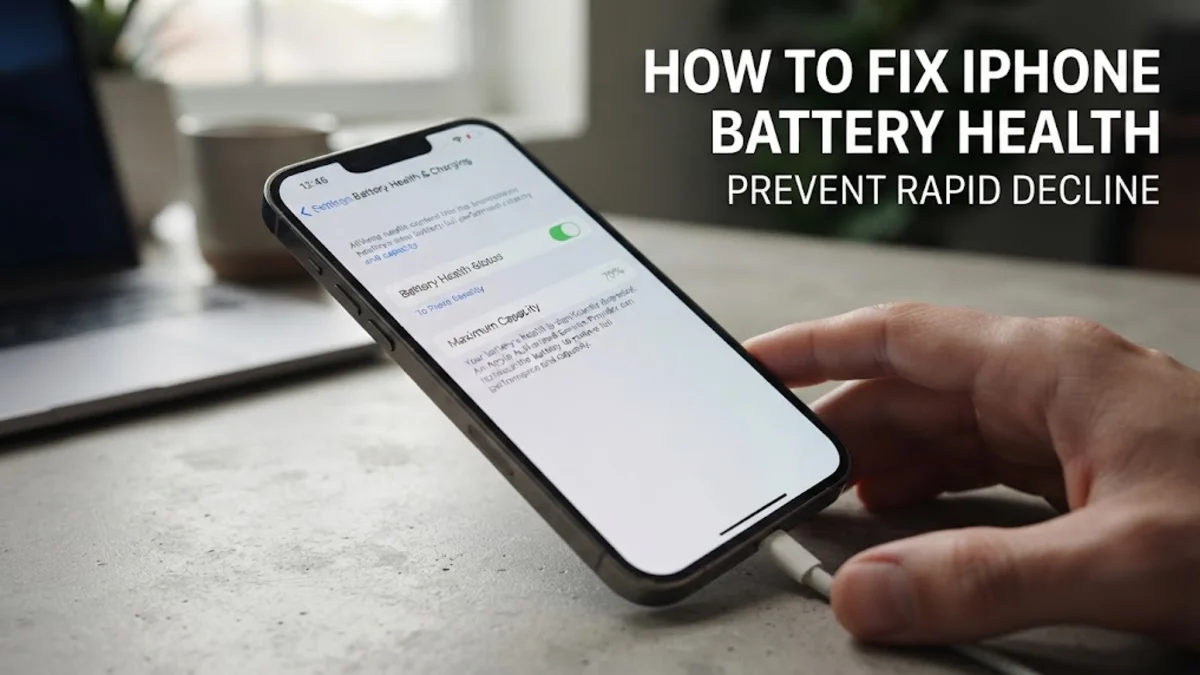
To fix iPhone battery health that appears to be dropping too fast, you must distinguish between physical hardware degradation and software reporting errors. While you cannot chemically reverse the aging of a lithium-ion battery, you can recalibrate the internal reporting system to show the correct percentage and implement charging limits to stop the health from declining further.
In 2026, iOS provides advanced tools to manage chemical aging, particularly for iPhone 15 and newer models. If your Maximum Capacity has dropped suddenly after a software update, it is often a matter of the system re-indexing your usage rather than a physical failure. By following the steps below, you can stabilize your battery's performance and ensure you are getting the most out of your hardware.
Recalibrating the iPhone Battery Reporting System
Sometimes, the battery health percentage shown in your settings is inaccurate because the iOS battery management controller has lost its baseline. This often happens if you frequently charge your phone in short bursts or never allow it to reach 0% or 100%. To fix this reporting error, you need to perform a full calibration cycle. Start by using your iPhone until it shuts down automatically due to a flat battery. Once it is off, let it sit for at least three hours without plugging it in. This ensures that every remaining electron is drained and the battery management system recognizes the true 'empty' state.
After the waiting period, connect your iPhone to a reliable wired charger—avoid wireless charging for this step as it generates excess heat. Let the device charge to 100% without interruption. It is best to do this overnight and leave it on the charger for an extra two hours even after it reaches 100%. Once finished, perform a force restart by pressing and quickly releasing Volume Up, then Volume Down, and finally holding the Power Button until the Apple logo appears. This process resets the battery percentage logic and often 'fixes' a stuck or rapidly declining health reading.
Enabling the 80% Charging Limit in iOS
For users on modern hardware like the iPhone 16 or iPhone 17, Apple has introduced a hard limit for charging that is the single most effective way to preserve battery health. Lithium-ion batteries are under the most chemical stress when they are at 100% capacity or 0% capacity. By capping the charge at 80%, you significantly reduce the heat and voltage stress on the battery cells. To enable this, navigate to Settings > Battery > Charging Optimization and select the 80% Limit option.
While it may seem counterintuitive to use only 80% of your battery, this practice can double the lifespan of your battery health. In 2026, the iOS algorithm is smart enough to occasionally charge to 100% once every few weeks just to maintain calibration, but keeping it at 80% for daily use prevents the 'Maximum Capacity' percentage from dropping prematurely. If you know you have a long day of travel ahead, you can temporarily switch back to Optimized Battery Charging to get a full 100% charge for that specific day.
Managing Thermal Stress and Fast Charging
Heat is the primary enemy of battery health. If you frequently use your iPhone while it is connected to a fast charger, you are accelerating chemical aging. When the internal temperature of the battery exceeds 35°C (95°F), the liquid electrolyte begins to break down, leading to a permanent loss in capacity. To fix a declining health trend, stop using demanding apps like high-end games or 4K video recording while the phone is plugged in. If the phone feels hot to the touch, remove any heavy protective cases that might be trapping heat against the glass back.
Consider your charging hardware as well. While 30W or 45W fast chargers are convenient, using a standard 5W or 10W charger for overnight charging is much healthier for the battery. Lower wattage results in lower temperatures. If you must use fast charging, ensure the phone is placed on a cool, hard surface rather than a bed or sofa. Avoid leaving your iPhone on a car dashboard in direct sunlight, as the combination of solar heat and GPS usage can cause a 1% to 2% drop in battery health in a single afternoon.
Optimizing Software and Background Processes
An iPhone that is constantly working in the background is an iPhone that is constantly heating up and cycling its battery. To stabilize your health, you must audit which apps are draining power. Go to Settings > Battery and look at the 'Activity By App' list. If an app you rarely use has high 'Background' activity, it is contributing to your battery's decline. Disable this by going to Settings > General > Background App Refresh and turning it off for non-essential apps.
Additionally, check your location services. Constant GPS pings generate significant heat. Navigate to Settings > Privacy & Security > Location Services and set apps to While Using the App instead of Always. By reducing the overall workload on the processor, you lower the average operating temperature of the device, which in turn slows down the degradation of the lithium-ion cells. This is a preventative fix that ensures your Maximum Capacity stays higher for a longer period.
Comparing Charging Methods for Longevity
How you charge your device matters as much as how often you charge it. The following table illustrates the impact of different charging habits on long-term battery health based on typical usage patterns observed in 2026.
| Charging Method | Heat Generation | Impact on Health | Recommendation |
|---|---|---|---|
| 5W Wired (Slow) | Very Low | Minimal | Best for overnight use |
| MagSafe/Qi2 Wireless | High | Moderate | Use sparingly in cool rooms |
| 45W Fast Charging | Very High | Significant | Use only for emergencies |
| 80% Limit Enabled | Low | Very Low | Highest longevity |
As shown, wired slow charging remains the gold standard for preserving health. If you rely on wireless charging, ensure your charger is Qi2 certified or has built-in cooling fans, as the induction process naturally generates more waste heat than a direct cable connection.
When a Hardware Replacement is Necessary
If your iPhone battery health has dropped below 80%, you will likely see a message stating that your battery's health is significantly degraded. At this point, no amount of software optimization or calibration will 'fix' the health. You will experience 'Performance Management' where the iPhone throttles the CPU to prevent unexpected shutdowns. This happens because the aged battery can no longer provide the peak voltage required by the processor during heavy tasks.
In 2026, Apple has made battery replacements more accessible through their self-service repair program and authorized service providers. If you are under AppleCare+, a battery replacement is usually free if the health is below 80%. If you are paying out of pocket, always choose an genuine Apple battery. Third-party batteries often lack the necessary temperature sensors and do not communicate correctly with iOS, which will result in the 'Maximum Capacity' readout being disabled entirely (Unknown Part error). A genuine replacement will restore your phone to 100% health and peak performance immediately.
The bottom line
Fixing iPhone battery health is a balance between recalibrating software errors and adopting better hardware habits. While you cannot undo physical wear, using the 80% limit, avoiding heat, and opting for slower charging will preserve your remaining capacity for years. If your health is below 80% and the phone is lagging, a professional battery replacement is the only definitive fix to restore your device to its original speed.
Frequently asked questions
Does fast charging ruin my iPhone battery health?
Fast charging itself doesn't ruin the battery, but the heat it generates does. Frequent use of 30W+ chargers can cause faster degradation compared to 5W chargers. It is best to use fast charging only when you are in a hurry.
Why did my battery health drop 2% after an iOS update?
Updates often trigger a recalibration of the battery health system. The drop isn't usually caused by the update itself, but rather the system finally reporting the actual degradation that had already occurred over previous months.
Is it okay to leave my iPhone charging overnight?
Yes, provided you have 'Optimized Battery Charging' or the '80% Limit' enabled. These features prevent the battery from staying at a high voltage state for too long, which is what causes the most damage during overnight charging.
Can I trust third-party apps that claim to fix battery health?
No. Apps in the App Store cannot access the hardware-level battery controller to 'repair' cells. Any app claiming to increase your battery health percentage is a scam; only iOS settings and official hardware service are legitimate.